
1. Introduction
This manual provides essential information for the safe and efficient use of your LG 27GL650F-B 27-inch UltraGear Gaming Monitor. Please read it thoroughly before operating the device and retain it for future reference.
The LG 27GL650F-B is a 27-inch Full HD (1920 x 1080) IPS display designed for gaming, featuring a 144Hz refresh rate, 1ms Motion Blur Reduction, NVIDIA G-Sync Compatibility, and HDR10 support. It offers a responsive and visually immersive experience.
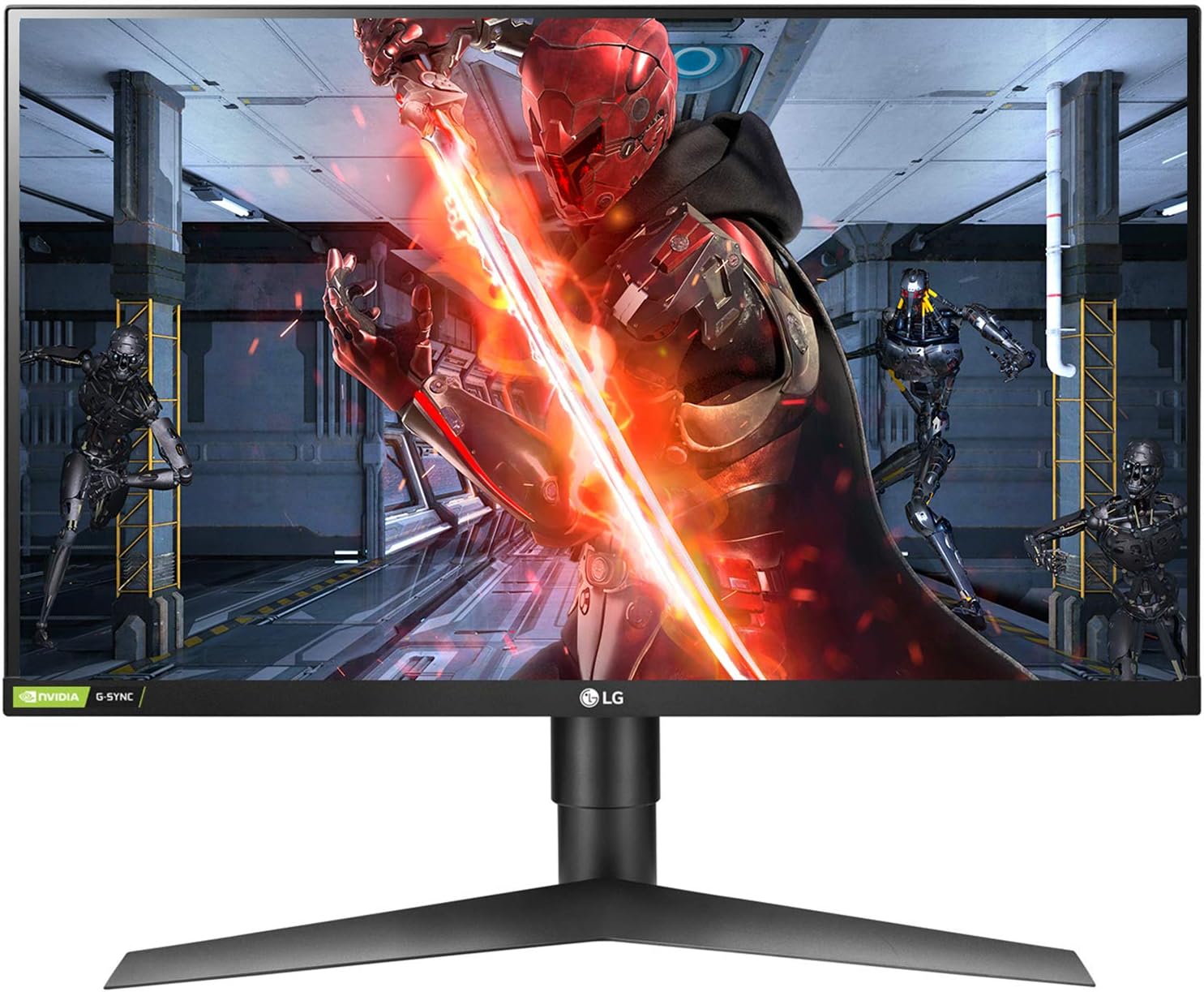
Figure 1.1: Front view of the LG 27GL650F-B monitor.
2. Safety Information
Observe the following safety precautions to prevent damage to the product or injury to yourself and others.
- Do not place the monitor near heat sources or in direct sunlight.
- Ensure proper ventilation around the monitor.
- Use only the power adapter supplied with the monitor.
- Do not attempt to disassemble or repair the monitor yourself. Refer all servicing to qualified personnel.
- Keep the monitor away from water and excessive moisture.
3. Package Contents
Verify that all items are present in the box:
- LG 27GL650F-B Monitor Display
- Stand Base
- Stand Neck
- Power Adapter
- Power Cord
- DisplayPort Cable
- HDMI Cable
- User Manual (this document)
4. Setup
4.1. Assembling the Stand
- Place the monitor display face down on a soft, clean surface to prevent scratches.
- Attach the stand neck to the back of the monitor display. Ensure it clicks securely into place.
- Attach the stand base to the bottom of the stand neck. Tighten the screw(s) as indicated in the diagram.

Figure 4.1: Monitor with adjustable stand, demonstrating height adjustment.
4.2. Connecting Cables
Connect the necessary cables to the monitor and your computer/device.
- Power Connection: Connect the power cord to the power adapter, then connect the adapter to the monitor's power input and a wall outlet.
- DisplayPort Connection: For optimal gaming performance and G-Sync compatibility, connect one end of the DisplayPort cable to the monitor's DisplayPort input and the other end to your computer's DisplayPort output.
- HDMI Connection: Alternatively, connect one end of the HDMI cable to the monitor's HDMI input and the other end to your computer's HDMI output.
- Audio Output: If desired, connect headphones or external speakers to the monitor's 3.5mm audio output jack.

Figure 4.2: Rear view of the monitor with port connections.
5. Operating the Monitor
5.1. Power On/Off
Press the power button (usually a joystick-like button located at the bottom center of the monitor) to turn the monitor on or off.
5.2. On-Screen Display (OSD) Menu Navigation
Use the joystick button to navigate the OSD menu:
- Press the joystick button to open the OSD menu.
- Move the joystick up/down/left/right to navigate through menu options.
- Press the joystick to select an option or confirm a setting.
- Move the joystick left to exit a sub-menu or the OSD.
5.3. Picture Settings
Adjust display settings for optimal viewing:
- Brightness: Adjust the overall luminance of the screen.
- Contrast: Adjust the difference between light and dark areas.
- Gamma: Fine-tune the tone curve of the display.
- Color Temperature: Select predefined color temperature modes (e.g., Warm, Cool, Custom).
- HDR: Enable or disable HDR10 for compatible content.
5.4. Gaming Features
Enhance your gaming experience with these settings:
- Refresh Rate: The monitor supports up to 144Hz. Ensure your graphics card settings are configured to utilize this rate.
- Response Time: Set to 1ms Motion Blur Reduction (MBR) for reduced motion blur. Note that MBR may disable FreeSync/G-Sync.
- NVIDIA G-Sync Compatible / AMD FreeSync: Enable these features in the OSD and your graphics card control panel to synchronize the monitor's refresh rate with your GPU's frame rate, reducing screen tearing and stuttering.
- Black Stabilizer: Adjust the black level to improve visibility in dark game scenes.
- Crosshair: Overlay a crosshair on the screen for improved aiming in certain games.
5.5. Input Selection
To switch between connected devices, navigate to the 'Input' menu in the OSD and select the desired input source (DisplayPort, HDMI1, HDMI2).
6. Maintenance
6.1. Cleaning the Monitor
Always unplug the monitor before cleaning. Use a soft, lint-free cloth lightly dampened with water or a mild, non-abrasive screen cleaner. Do not spray cleaner directly onto the screen.
6.2. Storage
When storing the monitor for an extended period, ensure it is powered off, unplugged, and stored in a cool, dry place, preferably in its original packaging.
7. Troubleshooting
| Problem | Possible Cause | Solution |
|---|---|---|
| No power | Power cable not connected | Check power cable connections to the monitor, adapter, and wall outlet. |
| No image on screen | Input source incorrect or cable loose | Verify video cable connections. Select the correct input source via the OSD menu. |
| Screen flickering/tearing | Adaptive Sync not enabled or incompatible settings | Ensure G-Sync/FreeSync is enabled in both monitor OSD and graphics card settings. Check refresh rate settings. |
| Poor picture quality | Incorrect display settings | Adjust brightness, contrast, gamma, and color temperature in the OSD menu. |
8. Specifications
| Feature | Detail |
|---|---|
| Model Number | 27GL650F-B |
| Screen Size | 27 Inches |
| Panel Type | IPS |
| Resolution | Full HD (1920 x 1080) |
| Aspect Ratio | 16:9 |
| Refresh Rate | 144Hz |
| Response Time | 1ms Motion Blur Reduction (MBR) |
| Adaptive Sync Technology | NVIDIA G-Sync Compatible, AMD FreeSync |
| HDR Support | HDR10 |
| Brightness | 400 cd/m² (Typical) |
| Viewing Angle | 178° (H/V) |
| Input Ports | DisplayPort, HDMI (x2) |
| Audio Output | 3.5mm Headphone Out |
| Stand Adjustments | Height, Pivot, Tilt |
| VESA Mount Compatible | Yes |
| Power Input | 100-240Vac, 50/60Hz |
| Dimensions (with stand) | 7.8 x 27.4 x 20.9 inches |
| Weight (with stand) | 18.8 pounds |
9. Warranty and Support
For warranty information, technical support, or service inquiries, please refer to the warranty card included with your product or visit the official LG website. Keep your purchase receipt as proof of purchase for warranty claims.
LG provides customer support and resources to assist with any questions or issues you may encounter with your monitor.