
1. Introduction
This manual provides comprehensive instructions for the setup, operation, and maintenance of your XPPen AC41 Drawing Tablet Stand. Please read this manual thoroughly before using the product to ensure proper functionality and longevity.

Image 1: XPPen AC41 Drawing Tablet Stand (folded)
2. Product Features
- Constructed from durable ABS and glass fiber for a lightweight and portable design.
- Measures 330.15mm x 223.17mm, compatible with XPPen Artist 15.6 Pro, Artist 15.6 Pro V2, Artist Pro 14/16 Gen2 Drawing Tablets, and other tablets 15.6 inches or smaller.
- Features non-slip pads on both the surface and bottom to prevent movement and enhance stability during use.
- Designed to provide an optimal viewing and drawing angle, reducing neck and shoulder strain.
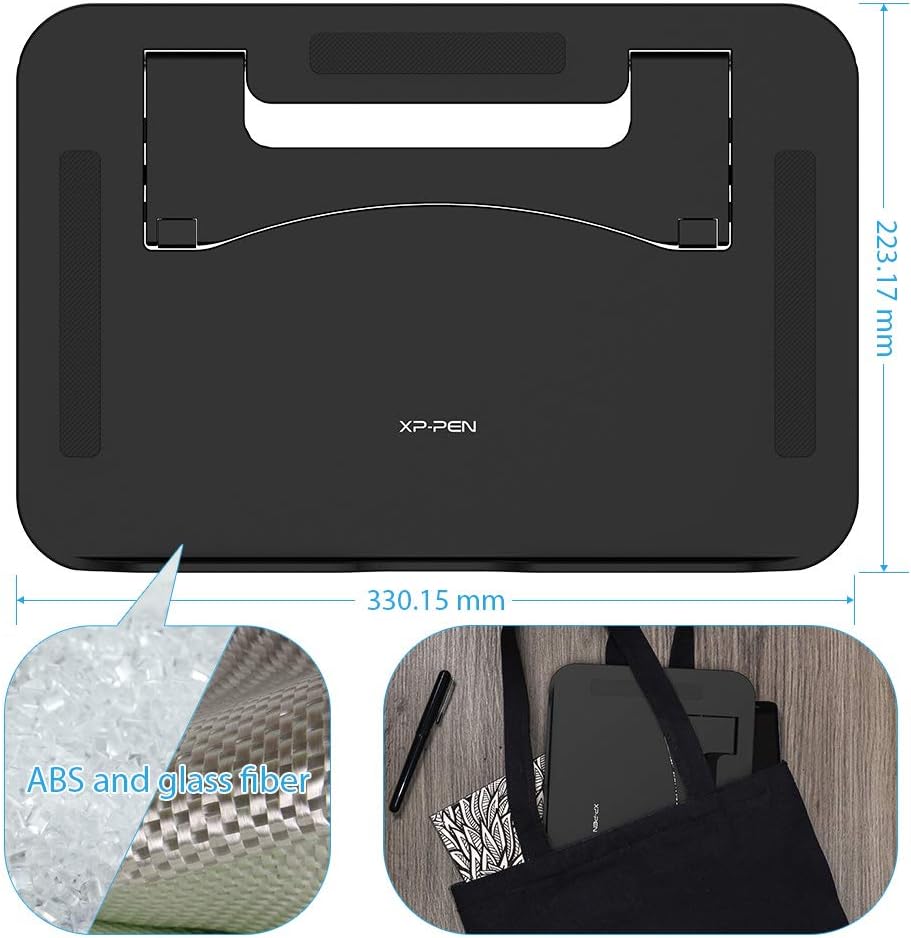
Image 2: Dimensions and Material Composition
3. Setup Instructions
Follow these steps to set up your XPPen AC41 Drawing Tablet Stand:
- Place the stand on a flat, stable surface.
- Locate the support plate on the underside of the stand.
- Press down on the designated areas (marked 'PUSH' if visible) and pull the support plate back until it locks into a 90-degree position, providing stable support.
- Ensure the support plate is fully extended and securely locked.
- Carefully place your compatible drawing tablet onto the stand. The non-slip pads will help secure the tablet.
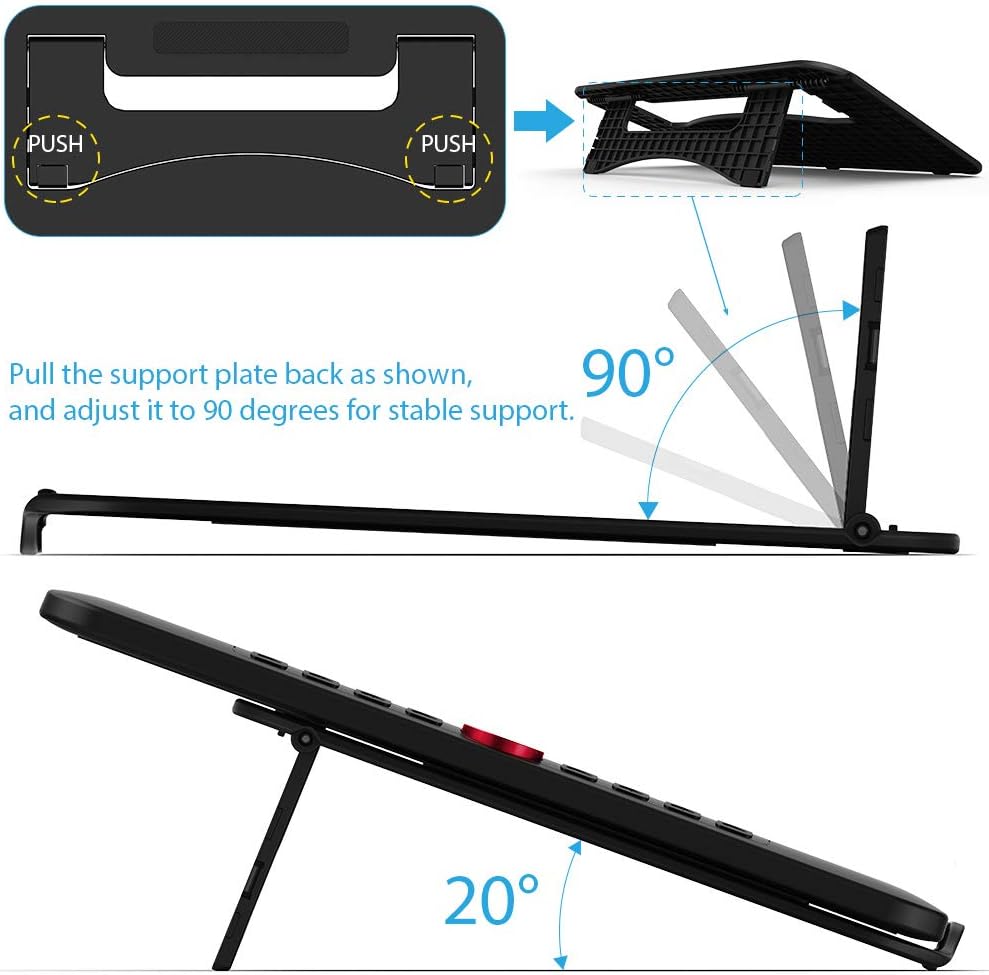
Image 3: Stand Unfolding and Angle

Image 4: Non-Slip Pad Details
4. Operation
Once the stand is set up and your tablet is placed on it, you can begin your creative work. The stand provides a fixed, ergonomic angle designed for comfortable drawing and viewing.
- Ensure your tablet is centered on the stand for optimal balance.
- The non-slip surface will help keep your tablet in place during use.
- The fixed angle is engineered to reduce physical discomfort during extended use.

Image 5: Placing Tablet on Stand

Image 6: Tablet in Use on Stand
5. Care and Maintenance
To maintain the condition and functionality of your AC41 stand:
- Cleaning: Wipe the stand with a soft, slightly damp cloth. Avoid using harsh chemicals, abrasive cleaners, or solvents, as these can damage the material.
- Drying: Ensure the stand is completely dry before placing any electronic devices on it.
- Storage: When not in use, fold the stand flat for compact storage. Store in a cool, dry place away from direct sunlight.
6. Troubleshooting
If you encounter any issues with your AC41 stand, refer to the following common solutions:
- Stand not stable:
Ensure the support plate is fully extended and securely locked into the 90-degree position. Verify that the tablet is placed centrally on the stand and is within the recommended size and weight limits. - Tablet sliding on the stand:
Check that the non-slip pads on both the stand's surface and bottom are clean and free from dust or debris. Clean them gently with a damp cloth if necessary. Ensure your tablet's surface that contacts the stand is also clean. - Difficulty folding/unfolding:
Apply gentle, even pressure when pressing the release mechanism and pulling the support plate. Do not force the mechanism. If resistance persists, check for any obstructions.
7. Technical Specifications
| Feature | Specification |
|---|---|
| Model Number | AC41 |
| Product Dimensions | 12.99 x 8.78 x 0.39 inches (330.15mm x 223.17mm) |
| Item Weight | 10.6 ounces |
| Material | ABS and Glass Fiber |
| Color | Black |
| Compatible Devices | XPPen Artist 12, Artist 12 Pro, Artist 13.3 Pro, Artist 15.6 Pro, Artist 13.3 Pro V2, Artist 15.6 Pro V2, Artist Pro 14/16 Gen2 Drawing Tablets, and other tablets 15.6 inches or less. |
8. Warranty and Support
For detailed warranty information, technical assistance, or customer support regarding your XPPen AC41 Drawing Tablet Stand, please visit the official XP-Pen website or contact their customer service department directly.
You can find more information and contact details at the XP-Pen Official Store.


