
1. Introduction
This manual provides detailed instructions for the setup, operation, maintenance, and troubleshooting of your Mini Gadgets Bush Baby Blu-Ray Player with 4K UHD Covert Wi-Fi Camera. Please read this manual thoroughly before using the device to ensure proper functionality and to prevent damage.
2. Safety Information
- Do not expose the device to moisture, rain, or extreme temperatures.
- Avoid placing the device near heat sources or in direct sunlight.
- Use only the provided power adapter.
- Do not attempt to open or modify the device. This will void the warranty and may cause damage.
- Keep out of reach of children.
- Ensure proper ventilation around the device during operation.
3. Package Contents
Verify that all items are present in your package:
- Bush Baby Blu-Ray Player with 4K UHD Covert Wi-Fi Camera
- Power Adapter
- HDMI Cable (may vary by region)
- Remote Control (with batteries)
- User Manual (this document)
4. Product Overview
The Bush Baby Blu-Ray Player integrates a high-definition Blu-Ray player with a covert 4K UHD Wi-Fi camera, designed for discreet surveillance while functioning as a standard media player.
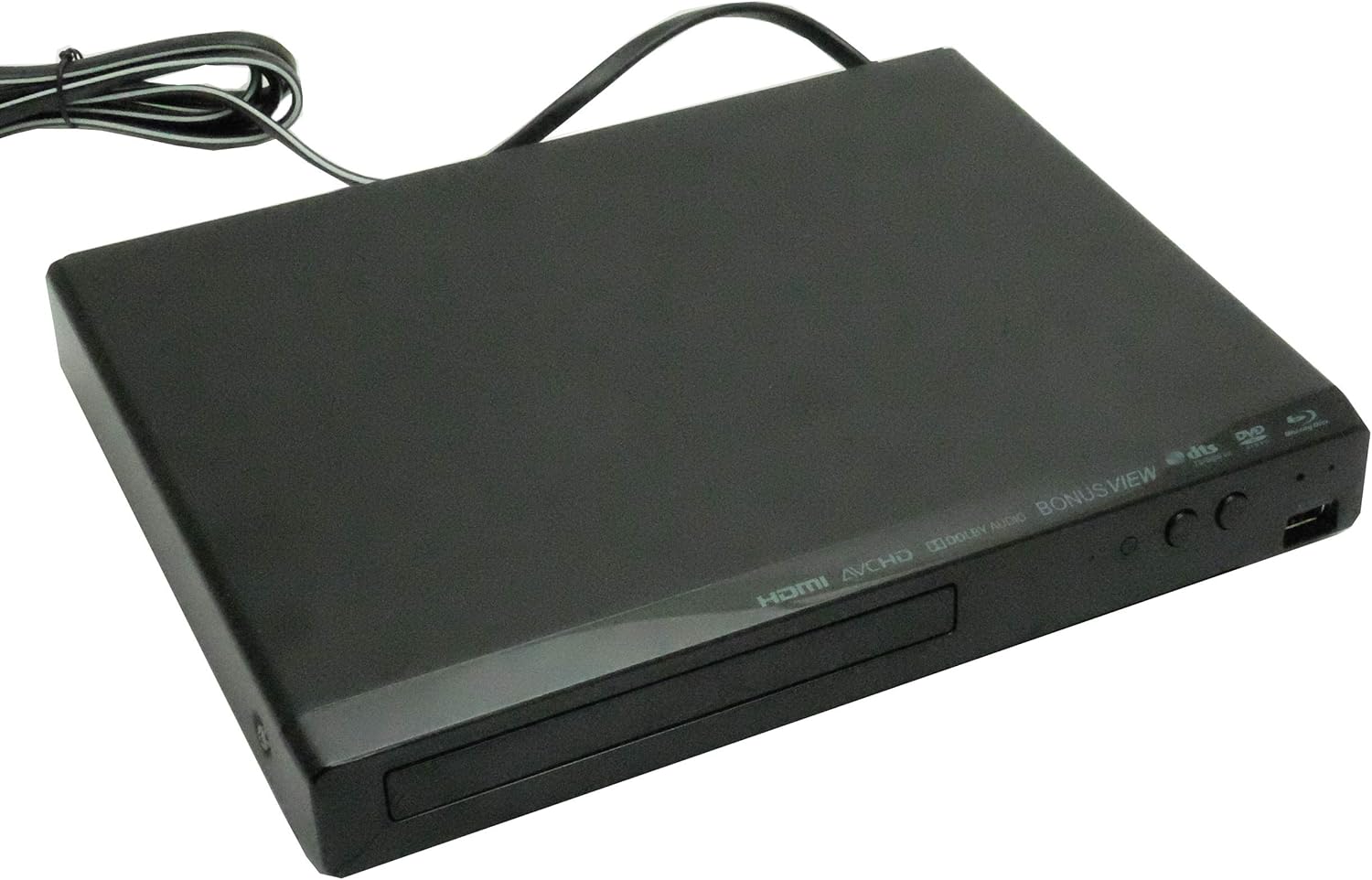
Figure 4.1: Front view of the Bush Baby Blu-Ray Player. This image shows the sleek, black design of the Blu-Ray player, with the disc tray visible on the front panel. The overall appearance is that of a standard media device.

Figure 4.2: Close-up of the covert camera lens. This image highlights the discreetly integrated camera lens, which is nearly imperceptible on the front panel of the Blu-Ray player, blending seamlessly with the device's design.

Figure 4.3: Rear panel of the Bush Baby Blu-Ray Player. This image displays the rear connections, including the HDMI output, power input, and other standard ports for a Blu-Ray player. A warranty protection sticker is also visible.
5. Setup
5.1. Power Connection
- Connect the power adapter to the DC input port on the rear of the Blu-Ray player.
- Plug the power adapter into a standard electrical outlet.
- The device will power on automatically or can be turned on using the power button.
5.2. Blu-Ray Player Connection
- Connect one end of an HDMI cable to the HDMI OUT port on the rear of the Blu-Ray player.
- Connect the other end of the HDMI cable to an HDMI input port on your television or display.
- Select the corresponding HDMI input on your television.
5.3. Wi-Fi Camera Setup
The covert camera features Wi-Fi connectivity for remote viewing and control. Refer to the specific camera application instructions (usually provided separately or available for download) for detailed steps on connecting the camera to your home Wi-Fi network and setting up remote access.
- Download the designated mobile application for the camera (e.g., from the App Store or Google Play).
- Follow the in-app instructions to add a new device and connect it to your Wi-Fi network. This typically involves scanning a QR code or connecting to the camera's temporary Wi-Fi hotspot.
- Ensure your Wi-Fi network is 2.4GHz, as many covert cameras do not support 5GHz networks.
6. Operating Instructions
6.1. Blu-Ray Player Operation
- Power On: Press the power button on the device or remote control.
- Insert Disc: Gently insert a Blu-Ray or DVD disc into the disc tray. The player will typically load the disc automatically.
- Playback: Use the remote control to navigate the disc menu, select playback options, and control playback (Play, Pause, Stop, Fast Forward, Rewind).
- Eject Disc: Press the Eject button on the device or remote control to remove the disc.
6.2. Covert Camera Operation
Once the camera is connected to your Wi-Fi network and configured via the mobile application, you can access its features:
- Live View: Open the mobile application to view the camera's live feed from anywhere with an internet connection.
- Recording: Initiate manual recording, schedule recordings, or set up motion-activated recording through the app. Recorded footage is typically stored on a microSD card (not included) or cloud storage (subscription may be required).
- Settings: Adjust camera settings such as resolution (1280x720, 1920x1080), motion detection sensitivity, notification preferences, and video quality via the mobile application.
- Playback Recorded Footage: Access and play back recorded videos directly from the mobile application.
7. Maintenance
- Cleaning: Use a soft, dry cloth to clean the exterior of the device. Do not use liquid cleaners or abrasive materials.
- Disc Care: Handle Blu-Ray and DVD discs by their edges. Clean discs with a soft, lint-free cloth, wiping from the center outwards.
- Firmware Updates: Periodically check the manufacturer's website or the camera's mobile application for firmware updates to ensure optimal performance and security.
8. Troubleshooting
| Problem | Possible Solution |
|---|---|
| Device does not power on. | Ensure the power adapter is securely connected to both the device and a working electrical outlet. Try a different outlet. |
| No video output to TV. | Check HDMI cable connections. Ensure the TV is set to the correct HDMI input. Try a different HDMI cable. |
| Disc does not play. | Ensure the disc is clean and free of scratches. Verify the disc type is compatible (Blu-Ray or DVD). |
| Camera not connecting to Wi-Fi. | Ensure your Wi-Fi network is 2.4GHz. Check Wi-Fi password. Move the device closer to the router. Restart the device and router. |
| Poor camera video quality. | Check network signal strength. Adjust video resolution settings in the mobile app. Ensure the camera lens is clean. |
9. Specifications
| Feature | Specification |
|---|---|
| Brand | Mini Gadgets |
| Product Dimensions | 12.9 x 9.6 x 2.9 inches |
| Media Type | Blu-Ray Disc, DVD |
| Camera Resolution | 1280x720, 1920x1080 (selectable) |
| Connectivity Technology | Wireless (Wi-Fi) |
| Input Video Compatibility | NTSC |
| UPC | 819209018804 |
| ASIN | B07R4PVNP9 |
| Manufacturer | Minigadgets |
10. Warranty and Support
For warranty information and technical support, please refer to the documentation included with your purchase or visit the official Mini Gadgets website. Keep your proof of purchase for warranty claims.
Manufacturer: Minigadgets
Website: www.minigadgets.com (Please verify the official support website as this is a general example)