
1. Product Overview
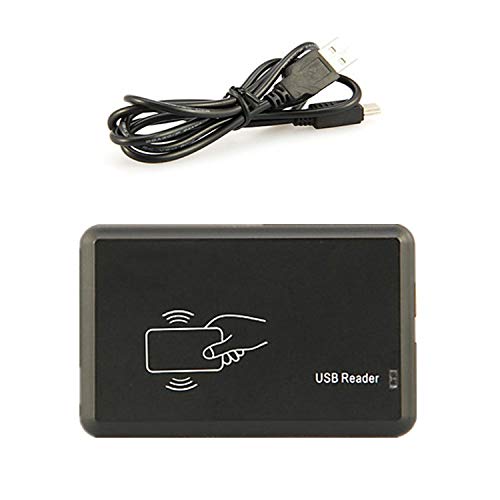
The myownid M301 is a 13.56MHz RFID USB reader designed to read the Unique Identifier (UID) serial number of various ISO14443A Mifare cards. It functions as a USB Human Interface Device (HID), emulating a keyboard output, which allows for easy integration into existing systems without requiring specific drivers or software installations.
Key Features:
- Reads Mifare ISO14443A card UID serial numbers, including Ntag 253, 1K, 4K, S50, S70, Mifare Ultralight/Nano/EV1/C, Mifare Classic EV1, Mifare Plus S/SE/S/EV1, Mifare Desfire EV1/EV2, and N-TAG Card Emulation.
- Buzzer and bi-color LED provide operational feedback.
- Supports QWERTY, AZERTY, and French keyboard layouts.
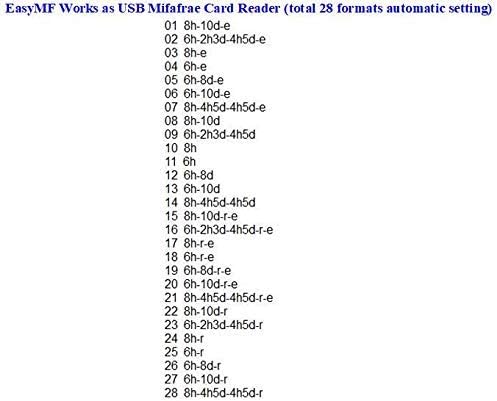
- Offers 28 selectable output formats for card data.
- Buzzer can be enabled or disabled.
- Default setting: Outputs 10 digits, QWERTY layout, to the focused window.
2. Package Contents
Please verify that all items are present in your package:
- 1 x M301 RFID Reader
- 1 x USB Cable (1.2 meters)
- 4 x Blank Mifare ISO Cards
- 1 x Configuration Card

3. Setup Instructions
The M301 reader is a plug-and-play device that does not require any special driver installation. It operates as a standard USB HID (Human Interface Device).
- Connect the provided USB cable to the M301 reader and then to an available USB port on your computer (PC, laptop, tablet).
- The reader will be automatically recognized by your operating system.
- Open a text editor (e.g., Notepad, Word) or any application where you wish to input card data. Ensure the cursor is active in the desired input field.
- Present a compatible Mifare card to the reader. The reader will emit a beep and the LED indicator will change, then the card's UID will be outputted to the active cursor location.
4. Operating Instructions
Reading Cards:
To read a card, simply place the compatible Mifare card within 8cm of the reader. The reader will automatically detect the card and output its UID to the currently focused application window.
Configuring Output Format:
The M301 reader supports 28 configurable output formats and various keyboard layouts (QWERTY, AZERTY). You can modify these settings using the included configuration card.
- Open a text editor (e.g., Notepad, Word) on your PC.
- Plug the reader into your PC.
- Before reading any standard card, present the configuration card to the reader three times continuously.
- The new setting will be displayed in the text editor each second. Once the desired format is displayed, unplug the reader. The setting is stored internally and will be effective at the next power-on.
Format Explanation:
- Formats 1-28: Various output formats for the reader.
- Format 29 E: Works as QWERTY keyboard layout (Default setting).
- Format 30 F: Works as AZERTY keyboard layout (e.g., for French/Slovakian keyboards).

Resetting Reader to Default (if configuration card is lost):
If the configuration card is lost, you can reset the reader to its default settings (10-digit output, QWERTY layout) or change its type by following these steps:
- Plug the reader into your PC until the LED flashes and the buzzer sounds "Bi". Then, unplug the reader.
- Plug the reader in again, then unplug it within 2 seconds.
- Repeat step 2 two more times.
- Plug the reader in again. The new setting will be displayed, similar to how it appears when using the configuration card.
5. Maintenance
To ensure the longevity and optimal performance of your M301 Mifare Card Reader, follow these simple maintenance guidelines:
- Cleaning: Use a soft, dry cloth to clean the exterior of the reader. Avoid using abrasive cleaners, solvents, or harsh chemicals, as these can damage the device.
- Storage: Store the reader in a cool, dry place away from direct sunlight, extreme temperatures, and high humidity.
- Handling: Handle the reader with care. Avoid dropping it or subjecting it to strong impacts.
- Cable Care: Do not bend or crimp the USB cable excessively. Always grasp the plug, not the cable, when connecting or disconnecting.
6. Troubleshooting
This section addresses common questions and issues you might encounter with the M301 Mifare Card Reader.
- Q: Can this reader copy Mifare cards?
- A: No, the M301 reader is designed to read only the Unique Identifier (UID) or Chip Serial Number (CSN) of Mifare cards. It does not have card writing or copying capabilities.
- Q: Is there any demo software or specific drivers required?
- A: No, the reader functions as a standard external input device (USB HID) and does not require any specific drivers or additional software. It will output card data directly to any focused text input field.
- Q: What is the meaning of QWERTY/AZERTY format settings?
- A: These settings refer to the keyboard layout the reader emulates when outputting card data. '29 E' corresponds to the QWERTY keyboard layout (common in English-speaking regions), which is the default. '30 F' corresponds to the AZERTY keyboard layout, typically used in regions like France or Slovakia.
- Q: The reader outputs numbers in reverse order. Is this normal?
- A: The reader outputs the UID/CSN as it is read. If the order appears reversed compared to other systems, it might be due to the specific format setting chosen or how the receiving software interprets the data. Review the 28 available output formats using the configuration card to find one that matches your system's expected order. The default setting is 8H 10D format.
- Q: Does the reader work with HID cards or NFC chips?
- A: The M301 reader is specifically designed for ISO14443A Mifare cards and related technologies (e.g., Ntag). It is not compatible with HID proximity cards. While some Ntag cards are considered NFC, the reader's primary function is to read the UID of the listed Mifare and Ntag card types, not all generic NFC chips.
7. Specifications
| Brand | myownid |
| Model Number | RFID Reader M301 |
| Connectivity Technology | USB Type A |
| Frequency | 13.56 MHz |
| Supported Cards | ISO14443A Mifare, S50, S70, Mifare Ultralight/Nano/EV1/C, Mifare Classic EV1, Mifare Plus S/SE/S/EV1, Mifare Desfire EV1/EV2, N-TAG Card Emulation |
| Reading Range | Up to 8 cm |
| Power Supply | From USB port |
| Current Consumption | Standby: 30mA; Max: 100mA |
| Special Feature | Emulate USB Keyboard Output |
| Compatible Devices | Personal Computer, Laptop, Tablet |
| Item Weight | Approximately 0.01 ounces |
| Package Dimensions | 5.31 x 3.7 x 1.14 inches |
| Certification | CE |
8. Warranty and Support
For warranty information and technical support, please refer to the documentation provided with your purchase or contact myownid customer service through their official website or the retailer where the product was purchased. Keep your proof of purchase for warranty claims.
For additional resources or software related to Mifare writer functionality (not directly supported by this reader), you may visit: http://www.jatsecurity.com/EasyMF-Programmer.html