
PHILIPS 554840
Philips Hue White and Color Ambiance LED Smart Light Bulb Starter Kit (Model 554840) User Manual
This manual provides instructions for the Philips Hue White and Color Ambiance LED Smart Light Bulb Starter Kit, Model 554840. This kit includes smart, energy-efficient LED bulbs and a Hue Hub, designed for easy setup and integration with smart home systems such as Amazon Alexa, Apple HomeKit, and Google Assistant. The system allows for control over lighting, including setting timers, routines, and adjusting light schedules. The Hue Hub supports a comprehensive lighting experience for up to 50 light points, suitable for both indoor and outdoor use.

Image: The Philips Hue Starter Kit, showing three A19 smart bulbs and the central Hue Hub.
1. Setup Instructions
Setting up your Philips Hue Smart Light Bulb Starter Kit is a straightforward process designed for quick integration into your home. Follow these steps to get started:
- Install the Smart Bulbs: Screw the Philips Hue A19 smart light bulbs into your desired light fixtures. Ensure the fixtures are powered off before installation.
- Connect the Hue Hub: Plug the Hue Hub into a power outlet and connect it to your home router using the included Ethernet cable. Wait for the three indicator lights on the Hub to illuminate steadily, indicating it is ready.
- Download the Philips Hue App: Download the official Philips Hue app from your device's app store (available for iOS and Android).
- Pair and Explore: Open the Philips Hue app and follow the on-screen instructions to connect to your Hue Hub and discover your new smart bulbs. Once paired, you can begin exploring the various lighting possibilities.

Image: A visual representation of the four-step installation process for Philips Hue, including bulb installation, hub setup, app download, and app usage.
2. Operating Instructions
Once your Philips Hue system is set up, you can control your lighting through the Philips Hue app or compatible smart home assistants.
2.1. Using the Philips Hue App
- On/Off and Brightness: Tap on a light or room in the app to toggle it on or off. Use the brightness slider to adjust the light intensity.
- Color and White Ambiance: Select a light or room and choose from 16 million colors or various shades of white, from warm to cool daylight.
- Scenes: Apply pre-set light scenes or create and save your own custom scenes for different moods and activities.
- Routines and Schedules: Set up automated routines to turn lights on/off at specific times, simulate presence when away, or gradually wake you up/ease you to sleep.

Image: The Philips Hue app displaying color options, with a living room scene demonstrating the use of 16 million colors and shades of white.
2.2. Voice Control
Integrate your Philips Hue system with Amazon Alexa, Apple HomeKit, or Google Assistant for convenient voice control. Follow the integration steps provided within the respective smart assistant apps.
- Amazon Alexa: Enable the Philips Hue skill in the Alexa app and link your Hue account.
- Apple HomeKit: Use the Home app on your iOS device to add the Hue Bridge as an accessory.
- Google Assistant: Link your Philips Hue account in the Google Home app.
2.3. Control at Home or Away
The Philips Hue app allows you to control your lights remotely, providing peace of mind and convenience whether you are at home or away.

Image: The Philips Hue app interface displaying routine settings, illustrating how to control lights remotely, whether at home or while traveling.
3. Features and Capabilities
The Philips Hue system offers a range of features to enhance your lighting experience:
- Whole-Home Smart Lighting: The Hue Hub supports up to 50 light points, allowing you to extend smart lighting throughout your entire home, both indoors and outdoors.
- Vast Color Spectrum: Access 16 million colors and various shades of white to create any desired ambiance.
- Energy Efficient: LED technology ensures energy-efficient lighting, reducing power consumption.
- Smart Home Integration: Seamlessly connects with Amazon Alexa, Apple HomeKit, Google Assistant, and other smart home platforms.
- Hue Sync: Synchronize your lights with movies, music, and games for an immersive experience.
- Installation-Free Dimming: Adjust brightness without requiring a dimmer switch.
- Expandable Ecosystem: Easily add more Hue light points and accessories (e.g., Hue Tap switch, Hue Play) to your system.
- Zigbee Technology: The Hue Hub utilizes Zigbee for reliable connectivity, creating a mesh network that extends coverage without overloading your Wi-Fi.
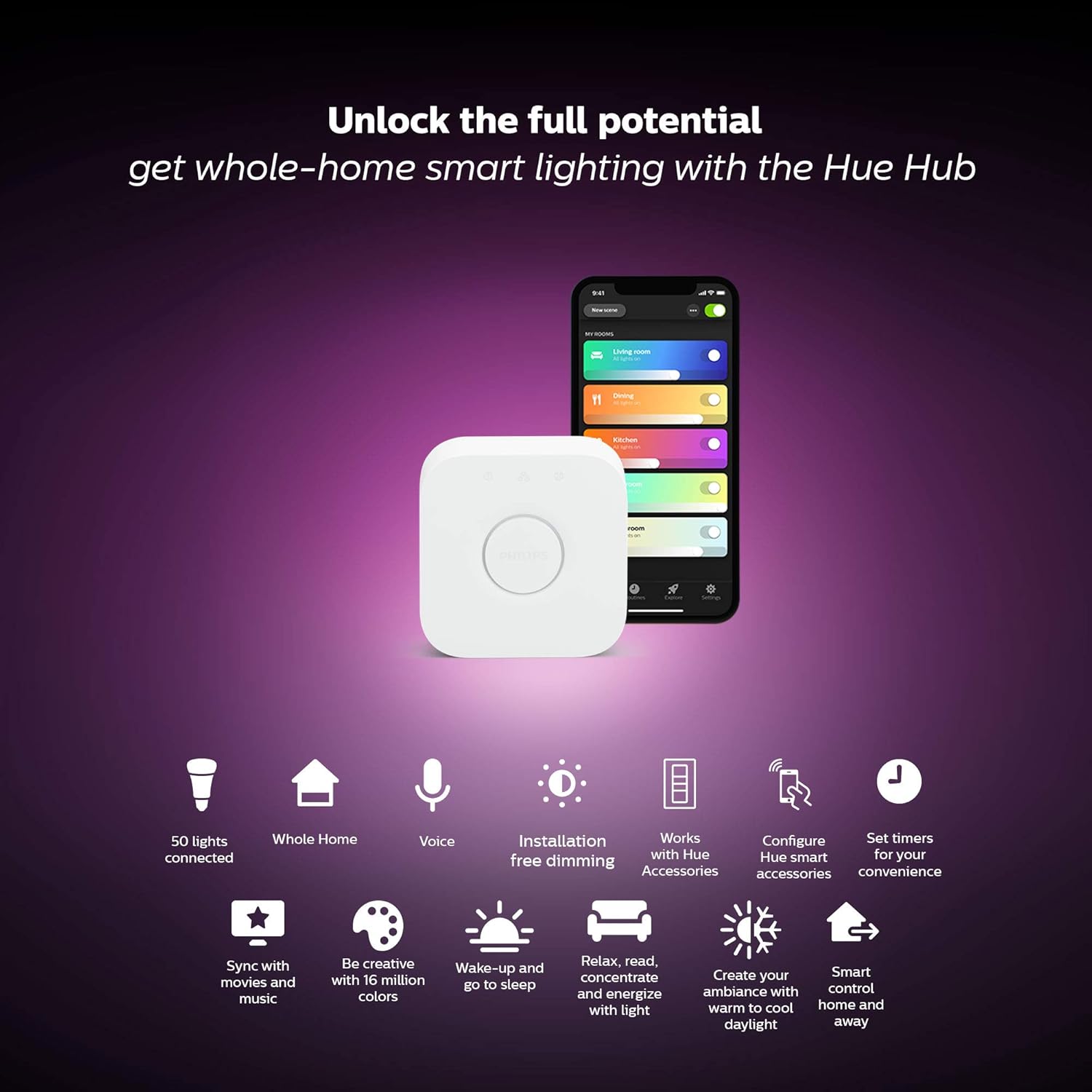
Image: The Philips Hue Hub, highlighting its capabilities such as supporting 50 connected lights, voice control, dimming, and smart home integration.

Image: An illustration of Philips Hue's compatibility with various smart home partners and its Hue Sync feature.
4. Maintenance
To ensure optimal performance and longevity of your Philips Hue products, follow these general maintenance guidelines:
- Cleaning: Gently wipe the bulbs and Hub with a soft, dry cloth. Avoid using liquid cleaners or abrasive materials.
- Handling: Handle bulbs with care. Avoid dropping them or subjecting them to excessive force.
- Environment: Ensure the Hue Hub and bulbs are used within their specified operating temperature and humidity ranges. Avoid exposure to extreme conditions.
- Firmware Updates: Regularly check the Philips Hue app for firmware updates for your Hub and bulbs. Updates often include performance improvements and new features.
5. Troubleshooting
If you encounter issues with your Philips Hue system, consider the following troubleshooting steps:
- Lights Not Responding:
- Ensure the light fixture is powered on.
- Check if the bulb is screwed in properly.
- Verify the Hue Hub is powered on and connected to your router.
- Restart the Hue Hub by unplugging it for 10 seconds and plugging it back in.
- Connectivity Issues (App/Voice Assistant):
- Ensure your smartphone or tablet is connected to the same Wi-Fi network as the Hue Hub.
- Check your internet connection.
- Restart your router and the Hue Hub.
- Verify that the Philips Hue app and your smart assistant apps are up to date.
- For voice control, ensure the correct skill/service is enabled and linked in the respective assistant's app.
- Bulbs Not Pairing:
- Ensure the bulbs are powered on and within range of the Hue Hub.
- Try resetting the bulb (requires a Hue Dimmer Switch or a specific reset procedure, refer to Philips Hue support for details).
- Perform a search for new lights in the Philips Hue app.
- Inconsistent Voice Commands:
- Ensure clear pronunciation of commands.
- Check the microphone on your voice assistant device.
- Verify that the names of your lights and rooms in the Hue app are recognized by your voice assistant.
For further assistance, visit the official Philips Hue support website.
6. Specifications
| Feature | Detail |
|---|---|
| Brand | PHILIPS |
| Model Name | Starter Kit |
| Item Model Number | 554840 |
| Light Type | LED |
| Bulb Shape Size | A19 |
| Bulb Base | E26 |
| Wattage | 9 Watts (LED), 60 Watts (Incandescent Equivalent) |
| Light Color | Hue White and Color Ambiance |
| Color Rendering Index (CRI) | 80 |
| Control Method | Voice, App |
| Indoor/Outdoor Usage | Indoor |
| Power Source | Corded Electric |
| Accepted Voltage Frequency | 100 to 240 Volts and 50 Hertz to 60 Hertz |
| Material | Synthetic Polymer (PMMA) |
| Item Weight | 1.87 pounds (0.85 Kilograms) |
| Product Dimensions | 8.3"W x 8.3"H |
| Included Components | 1 Hue Hub, 1 Ethernet cable, 1 power cord, 3 Smart Bulbs |
7. Warranty and Support
This Philips Hue product is covered by a 3-year manufacturer's warranty. For warranty claims, technical support, or additional product information, please visit the official Philips Hue support website or contact their customer service.
Online Support: www.philips-hue.com/support
Related documents554840


Ask a question about this manual
Ask about setup, troubleshooting, compatibility, parts, safety, or missing instructions. Manuals+ will review the question and use this page’s manual context to help answer it.