
1. Introduction
The Cudy WR300 N300 is a versatile desktop Wi-Fi router designed to provide reliable internet connectivity for your home or small office. It supports the Wi-Fi 4 (802.11n) standard on the 2.4 GHz band, offering wireless speeds up to 300 Mbps. Equipped with Fast Ethernet ports, it ensures stable wired connections for your devices. This manual provides detailed instructions for setting up, operating, maintaining, and troubleshooting your WR300 router.

Figure 1.1: Cudy WR300 N300 Router. This image displays the compact white design of the router with its two fixed antennas and the arrangement of its rear ports, including WAN, LAN, WPS, and power input.
2. Package Contents
Please verify that all items are present in your package:
- Cudy WR300 N300 Wi-Fi Router
- Power Adapter
- Ethernet Cable
- Quick Installation Guide
3. Physical Overview
Familiarize yourself with the ports, buttons, and LED indicators on your Cudy WR300 router.

Figure 3.1: Router Ports. This image provides a detailed view of the router's rear panel, showing the WAN port, three LAN ports (LAN1, LAN2, LAN3), the WPS button, and the power input. An Ethernet cable is depicted connected to the WAN port, illustrating a typical setup.
3.1. Rear Panel
- WAN Port: Connects to your modem or the internet service provider's (ISP) network.
- LAN Ports (LAN1, LAN2, LAN3): Connect to wired devices such as computers, gaming consoles, or IPTV boxes.
- WPS/RESET Button: Press briefly for WPS (Wi-Fi Protected Setup). Press and hold for approximately 5-8 seconds to factory reset the router.
- Power Input: Connects to the provided power adapter.
3.2. LED Indicators
- Power LED: Indicates the power status of the device.
- Activity LEDs: Indicate network activity on the WAN and LAN ports, and wireless activity.
4. Setup
Follow these steps to set up your Cudy WR300 N300 router for the first time.
4.1. Hardware Connection
- Power Off: Disconnect power from your modem (if applicable) and the router.
- Connect WAN: Connect one end of the Ethernet cable to the WAN port of the WR300 router and the other end to your modem's LAN port or the internet wall outlet.
- Connect LAN (Optional): For wired devices, connect an Ethernet cable from a LAN port on the router to your computer or other network device.
- Power On: Connect the power adapter to the router's power input and plug it into a power outlet. Wait for the Power LED to become stable.
- Power On Modem: Power on your modem (if applicable) and wait for it to establish an internet connection.
4.2. Initial Configuration
- Connect to Router: Connect your computer or mobile device to the router's Wi-Fi network (SSID and password are usually printed on a label on the bottom of the router) or via an Ethernet cable to a LAN port.
- Access Web Interface: Open a web browser and enter the default IP address of the router (e.g.,
192.168.1.1orcudy.net) in the address bar. - Login: Enter the default username and password (usually
adminfor both, or as specified on the router label). - Run Quick Setup: Follow the on-screen instructions of the Quick Setup Wizard to configure your internet connection type (e.g., Dynamic IP, Static IP, PPPoE) and set up your Wi-Fi network name (SSID) and password.
- Save Settings: Save your configurations and restart the router if prompted.
5. Operating Modes
The Cudy WR300 N300 supports multiple operating modes to suit various network requirements.

Figure 5.1: 5-in-1 Multi-Mode. This diagram visually explains the five operational modes of the Cudy WR300: Router, Access Point, WISP (Wireless Internet Service Provider), Client, and Range Extender, showing how the device integrates into different network setups.
- Router Mode: The default mode, where the device acts as a central hub for your network, providing internet access to all connected devices and managing IP addresses.
- Access Point (AP) Mode: Transforms your wired network into a wireless one. The router connects to an existing wired network and broadcasts a Wi-Fi signal.
- WISP Mode: Allows the router to connect wirelessly to an ISP's network (e.g., a public Wi-Fi hotspot) and then share that internet connection with multiple devices via both Wi-Fi and Ethernet.
- Client Mode: Enables the router to act as a wireless adapter for a wired device. It connects wirelessly to an existing Wi-Fi network and provides internet access to a single wired device via an Ethernet cable.
- Range Extender Mode: Extends the coverage of an existing Wi-Fi network by repeating its signal.
You can switch between these modes via the router's web management interface under the 'Operation Mode' or 'Network Mode' settings.
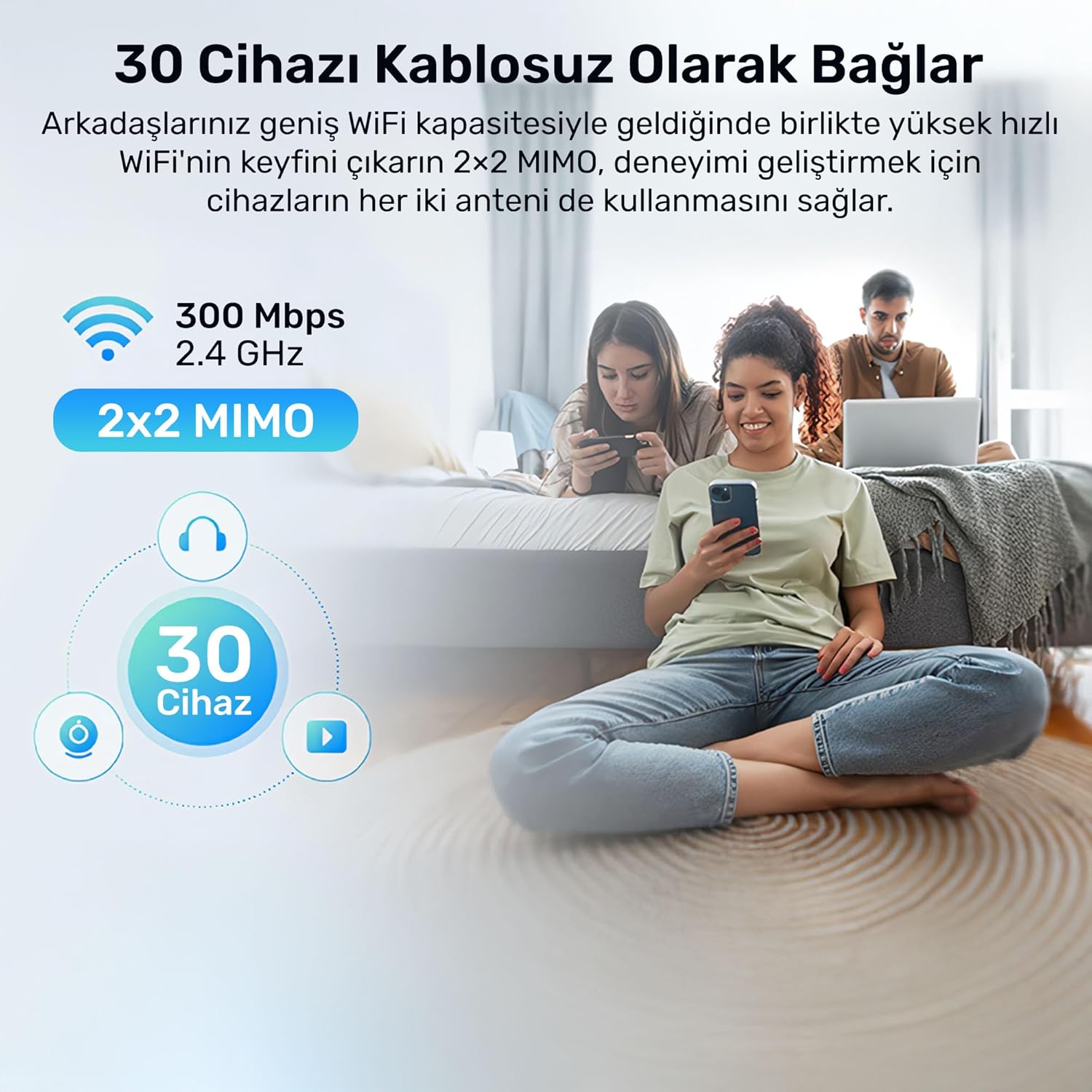
Figure 5.2: Wireless Connectivity. This image highlights the router's capability to connect up to 30 wireless devices simultaneously, leveraging 300 Mbps speed on the 2.4 GHz band and 2x2 MIMO technology for enhanced performance.
6. Advanced Features
The Cudy WR300 N300 offers several advanced features for enhanced network management and security.

Figure 6.1: Advanced Features Overview. This collage illustrates key functionalities: a user configuring the router on a laptop (Easy Setup), a child reading under a lamp (Wi-Fi Program/Parental Control), a group of people looking at data (WireGuard VPN Client), and the Cudy Mesh Satellite logo (Whole Home Mesh).
6.1. Wireless Security
The router supports various wireless encryption protocols to secure your Wi-Fi network:
- WEP
- WPA/WPA-PSK
- WPA2/WPA2-PSK
It is highly recommended to use WPA2-PSK for the strongest security.
6.2. Firewall and Security Features
The WR300 includes built-in firewall capabilities to protect your network:
- DoS Protection: Defends against Denial-of-Service attacks.
- SPI Firewall: Stateful Packet Inspection for enhanced security.
- IP Address Filter: Controls access based on IP addresses.
- MAC Address Filter: Controls access based on MAC addresses.
- Domain Filter: Blocks access to specific websites or domains.
- IP and MAC Address Binding: Binds specific IP addresses to MAC addresses to prevent IP spoofing.
6.3. Parental Control (Wi-Fi Program)
Manage internet access for specific devices or users. You can set schedules for internet availability and block unwanted websites to ensure a safe online environment for children.
6.4. WireGuard VPN Client
The router supports WireGuard VPN client functionality, allowing you to establish a secure and encrypted connection to a VPN server. This can protect your entire network's traffic without needing to install VPN software on individual devices.
6.5. Cudy Mesh Satellite
The WR300 can integrate into a Cudy Mesh network as a satellite unit, extending seamless Wi-Fi coverage throughout your home. This feature allows for fast roaming between Cudy Mesh devices.
7. Maintenance
Regular maintenance ensures optimal performance and security of your router.
7.1. Firmware Upgrade
Periodically check the Cudy official website for firmware updates. Firmware upgrades can improve performance, add new features, and fix security vulnerabilities. Download the latest firmware file and follow the instructions in the web management interface to perform the upgrade.
7.2. Factory Reset
A factory reset restores the router to its default settings. This can be useful for troubleshooting persistent issues or when you want to reconfigure the router from scratch. To perform a factory reset:
- With the router powered on, locate the WPS/RESET button on the rear panel.
- Use a paperclip or a thin object to press and hold the button for approximately 5-8 seconds until the LEDs flash.
- Release the button. The router will restart with factory default settings.
7.3. System Logs
The router maintains system logs that record various events and activities. These logs can be helpful for diagnosing network issues. Access them via the web management interface.
8. Troubleshooting
This section addresses common issues you might encounter with your Cudy WR300 N300 router.
8.1. No Internet Access
- Check Cables: Ensure all Ethernet cables are securely connected to the correct ports (WAN to modem, LAN to devices).
- Modem Status: Verify that your modem is working correctly and has an active internet connection. Try restarting your modem.
- Router Configuration: Log in to the router's web interface and check your WAN settings. Ensure the internet connection type (Dynamic IP, Static IP, PPPoE) is correctly configured according to your ISP.
- ISP Issue: Contact your Internet Service Provider to confirm there are no service outages in your area.
8.2. Wi-Fi Not Connecting or Slow
- Check Wi-Fi Password: Ensure you are entering the correct Wi-Fi password.
- Signal Strength: Move closer to the router to check if signal strength is an issue.
- Interference: Other electronic devices (cordless phones, microwaves) can cause interference. Try changing the Wi-Fi channel in the router settings.
- Router Restart: Restart the router and your Wi-Fi device.
8.3. Cannot Access Web Management Interface
- IP Address: Ensure your device is connected to the router (wired or wireless) and that you are using the correct default IP address (e.g.,
192.168.1.1orcudy.net). - IP Conflict: If you have multiple routers, ensure there is no IP address conflict.
- Browser Cache: Clear your web browser's cache and cookies, or try a different browser.
- Firewall/Antivirus: Temporarily disable any firewall or antivirus software on your computer that might be blocking access.
- Factory Reset: If all else fails, perform a factory reset (see Section 7.2) and try accessing the interface with default credentials.
9. Specifications
| Feature | Description |
|---|---|
| Model Number | WR300 |
| Product Type | Desktop Router |
| Wi-Fi Standard | Wi-Fi 4 (802.11n) |
| Wi-Fi Band | Single Band (2.4 GHz) |
| Max WLAN Data Rate | 300 Mbit/s |
| Ethernet LAN Interface Type | Fast Ethernet (10/100 Mbit/s) |
| WAN Connection Type | RJ-45 |
| Supported Security Algorithms | WEP, WPA, WPA-PSK, WPA2, WPA2-PSK |
| Firewall Security | DoS, SPI Firewall, IP Address Filter, MAC Address Filter, Domain Filter, IP and MAC Address Binding |
| Color | White |
| LED Indicators | Activity, Power |
| Dimensions (L x W x H) | 18 x 15 x 26 cm |
| Material | Plastic |
| Number of Ports | 1 WAN, 3 LAN |
10. Warranty and Support
10.1. Warranty Information
The Cudy WR300 N300 Router comes with a three-year warranty against manufacturing defects. Please retain your proof of purchase for warranty claims. This warranty covers defects in materials and workmanship under normal use.
10.2. Technical Support
For technical assistance, troubleshooting beyond this manual, or warranty inquiries, please visit the official Cudy website for support resources, FAQs, and contact information. You may also refer to the Quick Installation Guide included in your package for initial support contacts.


