
1. Introduction
The Jura Giga 6 redefines the automatic coffee machine experience, offering precision and professionalism for household use. This machine is equipped with advanced technology to deliver outstanding results, including two ceramic disc grinders with Automatic Grinder Adjustment (A.G.A.) for perfectly ground coffee every time. Its intuitive 4.3" high-resolution touchscreen color display and Blue Crystal Rotary Switch ensure ease of operation. The Giga 6 offers 28 different coffee specialties and features a self-learning algorithm that adapts the Start Screen to your personal preferences.
2. Setup
Before first use, ensure the machine is placed on a stable, level surface. The Giga 6 requires access to a power outlet and sufficient space for its dimensions (18.9"D x 12.3"W x 16.3"H).
2.1. Water Reservoir
The water reservoir is located on the side of the machine. Fill it with fresh, cold water. For optimal performance and longevity, use filtered water as recommended by Jura.

Figure 2.1: Side view of the Jura Giga 6, showing the location of the water reservoir on the left side.
2.2. Coffee Bean Hoppers
The Giga 6 features two coffee bean hoppers located on top of the machine. Lift the aroma preservation cover to access them. Fill each hopper with your preferred whole coffee beans. The machine is designed to grind beans fresh for each preparation.

Figure 2.2: Dual coffee bean hoppers on the top of the machine, ready for filling.
3. Operating Instructions
The Jura Giga 6 is designed for intuitive operation through its touchscreen interface and rotary switch.
3.1. Powering On and Initial Selection
Press the power button located on the top panel to turn on the machine. The 4.3" touchscreen will display available coffee specialties. You can navigate through options using the touchscreen or the physical buttons on the side.
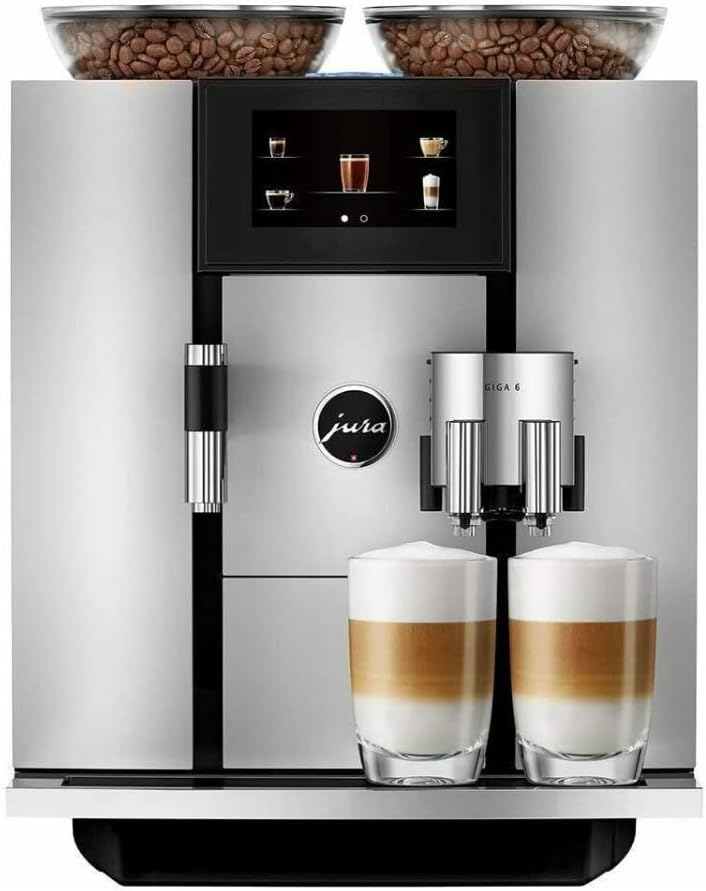
Figure 3.1: The Jura Giga 6 in operation, showing the touchscreen display and two dispensed lattes.
3.2. Selecting a Coffee Specialty
The machine offers 28 different specialties. Simply touch the desired beverage icon on the screen. The Giga 6 can prepare coffee and hot milk/milk foam simultaneously, allowing for flawless trend specialties like lattes and cappuccinos.

Figure 3.2: Close-up of the dispensing spouts preparing two milk-based coffee drinks simultaneously.
3.3. Personalizing Beverages
The Giga 6 features a self-learning algorithm that identifies your personal preferences and adapts the Start Screen accordingly, showing your most preferred specialties. You can also customize drink parameters such as coffee strength, milk volume, and temperature through the touchscreen menu.

Figure 3.3: Visual representation of the machine's AI adapting to user preferences for quick access to favorite drinks.
4. Maintenance
Regular maintenance ensures the longevity and optimal performance of your Jura Giga 6. The machine offers 5-star handling even during cleaning and maintenance with its ingenious design.
4.1. Automatic Cleaning Cycles
The Giga 6 has integrated cleaning programs for the coffee system and milk system. Follow the on-screen prompts for these automatic cycles. These cycles help maintain hygiene and prevent build-up.

Figure 4.1: The touchscreen displaying options for cleaning and filter changes.
4.2. Drip Tray and Coffee Grounds Container
The drip tray and coffee grounds container should be emptied and cleaned regularly. These components are easily removable and are dishwasher safe for convenient cleaning.

Figure 4.2: The removable drip tray and coffee grounds container at the base of the machine.
5. Troubleshooting
This section provides solutions for common issues you might encounter with your Jura Giga 6. For problems not listed here, please refer to the full troubleshooting guide in the comprehensive manual or contact customer support.
| Problem | Possible Cause | Solution |
|---|---|---|
| Touchscreen unresponsive or erratic | Temporary software glitch or moisture on screen. | Restart the machine. Ensure the screen is clean and dry. If the issue persists, contact customer support. |
| Coffee grounds spilling from pre-ground system | Improper seating of the pre-ground coffee funnel or overfilling. | Ensure the pre-ground coffee funnel is correctly inserted and not overfilled. Clean any spilled grounds immediately. |
| "Empty Drip Tray" message persists after emptying | Sensor misalignment or residue on sensor. | Ensure the drip tray is fully inserted and the sensor area is clean. Try re-inserting the tray firmly. If the issue continues, contact customer support. |
| Coffee not dispensing or weak | Water tank empty, beans empty, or machine needs descaling/cleaning. | Check water level and bean levels. Perform a cleaning or descaling cycle as prompted by the machine. |
6. Specifications
- Brand: Jura
- Model Number: GIGA6
- Color: Stainless Steel
- Product Dimensions: 18.9"D x 12.3"W x 16.3"H
- Item Weight: 30 pounds
- Coffee Maker Type: Espresso Machine
- Operation Mode: Fully Automatic
- Human Interface Input: Touchscreen
- Included Components: Water tank, Coffee bean container, Ceramic disc grinders, Milk frother
- Special Feature: Coffee Grinder
- Voltage: 230 Volts
- UPC: 794151411944, 794151411722
- Date First Available: April 18, 2019
7. Warranty and Support
For warranty information and customer support, please refer to the documentation included with your Jura Giga 6 machine. You can also visit the official Jura website or contact their customer service directly for assistance with product registration, troubleshooting, and service inquiries.

Figure 7.1: General icon representing customer support services.