
1. Product Overview
The Corsair HS35 Stereo Gaming Headset is designed for comfort and clear audio communication across multiple gaming platforms. It features custom-tuned 50mm neodymium speaker drivers for high-quality sound and a detachable unidirectional microphone for clear voice capture.

Image 1.1: Front-left view of the Corsair HS35 Stereo Gaming Headset in green.
2. Package Contents
The Corsair HS35 Stereo Gaming Headset package typically includes:
- Corsair HS35 Stereo Gaming Headset
- Detachable Unidirectional Microphone
- Note: A 4-pole Y-splitter for PC/laptop compatibility may be required and is not included with all versions.
3. Setup Instructions
3.1 Attaching the Microphone
- Locate the microphone port on the left earcup of the headset.
- Align the detachable unidirectional microphone with the port and gently push it in until it clicks securely into place.
- Adjust the flexible microphone boom to position the microphone near your mouth for optimal voice pickup.

Image 3.1: Side view of the headset with the detachable microphone attached.
3.2 Connecting the Headset
The HS35 headset connects via a standard 3.5mm audio jack, offering broad compatibility.
- For Consoles (Xbox One, Xbox Series X|S, PS4, PS5, Nintendo Switch) and Mobile Devices: Plug the 3.5mm jack directly into the controller or device's audio port.
- For PC/Laptop: If your PC or laptop has separate audio-out (headphone) and mic-in (microphone) ports, you may require a 4-pole Y-splitter (not included) to use both audio and microphone functions simultaneously. If your PC/laptop has a single combined 3.5mm audio jack, plug the headset directly into this port.
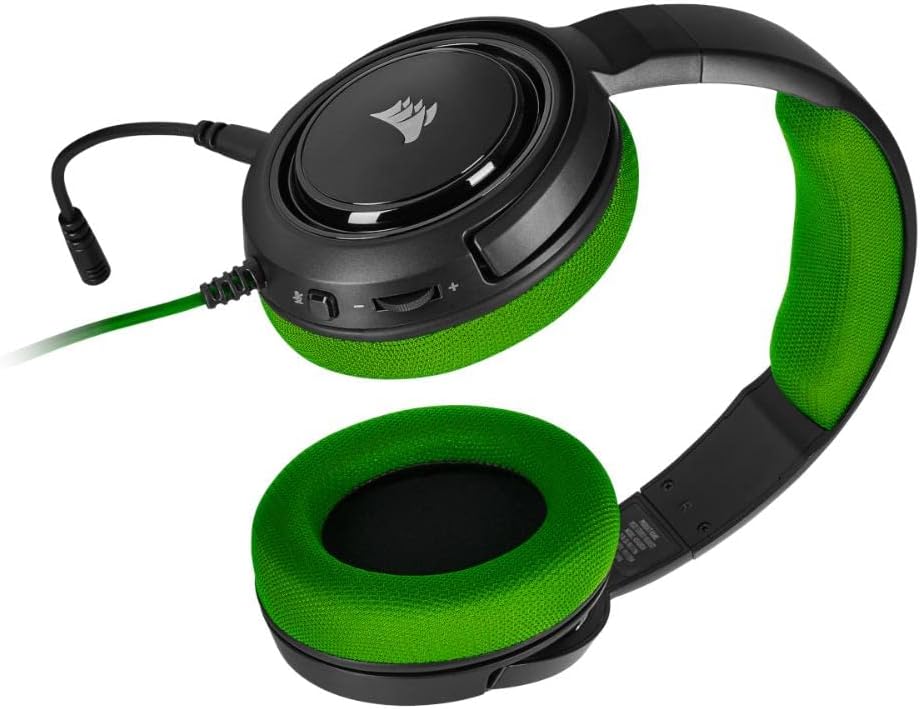
Image 3.2: View of the left earcup showing the 3.5mm audio cable and the microphone port.
4. Operating Instructions
4.1 Volume Control
Adjust the audio volume using the on-ear volume roller located on the left earcup. Roll it up to increase volume and down to decrease volume.
4.2 Microphone Mute
To mute or unmute the microphone, press the mute button located on the left earcup, adjacent to the volume roller. A click indicates the microphone status change.

Image 4.1: Close-up of the left earcup displaying the volume roller and microphone mute button.
5. Maintenance
Proper maintenance ensures the longevity and optimal performance of your headset.
- Cleaning: Use a soft, dry cloth to wipe down the earcups and headband. For the memory foam earcups, a slightly damp cloth can be used, but ensure they are completely dry before use. Avoid harsh chemicals or abrasive cleaners.
- Storage: Store the headset in a cool, dry place away from direct sunlight and extreme temperatures. When not in use, consider detaching the microphone to prevent accidental damage.
- Cable Care: Avoid sharply bending or twisting the audio cable to prevent internal damage.
6. Troubleshooting
6.1 No Audio or Low Volume
- Ensure the 3.5mm audio jack is fully inserted into the device's audio port.
- Check the on-ear volume roller on the headset and adjust it to an audible level.
- Verify the audio output settings on your connected device (PC, console, mobile) to ensure the headset is selected as the primary audio output.
- Test the headset with another device to rule out a device-specific issue.
6.2 Microphone Not Working
- Confirm the detachable microphone is securely attached to the headset.
- Press the microphone mute button on the left earcup to ensure it is not muted.
- Check the microphone input settings on your connected device to ensure the headset microphone is selected and its volume is not set to zero.
- If using with a PC/laptop with separate audio/mic ports, ensure you are using a 4-pole Y-splitter (if required) correctly.
- Test the microphone with another application or device to isolate the problem.
7. Specifications
| Feature | Detail |
|---|---|
| Model Name | CORSAIR HS35 STEREO Gaming Headset |
| Item Model Number | CA-9011197-NA |
| Connectivity Technology | Wired (3.5 mm Jack) |
| Audio Driver Size | 50 mm Neodymium |
| Frequency Response | 20 Hz - 20,000 Hz |
| Impedance | 32 Ohm |
| Microphone Type | Detachable Unidirectional |
| Ear Placement | Over-Ear |
| Material | Memory Foam (earcups) |
| Controls | On-ear Volume Roller, Microphone Mute Button |
| Compatible Devices | PC, Mac, Xbox One, Xbox Series X|S, PS4, PS5, Nintendo Switch, iOS, Android |
| Item Weight | 0.52 Kilograms (1.14 pounds) |
| Product Dimensions | 7.24 x 3.46 x 8.07 inches |
8. Warranty and Support
Corsair products are backed by a manufacturer's warranty. For detailed warranty information, technical support, or service inquiries, please visit the official Corsair support website or contact their customer service. Keep your proof of purchase for warranty claims.
Official Corsair Support: www.corsair.com/support