
Camera USB USB500W05G-BL170
Camera USB 5MP HD 1944P Fisheye USB Camera Module
Instruction Manual - Model: USB500W05G-BL170
1. Introduction
This manual provides essential information for the proper installation, operation, and maintenance of your Camera USB 5MP HD 1944P Fisheye USB Camera Module. Please read this manual thoroughly before using the product to ensure safe and efficient operation.

Image 1: The Camera USB 5MP HD 1944P Fisheye USB Camera Module.
Key Features:
- High-Quality Image Sensor: Equipped with a 1/2.5 inch Aptina MI5100 CMOS Sensor for 5.0-megapixel resolution (2592x1944 pixels) with minimal color reproduction deviation.
- Wide Angle Fisheye Lens: Features a 170-degree fisheye lens to capture a broad field of view.
- High-Speed USB 2.0 OTG: Supports USB 2.0 for fast data transfer and On-The-Go (OTG) functionality.
- Plug and Play: Driver-free installation for various operating systems.
- UVC Compliant: Compatible with Universal Video Class (UVC) for broad software support.
- Adjustable Parameters: Brightness, Contrast, Color saturation, Definition, Gamma, and White Balance are adjustable.

Image 2: Illustration of the 170-degree fisheye wide-angle view provided by the camera module.
2. Package Contents
Verify that all items listed below are present and in good condition upon unpacking.
- 1 x USB Camera Module
- 1 x Standard 3m USB Cable
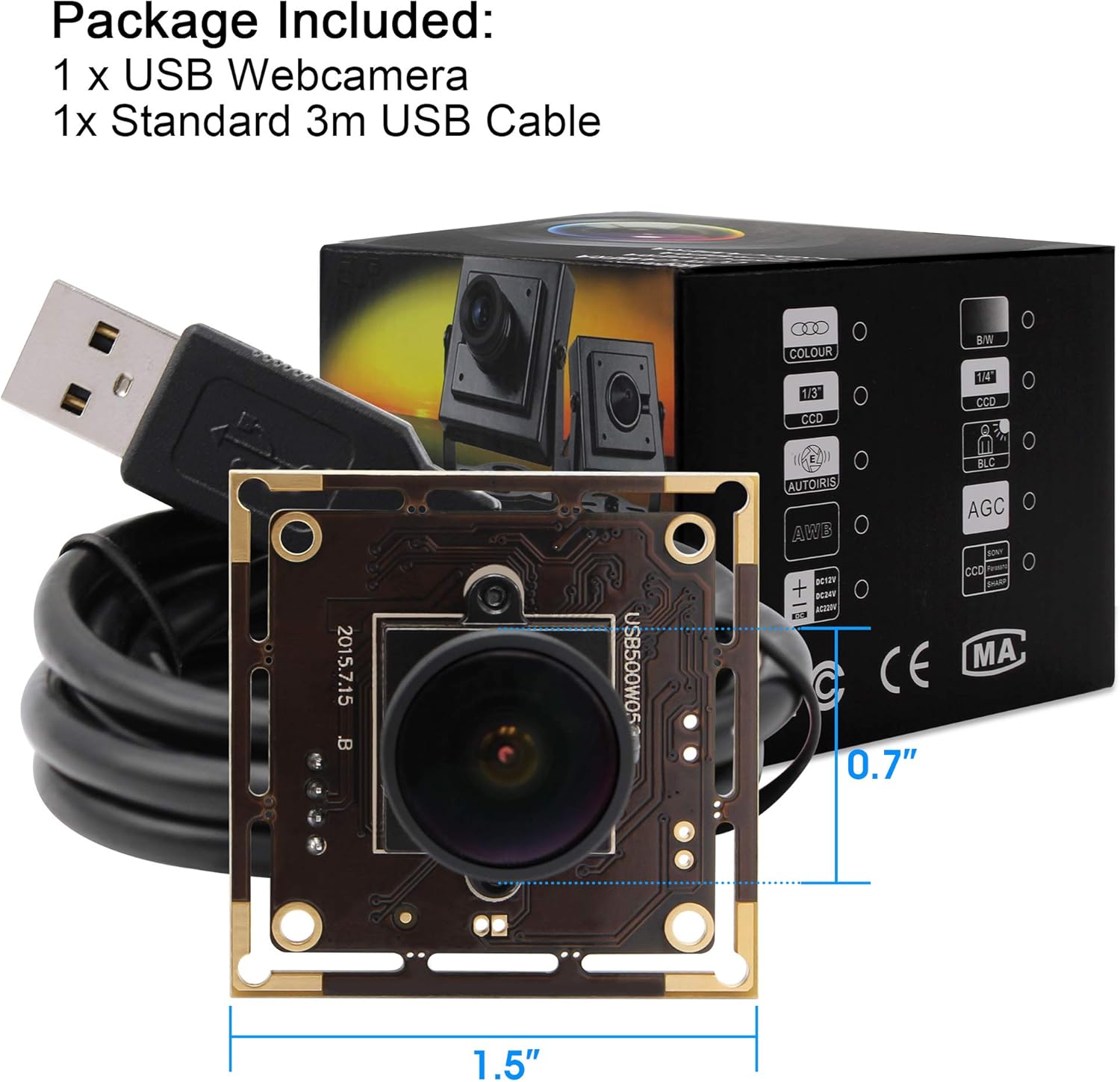
Image 3: The included USB camera module and standard 3m USB cable.
3. Setup and Installation
The Camera USB module is designed for simple plug-and-play operation, requiring no driver installation on most compatible operating systems.
System Requirements:
- Operating System: WinXP/Vista/WIN7/WIN8, Linux (with UVC, kernel 2.6.26 or later), Mac-OS X 10.4.8 or later, Wince (with UVC), Android 4.0 or above (with UVC).
- Available USB 2.0 port.

Image 4: The camera module is compatible with multiple operating systems including Windows, Linux, Mac OS, and Android.
Installation Steps:
- Connect the provided USB cable to the camera module.
- Plug the other end of the USB cable into an available USB 2.0 port on your computer, phone, or tablet.
- The operating system should automatically detect the camera module as a UVC device. No additional drivers are typically required.
- Open a compatible video application (e.g., Amcap for Windows, Camerfi for Android, Montinon eye OS for Raspberry Pi) to access the camera feed.
4. Operating Instructions
Once connected, the camera module functions as a standard webcam. The specific operation will depend on the software application used.
Basic Operation:
- Video Preview: Launch your chosen video application. Select the "Camera USB" or similar device name from the camera input options. A live video feed should appear.
- Recording: Most video applications offer a recording function. Follow the software's instructions to start and stop video recording.
- Image Capture: Use the software's snapshot or photo capture feature to take still images.

Image 5: The camera module can be used for monitoring and recording, with examples of an app interface displaying real-time and recorded footage.
Adjustable Parameters:
Many video applications allow adjustment of camera parameters. Look for settings related to:
- Brightness
- Contrast
- Color saturation
- Definition (Sharpness)
- Gamma
- White Balance (AWB - Auto White Balance supported)
- Exposure (AEC - Auto Exposure Control supported)
Applications:
This camera module is suitable for various applications, including:
- Home or office security systems
- Industrial video imaging systems
- Monitoring ATM machines
- Medical equipment integration
- Kiosk systems
- PC and embedded systems
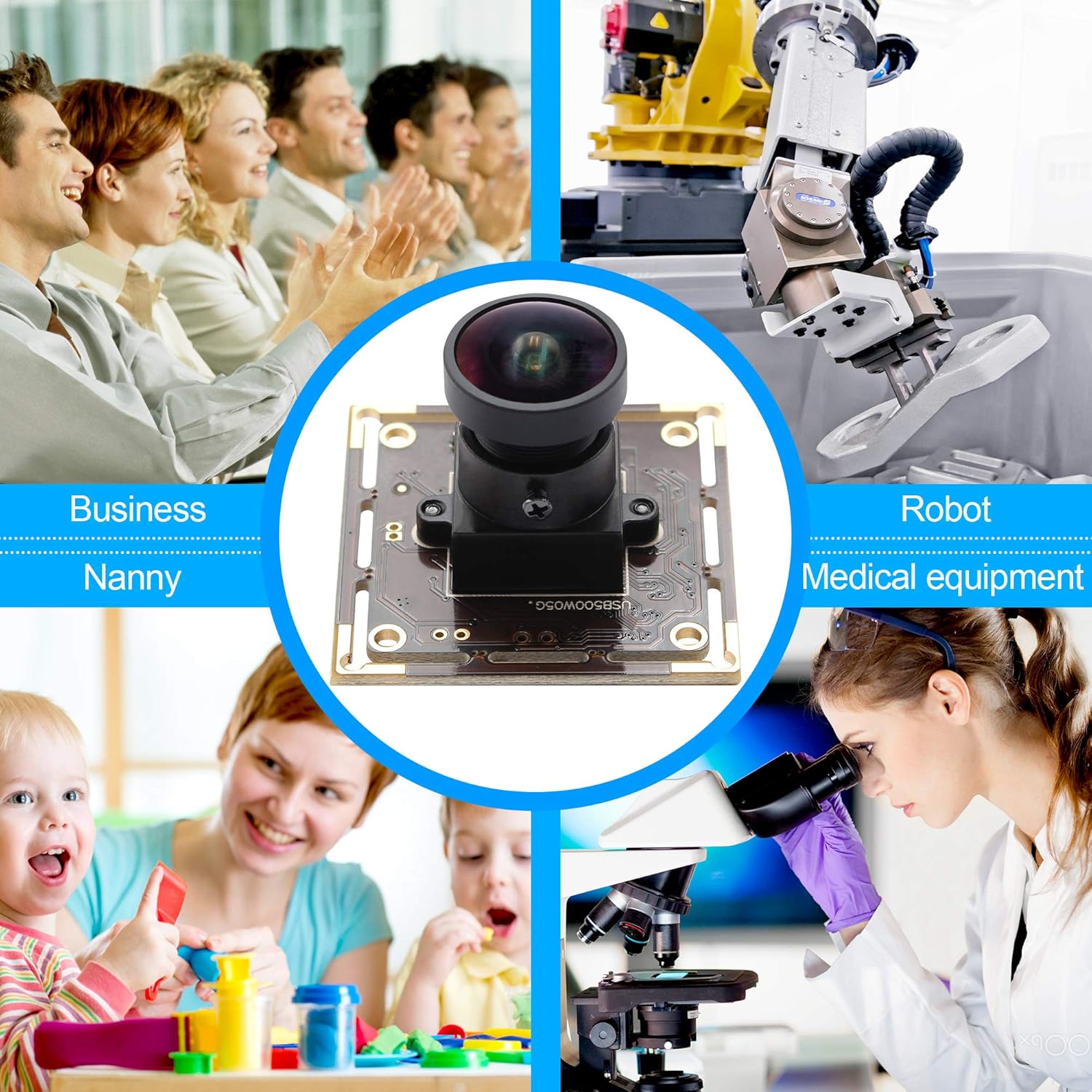
Image 6: Examples of the camera module's diverse applications, such as business, nanny cams, robotics, and medical equipment.
5. Maintenance
Proper care and maintenance will ensure the longevity and optimal performance of your camera module.
Cleaning:
- Lens: Gently wipe the lens with a soft, lint-free cloth specifically designed for optical surfaces. Do not use abrasive materials or harsh chemicals.
- Module Body: Use a dry, soft cloth to clean the module's body. Avoid moisture near electronic components.
Storage:
- Store the camera module in a cool, dry place away from direct sunlight and extreme temperatures.
- Protect the lens from scratches when not in use.
General Precautions:
- Avoid dropping or subjecting the module to strong impacts.
- Do not attempt to disassemble the module. This will void any warranty.
- Keep away from water and other liquids.
6. Troubleshooting
If you encounter issues with your camera module, refer to the following common problems and solutions.
Common Issues and Solutions:
- No Image/Camera Not Detected:
- Ensure the USB cable is securely connected to both the camera module and the host device.
- Try a different USB port on your device.
- Test the camera on another computer or compatible device to rule out a device-specific issue.
- Verify that your operating system and application recognize the camera. Check device manager (Windows) or system information (Mac/Linux).
- Dark or Poor Image Quality:
- Ensure adequate lighting in the environment.
- Adjust brightness, contrast, and exposure settings within your video application.
- Clean the camera lens carefully with a suitable optical cleaning cloth.
- Flickering or Unstable Image:
- Check for loose USB connections.
- Ensure the USB port provides sufficient power. Try a powered USB hub if available.
- Close other applications that might be using system resources or interfering with the camera.
- Software Not Recognizing Camera:
- Ensure your software is up-to-date.
- Verify that the software supports UVC cameras.
- Restart the application or your computer.
7. Specifications
Detailed technical specifications for the Camera USB 5MP HD 1944P Fisheye USB Camera Module.

Image 7: Overview of the 5MP High Definition USB Webcamera's features and specifications.
| Feature | Specification |
|---|---|
| Sensor | 1/2.5 inch Aptina MI5100 CMOS |
| Resolution | 5 Megapixel (2592x1944) |
| Max. Resolution | 2592(H) x 1944(V) pixels |
| Lens Type | 170 Degree Fisheye Lens |
| Frame Rate (MJPEG) | 2592x1944 @ 15fps 1920x1080 @ 30fps 1280x720 @ 30fps 640x480 @ 30fps |
| Picture Format | MJPEG or YUY2 (optional) |
| USB Protocol | USB 2.0 HS/FS (High Speed/Full Speed) |
| Voltage | DC 5V |
| Current | 150mA |
| Operating Temperature | -20°C to 70°C |
| Module Dimensions | 38mm x 38mm, 32mm x 32mm |
| Auto Features | Auto Exposure (AEC) Support, Auto White Balance (AEB) Support |
| Adjustable Parameters | Brightness, Contrast, Color saturation, Definition, Gamma, WB |
| Compatibility | WinXP/Vista/WIN7/WIN8, Linux (UVC, kernel 2.6.26+), Mac-OS X 10.4.8+, Wince (UVC), Android 4.0+ (UVC) |
8. Warranty and Support
For any questions, problems, or support needs regarding your Camera USB module, please contact our customer service.
Customer Support:
If you require assistance, please contact us via email, providing your order number for faster service:
Email: usbcamera@sina.com
Our after-sale service team is committed to assisting you promptly with any issues.
Related Documents - USB500W05G-BL170
 |
USB Plug-and-Play Camera Module User Manual User manual for the USB plug-and-play camera module. Includes specifications, installation steps, software usage, and troubleshooting guide. |
 |
Webcam User Manual: Setup, Specifications, and Usage Guide Comprehensive user manual for a 1080P HD webcam, covering product structure, installation, technical specifications, accessories, and software setup for online meetings and courses. |
 |
Volkano Zoom 720p Series HD USB Webcam Instruction Manual Comprehensive instruction manual for the Volkano Zoom 720p Series HD USB Webcam (VK-10101-BK). Covers product highlights, specifications, setup, installation, safety precautions, cleaning, environmentally friendly disposal, and warranty information. |
 |
Genius FaceCam 2000X Webcam: Quick Setup Guide Quick setup guide for the Genius FaceCam 2000X webcam, detailing features, connection, and positioning. Supports Plug and Play with Windows 8, 10, 11 and later. Includes specifications and compliance information. |
 |
USB Camera Installation and Operating Instructions Comprehensive guide for installing and operating a high-definition USB camera, compatible with Windows, Android, Linux, and Ubuntu. Includes setup steps, usage examples, and troubleshooting tips. |
 |
GM1 48MP Autofocus Webcam User Manual User manual for the GM1 48MP HD autofocus webcam, featuring technical specifications, installation guidelines, and usage instructions for Windows, Linux, macOS, and Android. |
Ask a question about this manual
Ask about setup, troubleshooting, compatibility, parts, safety, or missing instructions. Manuals+ will review the question and use this page’s manual context to help answer it.