
1. Introduction
The Linkind Smart Mini Hub is a compact Zigbee hub designed to expand your smart home network. It enables control over connected Linkind Zigbee devices, offering automation, remote access, and voice control capabilities. This manual provides essential information for setting up, operating, and maintaining your Smart Mini Hub.

Image 1.1: Top-down view of the Linkind Smart Mini Hub, a small white square device with indicator lights.
2. Product Features
The Linkind Smart Mini Hub offers several key features to enhance your smart home experience:
- Network Expansion: Connects up to 25 Linkind Zigbee devices exclusively, ensuring a stable and secure connection with low power consumption.
- Remote Control: Manage connected Linkind devices from any location via the Linkind app.
- Automation: Create custom scenes and schedules for your devices to operate automatically.
- Voice Control: Compatible with Amazon Alexa (sold separately) for voice commands over connected Linkind Zigbee smart devices like LED bulbs (A19 DIM/A19 CCT/BR30 CCT).
- Compact Design: Its small, lightweight form factor allows for flexible placement on a table, desk, or mounted on a wall.
- 2.4 GHz WiFi Support: Operates exclusively on 2.4 GHz WiFi networks.

Image 2.1: Diagram highlighting the hub's capabilities, including adding up to 25 Zigbee devices, 40-meter coverage, timing, remote control, scene management, brightness adjustment, and voice control.
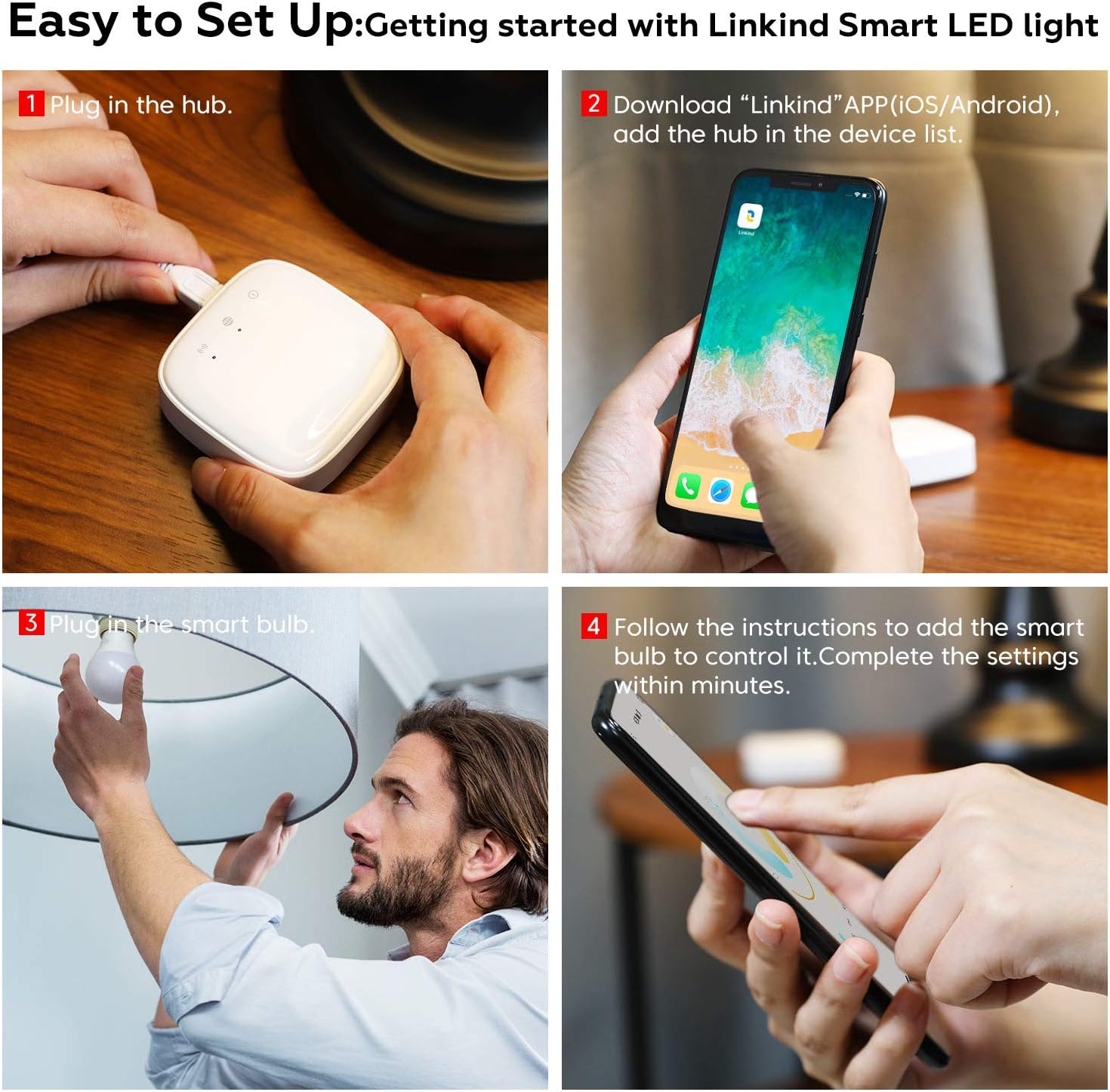
Image 2.2: An illustration depicting the Linkind Mini Hub within a home, demonstrating its role in connecting and controlling various Linkind Zigbee smart lights for app-based remote control.
3. Setup Instructions
Follow these steps to set up your Linkind Smart Mini Hub and connect your Linkind Zigbee devices:
- Power On the Hub: Plug the Linkind Smart Mini Hub into a power outlet.
- Download the App: Download the "Linkind" app from the iOS App Store or Google Play Store on your smartphone or tablet.
- Add Hub to App: Open the Linkind app, create an account if you haven't already, and follow the in-app instructions to add the hub to your device list. Ensure your mobile device is connected to a 2.4 GHz Wi-Fi network during this process.
- Connect Zigbee Devices: Once the hub is added, you can begin adding your Linkind Zigbee devices (e.g., smart bulbs). Follow the specific pairing instructions for each Linkind device, which typically involves powering the device on and off a few times to enter pairing mode, then adding it through the Linkind app.
Important Note: The Linkind Smart Mini Hub supports 2.4 GHz WiFi networks only. It is designed for exclusive use with Linkind Zigbee devices. Devices from other brands are not recommended for compatibility.

Image 3.1: A visual guide demonstrating the four steps for easy setup: plugging in the hub, downloading the app, plugging in a smart bulb, and completing settings via the app.
4. Operating the Smart Mini Hub
4.1 Remote Control and Automation
Once your Linkind devices are connected to the hub via the Linkind app, you can:
- Turn devices on or off from anywhere.
- Create custom scenes (e.g., "Movie Night," "Good Morning") that activate multiple devices simultaneously.
- Set schedules for devices to operate automatically at specific times.
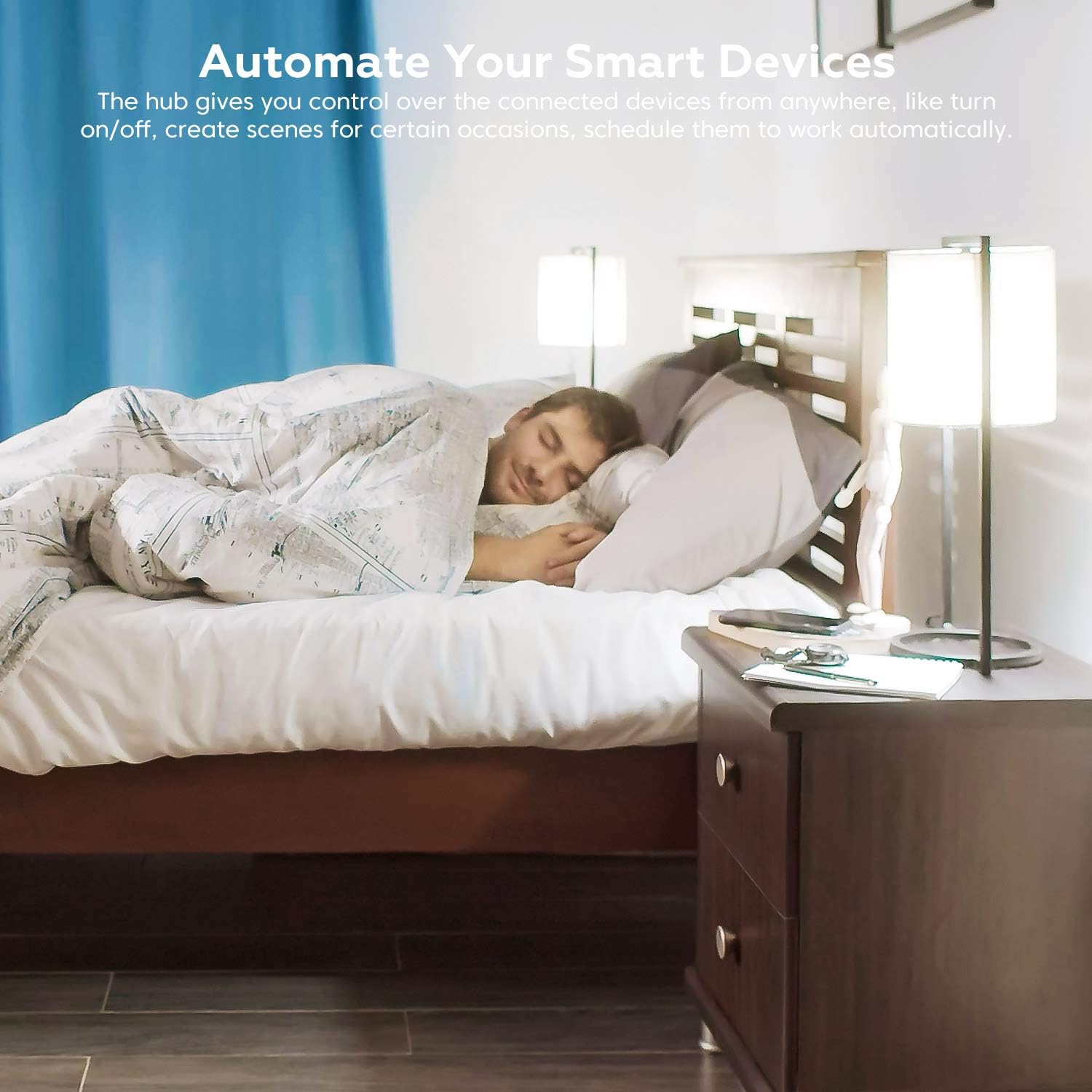
Image 4.1: A bedroom setting demonstrating how the Linkind Smart Mini Hub can automate devices, such as lights, to enhance daily routines.
4.2 Voice Control with Amazon Alexa
The Linkind Smart Mini Hub enables voice control for your connected Linkind Zigbee smart devices through Amazon Alexa. To enable this feature:
- Ensure your Amazon Alexa device (e.g., Echo Dot) is set up and connected to your Amazon account.
- Open the Alexa app and enable the Linkind skill.
- Discover devices through the Alexa app. Your Linkind devices connected to the hub should appear.
- You can now use voice commands like, "Alexa, turn on the living room light" or "Alexa, dim the bedroom light to 50%."

Image 4.2: A living room setup showcasing the Linkind Mini Hub's compatibility with Amazon Alexa for convenient voice control of smart devices.
5. Maintenance
To ensure the longevity and optimal performance of your Linkind Smart Mini Hub, follow these simple maintenance guidelines:
- Cleaning: Gently wipe the hub with a soft, dry cloth. Avoid using liquid cleaners or abrasive materials.
- Placement: Place the hub in a dry environment, away from direct sunlight, extreme temperatures, and high humidity.
- Ventilation: Ensure the hub has adequate ventilation and is not covered, to prevent overheating.
- Firmware Updates: Periodically check the Linkind app for any available firmware updates for the hub and install them to ensure the latest features and security enhancements.
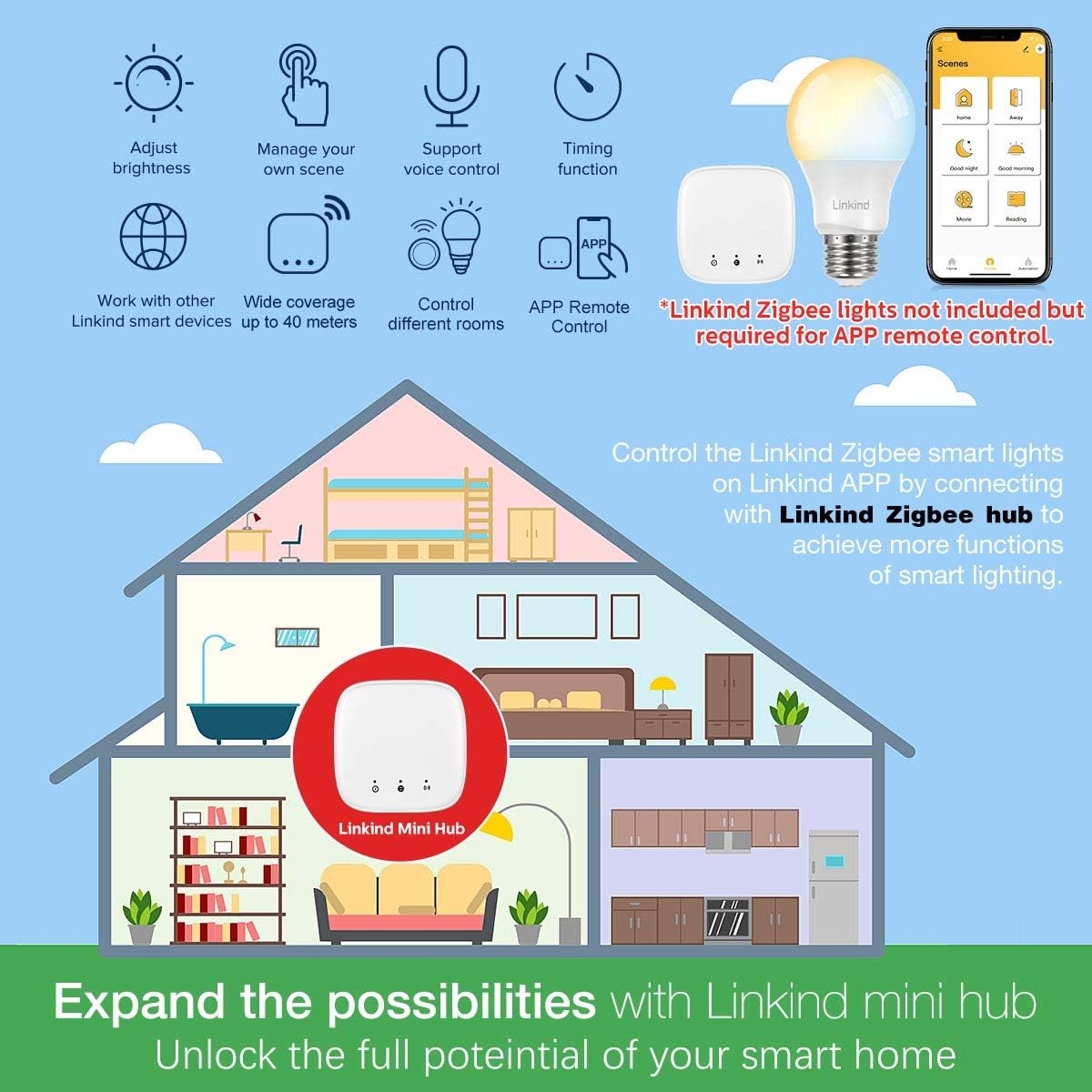
Image 5.1: The compact Linkind Mini Hub positioned on a table, demonstrating its discreet and space-saving design.
6. Troubleshooting
If you encounter issues with your Linkind Smart Mini Hub, refer to the following troubleshooting tips:
6.1 Hub Offline or Cannot Connect to Network
- Check Power: Ensure the hub is properly plugged into a working power outlet.
- Wi-Fi Band: Confirm that your router is broadcasting a 2.4 GHz Wi-Fi signal and that your mobile device is connected to it during setup. The hub does not support 5 GHz Wi-Fi.
- Router Compatibility: If using a mesh Wi-Fi system, ensure that the 2.4 GHz band is accessible and not automatically switching to 5 GHz. You may need to temporarily disable the 5 GHz band on your router during initial setup or ensure your mesh system allows devices to connect specifically to 2.4 GHz.
- Router Distance: Place the hub within a reasonable range of your Wi-Fi router to ensure a strong signal.
- Restart Devices: Try restarting your Wi-Fi router, then the Linkind Smart Mini Hub.
- Re-add Hub: If the issue persists, remove the hub from the Linkind app and attempt to add it again following the setup instructions.
6.2 Linkind Devices Not Pairing with Hub
- Device Compatibility: Ensure that the devices you are trying to pair are Linkind Zigbee devices. The hub is not compatible with devices from other brands.
- Pairing Mode: Confirm that your Linkind Zigbee device is in pairing mode. Refer to the device's specific instructions for how to activate pairing mode (often involves cycling power).
- Hub Capacity: The hub supports up to 25 Linkind Zigbee devices. If you have reached this limit, you may need to remove an existing device to add a new one.
- Distance: Ensure the Zigbee device is within range of the hub (up to 40 meters in open space).
6.3 Voice Control Not Working with Alexa
- Alexa Skill: Verify that the Linkind skill is enabled in your Amazon Alexa app.
- Device Discovery: Ask Alexa to "Discover devices" after adding new Linkind devices or if existing ones are not responding.
- Device Names: Ensure the names of your Linkind devices in the Linkind app are simple and easily recognizable by Alexa.
- Internet Connection: Confirm that both your Alexa device and the Linkind hub have a stable internet connection.
7. Specifications
| Attribute | Detail |
|---|---|
| Brand | Linkind |
| Model | B07QSDHFSP |
| Item Weight | 5.6 ounces |
| Product Dimensions | 2.4 x 2.4 x 0.8 inches |
| Color | White |
| Connectivity | Zigbee (for devices), 2.4 GHz Wi-Fi (for network) |
| Max Connected Devices | Up to 25 Linkind Zigbee devices |
| Power Source | Power adapter (included) |
| Date First Available | April 17, 2019 |
8. Warranty and Support
For information regarding product warranty, please refer to the warranty card included with your purchase or visit the official Linkind website. For technical support, troubleshooting assistance beyond this manual, or inquiries about Linkind products, please contact Linkind customer service through the Linkind app or their official support channels.
You can visit the Linkind Store on Amazon for more product information: Linkind Store