
HP 3UC66A#B1H
HP OfficeJet Pro 8035 All-in-One Wireless Printer User Manual
Model: 3UC66A#B1H
1. Introduction
The HP OfficeJet Pro 8035 All-in-One Wireless Printer is designed to enhance productivity in home and small office environments. This device offers printing, scanning, copying, and faxing capabilities, along with advanced features such as self-healing Wi-Fi and Smart Tasks. It is engineered for reliable performance and ease of use, ensuring high-quality output for various document types.

Figure 1: Front view of the HP OfficeJet Pro 8035 All-in-One Wireless Printer.
2. Setup Guide
2.1 Unboxing and Initial Placement
Carefully remove the printer and all components from the packaging. Ensure all protective tapes and packing materials are removed from the exterior and interior of the printer. Place the printer on a stable, flat surface with adequate space for paper trays and connections.
2.2 Power Connection
Connect the power cord to the printer's power port and then to a grounded electrical outlet. Press the power button to turn on the printer.
2.3 Ink Cartridge Installation
Open the ink cartridge access door. The printer comes with HP 910 Setup Black, HP 912 Setup Cyan, HP 910 Setup Magenta, and HP 910 Setup Yellow Ink Cartridges. Insert each cartridge into its corresponding slot, ensuring it clicks into place. Close the access door.
2.4 Paper Loading
Pull out the input tray. Load plain paper, letter or legal size, into the tray. Adjust the paper guides to fit the paper snugly. Push the input tray back into the printer.
2.5 Network Connection (Wi-Fi)
On the printer's touchscreen display, navigate to the network settings. Select your Wi-Fi network from the list and enter the password. The printer features self-healing Wi-Fi to detect and resolve connectivity issues automatically.

Figure 2: The printer's self-healing Wi-Fi ensures stable connectivity.
2.6 HP Smart App Installation
For full functionality, including remote printing and advanced scanning features, download and install the HP Smart App on your compatible device (PC, laptop, smartphone). Follow the in-app instructions to add your printer.
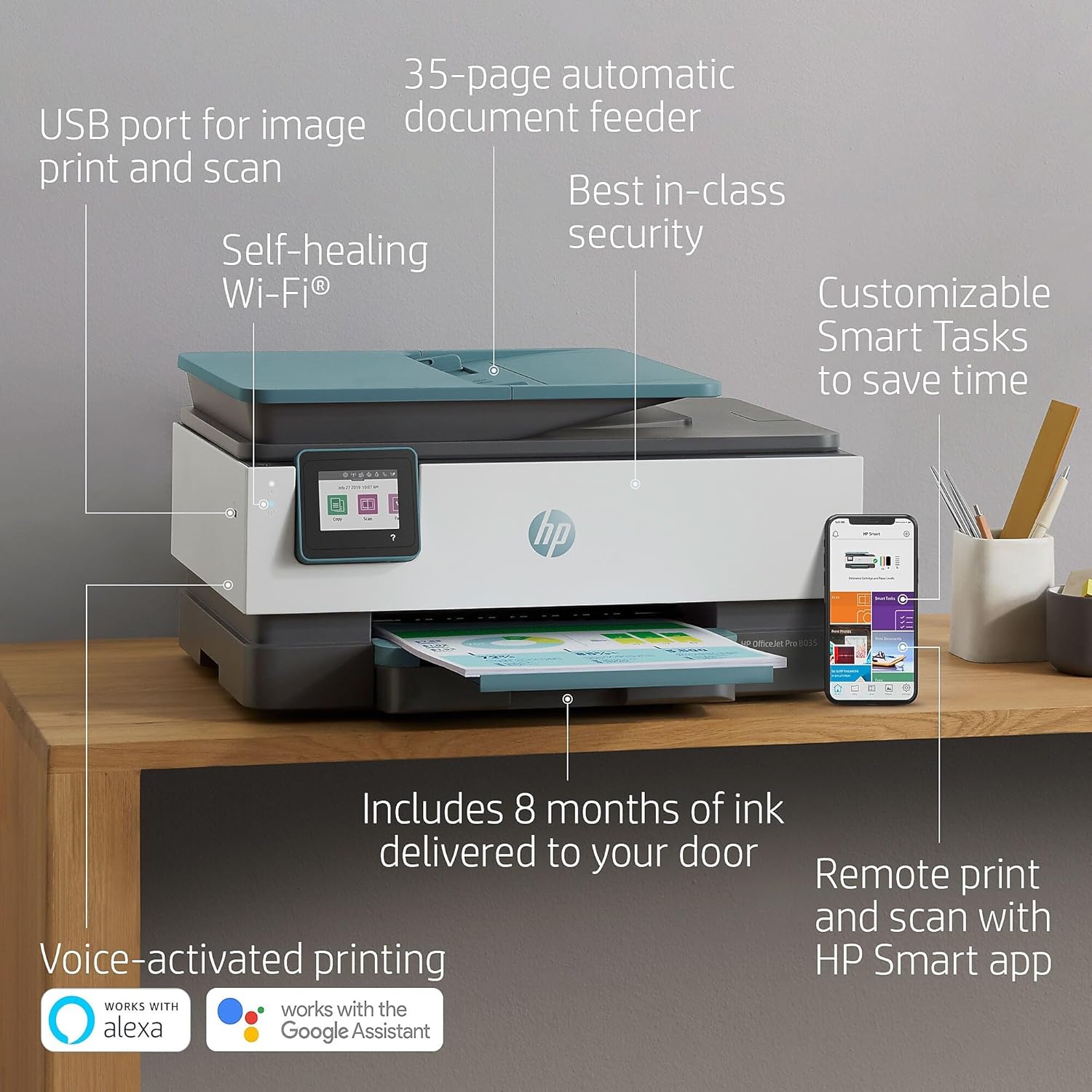
Figure 3: Key features including USB port, automatic document feeder, self-healing Wi-Fi, Smart Tasks, voice-activated printing, and remote print/scan.
3. Operating Instructions
3.1 Copying Documents
Place the document face-down on the scanner glass or face-up in the automatic document feeder (ADF). On the touchscreen, select 'Copy'. Adjust settings such as number of copies, color/black & white, and paper size, then press 'Start Copy'.
3.2 Scanning Documents
Place the document on the scanner glass or in the ADF. Select 'Scan' on the touchscreen. You can choose to scan to a connected computer, a USB drive, or directly to email via the HP Smart App. The Smart Tasks feature allows for automated scanning and organization, such as scanning receipts directly to cloud software.

Figure 4: Utilize Smart Tasks to scan receipts on the go and sync to cloud software using the HP Smart App.
3.3 Printing Documents and Photos
Print directly from your computer or smartphone via Wi-Fi using the HP Smart App or standard print drivers. The printer supports remote printing, allowing you to send print jobs from anywhere with an internet connection. For direct printing from a USB drive, insert the drive into the USB port on the side of the printer and select 'Photo' or 'Document' from the touchscreen.
3.4 Voice-Activated Printing
The HP OfficeJet Pro 8035 is compatible with Amazon Alexa and Google Assistant, enabling voice-activated printing commands for added convenience.
4. Maintenance
4.1 Replacing Ink Cartridges
When an ink cartridge is low or empty, the printer will notify you. To replace, open the ink cartridge access door. The print carriage will move to the center. Press the tab on the old cartridge to release it and pull it out. Unpack the new HP 910/912 series cartridge, insert it into the correct slot, and push until it clicks. Close the access door.

Figure 5: The printer is compatible with HP Instant Ink, ensuring you receive new cartridges before you run out.
4.2 Cleaning the Printer
Regularly clean the exterior of the printer with a soft, damp cloth. For print quality issues, refer to the printer's internal settings for printhead cleaning and alignment options.
5. Troubleshooting
5.1 Connectivity Issues
If the printer loses Wi-Fi connection, ensure your router is functioning correctly. The printer's self-healing Wi-Fi feature should attempt to re-establish the connection automatically. If issues persist, restart both the printer and your router.
5.2 Print Quality Problems
If prints appear faded, streaky, or have incorrect colors, check ink levels. Perform a printhead cleaning and alignment from the printer's maintenance menu. Ensure you are using original HP ink cartridges, as the printer uses dynamic security which may affect functionality with non-HP chips.
5.3 Paper Jams
If a paper jam occurs, the printer display will show instructions. Carefully remove any jammed paper from the input tray, output tray, or internal access areas. Ensure paper is loaded correctly and not overfilled.

Figure 6: The printer incorporates best-in-class security features to protect against viruses and malware.
6. Specifications
| Feature | Specification |
|---|---|
| Brand | HP |
| Model Name | 3UC66A#B1H |
| Connectivity Technology | Ethernet, Wi-Fi |
| Printing Technology | Inkjet |
| Printer Output | Color |
| Max Print Speed (Monochrome) | 29 ppm |
| Max Print Speed (Color) | 25 ppm |
| Max Color Print Resolution | 4800 x 1200 dpi |
| Max Black and White Print Resolution | 1200 dpi |
| Scanner Type | Flatbed |
| Max Input Sheet Capacity | 100 |
| Dual-sided printing | Yes (Automatic) |
| Product Dimensions | 9.21 x 18.11 x 13.43 inches |
| Item Weight | 20.6 pounds |
| Included Components | HP OfficeJet Pro 8035 All-in-One Printer; HP 910 Setup Black Ink Cartridge; HP 912 Setup Cyan Ink Cartridge, HP 910 Setup Magenta Ink Cartridge, HP 910 Setup Yellow Ink Cartridge; User Guide; Setup poster; Power cord; Instant Ink Flyer |
7. Warranty and Support
7.1 Warranty Information
The HP OfficeJet Pro 8035 All-in-One Wireless Printer comes with a Limited Warranty. For specific terms and conditions, please refer to the warranty documentation included with your product or visit the official HP support website.
7.2 Additional Resources
- An Installation Manual (PDF) is available for detailed setup instructions.
- For ink volume and page yield information, visit hp.com/go/learnaboutsupplies.
- For further assistance, visit the official HP support website or contact HP customer service.
Ask a question about this manual
Ask about setup, troubleshooting, compatibility, parts, safety, or missing instructions. Manuals+ will review the question and use this page’s manual context to help answer it.