
Hodozzy youyuekeji
Hodozzy 7 Inch Bluetooth Car Radio User Manual
Model: youyuekeji
Introduction
This manual provides detailed instructions for the installation, operation, and maintenance of your Hodozzy 7 Inch Bluetooth Car Radio. Please read this manual thoroughly before using the product to ensure proper function and safety. This unit features a 7-inch HD touch screen, Bluetooth 4.0, Mirror Link functionality for Android/iOS devices, FM radio, and support for USB, TF card, and AUX inputs.

Front view of the Hodozzy 7 Inch Bluetooth Car Radio, showing the touch screen interface with various application icons and physical buttons on the left side.
Product Contents
The package includes the following items:
- Hodozzy 7 Inch Bluetooth Car Radio Head Unit
- Remote Control
- Wiring Cable (ISO connector)
- Power Cord
- User Manual (this document)

Image showing the main head unit, remote control, wiring cables, and the user manual included in the product package.
Setup and Installation
Dimensions
The installation dimension of the head unit is approximately 178mm (7.0 inches) in width and 100mm (3.93 inches) in height. Please ensure your car's dashboard opening is compatible with these dimensions. Some car models may require a separate dash kit for proper installation.
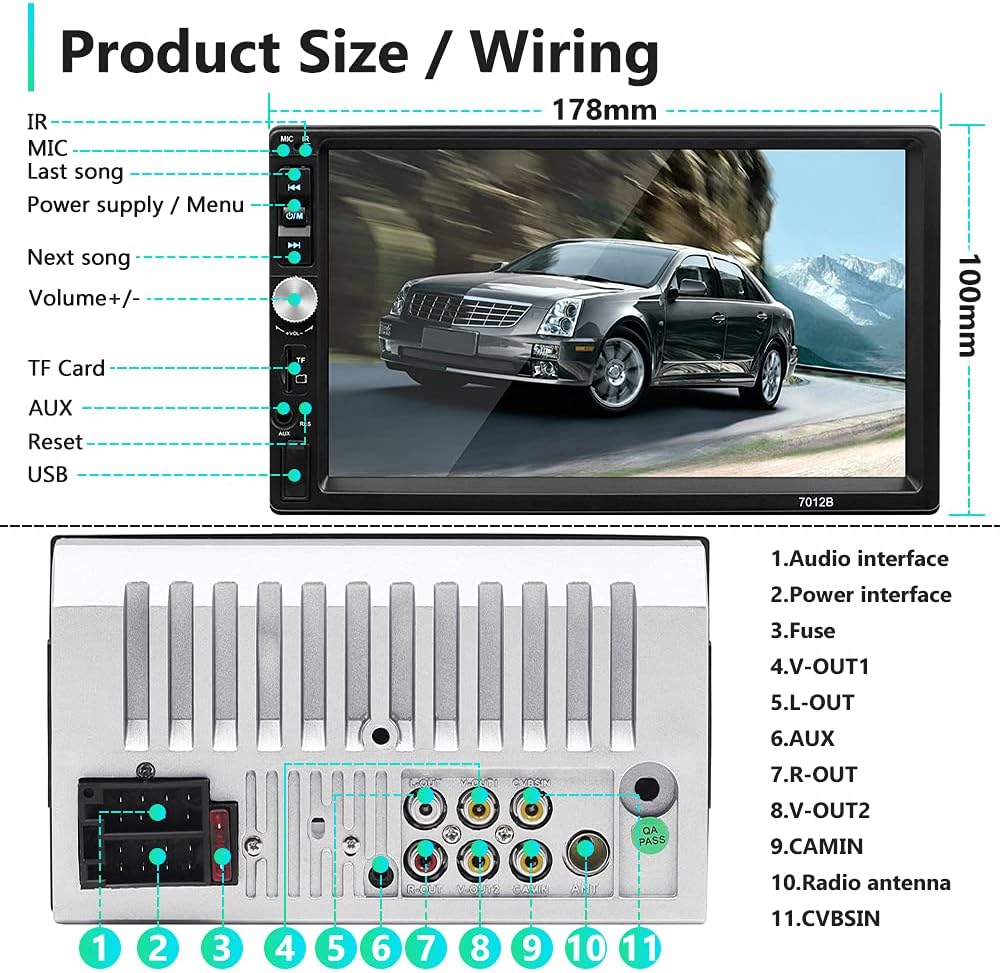
Diagram illustrating the product dimensions (178mm x 100mm) and the layout of the rear panel connections, including audio interfaces, power, fuse, and various input/output ports.
Wiring Diagram
Refer to the following diagram for correct wiring connections. Incorrect wiring can damage the unit or your vehicle's electrical system. It is recommended to have installation performed by a qualified professional.
- Speaker Connections:
- Purple / Purple-Black: Rear Right Speaker (+/-)
- Gray / Gray-Black: Front Right Speaker (+/-)
- White / White-Black: Front Left Speaker (+/-)
- Green / Green-Black: Rear Left Speaker (+/-)
- Power Connections:
- Yellow: +12V Constant Power Supply (B+)
- Red: +12V Ignition Switch (ACC)
- Black: Ground Wire (B-)
- Blue: Power Antenna / Amplifier Turn-on
- Other Connections:
- Pink: Brake Line
- Orange Line: Small Light Line
- Brown: Backing Line (for reverse camera trigger)
- Steering Wheel Control Line: Connect to vehicle's steering wheel control interface.

Comprehensive wiring diagram indicating connections for speakers, power supply, ignition, ground, antenna, brake, small light, backing line, and steering wheel control.
Operating Instructions
Bluetooth Functionality
The unit features built-in Bluetooth 4.0 for hands-free calling and audio streaming. To connect your device:
- Turn on the unit and enable Bluetooth on your mobile device.
- Search for available Bluetooth devices on your phone. The unit's name will typically appear as "CAR BT" or similar.
- Select the unit and pair. A confirmation message may appear on the screen.
- Once paired, you can make/receive calls and stream music through the car's speakers.

The Bluetooth interface on the car radio, displaying options for making calls, accessing the phone book, and controlling music playback.
Mirror Link Function
Mirror Link allows you to display your smartphone's screen on the car radio's display. This unit supports two-way sharing for Android phones (Android 10 and below) and one-way control for iPhones (iPhone 13 and below). Use an original USB cable for optimal performance.
- For Android: Connect your Android phone via USB. Follow the on-screen prompts to enable USB debugging and allow mirroring.
- For iOS: Connect your iPhone via USB. The screen will mirror automatically. Note that control is one-way (from phone to radio).
Note: This unit is not an Android radio and does not support built-in GPS. GPS navigation can be displayed via Mirror Link from your phone.

Illustration of the Mirror Link function, demonstrating how a smartphone's display is mirrored onto the car radio screen for both Android and Apple devices.

The Mirror Link feature in use, showing a navigation application from a smartphone displayed on the car radio's screen.
FM Radio
The unit includes an FM radio receiver with automatic and semi-automatic channel search modes. You can listen to music, news, and traffic information.
- Press the "FM" button to enter radio mode.
- Use the arrow buttons to manually tune or long-press for automatic station scanning.
- Save your favorite stations to preset buttons for quick access.

The FM radio interface, showing the current frequency, tuning controls, and a visual equalizer display.
USB, TF Card, and AUX Input
The multimedia player supports various external media inputs:
- USB Disk: Insert a USB flash drive into the USB port to play audio or video files.
- TF Card: Insert a TF (microSD) card into the TF card slot to play media files.
- AUX Input: Connect external audio devices (e.g., MP3 players) via the 3.5mm AUX input jack.

Visual representation of the external multimedia input options: USB charging, USB drive, AUX input, and TF card slot.
Steering Wheel Control (SWC)
The unit supports original car steering wheel control. After proper wiring (refer to the wiring diagram), you can map your steering wheel buttons to control functions like volume, track skipping, and call answering/ending directly from your steering wheel.

An illustration demonstrating the convenience of steering wheel controls for managing calls, adjusting volume, and navigating tracks without taking hands off the wheel.
Rear View Camera Input
The unit supports rear view camera input. When a compatible camera (not included) is connected correctly and the vehicle is put into reverse gear, the screen will automatically display the rearview image, assisting with parking and maneuvering.

The car radio display showing the reversing image with parking guidelines, as seen when a rear view camera is connected and active.
Maintenance
To ensure the longevity and optimal performance of your Hodozzy car radio, follow these maintenance guidelines:
- Cleaning the Screen: Use a soft, lint-free cloth to gently wipe the touch screen. For stubborn smudges, slightly dampen the cloth with water or a screen-safe cleaner. Avoid abrasive materials or harsh chemicals.
- General Cleaning: Keep the unit free from dust and debris. Use a soft brush or compressed air to clean around buttons and ports.
- Temperature: Avoid exposing the unit to extreme temperatures, both hot and cold, as this can affect performance and lifespan.
- Power Supply: Ensure stable power supply to prevent electrical damage. If you notice any unusual behavior, check the wiring connections.
Troubleshooting
| Problem | Possible Cause | Solution |
|---|---|---|
| Unit does not power on. | Incorrect wiring (power/ground), blown fuse, vehicle battery issue. | Check all power and ground connections. Verify the fuse in the unit and vehicle's fuse box. Ensure vehicle battery is charged. |
| No sound. | Speaker wires disconnected, volume too low, mute activated, incorrect audio source. | Check speaker wiring. Increase volume. Deactivate mute. Select correct audio source (FM, USB, AUX, BT). |
| Bluetooth not connecting or unstable. | Device not in pairing mode, interference, outdated phone OS (for Mirror Link). | Ensure Bluetooth is enabled on both devices and in pairing mode. Try forgetting the device on your phone and re-pairing. Move closer to the unit. For Mirror Link, ensure your phone's OS version is within supported limits (Android 10 and below, iPhone 13 and below). Try a different USB cable. |
| Mirror Link not working. | Incompatible phone model/OS, non-original USB cable, USB debugging not enabled (Android). | Verify phone compatibility (Android 10/iOS 13 or below). Use the original USB cable that came with your phone. For Android, enable USB debugging in developer options. Restart both phone and head unit. |
| Steering Wheel Control not responding. | Incorrect wiring, vehicle not supported, SWC learning not performed. | Check SWC wiring connections. Some vehicles may require an additional interface. Refer to the unit's settings for SWC learning/mapping. |
| Rear view camera not displaying. | Camera not connected, incorrect wiring (video input/trigger), faulty camera. | Ensure camera is properly connected to the "CAMIN" input and the backing line (Brown wire) is connected to the reverse light trigger. Test camera functionality. |
Specifications
| Feature | Detail |
|---|---|
| Display | 7-inch HD LCD Touch Screen |
| Bluetooth Version | 4.0 (A2DP, Hands-free, Phone Book, Music) |
| Mirror Link Compatibility | Android (10 and below, two-way), iOS (iPhone 13 and below, one-way) |
| Radio Tuner | FM (Automatic/Semi-automatic search) |
| Supported Media Inputs | USB Disk, TF Card, AUX (3.5mm Jack) |
| Audio Encoding | Stereo |
| Audio Output Mode | Stereo |
| Surround Sound Channel Configuration | 4.0 |
| Video Encoding | RM, RMVB, AVI, MP4, MKV, 3GP |
| Special Features | Touchscreen, DAB (Digital Audio Broadcasting - if supported by region/adapter) |
| Item Model Number | youyuekeji |
| Dimensions (approx.) | 178mm (W) x 100mm (H) |
| Item Weight | 1.1 pounds |
Warranty and Support
For warranty information and technical support, please refer to the contact details provided with your purchase or visit the official Hodozzy store on Amazon. If you encounter any issues not covered in this manual, please contact customer service for assistance.
Hodozzy Store Link: Visit the Hodozzy Store
Related Documents - youyuekeji
 |
User Manual for 10.1 Inch Android Double Din Car Stereo This user manual provides comprehensive instructions for operating and installing the 10.1 inch Android Double Din Car Stereo, including features, specifications, wiring, troubleshooting, and advanced functions like GPS navigation, Bluetooth, and mirror link. |
 |
Hodozzy Android Car Navigation System Operation Manual This operation manual provides detailed instructions for the Hodozzy Android car navigation system, covering its interface, features, modes, settings, installation, and offline map functionality. |
 |
EU Data Act Transparency Declaration for Android In-Vehicle Multimedia Device This document outlines the transparency declaration for an Android-based in-vehicle multimedia device in accordance with the EU Data Act, detailing data generation, processing, transmission, and software updates. |
Ask a question about this manual
Ask about setup, troubleshooting, compatibility, parts, safety, or missing instructions. Manuals+ will review the question and use this page’s manual context to help answer it.