1. Introduction
The Gigaset N670 IP Pro DECT Base Station is a professional, scalable DECT IP multicell system designed for small to medium-sized businesses. It provides seamless communication with up to 20 users and supports up to 8 simultaneous calls. This manual provides essential information for the proper installation, operation, and maintenance of your N670 IP Pro base station.
2. Safety Information
Please read the following safety instructions carefully before operating the device. Failure to comply may result in injury or damage to the device.
- Do not expose the device to extreme temperatures, direct sunlight, or high humidity.
- Use only the power supply specified for this device (Power over Ethernet or optional C706 power supply).
- Avoid placing the device near sources of electromagnetic interference.
- Do not open the device casing. Refer all servicing to qualified personnel.
- Keep the device out of reach of children.
3. Package Contents
Verify that all items are present in your package:
- Gigaset N670 IP Pro DECT Base Station
- Mounting bracket (if included)
- Ethernet cable
- Quick Start Guide
- Note: A power supply unit (C706) is optional and may not be included if Power over Ethernet (PoE) is intended for use.
4. Setup
4.1 Physical Installation
The N670 IP Pro can be mounted on a wall or placed on a flat surface. Ensure the chosen location provides optimal DECT coverage and is near a network connection.

Figure 1: Front view of the Gigaset N670 IP Pro DECT Base Station. The device is white with the Gigaset logo on the upper right and a small square button at the bottom center.
4.1.1 Mounting the Base Station
- Select a suitable mounting location.
- Use the provided mounting bracket as a template to mark drilling points on the wall.
- Drill holes and insert wall plugs if necessary.
- Secure the mounting bracket to the wall.
- Attach the N670 IP Pro base station to the mounting bracket.
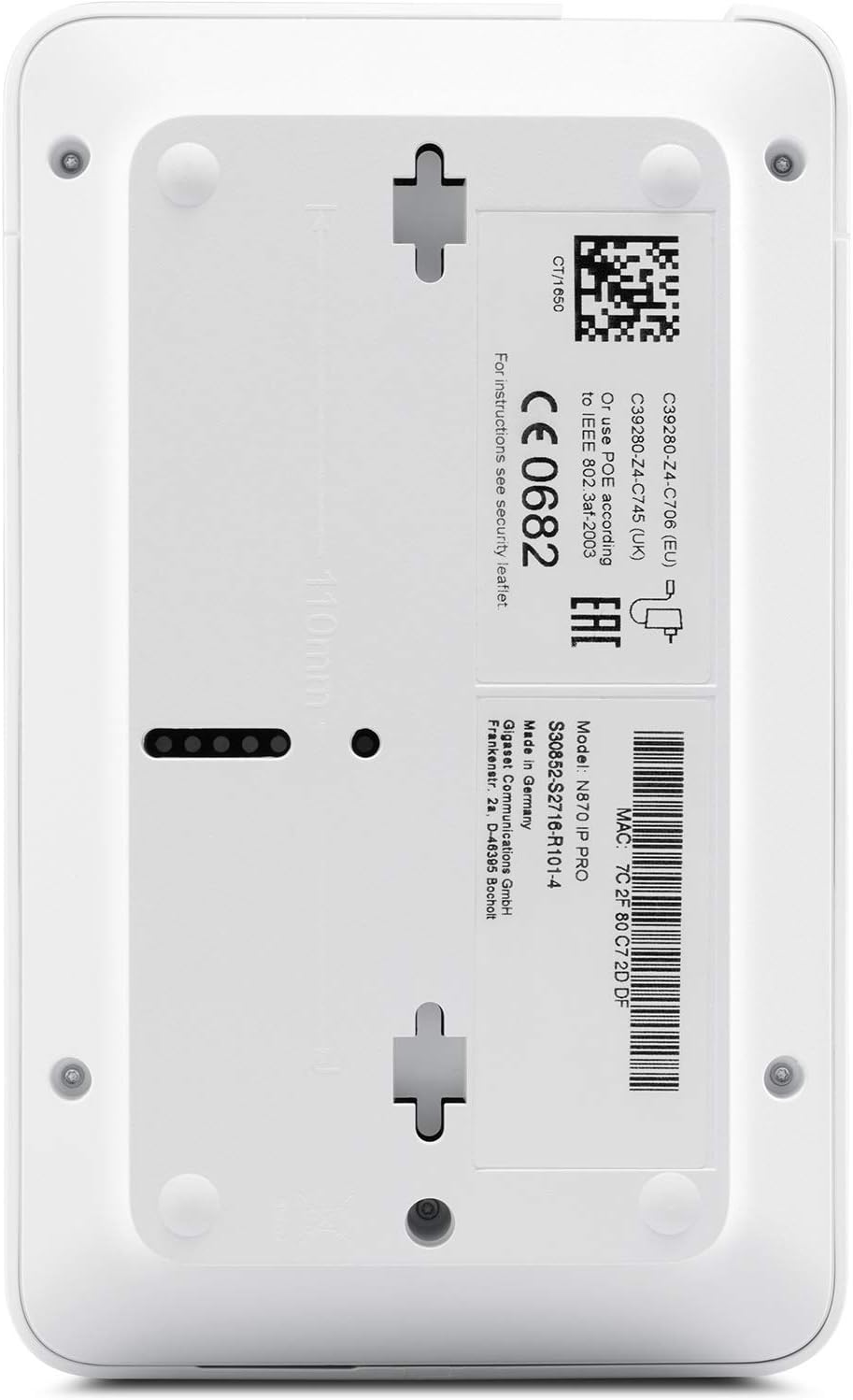
Figure 2: Back view of the Gigaset N670 IP Pro DECT Base Station. The label displays model information, serial number, and MAC address (e.g., 7C2F80C72DDF). Mounting holes are visible for wall installation.
4.2 Network and Power Connection
The N670 IP Pro supports Power over Ethernet (PoE) for simplified installation. Alternatively, an optional power supply can be used.
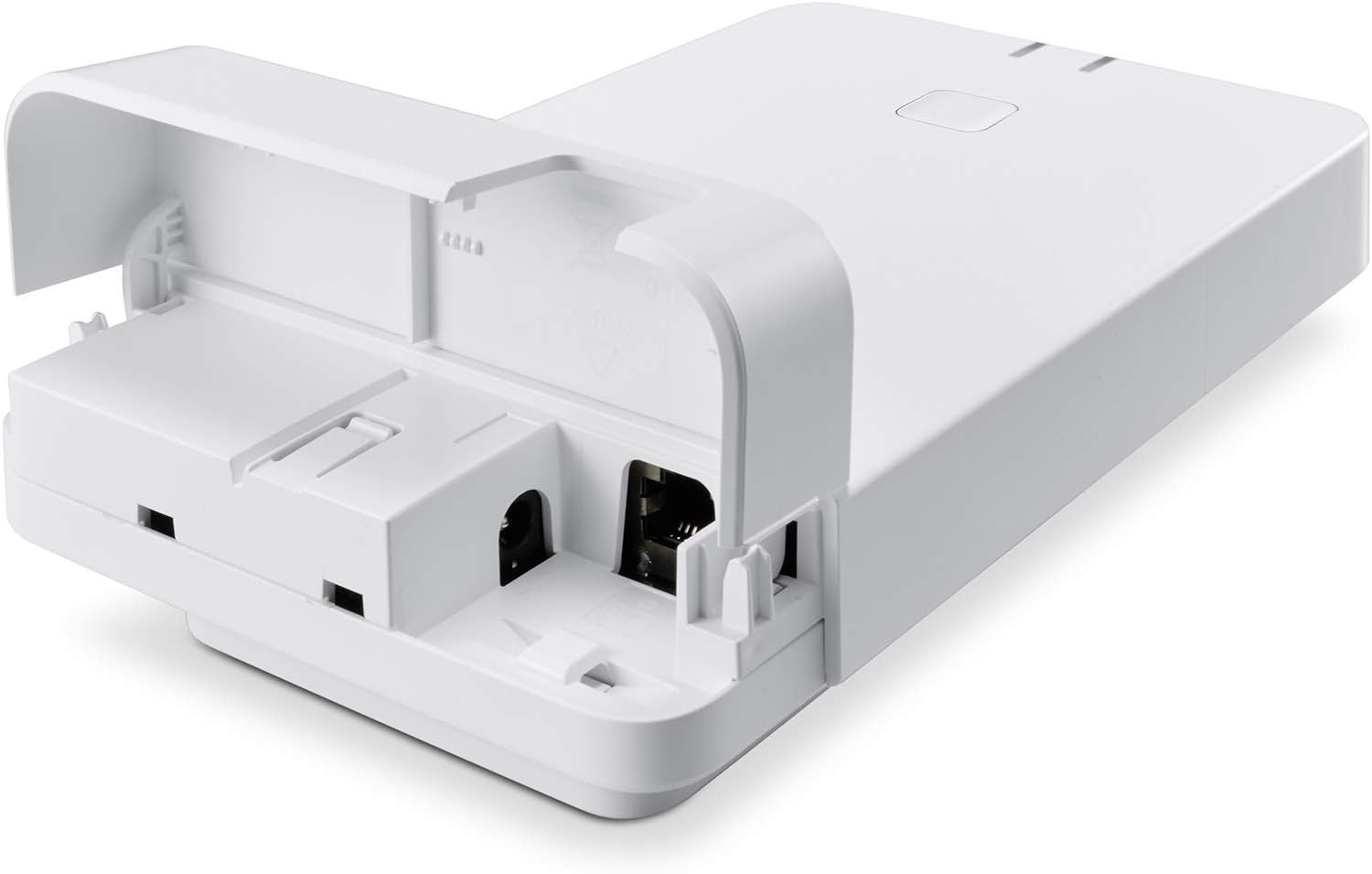
Figure 3: Bottom view of the Gigaset N670 IP Pro DECT Base Station with the cover open, revealing the Ethernet port and the optional power input port.
- Connect one end of the Ethernet cable to the LAN port on the base station.
- Connect the other end of the Ethernet cable to a PoE-enabled switch or router. If PoE is not available, connect the optional C706 power supply to the power input port and then to a power outlet.
- Ensure the network connection is active and the base station powers on. The status LED will indicate power and network activity.
4.3 Initial Configuration
The N670 IP Pro is configured via a web-based interface.
- Obtain the IP address of the base station. This can often be found through your network router's connected devices list or by using a network scanner tool.
- Open a web browser on a computer connected to the same network.
- Enter the IP address of the base station into the browser's address bar and press Enter.
- Log in using the default administrator credentials (refer to the Quick Start Guide for default username and password).
- Follow the on-screen prompts to configure network settings, SIP accounts, and DECT handsets.
5. Operating the Base Station
5.1 Registering DECT Handsets
Up to 20 DECT handsets can be registered to the N670 IP Pro base station.
- On the N670 IP Pro web interface, navigate to the DECT settings and enable registration mode.
- On your DECT handset, initiate the registration process (refer to your handset's manual for specific steps).
- Enter the system PIN when prompted (default is usually 0000).
- Once registered, the handset will display the base station name or an internal number.
5.2 Making and Receiving Calls
Once handsets are registered and SIP accounts are configured, you can make and receive calls.
- Making a Call: Dial the desired number on the registered DECT handset and press the call button.
- Receiving a Call: When a call comes in, the registered handsets will ring. Press the call button to answer.
- The system supports up to 8 simultaneous calls, ensuring high operational readiness.
5.3 SRTP2 Security
The N670 IP Pro ensures call security through SRTP2 (Secure Real-time Transport Protocol). This encryption protocol protects your voice communications from eavesdropping. Ensure SRTP2 is enabled and properly configured in the web interface for all SIP accounts.
6. Maintenance
6.1 Firmware Updates
Regular firmware updates are crucial for maintaining optimal performance, security, and access to new features. Gigaset periodically releases updates for the N670 IP Pro.
- Access the web-based configuration interface.
- Navigate to the "Firmware Update" or "System" section.
- Check for available updates or upload a firmware file manually if downloaded from the official Gigaset support website.
- Follow the on-screen instructions to complete the update process. Do not power off the device during an update.
6.2 Cleaning
To clean the base station, use a soft, dry, anti-static cloth. Do not use liquid cleaners or abrasive materials, as these can damage the device.
7. Troubleshooting
| Problem | Possible Cause | Solution |
|---|---|---|
| No power/Device not turning on | No PoE connection or faulty power adapter. | Ensure Ethernet cable is connected to a PoE-enabled port or verify the optional power adapter is correctly connected and functional. |
| No network connection | Ethernet cable disconnected or network issue. | Check Ethernet cable connection. Verify network status on your router/switch. Restart the base station. |
| Handset cannot register | Base station not in registration mode or incorrect system PIN. | Enable registration mode via the web interface. Confirm the correct system PIN. Ensure the handset is compatible. |
| Cannot make/receive calls | SIP account not configured or network issues. | Verify SIP account settings in the web interface. Check network connectivity. Ensure your VoIP service is active. |
| Poor DECT range | Obstructions or interference. | Relocate the base station to a more central position. Avoid placing near large metal objects or other wireless devices. Consider adding DECT repeaters if supported. |
8. Specifications
- Model: Gigaset N670 IP Pro
- Item Model Number: S30852-S2714-R101-15
- Brand: Gigaset
- Color: White
- Dimensions (LxWxH): 19.69 x 19.69 x 11.02 inches
- Weight: 7.7 ounces (0.22 Kilograms)
- Power Source: Power over Ethernet (PoE) or optional Corded Electric (C706 power supply)
- Material: Acrylonitrile Butadiene Styrene (ABS)
- Users/SIP Accounts: Up to 20
- Simultaneous Calls: Up to 8
- Security: SRTP2
- System Type: Single cell (upgradable to multi-cell with license for up to 250 participants)
- Compatible Devices: Computer systems, VoIP services, telephone networks, other communication devices
- First Available: June 28, 2019
9. Warranty and Support
For warranty information, please refer to the documentation included with your purchase or visit the official Gigaset website. Gigaset offers a standard manufacturer's warranty against defects in materials and workmanship.
For technical support, firmware downloads, and additional resources, please visit the Gigaset support portal. You may also contact Gigaset customer service directly for assistance with setup, troubleshooting, or product inquiries.
Online Resources: Gigaset Support


