1. Introduction
This manual provides detailed instructions for the setup, operation, maintenance, and troubleshooting of your Xtech Armiger XTK-510S Gaming Keyboard. Please read this manual thoroughly before using the product to ensure proper functionality and longevity.

Figure 1: Xtech Armiger XTK-510S Gaming Keyboard, showing its full layout and RGB backlighting.
2. Safety Information
- Do not expose the keyboard to liquids or excessive moisture.
- Avoid extreme temperatures. Store and operate the keyboard within recommended environmental conditions.
- Do not attempt to disassemble or modify the keyboard. This may void the warranty and cause damage.
- Keep out of reach of small children.
- Use only with compatible devices and power sources as specified.
3. Setup
The Xtech Armiger XTK-510S keyboard is designed for simple plug-and-play installation.
- Unpack the Keyboard: Carefully remove the keyboard from its packaging.
- Connect to Computer: Locate an available USB port on your computer. Insert the USB cable from the keyboard firmly into the USB port.
- Driver Installation: Your operating system (Windows, macOS, etc.) should automatically detect and install the necessary drivers. This process may take a few moments.
- Verification: Once drivers are installed, the keyboard's backlighting should illuminate, and you should be able to type.
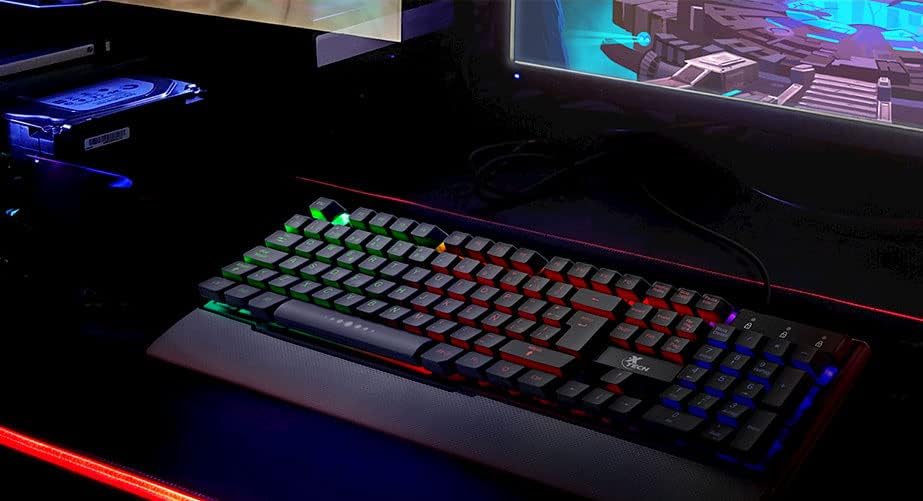
Figure 2: The Xtech Armiger XTK-510S keyboard set up on a desk, connected to a computer, demonstrating its illuminated keys in a gaming environment.
4. Operating Instructions
4.1. RGB Backlighting Control
The XTK-510S features customizable RGB backlighting. Specific key combinations control lighting modes and brightness.
- Brightness Adjustment: Use the Fn key combined with specific function keys (e.g., Fn + Page Up for increased brightness, Fn + Page Down for decreased brightness). Refer to the keyboard's keycap legends for exact combinations.
- Lighting Mode Cycle: Press Fn + Scroll Lock or similar key (check keyboard legends) to cycle through various lighting effects (e.g., static, breathing, wave).
- Color Change: Some modes allow color customization. Use Fn + Home or other designated keys to change colors within a mode.
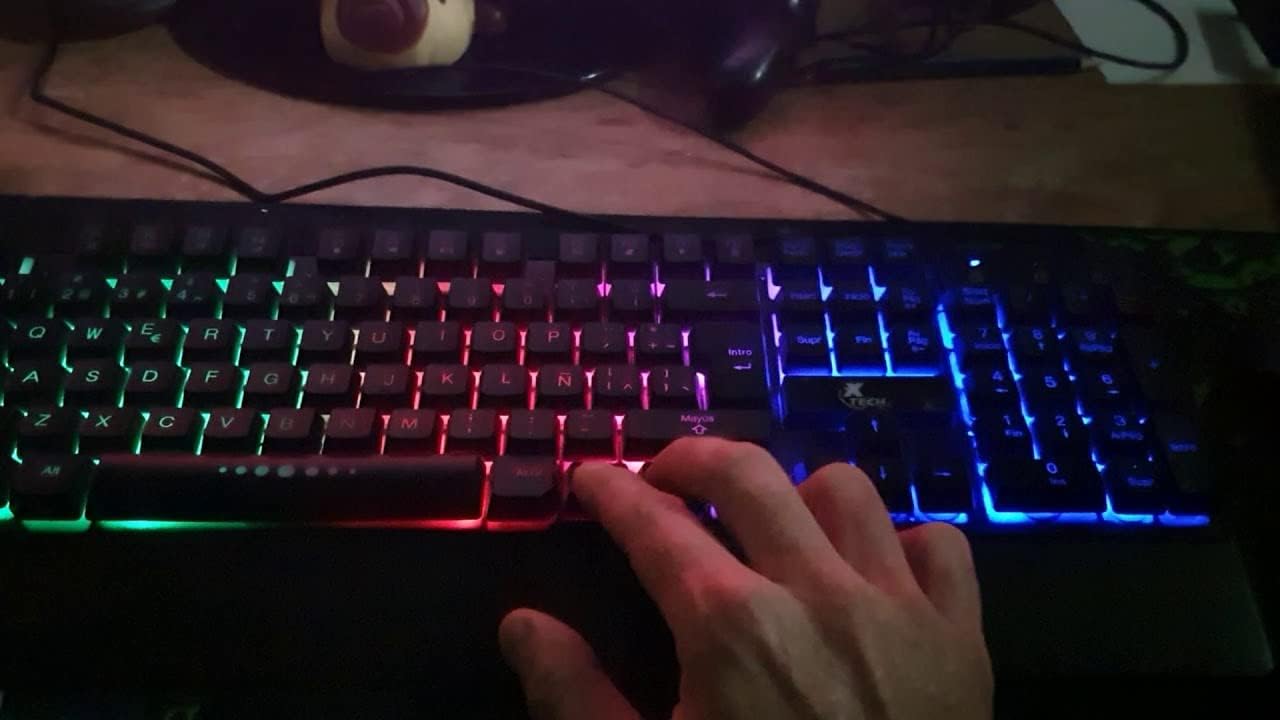
Figure 3: A hand demonstrating interaction with the Xtech Armiger XTK-510S keyboard, highlighting the illuminated keys and the potential for lighting adjustments.
4.2. Multimedia Functions
The keyboard includes dedicated multimedia function keys, typically accessed by pressing the Fn key in combination with the F1-F12 keys.
| Key Combination | Function |
|---|---|
| Fn + F1 | Media Player |
| Fn + F2 | Volume Down |
| Fn + F3 | Volume Up |
| Fn + F4 | Mute |
| Fn + F5 | Stop |
| Fn + F6 | Previous Track |
| Fn + F7 | Play/Pause |
| Fn + F8 | Next Track |
| Fn + F9 | |
| Fn + F10 | Web Browser |
| Fn + F11 | My Computer |
| Fn + F12 | Calculator |
5. Maintenance
Proper maintenance ensures the longevity and performance of your keyboard.
- Cleaning:
- Disconnect the keyboard from your computer before cleaning.
- Use a soft, lint-free cloth slightly dampened with water or a mild cleaning solution.
- Do not spray cleaners directly onto the keyboard.
- For dust and debris between keys, use compressed air.
- Storage: Store the keyboard in a cool, dry place away from direct sunlight and extreme temperatures when not in use for extended periods.
- Avoid Spills: While the keyboard may have some spill resistance, it is not waterproof. Avoid placing drinks or liquids near the keyboard.
6. Troubleshooting
| Problem | Possible Cause | Solution |
|---|---|---|
| Keyboard not responding | Loose USB connection, faulty USB port, driver issue. | Ensure USB cable is securely connected. Try a different USB port. Restart your computer. Check Device Manager for driver issues. |
| Backlighting not working | Lighting is turned off or brightness is set to minimum. | Press Fn + Page Up repeatedly to increase brightness. Cycle through lighting modes using Fn + Scroll Lock. |
| Keys are sticky or unresponsive | Debris under keycaps, excessive dust. | Clean the keyboard using compressed air. Avoid eating over the keyboard. |
| Multimedia keys not functioning | Incorrect key combination, software conflict. | Ensure you are pressing the Fn key simultaneously with the desired function key. Check for any conflicting software. |
7. Specifications
| Feature | Detail |
|---|---|
| Brand | Xtech |
| Model | Armiger XTK-510S |
| Connectivity Technology | USB (Wired) |
| Keyboard Description | Gaming, Multimedia |
| Special Feature | RGB Backlighting |
| Number of Keys | 105 |
| Switch Type | Mechanical |
| Keyboard Layout | QWERTY |
| Compatible Devices | Laptop, PC |
| Dimensions (L x W x H) | 45.6 x 19.2 x 5 cm |
| Weight | 760 g |
8. Warranty and Support
Xtech products are designed for reliability and performance. While specific warranty details are not provided in this manual, please retain your proof of purchase for any warranty claims.
- Returns: This product may be eligible for a 30-day free return period from the point of purchase. Please refer to your retailer's return policy for details.
- Technical Support: For technical assistance or further inquiries, please contact Xtech customer support through their official website or the retailer where the product was purchased.


