
1. Introduction
This manual provides essential information for the installation, operation, and maintenance of your EVGA GeForce GTX 1080 Ti FTW3 Gaming graphics card. This high-performance graphics card features 11GB GDDR5X memory, EVGA iCX Technology with 9 thermal sensors, RGB LED lighting, 3X Async Fan Control, and an optimized airflow design for superior thermal performance.

Figure 1.1: EVGA GeForce GTX 1080 Ti FTW3 Gaming Graphics Card
2. Safety Information
Please read and follow these safety guidelines to prevent damage to your product or personal injury:
- Always disconnect power from your computer before installing or removing any components.
- Ground yourself by touching a metal object (like your computer case) before handling the graphics card to discharge static electricity.
- Handle the graphics card by its edges to avoid touching sensitive components.
- Ensure proper ventilation within your computer case to prevent overheating.
- The card includes a safety fuse designed to protect components from damage due to improper installation or other component failures.
3. Package Contents
Verify that your package contains the following items:
- EVGA GeForce GTX 1080 Ti FTW3 Gaming Graphics Card
- User Manual (this document)
- Driver & Utility CD/DVD (or download instructions)
4. Installation
4.1. Pre-Installation
- Turn off your computer and disconnect the power cable from the wall outlet.
- Open your computer case.
- Locate an available PCI Express x16 slot on your motherboard.
- Remove any existing graphics card or the slot cover from the chosen PCIe slot.
4.2. Hardware Installation
Carefully insert the graphics card into the PCI Express x16 slot until it is fully seated and the retention clip locks into place. Secure the card to the chassis with a screw.

Figure 4.1: Front view of the graphics card for installation reference
Connect the required PCIe power cables from your power supply to the graphics card. The EVGA GeForce GTX 1080 Ti FTW3 Gaming typically requires two 8-pin PCIe power connectors.

Figure 4.2: Side view showing PCIe power connectors

Figure 4.3: Backplate view of the graphics card
4.3. Driver Installation
- Close your computer case and reconnect the power cable.
- Connect your display monitor to one of the video output ports on the graphics card.
- Power on your computer.
- Once the operating system loads, install the latest graphics drivers from the official EVGA or NVIDIA website (evga.com/drivers or nvidia.com/drivers).
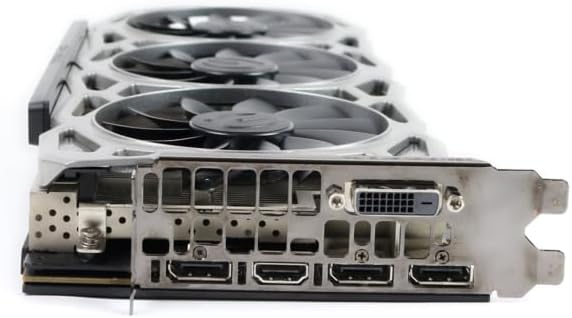
Figure 4.4: Rear I/O ports (DisplayPort, HDMI, DVI)
5. Operating Instructions
5.1. Display Connection
Connect your monitor(s) to the available DisplayPort, HDMI, or DVI ports on the graphics card. The card supports up to 4 monitors with a maximum digital resolution of 7680x4320.
5.2. Software Configuration
For advanced control and monitoring, download and install EVGA Precision XOC software from the EVGA website. This software allows you to:
- Monitor GPU, memory, and VRM temperatures via iCX Technology's 9 thermal sensors.
- Adjust fan speeds with 3X Async Fan Control for optimized cooling.
- Customize RGB LED lighting.
- Overclock the GPU for enhanced performance.
6. Maintenance
To ensure optimal performance and longevity of your graphics card:
- Regularly clean dust from the graphics card fans and heatsink using compressed air. Ensure the computer is powered off and unplugged before cleaning.
- Do not obstruct the airflow around the graphics card within your computer case.
- Keep your graphics drivers updated to the latest version for performance improvements and bug fixes.
7. Troubleshooting
If you encounter issues with your graphics card, refer to the table below for common problems and solutions:
| Problem | Possible Cause | Solution |
|---|---|---|
| No display output | Incorrect cable connection, unseated card, no power, driver issue. | Ensure display cable is securely connected. Reseat the graphics card. Verify PCIe power cables are connected. Reinstall drivers. |
| System instability or crashes | Overheating, unstable overclock, driver conflict, insufficient power. | Monitor temperatures. Reset overclock settings. Update/reinstall drivers. Ensure PSU meets requirements. |
| Poor game performance | Outdated drivers, incorrect game settings, background applications. | Update graphics drivers. Adjust in-game graphics settings. Close unnecessary background programs. |
| Fans not spinning or making unusual noise | Dust buildup, fan failure, incorrect fan curve. | Clean fans. Check fan settings in EVGA Precision XOC. Contact support if fan is faulty. |
If the problem persists, please contact EVGA customer support for further assistance.
8. Specifications
Key technical specifications for the EVGA GeForce GTX 1080 Ti FTW3 Gaming graphics card:
| Feature | Specification |
|---|---|
| Graphics Coprocessor | NVIDIA GeForce GTX 1080 Ti |
| Brand | EVGA |
| Graphics RAM Size | 11 GB |
| Graphics RAM Type | GDDR5X |
| Video Output Interface | DisplayPort, HDMI, DVI |
| Graphics Processor Manufacturer | NVIDIA |
| Display Resolution Maximum | 7680x4320 |
| Graphics Card Interface | PCI Express |
| Real Boost Clock | 1683 MHz |
| Number of Fans | 3 |
| Item Dimensions (L x W) | 12.81"L x 9.5"W |
| Model Name | FTW3 Gaming |
| UPC | 737488610383 |
9. Warranty and Support
This product comes with a 90-day limited warranty. For detailed warranty terms and conditions, please refer to the official EVGA website or contact EVGA customer support.
For technical support, driver downloads, or further assistance, please visit the official EVGA support website:


