
1. Product Overview
The Homcloud SM1 Smart Wi-Fi Integrated Switch Module is designed to transform traditional electrical switches into smart, Wi-Fi-enabled controls. This module allows for remote control and adjustment of connected electrical outlets or lights (including LED types) via a smartphone application, Amazon Alexa, or Google Home. It operates in parallel with existing traditional switches, ensuring functionality even when the physical switch is used. The module features a 1-channel output and can be controlled by multiple traditional switches.
Key features include:
- Remote Access: Control your devices from anywhere using the Homcloud app.
- Voice Control: Compatible with Amazon Alexa and Google Home for hands-free operation.
- Scheduling & Timer: Set predefined schedules and timers for lights and appliances.
- Family Sharing: Easily share control of the device with family members.
- Quick Setup: Fast and straightforward connection to your smartphone.
- Low Voltage Control: The Lout output provides a clean contact for 8-30V, also capable of controlling 12-24V lights and devices (e.g., spotlights, strips).
2. Specifications
| Specification | Detail |
|---|---|
| Model Number | AS-SM1 (QS-WIFI-S03) |
| Brand | Homcloud |
| Input Voltage | 220-240V ~ 50Hz |
| Max. Power | 2300W |
| Wi-Fi Standard | 2.4GHz 802.11 b/g/n |
| Output (Lout) | Clean contact 8-30V (supports 12-24V devices) |
| Operating Mode | ON-OFF-ON |
| Connector Type | Plug In |
| Switch Type | Intelligent |
| Terminal | Solder |
| Material | Plastic |
| Actuator Type | Remote |
| International Protection Rating | IP65 |
| Controller Type | Amazon Alexa, Google Home |
| Control Method | Application |
| Package Dimensions | 7.5 x 5.9 x 2.4 cm |
| Weight | 50 grams |

Image 1: The product label for the Homcloud SM1 Wi-Fi Switch Module, detailing its model number (AS-SM1, QS-WIFI-S03), voltage (220-240V ~ 50Hz), maximum power (2300W), and Wi-Fi specifications (2.4GHz 802.11 b/g/n). It also shows the wiring terminals L, N, L1, and Lout.
3. Safety Information
Please read and understand all safety instructions before installing or operating this device. Failure to follow these instructions may result in electric shock, fire, or other hazards.
- Professional Installation Recommended: Installation should be performed by a qualified electrician or in accordance with local electrical codes.
- Power Off Before Installation: Always disconnect power at the circuit breaker before installing or servicing the module.
- Indoor Use Only: This device is designed for indoor use in dry locations.
- Operating Voltage: Ensure the module's voltage rating matches your electrical system.
- Overload Protection: Do not exceed the maximum load rating of 2300W.
- Keep Away from Water: Avoid exposure to water or high humidity.
4. Setup
4.1 Physical Installation
The Homcloud SM1 module is designed to be installed inside an electrical wall box, behind a traditional switch, or in a false ceiling. Ensure sufficient space for proper ventilation and wiring.

Image 2: The Homcloud SM1 module is shown being inserted into a standard electrical wall box, demonstrating its compact design for discreet installation behind a traditional switch.
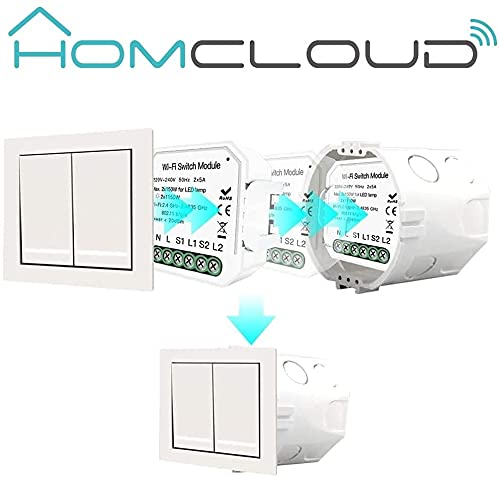
Image 3: This image illustrates the Homcloud SM1 module positioned within a wall box, ready to be covered by a traditional light switch, integrating smart control seamlessly.
Wiring Diagram (Example for 2-Gang/2-Way Switch)
Refer to the following diagram for typical wiring. Always consult a qualified electrician if you are unsure about electrical installations.

Image 4: A detailed wiring diagram for the Homcloud SM1 module, illustrating connections for a 2-gang/2-way switch setup. It shows connections for Live (L), Neutral (N), Switch inputs (S1, S2), and Load outputs (L1, L2).
- Connect the Live (L) wire to the module's 'L' terminal.
- Connect the Neutral (N) wire to the module's 'N' terminal.
- Connect the load (e.g., light fixture) to the module's 'L1' terminal.
- Connect the traditional switch's output to the module's 'S1' terminal.
- For multi-way control, additional switches can be wired to 'S2' if applicable to your model.
- For low voltage applications, use the 'Lout' terminal (8-30V clean contact).
4.2 App Installation & Device Pairing
The Homcloud control application is essential for smart functionality. It is compatible with both iOS and Android devices.
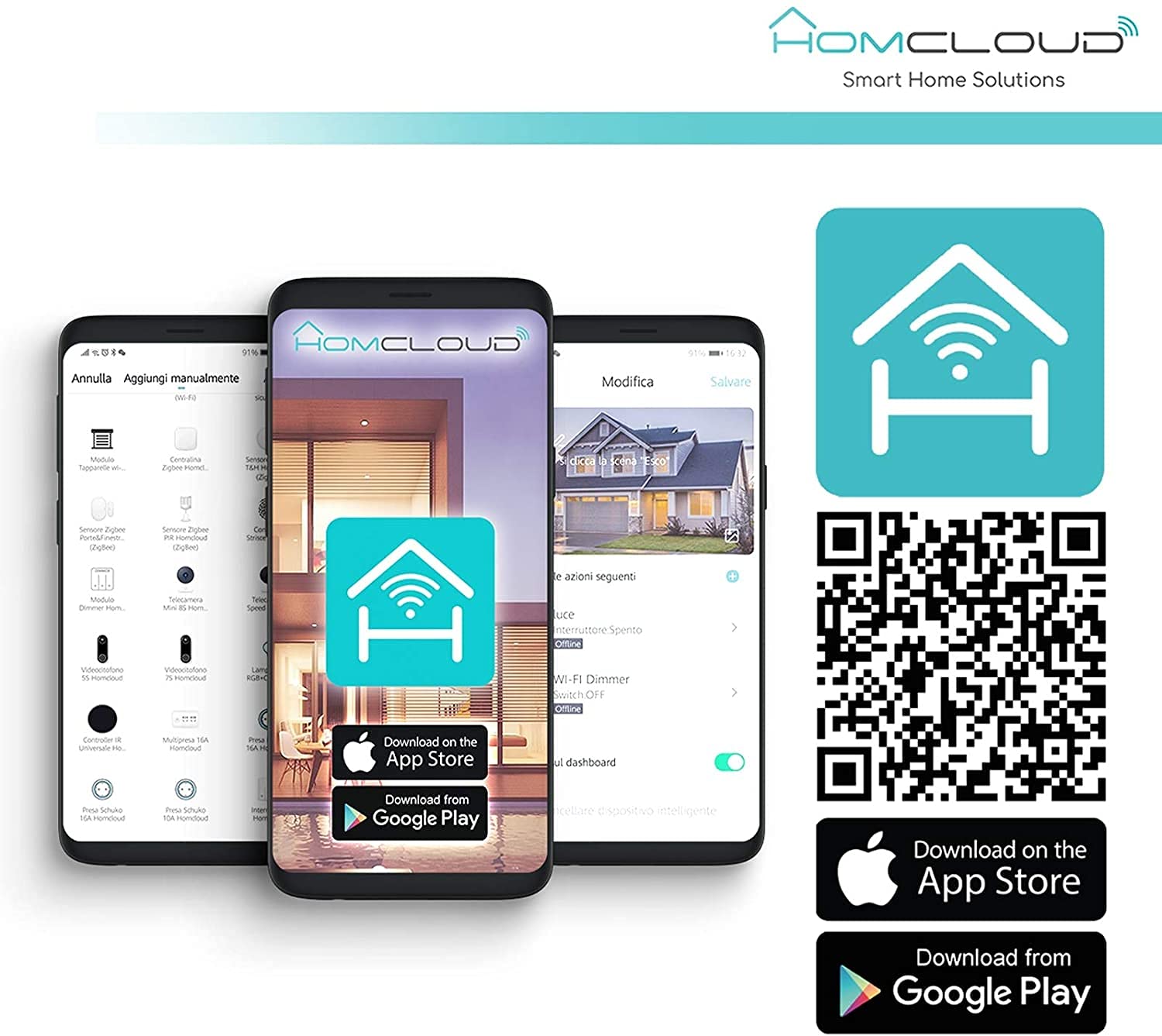
Image 5: The Homcloud app interface displayed on smartphones, alongside QR codes for direct download from the App Store and Google Play. The Homcloud logo and smart home solutions branding are also visible.
- Download the App: Search for "Homcloud" in the Apple App Store or Google Play Store, or scan the QR codes provided in the image above. Alternatively, you can visit https://smartapp.tuya.com/homcloudsmart.
- Register/Log In: Open the app and create a new account or log in with an existing one.
- Add Device: Power on the Homcloud SM1 module. In the app, tap "Add Device" or the "+" icon.
- Enter Pairing Mode: The module should automatically enter pairing mode (often indicated by a rapidly blinking light). If not, refer to the module's specific instructions for manual pairing mode activation.
- Connect to Wi-Fi: Follow the in-app instructions to connect the module to your 2.4GHz Wi-Fi network. Ensure your phone is also connected to the same 2.4GHz network during setup.
- Complete Setup: Once connected, you can rename the device and assign it to a room.
5. Operating Instructions
5.1 App Control
After successful pairing, you can control your lights and appliances through the Homcloud app:
- On/Off Control: Tap the device icon to toggle power.
- Scheduling: Set timers and schedules for automatic operation.
- Scenes & Automations: Create custom scenarios to control multiple devices simultaneously or based on conditions (e.g., turn on lights at sunset).
- Device Sharing: Share control with other Homcloud app users in your household.
5.2 Voice Control (Amazon Alexa & Google Home)
Integrate your Homcloud SM1 module with voice assistants for convenient control.

Image 6: The Homcloud SM1 module is depicted alongside Amazon Alexa and Google Home devices in a bedroom setting, illustrating its compatibility with voice control. The text indicates a command to decrease light by 30%.
- Link Accounts: In your Alexa or Google Home app, search for the "Homcloud" skill/service and link your Homcloud account.
- Discover Devices: Ask Alexa or Google to discover new devices.
- Voice Commands: Use commands such as:
- "Alexa, turn on [Device Name]"
- "Hey Google, turn off [Device Name]"
- "Alexa, set [Device Name] to 50%" (if dimming is supported by the connected load)
5.3 Traditional Switch Control
The Homcloud SM1 module works in parallel with your existing traditional switch. You can still use the physical switch to turn lights on or off. The module will maintain its smart functionality, allowing you to override the physical switch's state via the app or voice control.

Image 7: This image illustrates the flexibility of the Homcloud SM1 module, showing scenarios for '1 User - Multi Controller' (multiple modules controlled by one user) and '1 Controller - Multi User' (one module controlled by multiple users via their smartphones).
6. Maintenance
The Homcloud SM1 module requires minimal maintenance.
- Cleaning: Ensure the power is off before cleaning. Wipe the exterior with a soft, dry cloth. Do not use harsh chemicals or abrasive cleaners.
- Firmware Updates: Periodically check the Homcloud app for available firmware updates to ensure optimal performance and security.
7. Troubleshooting
- Device Not Responding:
- Check if the module has power.
- Ensure your Wi-Fi network is active and the module is within range.
- Restart the module by cycling its power at the circuit breaker.
- Verify your phone's internet connection.
- Unable to Pair Device:
- Ensure your Wi-Fi network is 2.4GHz. The module does not support 5GHz Wi-Fi.
- Make sure the module is in pairing mode (usually indicated by a blinking light).
- Move the module closer to your Wi-Fi router during the pairing process.
- Temporarily disable mobile data on your phone during pairing.
- Voice Control Not Working:
- Confirm that your Homcloud account is correctly linked to Alexa or Google Home.
- Ensure the device name in the Homcloud app matches the name used in voice commands.
- Check the internet connection of your voice assistant device.
- Traditional Switch Not Working:
- Verify all wiring connections are secure and correct according to the installation diagram.
- Ensure the traditional switch itself is functional.
8. Warranty and Support
For warranty information and technical support, please refer to the official Homcloud website or contact their customer service directly. Keep your purchase receipt as proof of purchase.
Manufacturer: Homcloud
For further assistance, visit www.homcloud.com.


