
1. Introduction
The Xtrem Bots Robbie is an interactive programmable robot designed for educational play. It features remote control, gesture control, and the ability to program up to 50 movements. Robbie also displays various facial expressions through its LED lights and produces robot sounds, providing an engaging experience for users aged 4 and above.
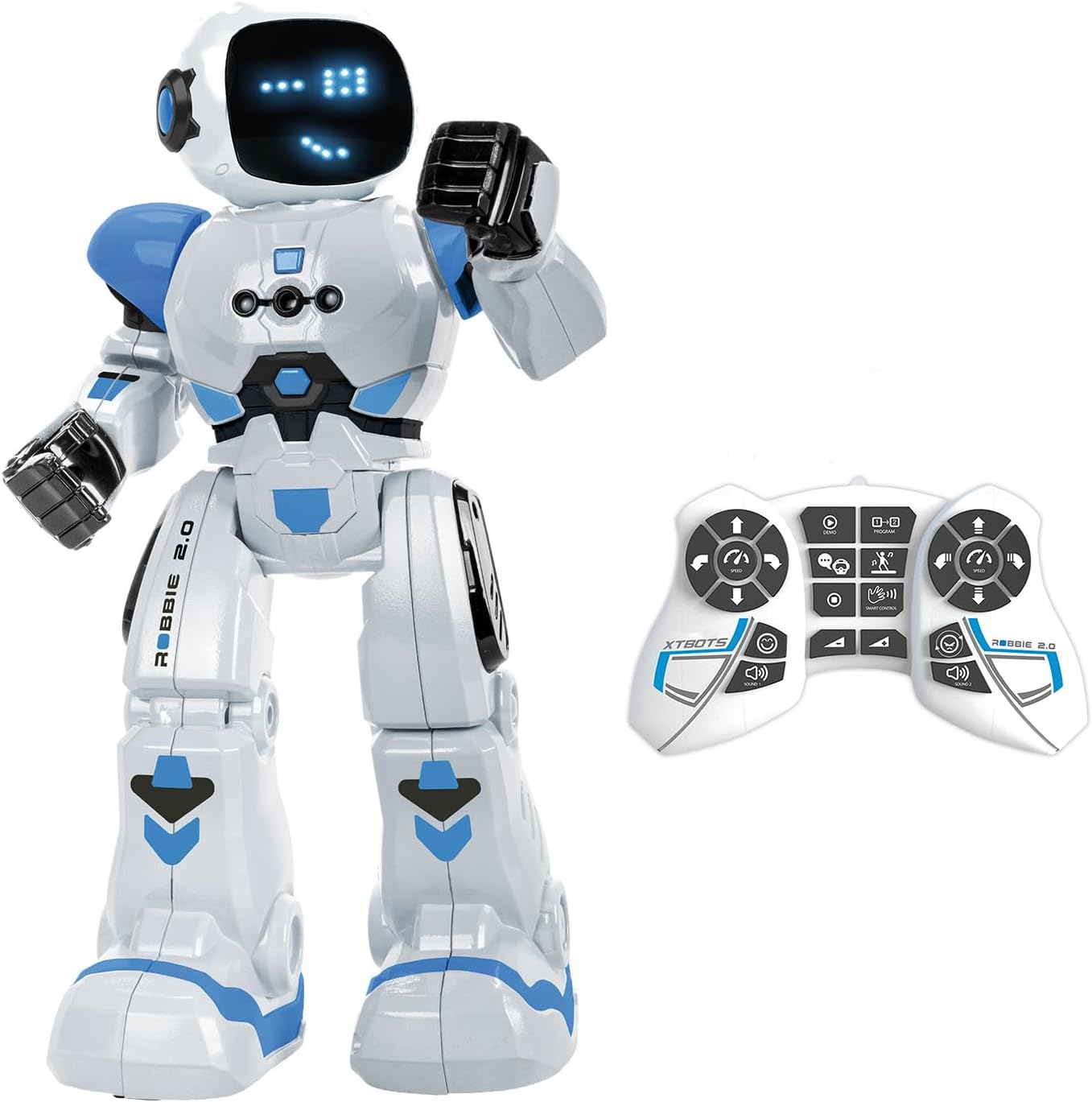
Image: The Xtrem Bots Robbie robot standing next to its white and blue remote control.
2. Safety Instructions
- Do not get wet: This product is not waterproof. Avoid exposure to water or other liquids to prevent damage.
- Ensure adult supervision for younger children during play.
- Do not attempt to disassemble or modify the robot or remote control.
- Keep small parts away from children under 3 years of age to prevent choking hazards.
- Use only the specified batteries for the remote control.
3. Package Contents
Upon opening the package, verify that all components are present:
- 1 x Xtrem Bots Robbie Robot
- 1 x Remote Control
- 1 x USB Charging Cable (for robot)
- Instruction Manual
Note: 2 x AA batteries for the remote control are not included and must be purchased separately.
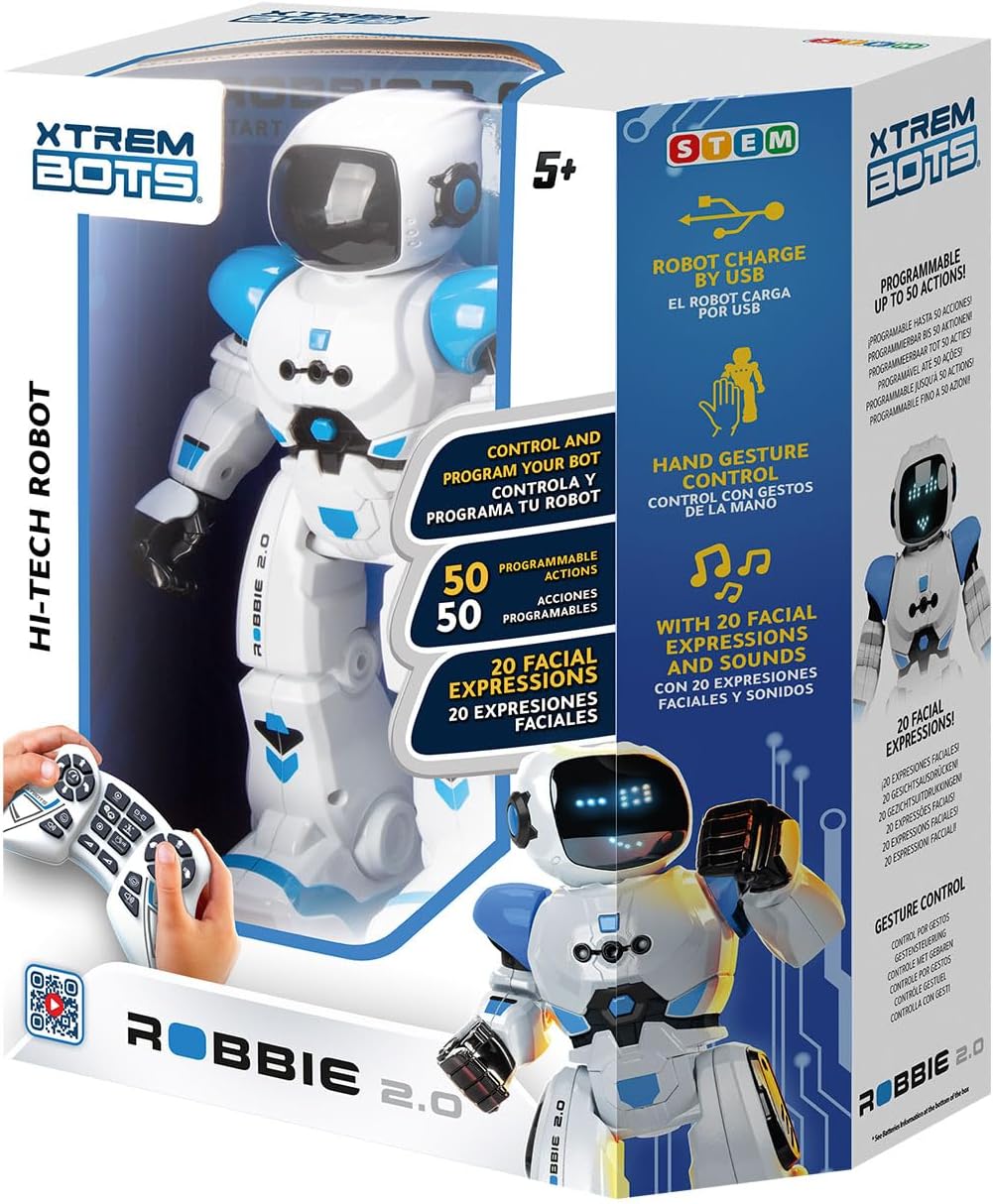
Image: The retail packaging for the Xtrem Bots Robbie robot, showing the robot and its features.
4. Setup
4.1. Charging the Robot
- Locate the USB charging port on the robot.
- Connect the provided USB charging cable to the robot's port.
- Plug the other end of the USB cable into a compatible USB power source (e.g., computer, USB wall adapter).
- The robot's indicator light will show charging status (refer to robot's specific light behavior for full charge indication).

Image: The Xtrem Bots Robbie robot connected to a laptop via a USB cable for charging.
4.2. Installing Remote Control Batteries
- Open the battery compartment on the back of the remote control.
- Insert 2 x AA batteries, ensuring correct polarity (+/-).
- Close the battery compartment securely.
4.3. Powering On and Pairing
- Turn on the robot using its power switch (usually located on the back).
- Turn on the remote control using its power switch.
- The robot and remote should automatically pair. If not, refer to the troubleshooting section.
5. Operating Instructions
5.1. Remote Control Functions
The remote control allows for various movements and actions:
- Directional Movement: Use the joystick or directional buttons to move Robbie forward, backward, left, and right.
- Speed Control: Adjust Robbie's movement speed.
- Dance Mode: Activate Robbie's pre-programmed dance routines.
- Volume Adjustment: Control the robot's sound output.
5.2. Gesture Control (Smart Control)
Robbie can respond to hand gestures:
- Ensure the robot is in gesture control mode (refer to remote for specific button).
- Perform specific hand movements in front of Robbie's sensors to initiate actions like moving forward, backward, or turning.

Image: The Xtrem Bots Robbie robot with a hand gesture indicating its gesture control capability.
5.3. Programming Movements
Robbie allows users to program a sequence of up to 50 movements:
- Enter programming mode using the designated button on the remote control.
- Input desired movements (e.g., forward, turn left, turn right) in sequence.
- Press the 'Play' or 'Execute' button to watch Robbie perform the programmed sequence.

Image: An illustration showing the Xtrem Bots Robbie robot following a programmed path with multiple steps and turns.
5.4. Facial Expressions and Sounds
Robbie can display up to 20 different facial expressions using its 26 blue LED lights and produce various robot sounds during operation and interaction.

Image: A family with two children happily playing and dancing with the Xtrem Bots Robbie robot in a living room setting.
6. Maintenance
6.1. Cleaning
To clean Robbie, gently wipe the surface with a dry, soft cloth. Do not use water, solvents, or chemical cleaners.
6.2. Storage
When not in use for extended periods, store Robbie and its remote control in a cool, dry place away from direct sunlight. Remove the AA batteries from the remote control to prevent leakage.
6.3. Battery Care
Recharge the robot's internal battery regularly to maintain its lifespan. Avoid overcharging or completely draining the battery frequently.
7. Troubleshooting
| Problem | Possible Cause | Solution |
|---|---|---|
| Robot does not turn on. | Robot battery is low or depleted. | Charge the robot's battery using the USB cable. |
| Remote control does not work. | AA batteries are depleted or incorrectly installed. | Replace AA batteries, ensuring correct polarity. |
| Robot not responding to remote/gestures. | Robot and remote are not paired, or interference. | Ensure both are powered on. Try turning both off and on again to re-establish connection. Ensure no obstructions between remote and robot. |
| Robot movements are erratic. | Low battery, or uneven surface. | Charge robot battery. Operate on a flat, smooth surface. |
8. Specifications
- Model: Robbie
- Brand: Xtrem Bots
- Product Dimensions: 10.5 x 11 x 31.05 cm
- Weight: 700 g
- Robot Battery: 1 x Lithium-polymer (rechargeable via USB)
- Remote Control Batteries: 2 x AA (not included)
- Recommended Age: From 4 years
- Model Number: 843659803
- Educational Goals: Discover robotics
- Material: Plastic
- Color: White/Blue
- Programmable Movements: Up to 50 actions
- Facial Expressions: Up to 20 (via 26 blue LEDs)
9. Warranty and Support
For warranty information and customer support, please refer to the contact details provided on the product packaging or visit the official Xtrem Bots website. Keep your purchase receipt as proof of purchase for any warranty claims.


