
1. Introduction
The Remotec ZXT-600, also known as AC Master, is a Z-Wave Plus compliant device designed to bridge Z-Wave commands to Infrared (IR) signals for controlling split air conditioners. It acts as a Z-Wave thermostat, enabling smart control over various AC brands and models worldwide.
This device utilizes a comprehensive built-in and cloud-stored IR database, ensuring compatibility with a wide range of air conditioning units. As a security-enabled Z-Wave Plus device, it requires a compatible security-enabled Z-Wave Plus Controller for full functionality.
Key Features:
- Functions as a Z-Wave thermostat.
- Converts Z-Wave commands to IR signals for up to 250 brands of split air conditioners with best-in-class worldwide AC model coverage.
- Features an ever-green, up-to-date cloud-based IR code library.
- Supports easy-to-use and advanced learning search approaches for IR codes.
- Provides room temperature feedback.
- Seamlessly integrates with any Z-Wave compliant gateway.
- Supports classic inclusion and Network Wide Inclusion (NWI).
2. Setup and Installation
Proper setup of the ZXT-600 involves powering the device, including it into your Z-Wave network, and configuring it to control your specific air conditioner unit.
2.1 Powering the Device
The ZXT-600 can be powered using either batteries or a Micro USB cable. For continuous operation, using a Micro USB power source is recommended. If using batteries, ensure they are correctly inserted according to the polarity markings.

Figure 2.1: The Remotec ZXT-600 device. This image shows the overall design of the ZXT-600, a compact white device with a black IR emitter strip, indicating its modern and discreet appearance suitable for various home environments.
2.2 Z-Wave Network Inclusion
To integrate the ZXT-600 into your smart home system, it must be included in your Z-Wave network. The exact steps for inclusion may vary depending on your Z-Wave gateway's user interface. Refer to your gateway's manual for specific instructions on adding new devices.
- Initiate the inclusion mode on your Z-Wave gateway.
- Follow the ZXT-600's specific inclusion procedure (typically involving pressing a button on the device).
- Confirm successful inclusion on your gateway. As a security-enabled device, ensure your controller supports secure inclusion for full functionality.
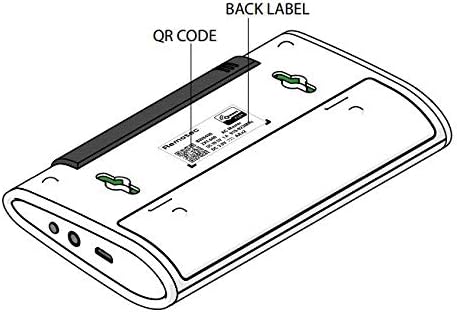
Figure 2.2: Back view of the ZXT-600 with QR code and product label. This image highlights the back of the device, showing the product label which includes important information like the model number and a QR code, often used for easy device inclusion or registration with Z-Wave controllers.
2.3 IR Code Configuration
After Z-Wave inclusion, the ZXT-600 needs to be configured with the correct IR codes for your air conditioner. This process is typically managed through your Z-Wave gateway's interface, which will guide you through selecting the appropriate AC brand and model from the device's built-in or cloud-based IR library. Some gateways may also support an advanced learning search approach if your specific AC model is not found in the database.
2.4 Placement
For optimal performance, place the ZXT-600 in a location where its IR emitter has a clear line of sight to the air conditioner's IR receiver. Avoid obstructions that could block the IR signal. The device's compact size allows for flexible placement.
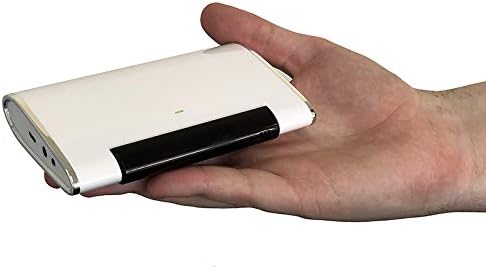
Figure 2.3: The ZXT-600 held in a hand, illustrating its compact size. This image provides a clear perspective on the device's small form factor, emphasizing its portability and ease of discreet placement near an air conditioning unit.
3. Operating Instructions
Once configured, the ZXT-600 allows you to control your air conditioner via your Z-Wave gateway. It functions as a virtual thermostat within your smart home system.
3.1 Basic Control
Through your Z-Wave controller's interface, you can send commands to the ZXT-600 to adjust your air conditioner's settings, such as:
- Power On/Off: Turn the AC unit on or off.
- Mode Selection: Switch between cooling, heating, fan, or auto modes.
- Temperature Adjustment: Set the desired temperature.
- Fan Speed: Adjust the fan speed (e.g., low, medium, high, auto).
The ZXT-600 translates these Z-Wave commands into the appropriate IR signals for your AC unit.
3.2 Temperature Feedback
The device includes a built-in temperature sensor that provides room temperature feedback to your Z-Wave gateway. This allows for accurate climate monitoring and automation within your smart home system.
4. Maintenance
The Remotec ZXT-600 is designed for low maintenance. Regular care ensures optimal performance.
4.1 Cleaning
Wipe the device periodically with a soft, dry cloth to remove dust. Do not use abrasive cleaners or solvents, as these can damage the casing or internal components.
4.2 Battery Replacement
If operating on batteries, replace them when the low battery indicator (if available on your gateway's interface) is displayed. Refer to the device's battery compartment for the correct battery type and polarity.
4.3 Firmware Updates
Periodically check the Remotec website or your Z-Wave gateway manufacturer's support pages for any available firmware updates for the ZXT-600. Firmware updates can improve performance, add features, or resolve issues.
5. Troubleshooting
If you encounter issues with your ZXT-600, consider the following troubleshooting steps:
| Problem | Possible Cause / Solution |
|---|---|
| Device not pairing with Z-Wave gateway. |
|
| AC unit not responding to commands. |
|
| Incorrect temperature readings. |
|
| General unresponsiveness. |
|
For more detailed troubleshooting or advanced configuration, consult the specific documentation provided by Remotec or your Z-Wave gateway manufacturer. Some users have reported that setup can be complex and may require familiarity with Z-Wave systems.
6. Specifications
| Feature | Detail |
|---|---|
| Model | ZXT-600 |
| Manufacturer | Remotec |
| Connectivity | Z-Wave Plus, Infrared (IR) |
| Power Source | Batteries (Yes), Micro USB (optional, for wired solution) |
| Dimensions (Package) | 5.3 x 3.4 x 1 inches |
| Item Weight | 3.98 ounces |
| ASIN | B07Q41K59N |
7. Warranty and Support
For information regarding the product warranty, please refer to the official Remotec website or contact the authorized distributor from whom you purchased the device. ZWaveProducts is noted as a master distributor for Remotec products in the USA and can be contacted for product support questions or warranty information.
Official support resources, including detailed manuals and firmware updates, are typically available on the manufacturer's website. Ensure you have your product model and serial number ready when contacting support.


