
TP-Link RE300
TP-Link AC1200 WiFi Extender (RE300) Instruction Manual
Model: RE300
Introduction
This manual provides comprehensive instructions for setting up, operating, maintaining, and troubleshooting your TP-Link AC1200 WiFi Extender (RE300). Designed to eliminate Wi-Fi dead zones, the RE300 extends dual-band Wi-Fi across your home, connecting up to 25 devices with speeds up to 1200Mbps. It supports OneMesh technology for seamless whole-home coverage when paired with a compatible TP-Link OneMesh router.

Front view of the TP-Link RE300 WiFi Extender.
What's in the Box
- AC1200 OneMesh Wi-Fi Range Extender RE300
- Quick Installation Guide
Setup Guide
1. Physical Setup
Plug the RE300 into a power outlet near your main router. Wait for the Power LED to turn solid, indicating it's ready for configuration.

The RE300 extender plugged into a power outlet.
Familiarize yourself with the indicator lights on the front panel:
- Power Indicator: Shows the power status.
- Signal Indicator: Displays the signal strength from the main router.
- 2.4G Indicator: Shows the status of the 2.4 GHz Wi-Fi band.
- 5G Indicator: Shows the status of the 5 GHz Wi-Fi band.

Front panel of the RE300 showing indicator lights.
2. App Setup (Tether App)
The easiest way to set up your RE300 is using the TP-Link Tether app. Follow these steps:
- Download the TP-Link Tether app from your mobile device's app store (available on iOS and Android).
- Connect your mobile device to the RE300's default Wi-Fi network (e.g., 'TP-Link_Extender' or similar, usually found on a label on the device).
- Open the Tether app and follow the on-screen instructions to configure the extender. You will be guided through selecting your main Wi-Fi network and setting up the extended network's name and password.
- Once configured, the app will help you find the optimal location for the extender using the Smart Signal Indicator.

The TP-Link Tether app interface for easy setup.
The RE300 supports dual-band Wi-Fi, operating over both the 2.4 GHz band (300 Mbps) and 5 GHz band (867 Mbps) for a more stable wireless experience.

Illustration of dual-band Wi-Fi capabilities.
Official video: TP-Link AC1200 WiFi Extender overview and setup.
Operating Your Extender
OneMesh Technology
The RE300 supports TP-Link OneMesh technology, which allows it to create a mesh network by connecting to a compatible OneMesh router. This provides seamless whole-home coverage, meaning your devices will automatically switch to the strongest Wi-Fi signal as you move around your home, without interruptions or manual switching between network names.

OneMesh setup for unified whole-home Wi-Fi.

Benefits of TP-Link OneMesh system.
Official video: Introduction to TP-Link OneMesh WiFi Solution.
Smart Signal Indicator
The Smart Signal Indicator on the RE300 helps you find the best location for optimal Wi-Fi coverage. The indicator lights change color or number of bars to show the signal strength received from your main router. A solid blue or green light typically indicates a good connection, while a red light suggests the extender is too far from the router and should be relocated closer.

Smart Signal Indicator for optimal placement.
Maintenance
To ensure optimal performance and longevity of your TP-Link RE300, consider the following maintenance tips:
- Keep Clean: Regularly wipe the device with a soft, dry cloth to prevent dust buildup, which can affect ventilation.
- Proper Ventilation: Ensure the extender is plugged into an outlet with adequate space around it for proper airflow. Avoid placing it in enclosed spaces or near heat sources.
- Firmware Updates: Periodically check for and install firmware updates via the Tether app or TP-Link's official website. Updates often include performance improvements and security enhancements.
- Avoid Obstructions: For best signal quality, avoid placing the extender behind large metal objects, thick walls, or other obstructions that can interfere with Wi-Fi signals.
Troubleshooting
If you encounter issues with your RE300, try the following common troubleshooting steps:
- No Internet Connection After Setup:
- Verify that your main router has an active internet connection.
- Check the Signal Indicator on the RE300. If it's red, relocate the extender closer to your main router.
- Ensure the extended network's password matches your main router's Wi-Fi password.
- Weak Signal or Frequent Disconnections:
- Relocate the extender to an optimal position, ideally halfway between your router and the Wi-Fi dead zone, using the Smart Signal Indicator as a guide.
- Minimize physical obstructions (thick walls, metal objects, large appliances) between the extender and your devices.
- Ensure your router's firmware is up to date.
- Cannot Access Web Management Page:
- Ensure your device is connected to the extender's network.
- Verify that you are using the correct web address (e.g., tplinkrepeater.net or the extender's IP address).
- Clear your browser's cache and cookies, or try a different browser.
For further assistance, please refer to the User Guide (PDF) or contact TP-Link support. TP-Link offers a 2-year warranty and free 24/7 technical support.
Specifications
| Feature | Detail |
|---|---|
| Brand | TP-Link |
| Model Number | RE300 |
| Wireless Type | 802.11n, 802.11b, 802.11a, 82.11ac, 802.11g |
| Data Transfer Rate | 1200 Megabits Per Second |
| Frequency Band Class | Dual-Band (2.4 GHz & 5 GHz) |
| Coverage Area | Up to 1500 Square feet |
| Connected Devices | Up to 25 devices |
| Item Weight | 6.4 ounces |
| Product Dimensions | 2.7 x 4.9 x 2 inches |
| Color | White |
| Voltage | 120-240 Volts |
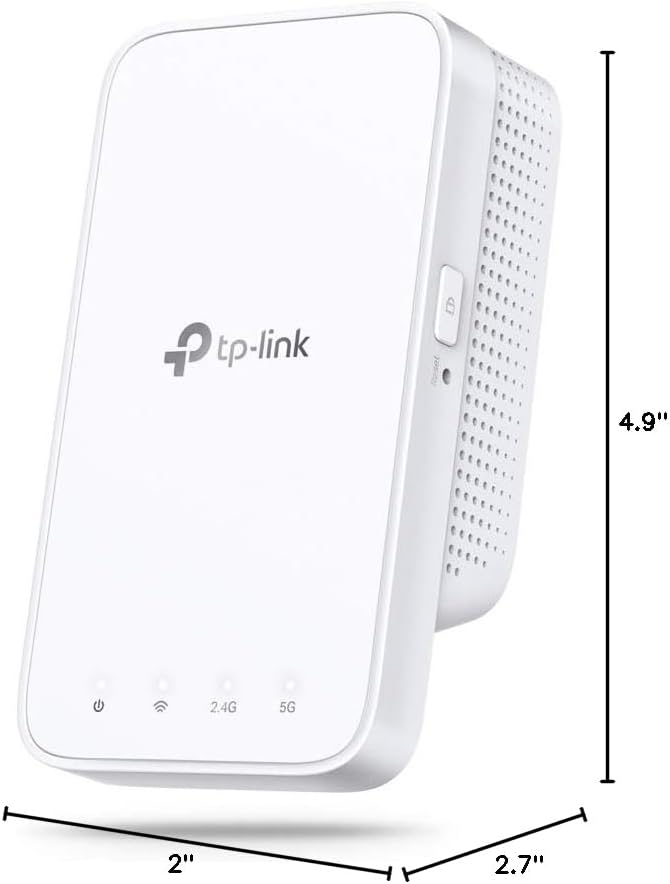
Physical dimensions of the RE300 extender.
Warranty and Support
The TP-Link AC1200 WiFi Extender (RE300) comes with a 2-year warranty. For any technical assistance or support, TP-Link offers free 24/7 technical support.
You can find additional resources and contact support through the official TP-Link website or their Amazon store:
Related documentsRE300


Ask a question about this manual
Ask about setup, troubleshooting, compatibility, parts, safety, or missing instructions. Manuals+ will review the question and use this page’s manual context to help answer it.