
1. Introduction
This manual provides comprehensive instructions for the setup, operation, maintenance, and troubleshooting of your Mad Catz S.T.R.I.K.E. 2 Membrane Gaming Keyboard. Please read this manual thoroughly to ensure optimal performance and longevity of your device.

Image: The Mad Catz S.T.R.I.K.E. 2 Chameleon RGB Membrane Gaming Keyboard, showcasing its design and RGB lighting.
2. Package Contents
Verify that all items are present in your product packaging:
- Mad Catz S.T.R.I.K.E. 2 Membrane Gaming Keyboard
- USB Cable (integrated)
3. Setup
Follow these steps to set up your Mad Catz S.T.R.I.K.E. 2 Gaming Keyboard:
- Connect the Keyboard: Plug the integrated USB cable from the keyboard into an available USB port on your computer.
- Driver Installation: The keyboard is plug-and-play. Your operating system (Windows 7, Windows 8, Windows 10) will automatically detect and install the necessary drivers.
- Placement: Position the keyboard comfortably on your desk. Utilize the sturdy two-level stand for precise positioning and the 3-way cable management system to reduce desktop clutter.

Image: Top-down view of the Mad Catz S.T.R.I.K.E. 2 Gaming Keyboard, ready for connection.
4. Operating Instructions
4.1 Anti-Ghosting and 26-Key Rollover
The S.T.R.I.K.E. 2 features a 26-key matrix with anti-ghosting technology. This ensures that multiple key presses are registered accurately, preventing missed commands during intense gaming sessions. The anti-ghosting matrix includes the following keys: Q, A, Z, W, S, X, E, D, C, R, F, V, T, G, B, M, Space, Up, Down, Left, Right, Tab, Left-Ctrl, Left-Shift, Left-Alt, Caps Lock.

Image: A graphic illustrating the 26-key rollover feature and the sturdy stand with cable routing management on the keyboard.
4.2 Adjustable RGB Lighting
The S.T.R.I.K.E. 2 offers 9 distinct RGB lighting effects. You can customize your lighting experience directly from the keyboard without requiring additional software. Adjustments include:
- 9 Lighting Effects: Cycle through various pre-programmed lighting patterns.
- 4 Brightness Levels: Adjust the intensity of the backlighting.
- 3 Speed Levels: Control the speed of dynamic lighting effects.

Image: A visual representation of the keyboard's adjustable RGB lighting, highlighting the 9 effects, 4 brightness levels, and 3 speed levels.
4.3 Multimedia and Lighting Shortcut Keys
The keyboard includes dedicated multimedia and lighting shortcut keys for enhanced functionality and convenience. These allow for quick access to audio controls and lighting adjustments without interrupting your activity.
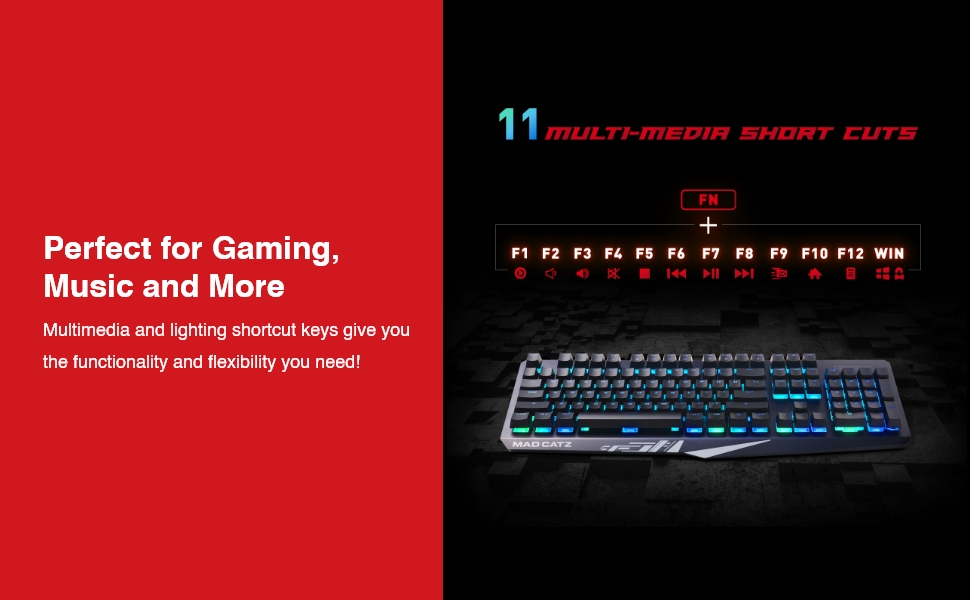
Image: The keyboard displaying the location and function of 11 multimedia shortcut keys, accessible via the FN key.
5. Maintenance
To maintain the performance and appearance of your keyboard:
- Cleaning: Use a soft, dry cloth to wipe the keyboard surface. For deeper cleaning, a can of compressed air can remove debris from between keys. Avoid harsh chemicals or abrasive materials.
- Durability: The keyboard features double-shot injection molding with an aluminum faceplate, designed for durability and resistance to wear.
- Water Resistance: The S.T.R.I.K.E. 2 is designed to be resistant to liquid spills and moisture. In case of a spill, disconnect the keyboard immediately and allow it to dry completely before reconnecting.
6. Troubleshooting
If you encounter issues with your Mad Catz S.T.R.I.K.E. 2 Gaming Keyboard, refer to the following common problems and solutions:
- Keyboard Not Responding:
- Ensure the USB cable is securely connected to your computer.
- Try plugging the keyboard into a different USB port.
- Restart your computer.
- Lighting Not Working or Incorrect:
- Check the lighting shortcut keys on the keyboard to ensure lighting is enabled and adjusted correctly.
- Ensure the keyboard is properly connected to the computer.
- Keys Not Registering or Ghosting:
- Confirm the keyboard is connected properly.
- The 26-key rollover feature minimizes ghosting; however, ensure no debris is lodged under the affected keys.
7. Specifications
| Feature | Detail |
|---|---|
| Brand | Mad Catz |
| Series | S.T.R.I.K.E. 2 |
| Model Number | KS13MRUSBL00 |
| Item Weight | 0.09 ounces |
| Product Dimensions (LxWxH) | 17.7 x 6.43 x 1.69 inches |
| Color | Black |
| Power Source | DC power supply (USB) |
| Compatible Devices | Windows® 7, Windows® 8, Windows® 10 |
| Connectivity Technology | USB |
| Keyboard Description | Gaming |
| Special Feature | Lighting |
| Keyboard Backlighting Color Support | RGB |
| Material | Aluminum |
8. Warranty and Support
The Mad Catz S.T.R.I.K.E. 2 Membrane Gaming Keyboard comes with a 2-year limited warranty. For warranty claims, technical support, or further assistance, please refer to the official Mad Catz website or contact their customer service department.


