
1. Product Overview
The KeeKit Digital Wooden Alarm Clock (Model KUS-WA30) is a versatile desktop clock designed to provide time, temperature, and humidity information. It features three independent alarm settings, voice control activation, and adjustable brightness levels for optimal visibility in various lighting conditions.
- Multifunction Display: Shows time (12/24H), temperature (°C/°F), and humidity.
- Three Alarm Settings: Set up to three distinct alarms, each sounding for 1 minute.
- Voice Activated Mode: In energy-saving mode, the display turns off after 15 seconds and can be activated by sound (e.g., clapping) or touch.
- Adjustable Brightness: Three levels of brightness can be manually selected. The display also features automatic dimming from 6 PM to 7 AM.
- Dual Power Supply: Operates via USB charger or 4 x AAA batteries (not included). Batteries primarily serve as time memory and enable power-saving mode.
2. Package Contents
- KeeKit Digital Wooden Alarm Clock
- USB Power Cable
- User Manual

Image: KeeKit Digital Wooden Alarm Clock, USB cable, and user manual.
3. Setup
3.1 Powering the Clock
The clock can be powered in two ways:
- USB Power: Connect the provided USB cable to the USB port on the back of the clock and plug the other end into a USB power adapter (not included) or a powered USB port. This is the recommended primary power source.
- Battery Power: Insert 4 x AAA batteries (not included) into the battery compartment on the back. When powered by batteries, the clock automatically enters energy-saving mode, and the display will turn off after 15 seconds to conserve power. Batteries primarily maintain time memory during power outages.

Image: Illustration of dual power supply options: USB cable and AAA batteries.
3.2 Identifying Controls
The control buttons are located on the back of the clock. Familiarize yourself with these buttons for setting up and operating the device.

Image: Rear panel of the clock showing the Down, Up, and Setting buttons, USB port, sound hole, and battery compartment.
4. Operating Instructions
4.1 Basic Display Modes
The clock offers two intelligent display modes:
- DP-1 (Alternating Display): Shows time, temperature, humidity, and date alternately.
- DP-2 (Continuous Display): Shows time, temperature, and humidity continuously.
To switch between DP-1 and DP-2, press the 'SET' button on the back of the clock.

Image: Visual representation of DP-1 and DP-2 display modes.
4.2 Setting Time and Date
To set the time and date:
- Press and hold the 'SET' button until the display flashes.
- Use the 'UP' and 'DOWN' buttons to adjust the year, month, day, hour, and minute.
- Press 'SET' to confirm each setting and move to the next.
- After setting the minutes, press 'SET' again to exit the setting mode.
4.3 Temperature Unit Selection
The temperature can be displayed in either Celsius (°C) or Fahrenheit (°F).
- To switch between °C and °F, press the 'UP' button briefly when the clock is displaying temperature.

Image: Display showing temperature unit being switched between Celsius and Fahrenheit.
4.4 Alarm Settings
The clock supports up to three independent alarms (A1, A2, A3).
- Access Alarm Settings: Press the 'SET' button repeatedly until 'A1' appears on the display.
- Set Alarm Time: Press and hold 'SET' when 'A1' is displayed. Use 'UP' and 'DOWN' to adjust the alarm hour and minute. Press 'SET' to confirm each.
- Activate/Deactivate Alarm: After setting the alarm time, press 'UP' to toggle the alarm ON or OFF.
- Alarm Mode: When setting an alarm, you can choose between 'on:E' (working day alarm, Monday-Friday) or '--:E' (everyday alarm). Press 'UP' to cycle through these options.
- Repeat for A2 and A3 as needed.

Image: The clock displaying three different alarm settings (A1, A2, A3).

Image: Detailed explanation of alarm settings and working day options.
4.5 Adjustable Brightness
The clock features three manual brightness levels (L1, L2, L3) and an automatic dimming function.
- Manual Adjustment: Press the 'DOWN' button briefly to cycle through L1 (Dim), L2 (Middle), and L3 (Bright).
- Automatic Dimming: The display automatically adjusts to low brightness from 6 PM to 7 AM to reduce eye strain in the dark.
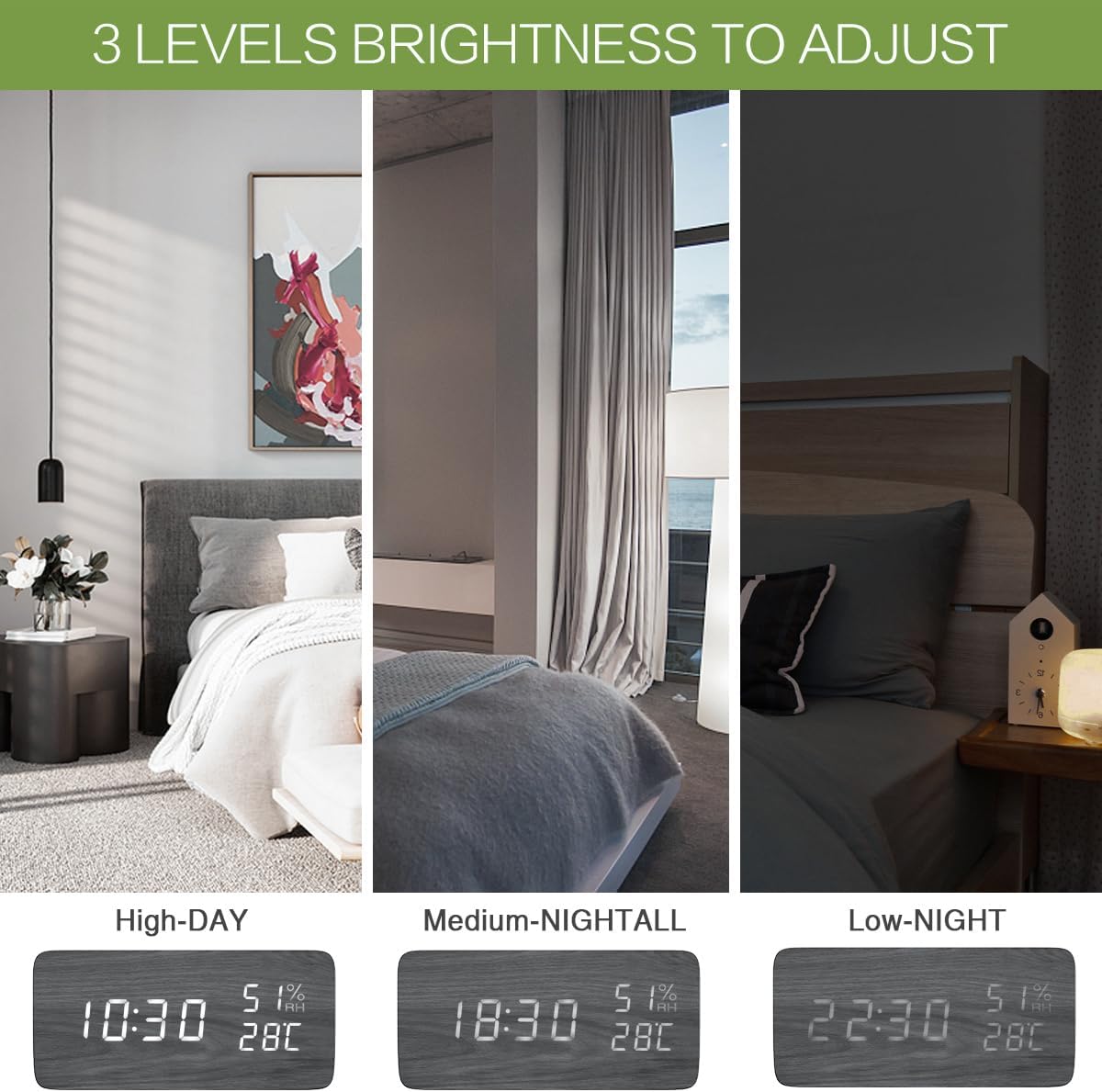
Image: Visual comparison of the three brightness levels (High-Day, Medium-Nightall, Low-Night).
4.6 Voice Control / Sound Activated Mode
To conserve energy, the display can be set to turn off automatically and reactivate with sound or touch.
- Activation: When the display is off in energy-saving mode, clap your hands nearby or gently touch the clock to activate the display.
- Note: When powered solely by 4 AAA batteries, the clock will always be in voice-activated mode to extend battery life.

Image: The clock activating its display in response to a hand clap.

Image: Visual guide to smart voice-activated or touch-activated display.
4.7 Official Product Video
Video: Official product video demonstrating the KeeKit Digital Wooden Alarm Clock's features, including display modes, voice activation, and brightness adjustments.
5. Maintenance
To ensure the longevity and proper functioning of your KeeKit Digital Wooden Alarm Clock, follow these maintenance guidelines:
- Cleaning: Wipe the clock with a soft, dry cloth. Avoid using abrasive cleaners or solvents, as they may damage the finish or display.
- Battery Replacement: If using AAA batteries, replace all four batteries simultaneously when the display becomes dim or the clock malfunctions. Ensure correct polarity when inserting new batteries.
- Placement: Place the clock on a stable, flat surface away from direct sunlight, extreme temperatures, and high humidity to prevent damage.
6. Troubleshooting
If you encounter issues with your KeeKit Digital Wooden Alarm Clock, refer to the following common problems and solutions:
| Problem | Possible Cause / Solution |
|---|---|
| Display is blank or dim. | Check if the USB power cable is securely connected. If using batteries, ensure they are fresh and correctly inserted. The clock may be in energy-saving mode; activate by sound or touch. |
| Humidity or temperature readings are inaccurate. | Ensure the clock is placed in a stable environment, away from direct heat sources, vents, or open windows that could affect readings. If the issue persists, contact customer support. |
| Difficulty setting time or alarms. | Carefully review Section 4 (Operating Instructions) and follow the steps for setting time and alarms. Ensure you are pressing and holding the 'SET' button as instructed for entering setting modes. |
| Voice activated mode not working. | Ensure the clock is not solely powered by batteries, as this mode is automatic in battery-only operation. If connected via USB, check if the voice control feature is enabled (refer to manual for specific setting if available). Ensure there is sufficient sound or a direct touch to activate. |
| Alarm does not sound. | Verify that the alarm is set to 'ON' (not 'OFF') in the alarm settings. Check if the correct alarm mode (working day or everyday) is selected. |
7. Specifications
| Feature | Detail |
|---|---|
| Brand | KeeKit |
| Model Number | KUS-WA30 |
| Display Type | Digital LED |
| Material Type | Engineered Wood |
| Product Dimensions (W x H) | 5.91"W x 2.76"H |
| Power Source | Battery Powered, Corded Electric (USB) |
| Number of Batteries | 4 x AAA (not included) |
| Special Features | Adjustable Brightness, 3 Alarms, Temperature Display, Humidity Display, Voice Control |
| Connectivity Technology | USB |
| Indoor/Outdoor Usage | Indoor |
8. Warranty and Support
Your KeeKit Digital Wooden Alarm Clock (Model KUS-WA30) comes with a 12 Month Warranty.
For technical assistance, troubleshooting, or warranty claims, please contact KeeKit Direct customer support. KeeKit is dedicated to providing customers with premium home security and daily living products, aiming to make your home safer, more comfortable, and more efficient.
- 1-Year Warranty
- 30-Day Return Guarantee
- 90-Day Replacement Guarantee
- 24/7 Online Customer Support
- Lifetime Technical Support Service