
Introduction
This manual provides detailed instructions for the setup, operation, and maintenance of your Anivia Upgraded Full HD 1080P Webcam. Please read this manual thoroughly before using the product to ensure proper functionality and to maximize your user experience.
Product Overview
The Anivia Full HD 1080P Webcam is designed for high-quality video communication and recording. Key features include:
- Full HD 1080P Video: Delivers sharp, smooth video at 30 frames per second for video conferencing, recordings, and live streaming.
- High Pixel CMOS Sensor: Ensures high definition and stable performance, even in low-light conditions.
- Noise Cancellation Microphone: Built-in microphone captures clear audio within 8 meters, providing clear sound quality for dialogue.
- Privacy Protection Cover: A physical cover blocks the lens when the webcam is not in use, enhancing security and privacy.
- Versatile Mounting: Features a 360° rotatable head and a 180° adjustable base for easy placement on various displays or surfaces.
- Manual Focus Lens: Allows for precise adjustment of sharpness to achieve optimal image clarity.
- Wide Compatibility: Supports Windows 7/8/10, Mac OS 10.6 or later, Chrome OS, and Android v4.0 or above. Compatible with PCs, laptops, desktops, and Android TVs.

Figure 1: Anivia Webcam Front View with Key Features
Package Contents
Verify that all items are present in your package:
- Anivia Full HD 1080P Webcam
- User Manual (this document)
Setup Instructions
- Placement: Open the webcam's flexible clip/base. Mount the webcam securely on top of your computer monitor, laptop screen, or place it on a flat surface. Adjust the angle as needed.

Figure 2: Webcam Placement and Adjustment
- Connect to Computer: Plug the USB connector of the webcam into an available USB 2.0 port on your computer (PC, laptop, or Android TV).
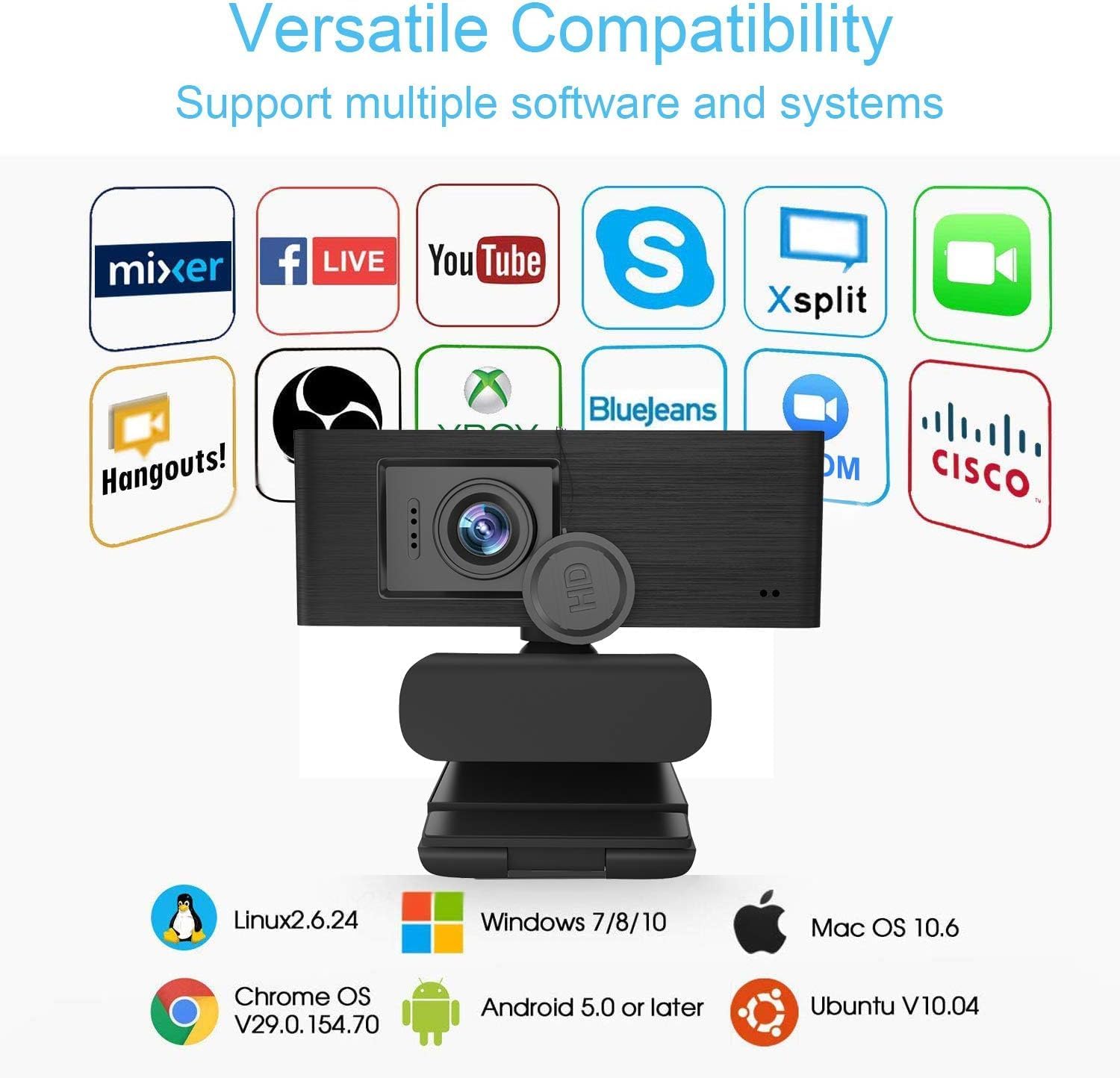
Figure 3: USB Connection
- Driver Installation (Plug & Play): The webcam is designed for plug-and-play operation. Your operating system (Windows, macOS, Chrome OS, Android) should automatically detect and install the necessary drivers within a few moments. No manual driver installation is typically required.
- Privacy Cover: Ensure the privacy cover is open before use. Slide it closed when the webcam is not in use to protect your privacy.

Figure 4: Privacy Cover in Closed Position
Operating Instructions
- Initiating Video: Once connected, open your preferred video conferencing software (e.g., Zoom, Skype, Microsoft Teams, Google Meet) or recording application. Select the Anivia webcam as your video and audio input device in the application's settings.

Figure 5: Webcam in Various Usage Scenarios
- Adjusting Focus: The webcam features a manual focus lens. If the image appears blurry, gently rotate the lens ring until the image becomes sharp and clear. This adjustment is typically stable and does not require frequent changes once set.

Figure 6: Manual Focus Adjustment
- Microphone Usage: The built-in noise-cancelling microphone will automatically activate when the webcam is selected as the audio input. Ensure your software's audio settings are configured to use the webcam's microphone.
- Privacy Cover: Always slide the privacy cover over the lens when the webcam is not in active use to prevent unintended recording and ensure your privacy.
Maintenance
- Cleaning the Lens: Use a soft, dry, lint-free cloth to gently wipe the webcam lens. Avoid using harsh chemicals or abrasive materials, which can scratch the lens.
- Cleaning the Body: Wipe the webcam body with a slightly damp cloth. Ensure no moisture enters the device.
- Storage: When not in use for extended periods, store the webcam in a cool, dry place, ideally with the privacy cover closed to protect the lens.
Troubleshooting
| Problem | Possible Cause | Solution |
|---|---|---|
| Webcam not detected by computer. |
|
|
| No video output. |
|
|
| No audio from microphone. |
|
|
| Blurry image. |
|
|
Specifications
| Feature | Detail |
|---|---|
| Brand | Anivia |
| Model Number | Anivia-5-Webcams |
| Video Capture Resolution | 1080p Full HD |
| Effective Still Resolution | 2 MP |
| Photo Sensor Technology | CMOS |
| Connectivity Technology | USB 2.0 |
| Focus Type | Manual Focus |
| Built-in Microphone | Yes, with Noise Cancellation |
| Operating System Compatibility | Windows 7/8/10, Mac OS 10.6+, Chrome OS, Android v4.0+ |
| Compatible Devices | PCs, Laptops, Android TVs |
| Item Weight | 3.5 Ounces |
| Color | Black + Silver |
Warranty Information
The Anivia Upgraded Full HD 1080P Webcam comes with a limited warranty. Please refer to the warranty card included in your product packaging or contact customer support for specific details regarding the warranty period and coverage.
Customer Support
If you encounter any issues or have questions not covered in this manual, please contact Anivia customer support. Contact information can typically be found on the product packaging or the official Anivia website.


