1. Introduction
The SmartSee G9 Plus Wireless Display Receiver is designed to mirror content from your mobile devices (smartphones, tablets) and computers (laptops) to a larger display such as a TV, projector, or monitor. It supports various wireless display protocols including Miracast, Airplay, and DLNA, offering cross-platform compatibility for iOS, Android, macOS, and Windows devices. This device supports up to 4K (3840 x 2160) and 1080P resolution, providing a clear viewing experience.
This manual provides detailed instructions for setting up and operating your SmartSee G9 Plus Wireless Display Receiver.
2. Package Contents
Please verify that all items are present in your package:
- SmartSee G9 Plus Wireless Display Receiver
- USB Power Cable with Wi-Fi Antenna
- User Manual (this document)

Image: The SmartSee G9 Plus Wireless Display Receiver, showing its compact design, indicator light, and reset button.
3. Setup Instructions
Before proceeding, ensure your display device (TV, projector, monitor) has an available HDMI port and a USB port for power (or a 5V/1A USB power adapter).
3.1 Initial Connection
- Plug the SmartSee G9 Plus dongle into an available HDMI port on your TV or display.
- Connect the USB power cable to the dongle and then to a 5V/1A USB power source (e.g., a USB port on your TV or a USB wall adapter).
- Switch your TV/display input source to the corresponding HDMI port. You should see the SmartSee G9 Plus startup screen.
3.2 Setup for iOS Devices (iPhone, iPad, Mac)
- On your iOS device, go to Wi-Fi settings and connect to the Wi-Fi network broadcast by the MiraScreen dongle (e.g., "MiraScreen-XXXX"). The password will be displayed on your TV screen.
- Open a web browser (Safari recommended) on your iOS device and enter the IP address 192.168.203.1 in the address bar. This will access the MiraScreen settings page.
- On the MiraScreen settings page, select "Internet" to connect the dongle to your home Wi-Fi router. Choose your home Wi-Fi network and enter the password.
- Confirm that your iOS device is now connected to the same home Wi-Fi network as the dongle.
- On your iOS device, open Control Center (swipe down from the top-right corner on newer iPhones, or swipe up from the bottom on older iPhones/iPads) and tap on "Screen Mirroring" or "AirPlay Mirroring".
- Select the MiraScreen device from the list to begin mirroring your iOS screen to the TV.

Image: Example of iOS Control Center with the "Screen Mirroring" option highlighted.
3.3 Setup for Android/Windows Devices
For Android Devices:
- Ensure your Android device supports Miracast. The feature may be named differently depending on your device manufacturer (e.g., "Smart View," "Screen Cast," "Wireless Display," "Multi-screen," "Play To," "Mirror Share").
- Open the Miracast function on your Android device.
- Select the MiraScreen device (e.g., "Anycast-XXXX" or "MiraScreen-XXXX") from the list of available devices to cast your screen to the TV.
- For streaming apps like Netflix or Hulu, the dongle supports Google Home App mirroring. Download the Google Home app, and use its casting feature to mirror content.

Image: Example of an Android device's "Multi-screen" menu, showing the option to connect to a MiraScreen device.
For Windows Devices (Windows 8.1+ with Miracast support):
- On your Windows computer, press the Windows key + P simultaneously.
- Select "Connect to a wireless display" from the projection options.
- Choose the MiraScreen device from the list to mirror your Windows screen to the TV.
- The dongle also supports Google browser casting on Windows for streaming various content.

Image: Screenshot of the Windows "Project" menu, showing the "Connect to a wireless display" option and available MiraScreen device.
4. Operating Instructions
Once connected, the SmartSee G9 Plus operates by mirroring your device's screen to the connected display. The functionality largely depends on the mirroring capabilities of your source device.
- Screen Mirroring: All content displayed on your source device will be shown on the larger screen. This includes photos, videos, web pages, documents, and games.
- Supported Protocols: The device automatically detects and supports Miracast, Airplay, and DLNA without requiring manual mode switching.
- Resolution: Supports 4K (3840 x 2160) and 1080P resolution for compatible content and displays.
- Content Streaming: For Android devices, the dongle supports Google Home App mirroring for various streaming services. For iOS devices, only unencrypted videos are supported for direct mirroring. Encrypted content from apps like Netflix, Hulu, or HBO may not be mirrored directly from iOS devices due to content protection policies.

Image: A smartphone mirroring its screen to a large TV via the SmartSee G9 Plus dongle, illustrating the "Cell Phone Mirrors to TV Bigger Screen and Clearer Picture" feature.

Image: The SmartSee G9 Plus dongle shown with icons representing its support for Airplay, DLNA, and Miracast protocols, indicating cross-platform compatibility.
5. Features
- 4K & 1080P Resolution: Supports H.265/HEVC Decoder, 4K (3840 x 2160) and 1080P resolution for high-definition display.
- Wide Compatibility: Supports Miracast, Airplay, and DLNA protocols. Compatible with Android 4.4+, iOS 9.0+, macOS 10+, and Windows 8.1+ (Miracast enabled).
- No Mode Switching: Automatically detects and switches between Miracast, Airplay, and DLNA modes.
- Google Home & Browser Casting: Supports Google Home App casting on Android devices and Google browser casting on Windows, allowing streaming of various content including Netflix, Hulu, and HBO.
- OTA Updates: Regular firmware updates are provided via the cloud server to improve compatibility and add features. Connect the dongle to your Wi-Fi for automatic updates.
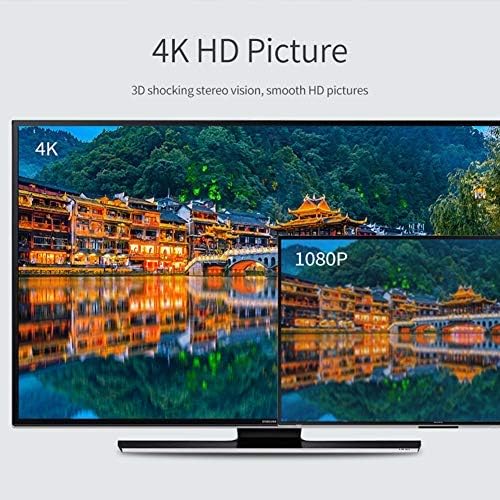
Image: A visual comparison demonstrating 4K and 1080P HD picture quality, highlighting the device's capability for high-resolution output.

Image: The SmartSee G9 Plus dongle illustrating various applications such as displaying HD pictures, PowerPoint presentations, web pages, playing games, and its plug-and-play functionality.
6. Specifications
| Brand | SmartSee |
| Model Name | G9 Plus |
| Connectivity Technology | USB, Wi-Fi (2.4G) |
| Connector Type | HDMI |
| Resolution | 1080p, 4K (3840 x 2160) |
| Supported Internet Services | Hulu Plus, Netflix (via Google Home App on Android/Windows browser) |
| Controller Type | App Control |
| Form Factor | TV Stick |
| Color | Black |
| Item Weight | 1.12 ounces |
| Product Dimensions | 3.9 x 3.9 x 1 inches |
7. Troubleshooting
If you encounter issues with your SmartSee G9 Plus, please refer to the following common solutions:
- No Display on TV:
- Ensure the dongle is securely plugged into the HDMI port.
- Verify the USB power cable is connected and receiving sufficient power (at least 5V/1A).
- Check that your TV's input source is set to the correct HDMI port.
- Cannot Connect to Wi-Fi / Frequent Disconnections:
- Ensure the dongle is within range of your Wi-Fi router.
- Confirm you are connecting to the dongle's Wi-Fi network first (for iOS setup) or your home Wi-Fi (after initial setup).
- The device operates on a 2.4G network. It does not support 5GHz Wi-Fi. Ensure your router is broadcasting a 2.4G signal.
- Try resetting the dongle by pressing the reset button (refer to Package Contents image for location).
- Ensure your home Wi-Fi password is entered correctly during the dongle's internet setup.
- No Audio:
- Check the volume levels on both your source device and the TV.
- Ensure your TV's audio output is correctly configured.
- Some older TVs might require specific audio settings for HDMI input.
- Streaming Issues (Choppy Video, Lag):
- A strong and stable Wi-Fi connection is crucial. Move closer to your Wi-Fi router or reduce interference.
- Ensure your source device has sufficient processing power and a stable internet connection.
- For iOS devices, remember that encrypted content from certain streaming apps (e.g., Netflix, Hulu) may not be supported for direct mirroring due to DRM. Use Google Home App for Android/Windows browser casting for such content.
- "Instructions are outdated/irrelevant":
- This manual provides the most current setup steps. Follow them carefully.
- Regular OTA updates are provided. Ensure your dongle is connected to Wi-Fi to receive the latest firmware, which can improve compatibility and resolve issues.
8. Maintenance
- Cleaning: Use a soft, dry cloth to clean the device. Do not use liquid cleaners or aerosols.
- Storage: Store the device in a cool, dry place away from direct sunlight and extreme temperatures.
- Firmware Updates: Connect the dongle to your home Wi-Fi network regularly to receive automatic Over-The-Air (OTA) firmware updates. These updates ensure optimal performance and compatibility with the latest operating systems.
9. Warranty and Support
For warranty information or technical support, please refer to the official SmartSee website or contact SmartSee customer service directly. You can often find support contact details on the product packaging or through the retailer where you purchased the device.
For additional resources, visit the SmartSee Store on Amazon.