
1. Introduction
Thank you for choosing the Yilear F900 v5.0 Wireless Bluetooth Headset. This manual provides detailed instructions for the proper use, setup, operation, and maintenance of your device. Please read this manual carefully before use to ensure optimal performance and longevity of your headset.

Figure 1: Yilear F900 v5.0 Wireless Bluetooth Headset.
2. Product Overview
2.1 Package Contents
- Yilear F900 v5.0 Wireless Bluetooth Headset
- USB Charging Cable
- Multiple Sizes of Ear Tips
- User Manual (this document)
2.2 Headset Components
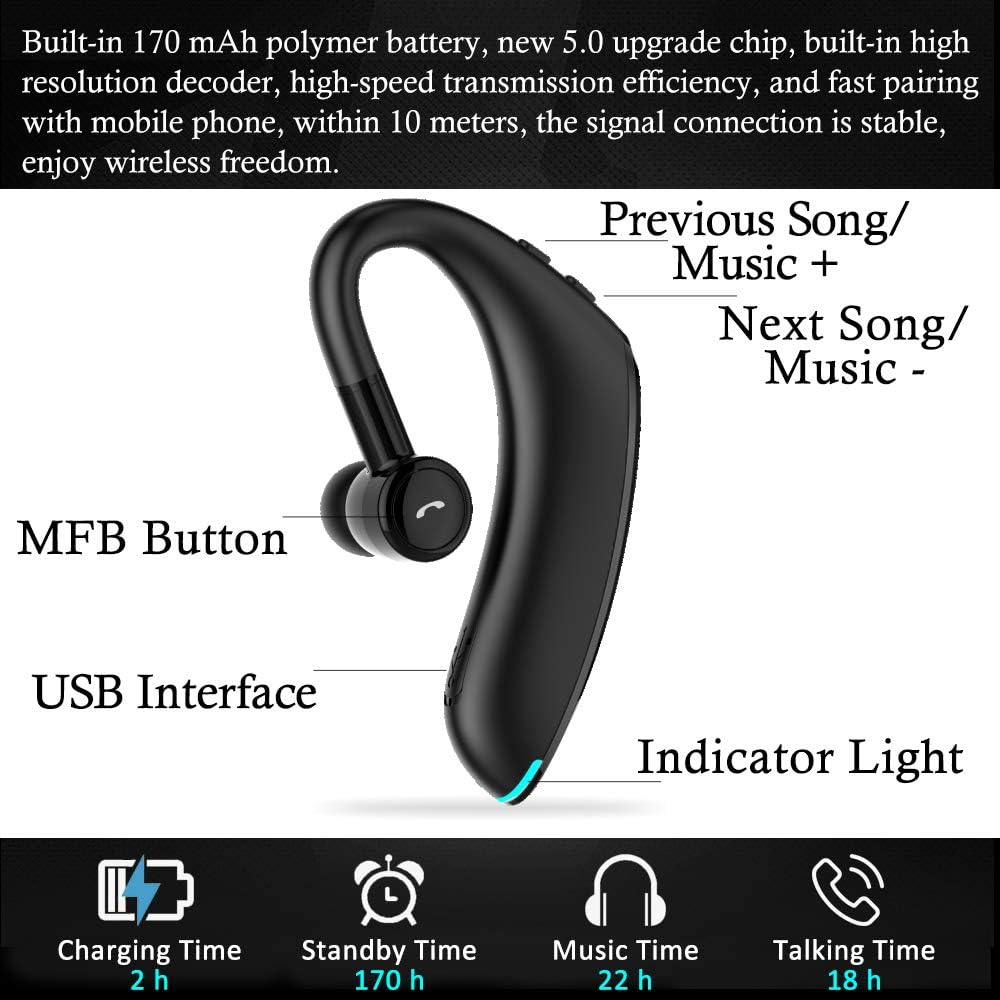
Figure 2: Labeled diagram of the Yilear F900 headset, showing the MFB Button, USB Interface, Indicator Light, and Previous/Next Song controls.
The Yilear F900 headset features a Multi-Function Button (MFB), a USB charging interface, an indicator light for status, and dedicated buttons for track control (Previous Song/Music +, Next Song/Music -).
2.3 Key Features
- Bluetooth 5.0 Technology: Ensures stable connection and high-speed transmission within 10 meters.
- Extended Battery Life: Up to 22 hours of music playback, 18 hours of talk time, and 170 hours of standby on a single charge.
- HD Microphone with CVC8.0 Noise Reduction: Provides clear call quality by minimizing background noise.
- 180° Adjustable Ear Hook: Allows comfortable wearing on either the left or right ear.
- Lightweight Design: Weighs only 12 grams for comfortable extended wear.
- Wide Compatibility: Connects with iOS, Android, and Windows devices, including phones, tablets, computers, and car audio systems.
- Waterproof Design: Provides protection against sweat and light splashes.

Figure 3: Overview of key features including Bluetooth 5.0, CVC8.0 Noise Reduction, Song Switch Button, 10m barrier-free connection, Smart Connection, Power Display, Voice Reminder, and Connect Two Devices.
3. Setup
3.1 Charging the Headset
Before first use, fully charge the headset. Connect the provided USB charging cable to the headset's USB interface and to a standard USB power source (e.g., computer USB port, wall adapter). The indicator light will show charging status.
- Charging Time: Approximately 2 hours for a full charge.
- Indicator Light: The light will typically be red during charging and turn blue or off when fully charged.

Figure 4: Battery performance details, showing 22 hours headset use and 170 hours standby time.
3.2 Bluetooth Pairing
- Ensure the headset is fully charged.
- Power On: Press and hold the MFB button until the indicator light flashes blue and red alternately, indicating it is in pairing mode.
- Activate Bluetooth: On your device (smartphone, tablet, computer), enable Bluetooth.
- Search for Devices: In your device's Bluetooth settings, search for available devices.
- Select "F900": From the list of found devices, select "F900" to connect.
- Connection Confirmation: Once successfully paired, the indicator light on the headset will flash blue slowly, and you may hear a voice prompt.
The headset supports connecting to two Bluetooth devices simultaneously. After pairing with the first device, disable Bluetooth on the first device, then pair with the second device. Re-enable Bluetooth on the first device, and the headset should connect to both.
4. Operating Instructions
4.1 Wearing the Headset
The Yilear F900 features a 180° adjustable ear hook, allowing you to wear it comfortably on either your left or right ear. Adjust the ear hook to fit securely around your ear.

Figure 5: Demonstrates the 180° adjustable angle for wearing on either the left or right ear.
4.2 Basic Controls
| Button/Action | Function |
|---|---|
| MFB Button (Short Press) | Answer/End Call, Play/Pause Music |
| MFB Button (Long Press) | Power On/Off, Reject Call, Activate Voice Assistant (Siri mode) |
| Volume + / Previous Song | Short press for Volume Up, Long press for Previous Song |
| Volume - / Next Song | Short press for Volume Down, Long press for Next Song |

Figure 6: Visual representation of various control functions including power, call management, and music playback.
4.3 Making and Receiving Calls
- Answer Call: Short press the MFB button when a call comes in.
- End Call: Short press the MFB button during a call.
- Reject Call: Long press the MFB button when a call comes in.
- Redial Last Number: Double-press the MFB button.
4.4 Music Playback
- Play/Pause: Short press the MFB button.
- Next Track: Long press the "Volume - / Next Song" button.
- Previous Track: Long press the "Volume + / Previous Song" button.
- Volume Up: Short press the "Volume + / Previous Song" button.
- Volume Down: Short press the "Volume - / Next Song" button.
4.5 Voice Assistant (Siri Mode)
To activate your device's voice assistant (e.g., Siri, Google Assistant), press and hold the MFB button for approximately 2 seconds. Once activated, you can issue voice commands.
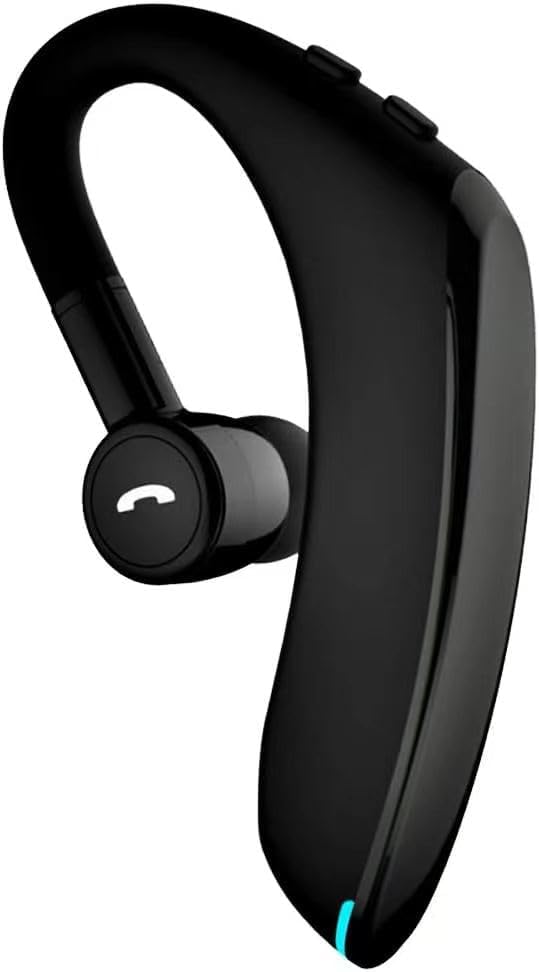
Figure 7: Close-up view of the headset, highlighting the integrated button for various controls, including voice assistant activation.
5. Maintenance
- Cleaning: Wipe the headset with a soft, dry cloth. Do not use abrasive cleaners or solvents.
- Storage: Store the headset in a cool, dry place away from extreme temperatures and direct sunlight.
- Water Resistance: The headset is waterproof, offering protection against sweat and light splashes. However, avoid submerging it in water or exposing it to heavy rain.
- Battery Care: To preserve battery life, charge the headset regularly, even if not in frequent use. Avoid fully discharging the battery for extended periods.
6. Troubleshooting
| Problem | Possible Solution |
|---|---|
| Headset does not power on. | Ensure the headset is fully charged. Press and hold the MFB button for a few seconds. |
| Cannot pair with device. | Ensure the headset is in pairing mode (flashing blue/red). Turn off and on Bluetooth on your device. Move the headset closer to your device. Clear previous Bluetooth connections on your device. |
| No sound or low volume. | Check the volume levels on both the headset and your connected device. Ensure the headset is properly connected. |
| Intermittent connection. | Ensure no obstacles are between the headset and your device. Move closer to your device (within 10 meters). Avoid areas with strong Wi-Fi or other wireless interference. |
| Charging not working. | Check the charging cable and USB power source. Try a different cable or power adapter. Ensure the USB port on the headset is clean. |
7. Specifications
| Feature | Detail |
|---|---|
| Brand | Yilear |
| Model Number | F900 |
| Bluetooth Version | 5.0 |
| Wireless Range | Up to 10 meters |
| Music Playback Time | 18-22 hours |
| Talk Time | 18 hours |
| Standby Time | 170 hours |
| Charging Time | 2 hours |
| Noise Control | Active Noise Cancellation (CVC8.0) |
| Ear Placement | In-Ear |
| Form Factor | Ear Hook |
| Weight | 12 Grams |
| Connectivity Technology | Wireless (Bluetooth) |
| Compatible Devices | Phones, Tablets, Computers, Laptops, Car Audio Systems |
| Water Resistance Level | Waterproof |
| Included Components | Charging cable, Ear tips |

Figure 8: Dimensions of the Yilear F900 headset (0.43 inches / 11mm, 1.87 inches / 47.5mm, 2.83 inches / 72mm) and its lightweight design at 12g.
8. Safety Information
- Do not disassemble or modify the headset.
- Keep the headset away from extreme temperatures, direct sunlight, and open flames.
- Avoid listening at high volume levels for extended periods to prevent hearing damage.
- Dispose of the headset and its battery responsibly according to local regulations.
- Keep out of reach of children and pets.
9. Warranty and Support
This product typically comes with a manufacturer's warranty. Please refer to the warranty card or packaging included with your purchase for specific terms and conditions. For technical support, troubleshooting assistance, or warranty claims, please contact the retailer or the manufacturer directly through their official website or customer service channels.


