
1. Product Overview
The LG 49WL95C-W is a 49-inch ultrawide monitor designed for enhanced productivity and immersive viewing experiences. Featuring a 32:9 aspect ratio and Dual QHD (5120 x 1440) resolution, this curved IPS display offers a vast screen area equivalent to two 27-inch QHD monitors side-by-side without bezels. It supports HDR10 for vibrant colors and includes convenient USB Type-C connectivity.
Key Features:
- 49-inch Ultrawide 32:9 Dual QHD (5120 x 1440) IPS Display
- Curved screen for an immersive viewing experience
- HDR10 support for enhanced contrast and color accuracy
- USB Type-C connectivity for simplified setup and power delivery
- sRGB 99% color gamut for accurate color reproduction
- Integrated 2 x 10W stereo speakers with Rich Bass
- Ambient Light Sensor for automatic brightness adjustment
- Ergonomic stand with height, tilt, and swivel adjustments

Figure 1: Front view of the LG 49WL95C-W Ultrawide Dual QHD Monitor.
2. Setup
2.1 Unboxing and Assembly
Carefully remove all components from the packaging. Ensure all listed items are present before proceeding with assembly. The monitor includes a stand that supports height, tilt, and swivel adjustments. For detailed assembly instructions, refer to the quick setup guide provided in the box.
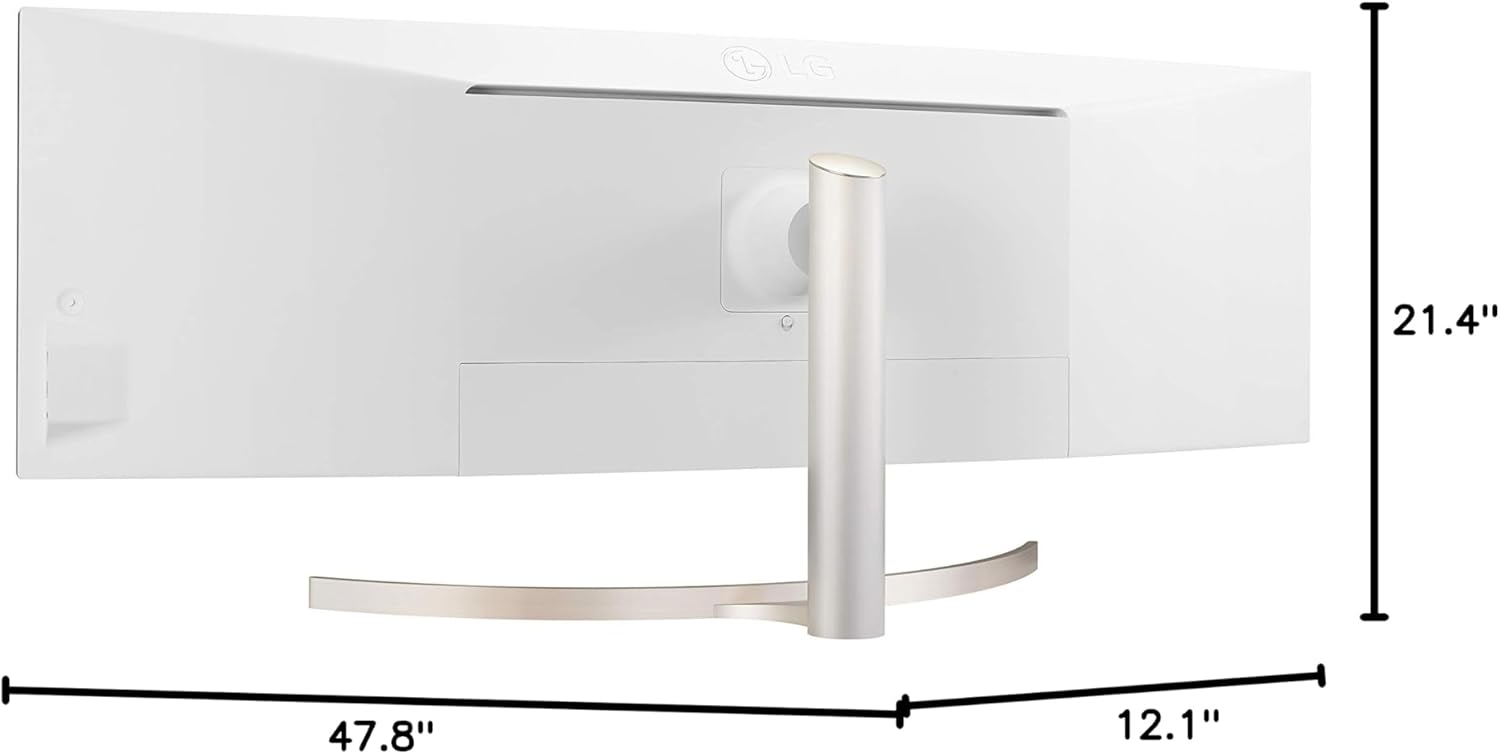
Figure 2: Rear view with dimensions of the LG 49WL95C-W Ultrawide Dual QHD Monitor.
2.2 Connectivity
The monitor offers various connectivity options to suit your setup:
- USB Type-C: Connect compatible devices for video, data, and power delivery (up to 85W). This single cable solution simplifies your workspace.
- HDMI: Two HDMI ports are available for connecting various multimedia devices.
- DisplayPort: One DisplayPort input for high-resolution video connections.
- USB Downstream Ports: Multiple USB 3.0 ports for connecting peripherals.
Ensure all cables are securely connected to the appropriate ports on both the monitor and your computer/device.
Video 1: Overview of the LG 49-inch UltraWide Curved Monitor, highlighting its features and connectivity options.
3. Operating Instructions
3.1 Power On/Off
Locate the power button, typically a joystick-style button on the rear-bottom center of the monitor. Press it to power on or off the display.
3.2 On-Screen Display (OSD) Menu
The OSD menu allows you to adjust various display settings. Use the joystick button to navigate the menu. Common settings include:
- Brightness/Contrast: Adjust the overall luminance and contrast levels.
- Color Settings: Fine-tune color temperature, gamma, and color space (sRGB 99% is supported).
- Picture Mode: Select from predefined modes (e.g., Reader, Photo, Cinema) or customize your own.
- Input Selection: Manually switch between connected input sources (USB-C, HDMI 1, HDMI 2, DisplayPort).
- Picture-by-Picture (PBP) / Picture-in-Picture (PIP): Utilize the monitor's ability to display content from multiple sources simultaneously.
3.3 Multitasking and Productivity
The ultrawide aspect ratio is ideal for multitasking. You can arrange multiple windows side-by-side, effectively replacing a multi-monitor setup. LG's OnScreen Control software (downloadable from LG's website) provides advanced screen splitting options, allowing you to customize layouts for optimal workflow.
Video 2: Demonstrating the Arc Edge Design and multitasking capabilities of LG UltraWide Monitors.
4. Maintenance
4.1 Cleaning the Monitor
To clean the screen, gently wipe it with a soft, lint-free cloth. For stubborn marks, lightly dampen the cloth with water or a mild, non-abrasive screen cleaner. Avoid using harsh chemicals, alcohol, or ammonia-based cleaners, as these can damage the screen surface. Ensure the monitor is powered off and unplugged before cleaning.
4.2 General Care
- Avoid placing heavy objects on the monitor or its cables.
- Do not block the ventilation openings on the monitor.
- Keep the monitor away from direct sunlight, heat sources, and excessive moisture.
- Unplug the monitor during lightning storms or when unused for extended periods.
5. Troubleshooting
If you encounter any issues with your LG 49WL95C-W monitor, try the following basic troubleshooting steps:
- No Power: Ensure the power cable is securely connected to both the monitor and a working power outlet.
- No Signal: Verify that the video cable (USB-C, HDMI, DisplayPort) is correctly connected to both the monitor and your source device. Check the input selection in the OSD menu to ensure the correct source is chosen.
- Flickering/Distorted Image: Check cable connections. Try a different cable or input port. Ensure your graphics card drivers are up to date.
- Sound Issues: Verify that the monitor's volume is not muted or set too low. Check audio output settings on your computer.
- Display Resolution: Ensure your computer's display settings are configured to the monitor's native resolution (5120 x 1440) for optimal clarity.
For more advanced troubleshooting or persistent issues, please refer to the full user manual available on the LG support website or contact LG customer support.
6. Specifications
| Feature | Specification |
|---|---|
| Brand | LG |
| Model Number | 49WL95C-W |
| Screen Size | 49 Inches |
| Screen Resolution | 5120 x 1440 pixels (Dual QHD) |
| Aspect Ratio | 32:9 |
| Display Type | Curved IPS Display |
| HDR Support | HDR10 |
| Color Gamut | sRGB 99% (Typ.) |
| Connectivity | USB Type-C, 2x HDMI, DisplayPort, USB Downstream Ports |
| Speakers | 2 x 10W Stereo Speaker with Rich Bass |
| Special Features | Ambient Light Sensor, Height/Tilt/Swivel Adjustable Stand |
| Item Weight | 33.5 pounds |
| Product Dimensions | 47.8 x 12.1 x 21.4 inches |
| Screen Surface | Anti-glare, Hard coating (3H) |
7. Warranty and Support
For warranty information, product registration, and technical support, please visit the official LG Electronics website or refer to the warranty card included in your product packaging. You can also find detailed user manuals and driver downloads on the LG support page.
Online Resources:
- LG Store on Amazon
- Official LG Support Website (refer to product packaging for specific regional links)