
1. Introduction
This manual provides essential instructions for setting up, operating, maintaining, and troubleshooting your Canon MAXIFY MB2730 A4 Business Inkjet Multifunction Printer. Please read this manual thoroughly before using the product to ensure correct and safe operation.
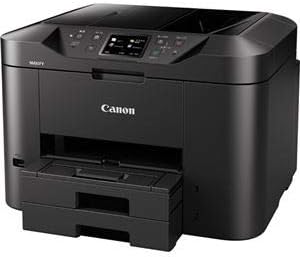
Image 1: Front-right view of the Canon MAXIFY MB2730 printer.
2. Setup
2.1 Unpacking
- Carefully remove the printer from its packaging.
- Remove all protective tapes and packing materials from the exterior and interior of the printer. Refer to the quick start guide for specific locations.
- Place the printer on a stable, flat surface.
2.2 Power Connection
- Connect the power cord to the printer's power input.
- Plug the other end of the power cord into a grounded electrical outlet.
- Press the power button to turn on the printer.
2.3 Ink Cartridge Installation
The MAXIFY MB2730 uses independent ink tanks for each of its four colors (Cyan, Magenta, Yellow, Black).
- Open the ink cartridge cover.
- Unpack each ink tank and remove the protective orange cap.
- Insert each ink tank into its corresponding slot until it clicks into place.
- Close the ink cartridge cover. The printer will initiate an ink charging process.
2.4 Paper Loading
The printer supports various paper sizes including A4, A6/Postcard, and Letter, and media types such as plain paper.
- Pull out the paper cassette or open the rear paper tray.
- Adjust the paper guides to match the width of your paper.
- Load the paper stack with the print side facing down (for cassette) or up (for rear tray).
- Push the paper cassette back into the printer or close the rear tray.
2.5 Software Installation & Connectivity
The MAXIFY MB2730 offers both Wi-Fi and USB connectivity.
- For Wi-Fi Setup: Follow the on-screen instructions on the printer's control panel to connect to your wireless network. Alternatively, use the setup CD or download the latest drivers and software from the Canon website.
- For USB Setup: Connect the printer to your computer using a USB cable (sold separately). Install the drivers and software from the provided CD or Canon's website.
3. Operating the Printer
3.1 Basic Printing
The MAXIFY MB2730 is designed for speedy output of business documents, supporting both color and monochrome printing at high speeds. It also features automatic duplex printing.
- Ensure the printer is powered on and connected to your device.
- Open the document you wish to print on your computer.
- Select 'Print' from the application's menu.
- Choose 'Canon MAXIFY MB2730' as your printer.
- Adjust print settings (e.g., paper size, color/monochrome, duplex printing) as needed.
- Click 'Print'.

Image 2: The Canon MAXIFY MB2730 actively printing documents.
3.2 Copying
The printer features an Automatic Document Feeder (ADF) that can hold up to 50 sheets, enabling speedy copying of multiple documents.
- Place the document(s) face up in the ADF or face down on the flatbed scanner glass.
- On the printer's control panel, select 'Copy'.
- Adjust settings such as number of copies, color/monochrome, and paper type.
- Press the 'Start' button to begin copying.
3.3 Scanning
The integrated flatbed and ADF scanner allows for versatile document scanning.
- Place the document(s) in the ADF or on the flatbed.
- On the printer's control panel, select 'Scan'.
- Choose your desired scan destination (e.g., computer, USB drive, cloud service) and settings (e.g., resolution, file type).
- Press the 'Start' button to begin scanning.
3.4 Faxing
The MAXIFY MB2730 includes a plain paper fax function compatible with the Super G3 standard, supporting high-speed transmission to reduce communication time and costs.
- Load the document(s) into the ADF or place on the flatbed.
- On the printer's control panel, select 'Fax'.
- Enter the recipient's fax number.
- Adjust any necessary fax settings.
- Press the 'Start' button to send the fax.
4. Maintenance
4.1 Ink Cartridge Replacement
When an ink tank is low or empty, a message will appear on the printer's display. Replace empty ink tanks promptly to maintain print quality.
- Ensure the printer is on.
- Open the ink cartridge cover.
- Press the tab on the empty ink tank and lift it out.
- Unpack a new ink tank, remove the protective cap, and insert it into the correct slot until it clicks.
- Close the ink cartridge cover.
4.2 Cleaning
- Print Head Cleaning: If print quality declines (e.g., streaks, missing colors), perform a print head cleaning from the printer's maintenance menu.
- Roller Cleaning: If paper feeding issues occur, clean the paper feed rollers using the utility in the maintenance menu.
- Exterior Cleaning: Wipe the exterior of the printer with a soft, damp cloth. Do not use abrasive cleaners or solvents.
5. Troubleshooting
This section addresses common issues you might encounter with your MAXIFY MB2730.
- Printer Not Responding:
- Check power connection and ensure the printer is on.
- Verify USB or Wi-Fi connection.
- Restart both the printer and your computer.
- Poor Print Quality:
- Check ink levels and replace any empty tanks.
- Perform print head cleaning and nozzle check from the maintenance menu.
- Ensure you are using appropriate paper settings for your media type.
- Paper Jams:
- Turn off the printer and carefully remove any jammed paper from the paper trays, output tray, or inside the printer.
- Ensure paper is loaded correctly and not overfilled.
- Error Messages:
- Note the error code or message displayed on the LCD screen.
- Refer to the full electronic manual on the Canon support website for specific solutions related to the error code.
6. Specifications
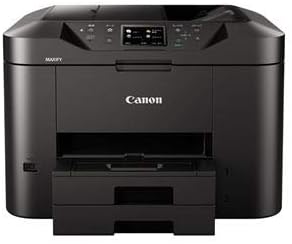
Image 3: Front view of the Canon MAXIFY MB2730 printer, showcasing its design.
| Feature | Detail |
|---|---|
| Model Name | MB2730 |
| Print Technology | Inkjet |
| Print Method | Nozzle (Black & Color) |
| Total Nozzle Count | 4352 nozzles (C/M/Y x 1024 each, BK x 1280) |
| Print Resolution | 600 dpi x 1200 dpi |
| Ink Type | Pigment Ink |
| Number of Ink Colors | 4 colors |
| Ink Cartridge Type | Independent Ink Tank |
| Maximum Print Size | A4 |
| Print Media | Plain paper, various specialty papers |
| Supported Sheet Sizes | A4, A6/Postcard, Letter |
| Connectivity | Wi-Fi, USB |
| Features | Network compatible, Automatic duplex printing |
| Scanner Type | Integrated Flatbed and ADF Scanner |
| ADF Capacity | Max 50 sheets |
| Fax Compatibility | Super G3 standard |
7. Warranty and Support
For detailed warranty information, please refer to the warranty card included with your product or visit the official Canon website. Technical support, driver downloads, and additional manuals can be found on the Canon support portal.
- Official Canon Support: https://global.canon/en/support/
- Product Registration: Register your product online to receive updates and support.