
1. Introduction
Thank you for choosing the Rodzon External USB 3.0 CD/DVD Burner Drive. This portable device allows you to read and write CDs and DVDs on your computer, providing a convenient solution for systems without an internal optical drive. It features high-speed data transfer via USB 3.0 and broad compatibility with various operating systems.

Figure 1: Rodzon External USB 3.0 CD/DVD Burner Drive
This image displays the sleek, black Rodzon external CD/DVD drive with its integrated USB cable. The drive has a brushed metal texture on its top surface and the "Rodzon" logo is visible in the upper left corner.
2. Safety Information
- Do not expose the device to water or excessive humidity.
- Avoid dropping or subjecting the device to strong impacts.
- Do not attempt to disassemble or repair the device yourself. Refer to qualified service personnel.
- Ensure the device is placed on a stable, flat surface during operation.
- Keep the device away from direct sunlight and heat sources.
3. Package Contents
The package should contain the following items:
- Rodzon External USB 3.0 CD/DVD Burner Drive (Model: BT638) with integrated USB cable
- User Manual (this document)
4. Product Overview
Familiarize yourself with the components of your Rodzon external drive.

Figure 2: Key Components of the Rodzon External Drive
This image highlights the key features of the drive. On the front edge, from left to right, are the Indicator Light, Eject Button, and a small hole for Forced Ejection. The integrated USB 3.0 cable is shown extending from the back. The underside of the drive features Anti-Slip Pads for stability.
- Indicator Light: Illuminates to show power and activity status.
- Eject Button: Press to open or close the disc tray.
- Forced Ejection Hole: Use a pointed object (e.g., a straightened paperclip) to manually eject the disc tray in case of power failure or malfunction.
- Integrated USB 3.0 Cable: Connects the drive to your computer for power and data transfer.
- Anti-Slip Pads: Located on the bottom of the drive to prevent movement during operation.
5. Setup
The Rodzon external drive is designed for plug-and-play operation, requiring no driver installation for most operating systems.
- Connect the Drive: Plug the integrated USB 3.0 cable into an available USB port on your computer (laptop, PC, or desktop). For optimal performance, use a USB 3.0 port if available.
- Power On: The drive will draw power directly from the USB port. The indicator light will illuminate, signifying that the drive is powered on and ready for use.
- System Recognition: Your operating system should automatically detect and configure the drive. It will appear as a removable storage device in "My Computer" (Windows) or "Finder" (Mac OS).

Figure 3: Simple Plug and Play Connection
This image illustrates the ease of setup, showing the USB cable being plugged into a laptop. The text "Enchufar y Usar No Se Necesita Conductor" (Plug and Use, No Driver Needed) emphasizes the plug-and-play functionality.
6. Operating Instructions
6.1 Reading Discs (CD/DVD)
- Ensure the drive is connected to your computer.
- Press the Eject Button to open the disc tray.
- Carefully place a CD or DVD onto the tray, ensuring it is centered on the spindle.
- Gently push the disc tray back into the drive until it clicks shut.
- Your computer's operating system will typically prompt you to choose an action for the disc (e.g., play movie, open folder, install software). If not, navigate to "My Computer" or "Finder" and double-click the drive icon to access the disc content.
6.2 Writing Discs (CD-R/CD-RW)
To write data to a blank CD-R or CD-RW, you will need third-party burning software (e.g., Nero, Roxio, or built-in OS utilities).
- Ensure the drive is connected to your computer.
- Press the Eject Button to open the disc tray.
- Place a blank CD-R or CD-RW disc onto the tray.
- Gently push the disc tray back into the drive.
- Launch your preferred burning software and follow its instructions to select files, configure burning settings, and start the writing process.
- Do not disconnect the drive or interrupt the burning process until it is complete.
Supported Formats and Speeds:
- Supported Formats: DVD+R, DVD-R, CD-ROM, DVD-ROM, CD-R, CD-RW
- Maximum Read Speed: DVD 8X, CD 24X
- Maximum Write Speed: CD 8X

Figure 4: Versatile Applications of the Drive
This image illustrates various uses for the external drive, including installing software, listening to music, creating backups, and watching movies. It highlights the drive's utility for common optical media tasks.
7. Compatibility
The Rodzon External USB 3.0 CD/DVD Burner Drive offers broad compatibility:
- Operating Systems: Windows 2000/XP/2003/Vista/7/8/10, Linux, and all versions of Mac OS.
- Devices: Laptops, MacBooks, PCs, desktop computers.
- Not Compatible With: Car systems, televisions, or Blu-ray discs.
8. Maintenance
- Cleaning: Use a soft, dry cloth to clean the exterior of the drive. Do not use liquid cleaners or abrasive materials.
- Disc Tray: Keep the disc tray free from dust and debris. Avoid touching the lens inside the drive.
- Storage: When not in use, store the drive in a clean, dry place, away from extreme temperatures. The integrated cable can be neatly tucked into the designated slot on the underside of the drive for portability.
9. Troubleshooting
| Problem | Possible Cause | Solution |
|---|---|---|
| Drive not recognized by computer. | Loose USB connection, insufficient power, faulty USB port. |
|
| Disc not reading or playing. | Dirty or scratched disc, incorrect disc format, drive malfunction. |
|
| Disc not writing (burning) correctly. | Low quality blank disc, incorrect burning software settings, interrupted process. |
|
| Disc tray stuck. | Mechanical jam, power issue. |
|
10. Specifications
| Feature | Detail |
|---|---|
| Brand | Rodzon |
| Model Number | BT638 |
| Interface | USB 3.0 (backward compatible with USB 2.0) |
| Supported Disc Formats | DVD+R, DVD-R, CD-ROM, DVD-ROM, CD-R, CD-RW |
| Max DVD Read Speed | 8X |
| Max CD Read Speed | 24X |
| Max CD Write Speed | 8X |
| Operating System Compatibility | Windows 2000/XP/2003/Vista/7/8/10, Linux, Mac OS (all versions) |
| Dimensions (L x W x H) | 14.7 x 14.5 x 1.6 cm (5.78 x 5.7 x 0.63 inches) |
| Weight | 330 grams |
| Power Supply | USB Powered (no external adapter needed) |

Figure 5: Physical Dimensions of the Drive
This image provides a visual representation of the drive's compact dimensions, showing its length (14.7 cm / 5.78 inches), width (14.5 cm / 5.7 inches), and height (1.6 cm / 0.63 inches).
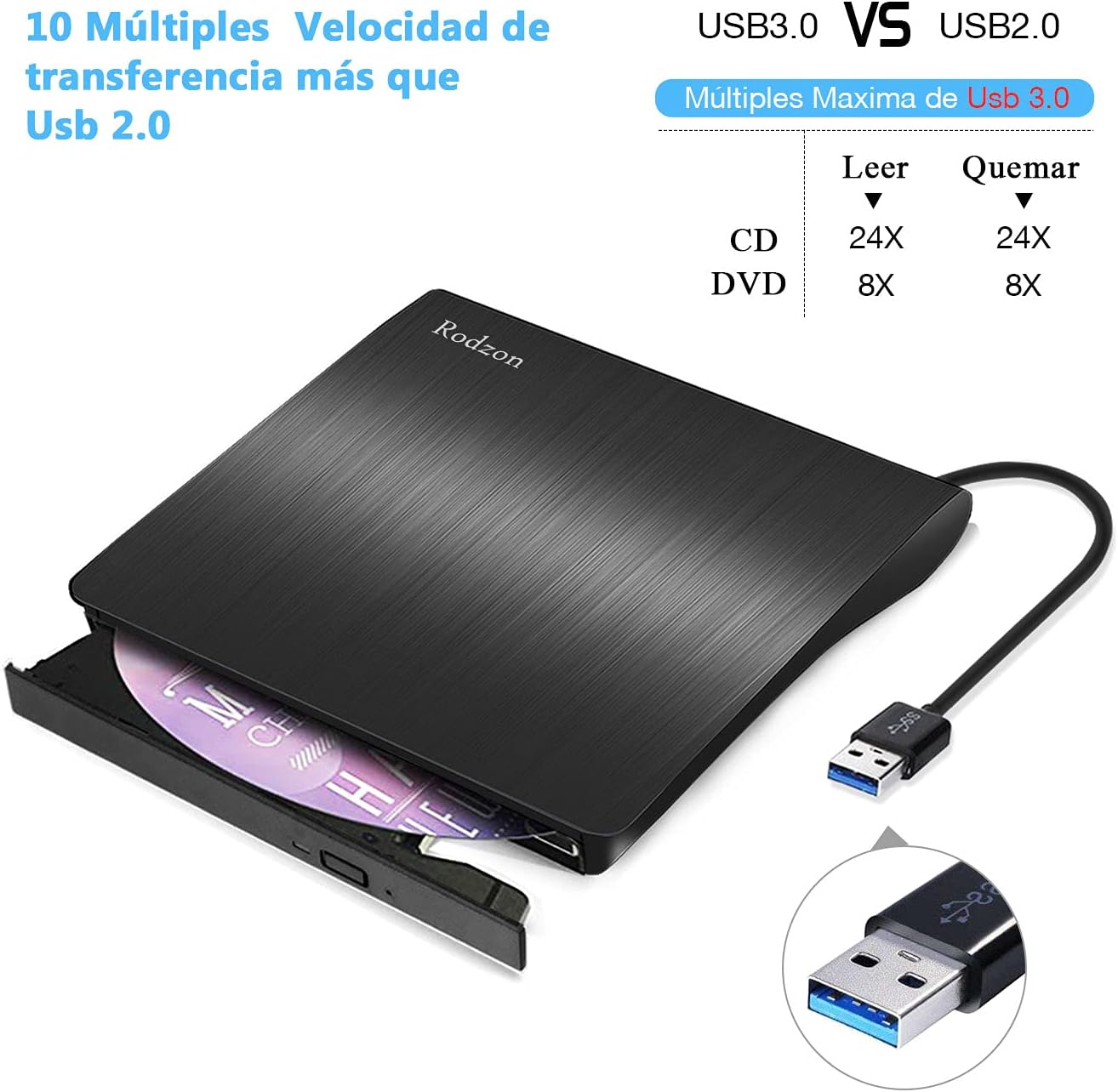
Figure 6: USB 3.0 vs. USB 2.0 Speed Comparison
This image highlights the speed advantages of USB 3.0 over USB 2.0, indicating maximum read/write speeds for CD (24X) and DVD (8X) when using a USB 3.0 connection.
11. Warranty and Support
For warranty information and technical support, please refer to the Rodzon official website or contact your retailer. Keep your purchase receipt as proof of purchase.