
B07PDB1PZ2
Smartfinder Bluetooth Item Tracker User Manual
Model: B07PDB1PZ2
Introduction
The Smartfinder Bluetooth Item Tracker is a compact and versatile device designed to help you locate your valuable items quickly and efficiently. Utilizing Bluetooth technology, it connects to your iOS or Android smartphone, allowing you to find misplaced keys, wallets, bags, or even your phone itself. This manual provides comprehensive instructions for setting up, operating, and maintaining your Smartfinder device.

Image: A set of four Smartfinder trackers in different colors: black, white, blue, and pink. These small, square devices feature a circular button on the front and a small hole for attachment.
Safety Information
- Keep the device away from water and excessive moisture.
- Do not expose the device to extreme temperatures (hot or cold).
- Do not attempt to disassemble or modify the device. This will void the warranty.
- Keep batteries out of reach of children. If swallowed, seek immediate medical attention.
- Dispose of the device and batteries according to local regulations.
Package Contents
Please check the package contents upon opening to ensure all items are present:
- Smartfinder Bluetooth Item Tracker (quantity as purchased)
- User Manual (this document)
- Pre-installed battery (CR2032)
Product Overview
The Smartfinder tracker is a small, square-shaped device designed for portability and easy attachment to various items. It features a single multi-function button and a small hole for attaching to keyrings or lanyards.

Image: A black Smartfinder tracker shown attached to a set of car keys, demonstrating its compact size and how it can be used with everyday items.
Key Components:
- Multi-function Button: Used for pairing, ringing your phone, and activating the camera shutter.
- LED Indicator: Provides visual feedback on device status.
- Speaker: Emits sound when the tracker is being located.
- Attachment Hole: For connecting to keyrings, bags, or other items.
Setup
1. Download the App:
Search for the "Smartfinder" app (or similar name as indicated on packaging) in the Apple App Store (for iOS devices) or Google Play Store (for Android devices). Download and install the app on your smartphone or tablet.
2. Create an Account:
Open the Smartfinder app and follow the on-screen instructions to create a new user account or log in if you already have one.
3. Pair Your Smartfinder:
- Ensure Bluetooth is enabled on your smartphone.
- Open the Smartfinder app and navigate to the "Add Device" or "Pair New Device" section.
- Press and hold the multi-function button on your Smartfinder tracker for approximately 3-5 seconds until you hear a beep or see the LED indicator flash.
- The app should detect your Smartfinder. Select it from the list of available devices to complete the pairing process.
- Once paired, you can name your Smartfinder (e.g., "Keys," "Wallet," "Backpack").

Image: A white Smartfinder tracker clipped onto the zipper of a black backpack, illustrating how it can be attached to bags for easy tracking.
Operating Instructions
1. Finding Your Item:
If you've misplaced an item with your Smartfinder attached, open the app on your smartphone. Select the corresponding Smartfinder from your device list and tap the "Ring" button. The Smartfinder will emit an audible alarm, helping you locate it. The app may also show the last known location on a map.
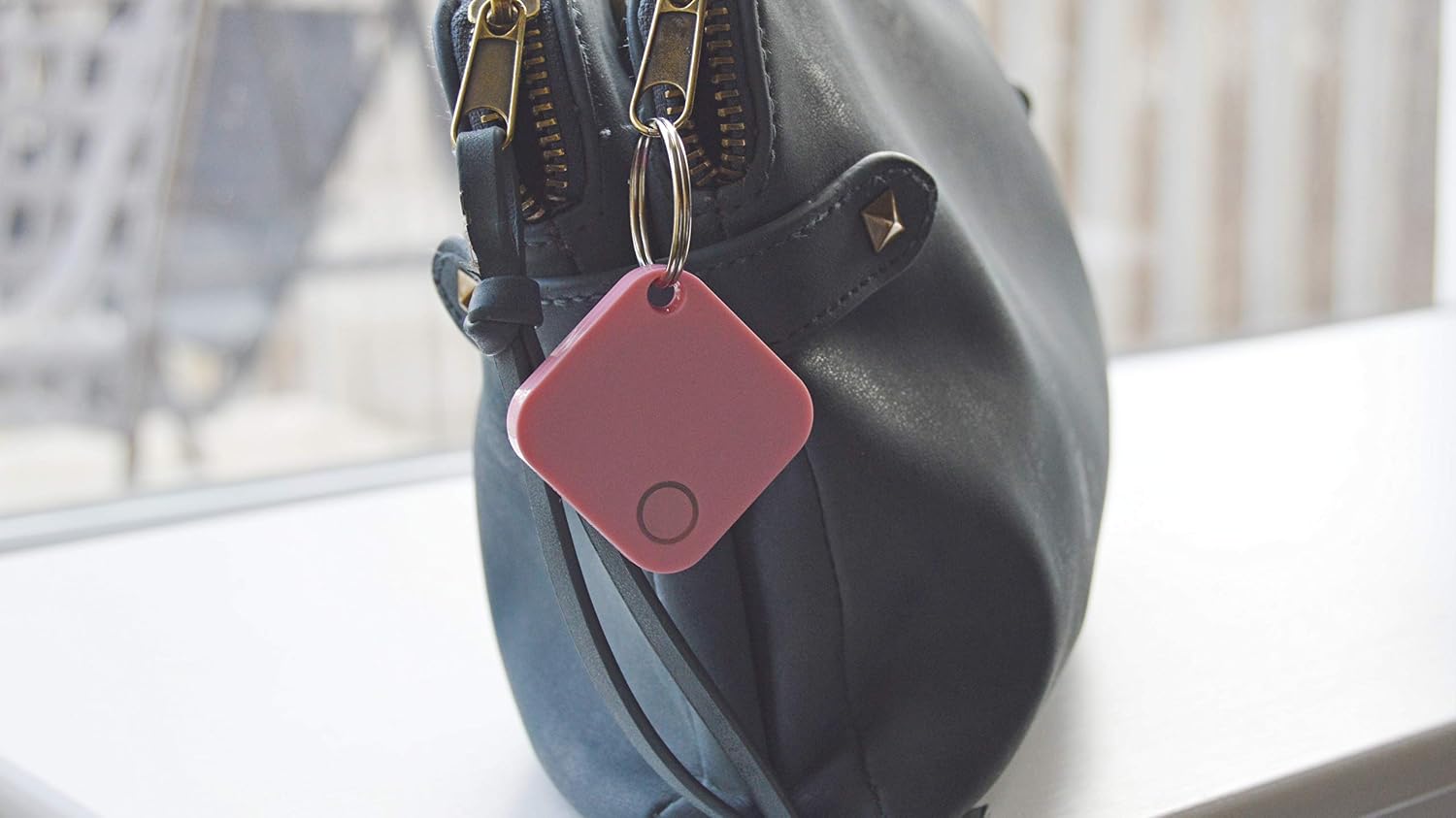
Image: A pink Smartfinder tracker hanging from the zipper of a brown leather purse, demonstrating its use as a stylish and functional accessory.
2. Finding Your Phone:
If you've misplaced your phone but have your Smartfinder tracker, simply double-press the multi-function button on the Smartfinder. Your phone will ring, even if it's on silent mode (this feature may vary based on app settings and phone model), helping you find it.
3. Selfie Mode (Camera Shutter):
The Smartfinder can also function as a remote camera shutter. Open your phone's camera app. In the Smartfinder app settings, enable the "Selfie Mode" or "Camera Shutter" function. Then, a single press of the multi-function button on your Smartfinder will trigger your phone's camera to take a photo.
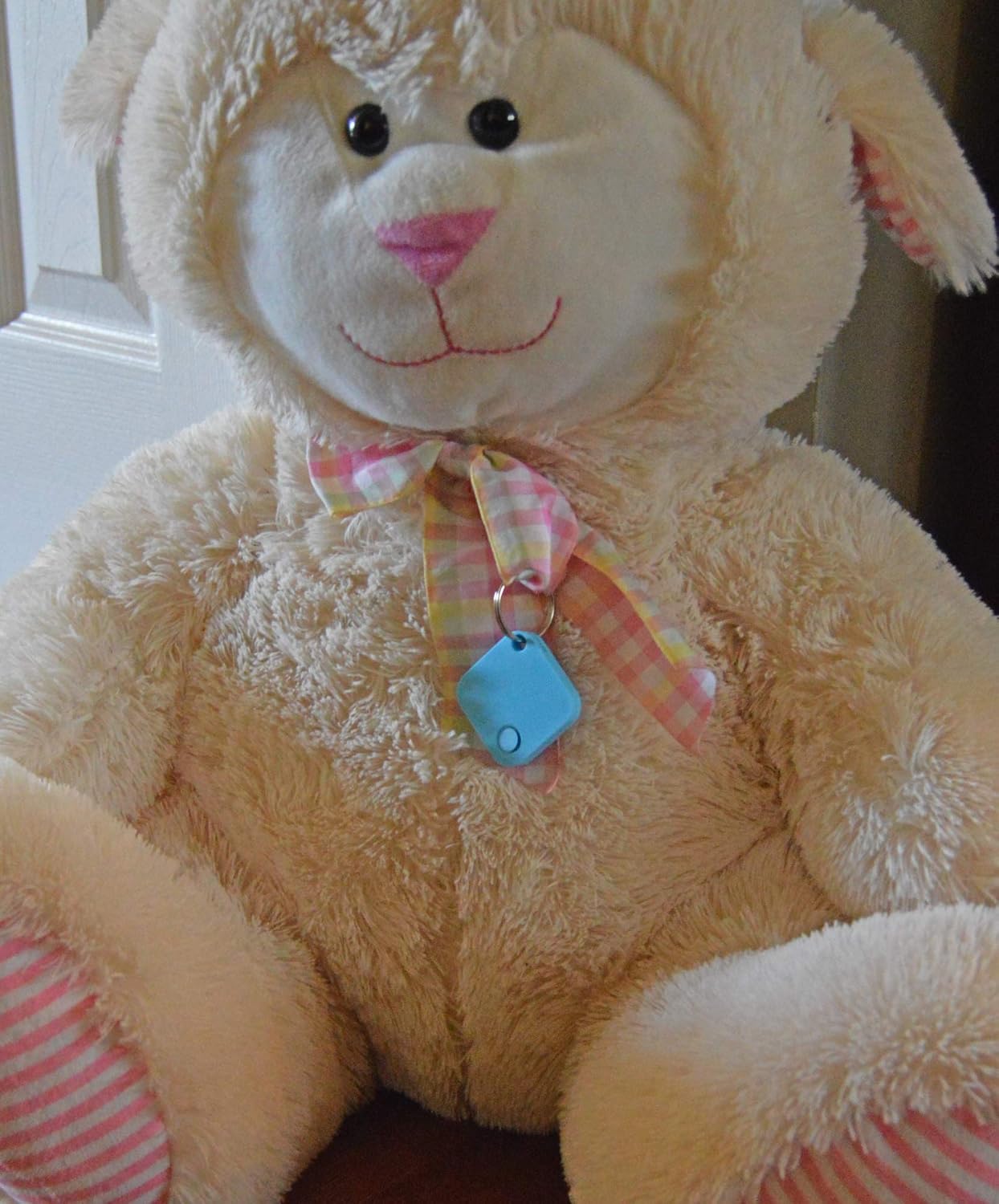
Image: A blue Smartfinder tracker tied to the ribbon around the neck of a large, cream-colored stuffed lamb, showing its versatility for tracking beloved toys.
4. Last Location Tracking:
The Smartfinder app automatically records the last known location of your tracker on a map whenever it disconnects from your phone's Bluetooth range. This helps you narrow down where you might have left your item.
Maintenance
Battery Replacement:
The Smartfinder uses a standard CR2032 coin cell battery. When the battery is low, the app may notify you, or the device's performance may degrade. To replace the battery:
- Carefully open the Smartfinder casing. Refer to the specific instructions provided with your packaging if available, as methods may vary slightly. Typically, there's a small notch or groove to pry it open.
- Remove the old CR2032 battery.
- Insert a new CR2032 battery with the positive (+) side facing up.
- Close the casing securely.
Cleaning:
Wipe the Smartfinder with a soft, dry cloth. Do not use harsh chemicals or abrasive cleaners.

Image: A white Smartfinder tracker placed on top of a television remote control, illustrating how it can be used to keep track of easily misplaced household items.
Troubleshooting
| Problem | Possible Solution |
|---|---|
| Smartfinder not connecting to phone. |
|
| Smartfinder not ringing. |
|
| Phone not ringing when Smartfinder button is pressed. |
|
| Last location on map is inaccurate. |
|
Specifications
| Feature | Detail |
|---|---|
| Model | B07PDB1PZ2 |
| Connectivity | Bluetooth |
| Compatible Devices | iOS and Android Smartphones, Tablets |
| Battery Type | CR2032 Coin Cell (Included) |
| Material | Plastic |
| Manufacturer | Charles Innovative Technologies |
Warranty and Support
Warranty Information:
This Smartfinder device comes with a standard manufacturer's warranty against defects in materials and workmanship. Please refer to the warranty card included in your product packaging for specific terms, conditions, and duration. Keep your proof of purchase for warranty claims.
Customer Support:
For technical assistance, troubleshooting, or warranty inquiries, please contact the manufacturer, Charles Innovative Technologies, through their official support channels. Contact information can typically be found on their website or on the product packaging.
Note: As this is a generic brand, specific contact details are not provided in this manual. Please refer to the product packaging or the seller's information for direct support.
no relevant documents
Ask a question about this manual
Ask about setup, troubleshooting, compatibility, parts, safety, or missing instructions. Manuals+ will review the question and use this page’s manual context to help answer it.