1. Introduction
This manual provides detailed instructions for the setup, operation, maintenance, and troubleshooting of your LG UltraFine 5K IPS LED Monitor. Designed for optimal performance with MacBook Pro, this 27-inch monitor delivers an ultra-clear 5K display, enhancing your visual experience for various tasks, including video editing and photography.

Figure 1: Front view of the LG UltraFine 5K IPS LED Monitor.
2. Product Overview
The LG UltraFine 5K IPS LED Monitor is engineered to provide a superior visual experience with its high-resolution display and versatile connectivity. Key features include:
- Ultra Clear 218 PPI 5K Display: Experience exceptional definition and detail with a 5120 x 2880 resolution on a 27-inch screen.
- 5K Display with Thunderbolt 3: Transmit 5K video and data while simultaneously charging compatible devices (up to 85W) via a single cable.
- USB-C Downstream Ports: Three USB-C (USB 5 Gbps) ports allow for convenient connection of additional peripherals.
- Ultimate Visibility: A brightness of 500cd/m² ensures vivid, lifelike images with a wide range of color and contrast.
- Easy Display Control with macOS: Adjust display settings like brightness directly through macOS, eliminating the need for physical buttons.
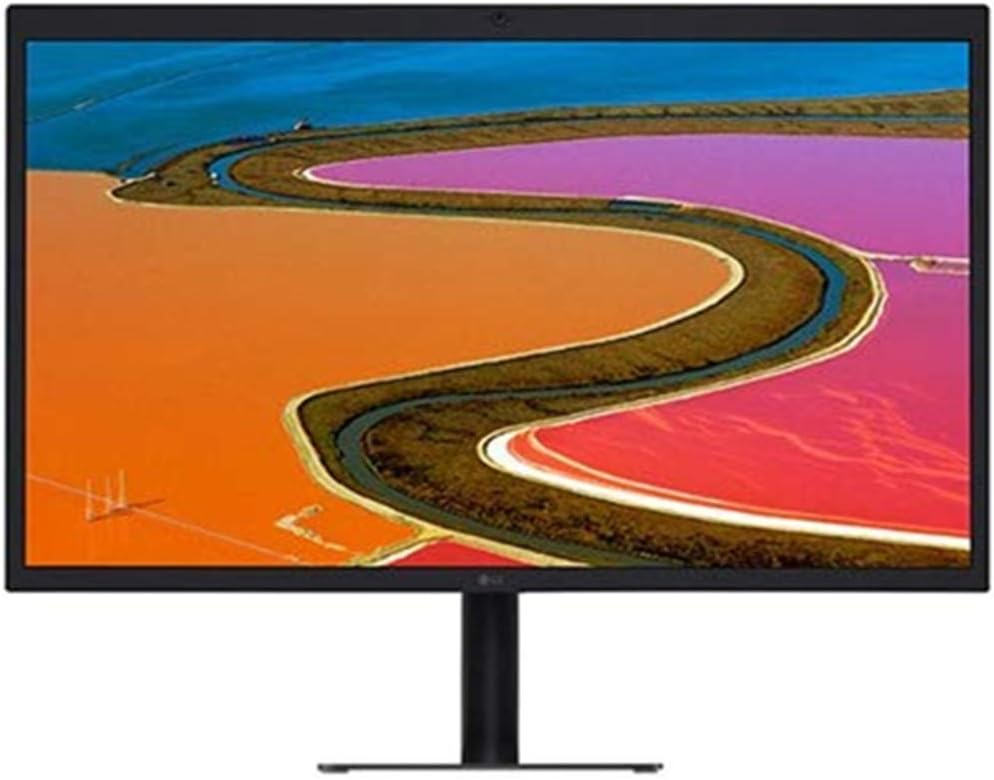
Figure 2: Straight front view of the monitor.

Figure 3: Rear view of the monitor, highlighting the port configuration and stand.
3. Setup
Follow these steps to set up your LG UltraFine 5K IPS LED Monitor:
- Unpacking: Carefully remove the monitor and all accessories from the packaging. Ensure all components are present: monitor, height-adjustable stand, VESA mounting adapter, Thunderbolt 3 cable, and power cord.
- Assemble the Stand: Attach the stand to the monitor securely. Refer to the quick setup guide included in the box for detailed assembly instructions.
- Connect Power: Plug the power cord into the monitor's power input and then into a wall outlet.
- Connect to Host Device: Use the provided Thunderbolt 3 cable to connect the monitor to your MacBook Pro or other compatible device. This single cable handles video, data, and power delivery (up to 85W).
- Connect Peripherals: Utilize the three USB-C downstream ports on the monitor to connect additional devices such as external drives, keyboards, or mice.

Figure 4: Monitor displaying multiple application windows, demonstrating screen real estate.
4. Operating Instructions
Your LG UltraFine 5K monitor is designed for seamless integration with macOS, allowing for intuitive control.
4.1. Display Settings
Brightness and other display settings can be adjusted directly through your macOS System Preferences, eliminating the need for physical buttons on the monitor itself. Navigate to System Preferences > Displays to customize your viewing experience.
4.2. Dual Monitor Setup
For enhanced productivity, the LG UltraFine 5K monitor can be effectively used in a dual monitor configuration with another display, such as a 24-inch iMac. A common and efficient setup involves placing the LG UltraFine monitor directly in front of you as the primary display, with the secondary display (e.g., iMac) positioned off to the side at approximately a 15-degree angle. This arrangement allows you to focus on your main tasks on the primary monitor while easily glancing at the secondary display for reference or additional applications. The similar height of the LG UltraFine and the 24-inch iMac creates a visually cohesive and ergonomic workspace.
Figure 5: Example of a dual monitor setup with the LG UltraFine monitor.
5. Maintenance
To ensure the longevity and optimal performance of your monitor, follow these maintenance guidelines:
- Cleaning the Screen: Gently wipe the screen with a soft, lint-free cloth. For stubborn marks, slightly dampen the cloth with water or a screen-specific cleaning solution. Avoid using harsh chemicals or abrasive materials.
- Cleaning the Casing: Use a soft, dry cloth to clean the monitor's casing.
- Ventilation: Ensure the ventilation openings on the monitor are not blocked to prevent overheating.
- Power Off When Not in Use: Turn off the monitor when not in use for extended periods to conserve energy and prolong its lifespan.
- Avoid Direct Sunlight: Do not expose the monitor to direct sunlight or extreme temperatures.
6. Troubleshooting
If you encounter issues with your LG UltraFine 5K monitor, try the following troubleshooting steps:
- No Power: Ensure the power cord is securely connected to both the monitor and the power outlet. Try a different outlet.
- No Signal/Black Screen: Verify that the Thunderbolt 3 cable is firmly connected to both the monitor and your host device. Ensure your host device is powered on and configured to output to an external display.
- Incorrect Resolution: Check your macOS Display settings to ensure the resolution is set to 5120 x 2880.
- Flickering/Distorted Image: Try reconnecting the Thunderbolt 3 cable. Ensure there are no strong electromagnetic interferences nearby. Update your graphics drivers if applicable.
- USB Ports Not Working: Ensure the Thunderbolt 3 connection is active, as it carries the USB data. Try connecting the USB device to a different port or directly to your host device to isolate the issue.
- Audio Issues: Check the audio output settings in macOS System Preferences to ensure the LG UltraFine monitor is selected as the output device. Adjust volume levels on both the computer and the monitor.
If problems persist after attempting these steps, please contact LG customer support for further assistance.
7. Specifications
| Feature | Specification |
|---|---|
| Brand | LG |
| Model Number | RB27MD5KA-B |
| Standing Screen Display Size | 27 Inches |
| Screen Resolution | 5120 x 2880 (5K) |
| Aspect Ratio | 16:9 |
| Screen Surface Description | Glossy |
| Number of USB 3.0 Ports | 3 |
| Item Weight | 14.1 pounds |
| Product Dimensions (LxWxH) | 22.6 x 9.4 x 18.3 inches |
| Color | Black |
| Voltage | 110 Volts |
| Date First Available | May 13, 2018 |
8. Warranty and Support
For warranty information and technical support, please refer to the documentation included with your product or visit the official LG support website. Keep your purchase receipt for warranty claims.