
1. Product Overview
The Zebra Zt510 is a robust industrial printer designed for direct thermal and thermal transfer label printing. It offers reliable performance for high-volume applications, featuring a durable construction and advanced connectivity options. This manual provides essential information for the setup, operation, maintenance, and troubleshooting of your Zt510 printer.
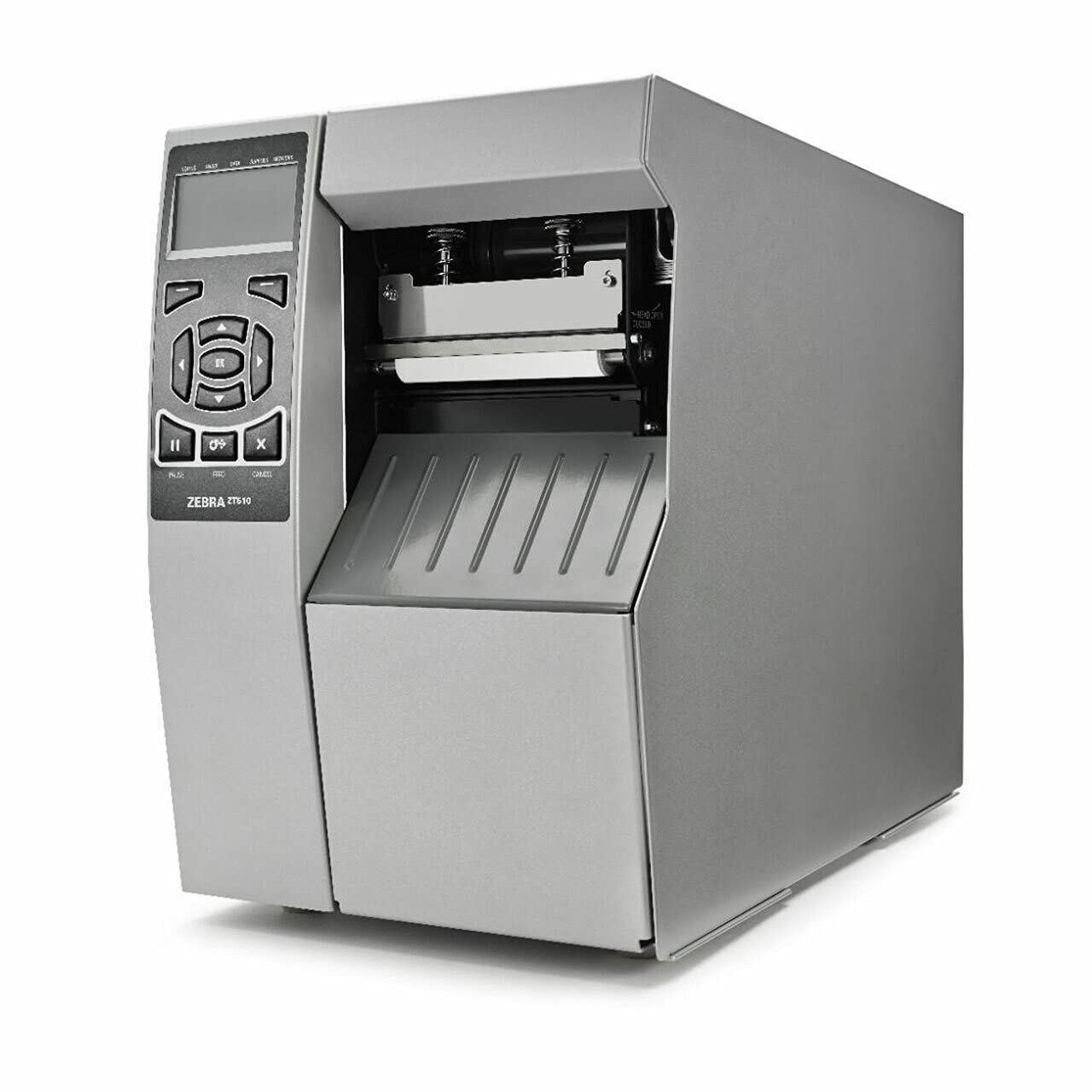
Figure 1: Front view of the Zebra Zt510 printer, highlighting the control panel and media access.
2. Setup Instructions
2.1 Unpacking and Inspection
- Carefully remove the printer from its packaging.
- Inspect the printer for any visible damage that may have occurred during shipping. If damage is found, contact your supplier immediately.
- Verify that all components listed in the packing slip are present. Typical components include the printer, power cord, and documentation.
2.2 Connecting Power
- Ensure the printer's power switch is in the OFF (O) position.
- Connect the power cord to the printer's power input port.
- Plug the other end of the power cord into a grounded electrical outlet.
2.3 Loading Media (Labels and Ribbon)
The Zt510 supports both direct thermal and thermal transfer printing. The media loading process varies slightly depending on the type of media used.
2.3.1 Loading Labels
- Open the media cover.
- Adjust the media guides to the width of your labels.
- Place the roll of labels onto the media supply hanger, ensuring the labels feed from the bottom of the roll.
- Feed the leading edge of the labels under the printhead assembly and through the media sensor.
- Close the media cover.
2.3.2 Loading Ribbon (for Thermal Transfer)
- Open the media cover.
- Place the ribbon roll onto the supply spindle, ensuring the ribbon unwinds from the top.
- Feed the ribbon under the printhead and attach it to the take-up spindle.
- Rotate the take-up spindle clockwise to remove any slack from the ribbon.
- Close the media cover.
2.4 Connecting to a Computer
The Zt510 printer offers USB connectivity.
- Connect one end of a USB cable to the printer's USB port.
- Connect the other end of the USB cable to an available USB port on your computer.
- Install the appropriate printer drivers from the Zebra Technologies website or the provided installation media.
3. Operating Instructions
3.1 Control Panel Overview
The Zt510 features a user-friendly control panel for easy operation and configuration. Key buttons include:
- Power Button: Turns the printer on or off.
- Pause Button: Temporarily stops printing.
- Feed Button: Advances one label.
- Cancel Button: Cancels the current print job.
- Navigation Buttons: Used to navigate through menu options on the display.
- Select/Enter Button: Confirms selections.
3.2 Basic Printing
- Ensure the printer is powered on and connected to your computer.
- Open the document or application from which you wish to print.
- Select "Print" from the application's menu.
- Choose the "Zebra Zt510" printer from the list of available printers.
- Adjust print settings (e.g., label size, print density, print speed) as needed within the printer driver preferences.
- Click "Print" to send the job to the printer.
4. Maintenance
Regular maintenance ensures optimal performance and extends the lifespan of your Zt510 printer.
4.1 Cleaning the Printhead
The printhead should be cleaned regularly, especially if print quality degrades or after every few ribbon changes.
- Turn off the printer and disconnect the power cord.
- Open the media cover and lift the printhead assembly.
- Using a cotton swab lightly moistened with isopropyl alcohol (99% pure), gently wipe the dark line on the printhead from center to edge.
- Allow the printhead to dry completely before closing the assembly and powering on the printer.
4.2 Cleaning the Platen Roller
The platen roller should also be cleaned periodically to prevent media slippage and ensure consistent print quality.
- Turn off the printer and disconnect the power cord.
- Locate the platen roller (the rubber roller directly beneath the printhead).
- Using a lint-free cloth lightly moistened with isopropyl alcohol, rotate the roller manually while wiping its surface.
- Allow the roller to dry completely before closing the assembly and powering on the printer.
5. Troubleshooting
This section addresses common issues you might encounter with your Zt510 printer.
| Problem | Possible Cause | Solution |
|---|---|---|
| No Power | Power cord disconnected; Power outlet faulty; Printer switch off. | Ensure power cord is securely connected; Test outlet with another device; Turn printer switch to ON (I) position. |
| Poor Print Quality (Faded/Streaky) | Dirty printhead; Incorrect print density; Worn printhead; Incorrect media/ribbon. | Clean the printhead (see Section 4.1); Adjust print density in driver settings; Replace printhead if worn; Ensure correct media and ribbon are used. |
| Labels Not Feeding Correctly | Media loaded incorrectly; Media guides not adjusted; Dirty platen roller; Media sensor obstructed. | Reload media correctly (see Section 2.3.1); Adjust media guides to fit label width; Clean platen roller (see Section 4.2); Clear any obstructions from media sensor. |
| Printer Not Responding | USB cable disconnected; Incorrect driver installed; Printer in error state. | Check USB cable connection; Reinstall printer drivers; Power cycle the printer (turn off, wait 10 seconds, turn on). |
6. Specifications
| Feature | Detail |
|---|---|
| Brand | Zebra Technologies |
| Model Name | Zt510 |
| Connectivity Technology | USB |
| Printing Technology | Thermal (Direct Thermal/Thermal Transfer) |
| Special Feature | Monochrome |
| Color | Monochrome |
| Printer Output | Monochrome |
| Controller Type | Push Button |
| Maximum Media Size | 10 x 381 cm |
| Included Components | Labels, Internal Rewind |
7. Support and Resources
For further assistance, driver downloads, or detailed technical documentation, please visit the official Zebra Technologies support website.
- Official Website: www.zebra.com/support
- Customer Support: Refer to the contact information provided on the Zebra Technologies support page for your region.
- Product Page: For more details on the Zt510, visit the Amazon product page.
Note: Product specifications and features are subject to change without notice.