
1. Introduction
Welcome to the YEEHAO 2053STR Camcorder user manual. This document provides essential information for setting up, operating, maintaining, and troubleshooting your new camcorder. Please read these instructions carefully to ensure proper use and to maximize the performance and longevity of your device.
2. Product Overview
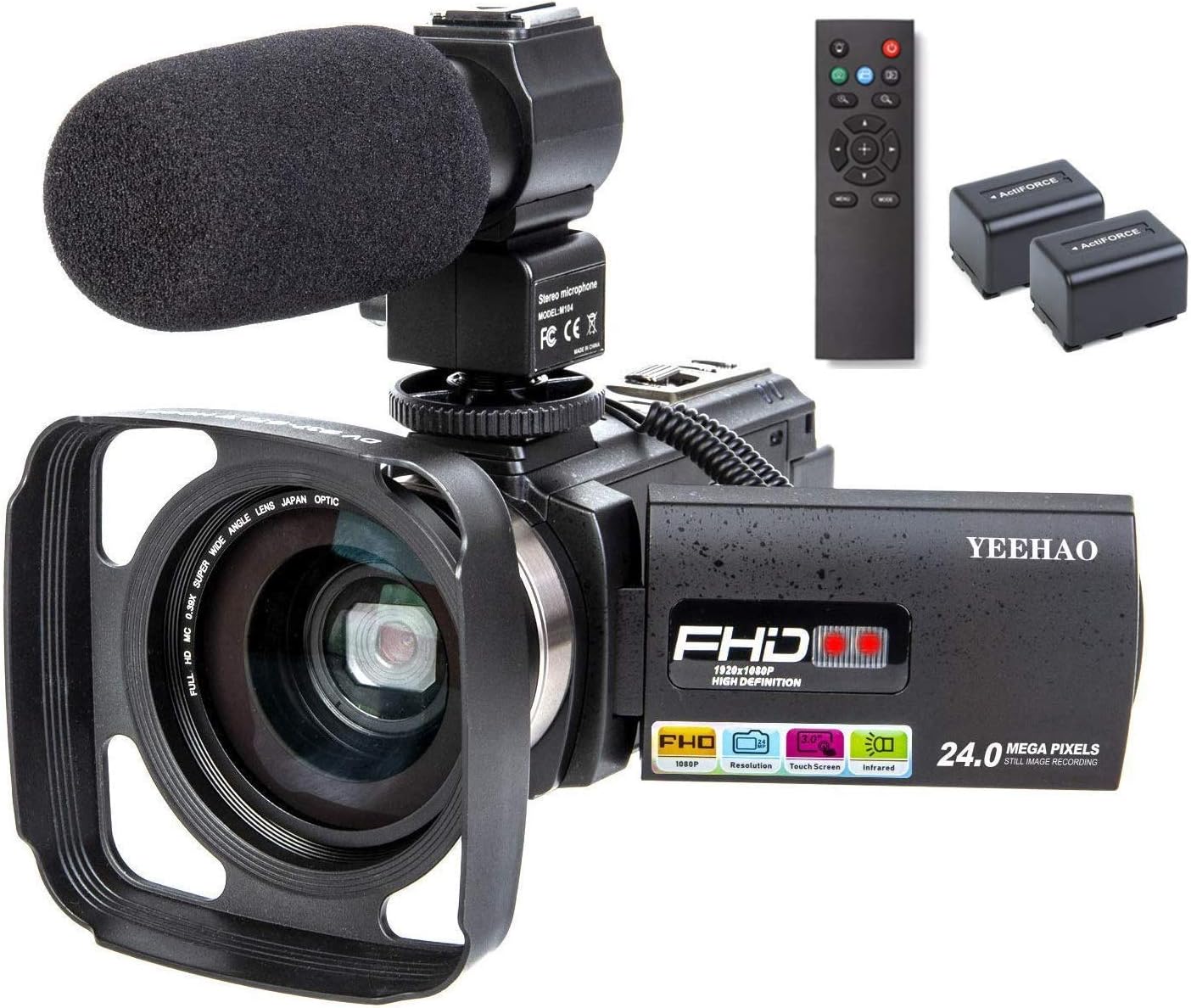
The YEEHAO 2053STR is a Full HD 1080P camcorder featuring 24.0 megapixels for still images, 16X digital zoom, and a 3-inch IPS touch screen. It includes WiFi connectivity, infrared night vision, and comes with an external microphone, wide-angle lens, and remote control for enhanced functionality.
2.1 Package Contents
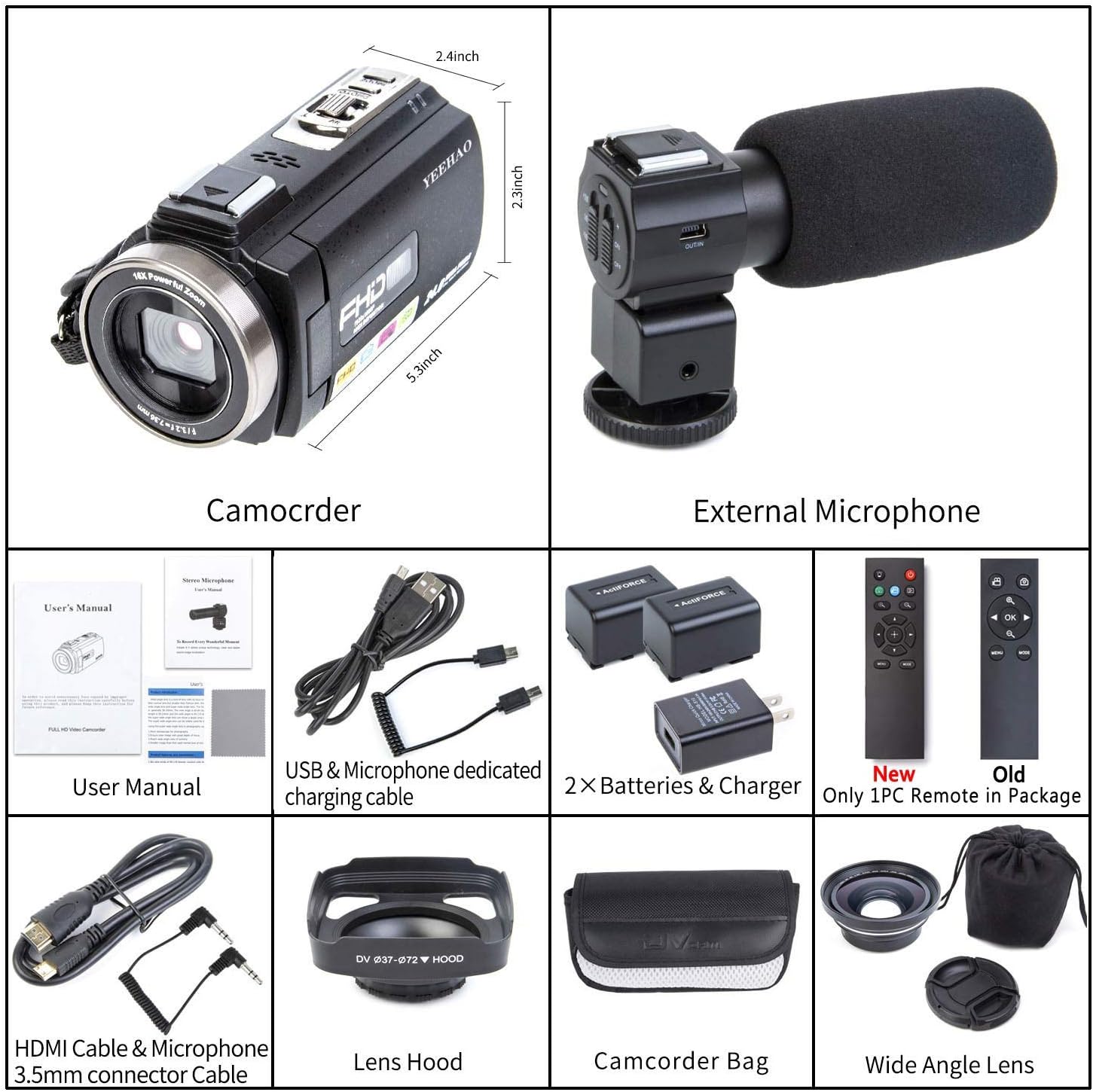
Verify that all items listed below are included in your package:
- YEEHAO 2053STR Camcorder
- External Microphone
- 0.39X Wide Angle Lens (with Macro Lens)
- Lens Hood
- Remote Control
- 2 x Rechargeable Batteries
- USB Cable & Charger
- HDMI Cable
- 3.5mm Audio Connector Cable
- Camcorder Bag
- User Manual
2.2 Camcorder Components
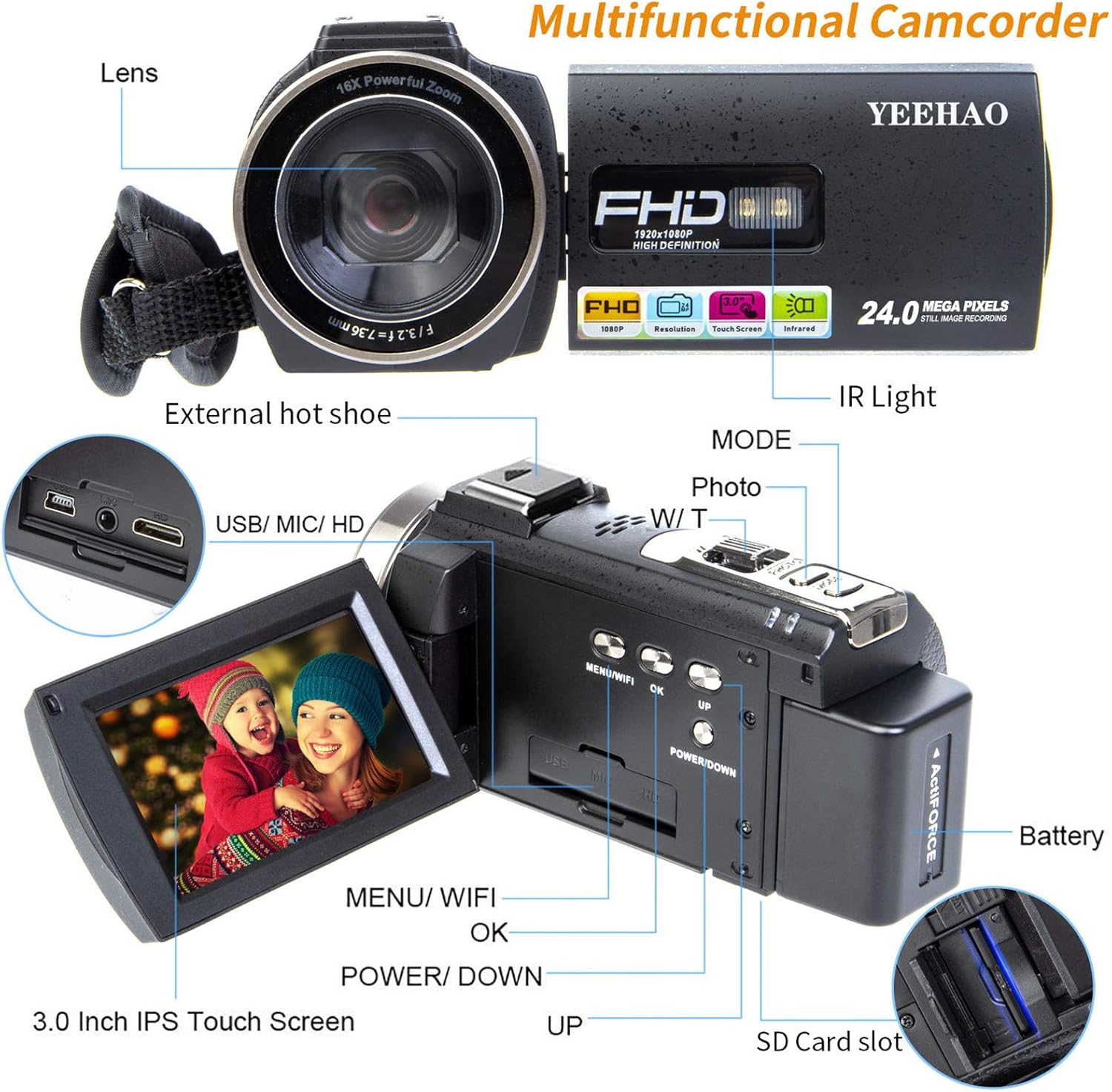
Familiarize yourself with the main components of your camcorder:
2.3 Key Features Overview
Video 2.1: This short video highlights various features of the camcorder, demonstrating its capabilities and ease of use.
Video 2.2: A brief overview showcasing the camcorder's cost-effectiveness and powerful features for general video recording.
Video 2.3: This video provides a quick look at the camcorder's performance, emphasizing its value for the price.
3. Setup
3.1 Battery Installation and Charging
- Open the battery compartment cover located on the bottom of the camcorder.
- Insert the rechargeable battery, ensuring correct polarity.
- Close the battery compartment cover.
- Connect the camcorder to a power source using the provided USB cable and charger. The charging indicator will illuminate.
- A full charge typically takes several hours. The camcorder comes with two batteries for extended use.
3.2 SD Card Installation
- Locate the SD card slot, usually near the battery compartment or under the LCD screen.
- Insert a compatible SD card (not included) gently until it clicks into place. Ensure the card is inserted in the correct orientation.
- To remove, press the card inward until it springs out.
3.3 External Microphone Attachment
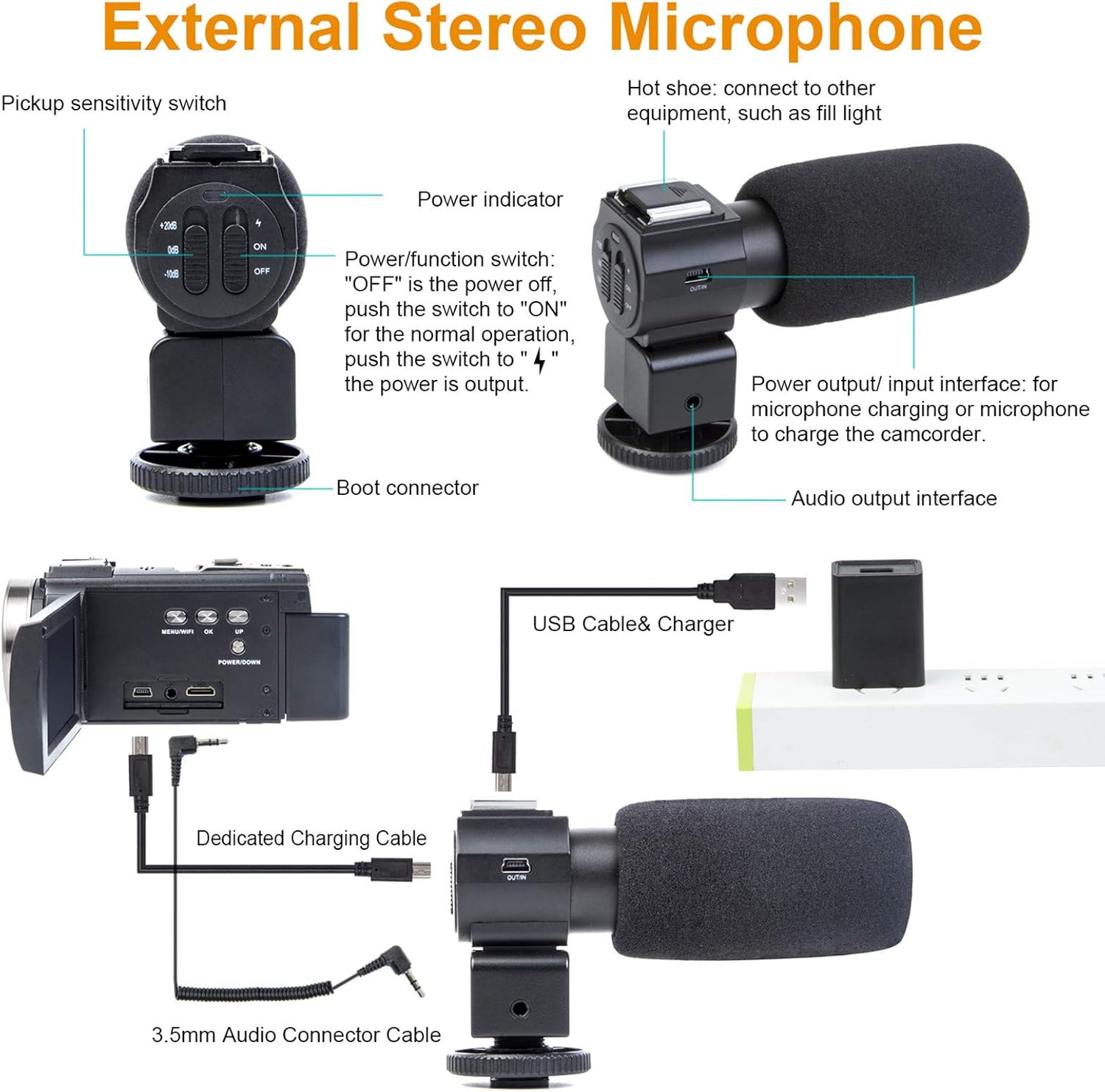
The external stereo microphone enhances audio quality. Follow these steps to attach and use it:
- Slide the microphone onto the hot shoe mount located on top of the camcorder.
- Tighten the locking ring to secure the microphone.
- Connect the 3.5mm audio connector cable from the microphone to the microphone input port on the camcorder.
- Ensure the microphone's power/function switch is set to "ON" for normal operation.
3.4 Wide Angle Lens and Lens Hood Attachment
The 0.39X wide-angle lens allows for a broader field of view. The lens hood helps reduce glare.
- Carefully screw the wide-angle lens onto the front of the camcorder's main lens.
- If using the lens hood, attach it to the front of the wide-angle lens by screwing it on.

4. Operating Instructions
4.1 Power On/Off
To power on the camcorder, open the LCD screen. To power off, close the LCD screen or press and hold the Power/Down button.
4.2 Recording Video and Taking Photos
- Turn on the camcorder.
- Use the Mode button to switch between video recording mode and photo capture mode.
- In video mode, press the Record button to start recording. Press again to stop.
- In photo mode, press the Photo button to capture a still image.
4.3 Zoom Function
Use the W/T (Wide/Telephoto) rocker switch, typically located near the top of the camcorder, to zoom in (T) or zoom out (W). The camcorder features 16X digital zoom.
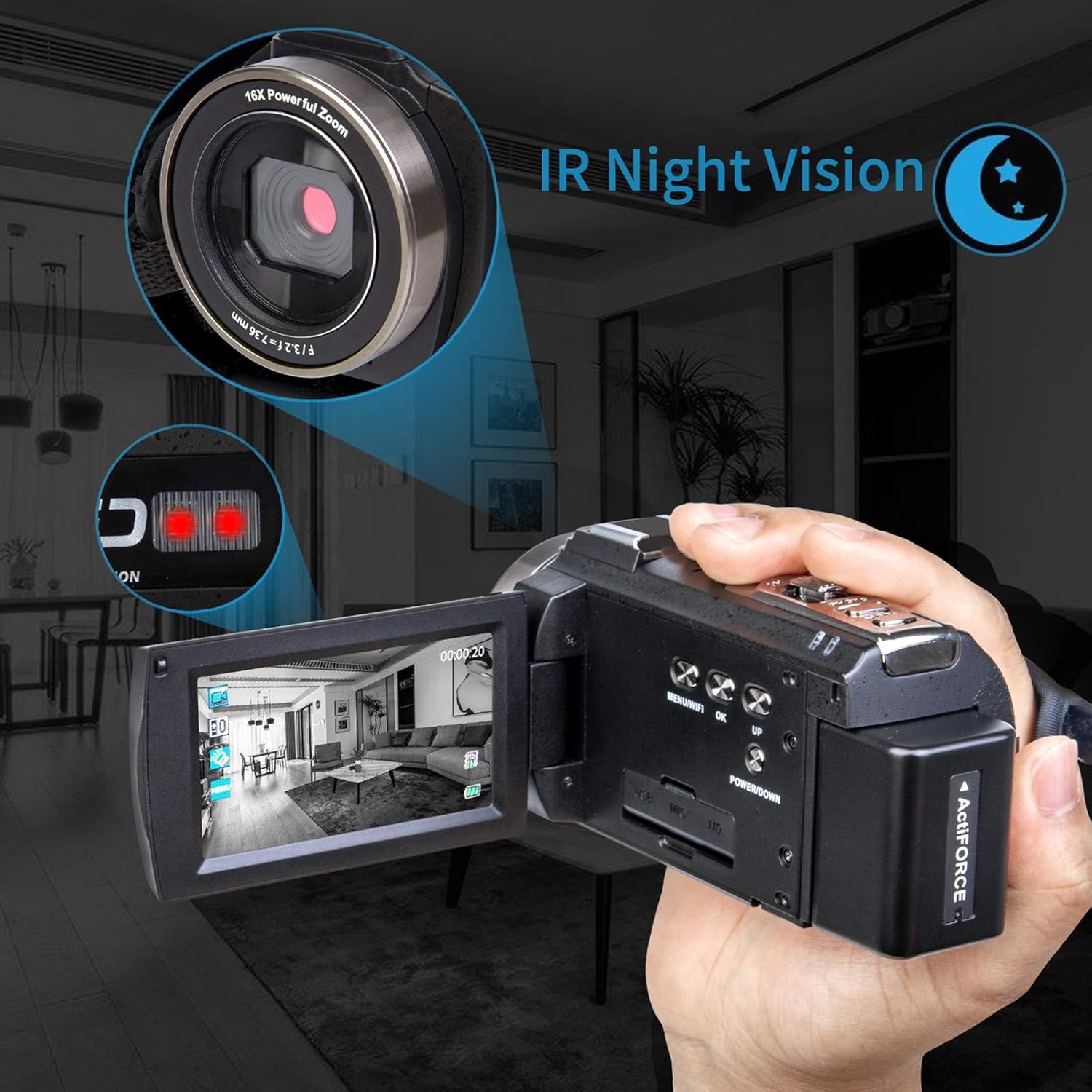
4.4 Infrared Night Vision
For recording in low-light or dark conditions, activate the Infrared Night Vision feature:
- Locate the IR light switch or setting in the menu.
- Activate the IR function. The camcorder will switch to black and white recording to capture images in darkness.

4.5 WiFi Control Function
Connect your camcorder to a smartphone or tablet via WiFi for remote control and file transfer:
- Enable WiFi on the camcorder via the menu.
- Download the specified app (refer to the quick start guide for app name) on your mobile device.
- Connect your mobile device to the camcorder's WiFi network.
- Use the app to control recording, capture photos, and transfer files.
4.6 Playback and File Transfer
- To view recorded videos or photos, enter playback mode via the menu.
- Use the navigation buttons or touch screen to browse your files.
- To transfer files to a computer, connect the camcorder using the provided USB cable. Select "Mass Storage" or "PC Camera" mode on the camcorder's screen.
- Alternatively, connect the camcorder to a TV using the HDMI cable for direct viewing.

Video 4.1: This video demonstrates the camcorder's video and photo capabilities, providing a practical example of its output.
5. Maintenance
5.1 Cleaning
- Use a soft, dry cloth to clean the camcorder body.
- For the lens, use a specialized lens cleaning cloth and solution. Avoid touching the lens surface with bare fingers.
- Clean the LCD screen with a soft, lint-free cloth.
5.2 Battery Care
- Store batteries in a cool, dry place when not in use.
- Avoid fully discharging batteries frequently to prolong their lifespan.
- Charge batteries regularly, even if not in constant use.
5.3 Storage
- When storing the camcorder for extended periods, remove the battery.
- Keep the camcorder in its protective bag in a dry, dust-free environment.
- Avoid extreme temperatures and high humidity.
6. Troubleshooting
If you encounter issues with your YEEHAO 2053STR Camcorder, refer to the following common problems and solutions:
| Problem | Possible Cause | Solution |
|---|---|---|
| Camcorder does not power on. | Battery is depleted or incorrectly inserted. | Charge the battery fully. Ensure the battery is inserted with correct polarity. |
| Cannot record video/take photos. | SD card is full, not inserted, or corrupted. Incorrect mode selected. | Insert a formatted SD card with sufficient space. Ensure the camcorder is in the correct mode (video or photo). |
| Poor audio quality from external microphone. | Microphone not powered on, cable loose, or incorrect settings. | Ensure the external microphone is powered on and securely connected. Check camcorder audio settings. |
| Video appears yellow or overexposed. | Improper lighting conditions or white balance settings. | Adjust white balance settings in the camcorder menu. Ensure adequate and balanced lighting. |
| WiFi connection issues. | Incorrect app, WiFi not enabled, or distance too far. | Verify the correct app is installed. Ensure WiFi is active on both camcorder and mobile device. Stay within range. |
7. Specifications
- Brand: YEEHAO
- Model Number: 2053STR
- Item Weight: 2.7 pounds
- Product Dimensions: 5.3 x 2.4 x 2.3 inches
- Photo Sensor Technology: CMOS
- Video Capture Resolution: 1080p
- Maximum Aperture: 1.2 f
- Flash Memory Type: SD
- Video Capture Format: MP4
- Supported Audio Format: MP3
- Screen Size: 3 Inches
- Connectivity Technology: Infrared, USB
- Special Features: Infrared, Low Light, Night Vision, Time Lapse
8. Warranty and Support
For warranty information or technical support, please refer to the contact details provided with your purchase documentation or visit the official YEEHAO website. Keep your proof of purchase for any warranty claims.


