
Kensington USB-C 4-Port HUB
Model: K39124WW
Introduction
This manual provides instructions for the setup, operation, and maintenance of your Kensington USB-C 4-Port HUB (Model K39124WW). This device expands the connectivity of your USB-C enabled computer or device by adding two USB-A ports and two USB-C ports.
Product Features
- 4-Port Connectivity: Connect both USB-C and USB-A devices simultaneously.
- SuperSpeed Data Transfer: Supports data transfer speeds up to 5 Gigabits per second (USB 3.2 Gen 1).
- Plug and Play: Easy installation without the need for drivers.
- Portable Design: Compact size for convenient travel and use.
- Broad Compatibility: Works with Windows, Chrome OS, and macOS operating systems.
- No Fast Charging: This hub does not support USB fast charging.
Package Contents
- One Kensington USB-C 4-Port Hub (Model K39124WW)
Setup Instructions
The Kensington USB-C 4-Port HUB is designed for simple plug-and-play operation. No software drivers are required for installation.
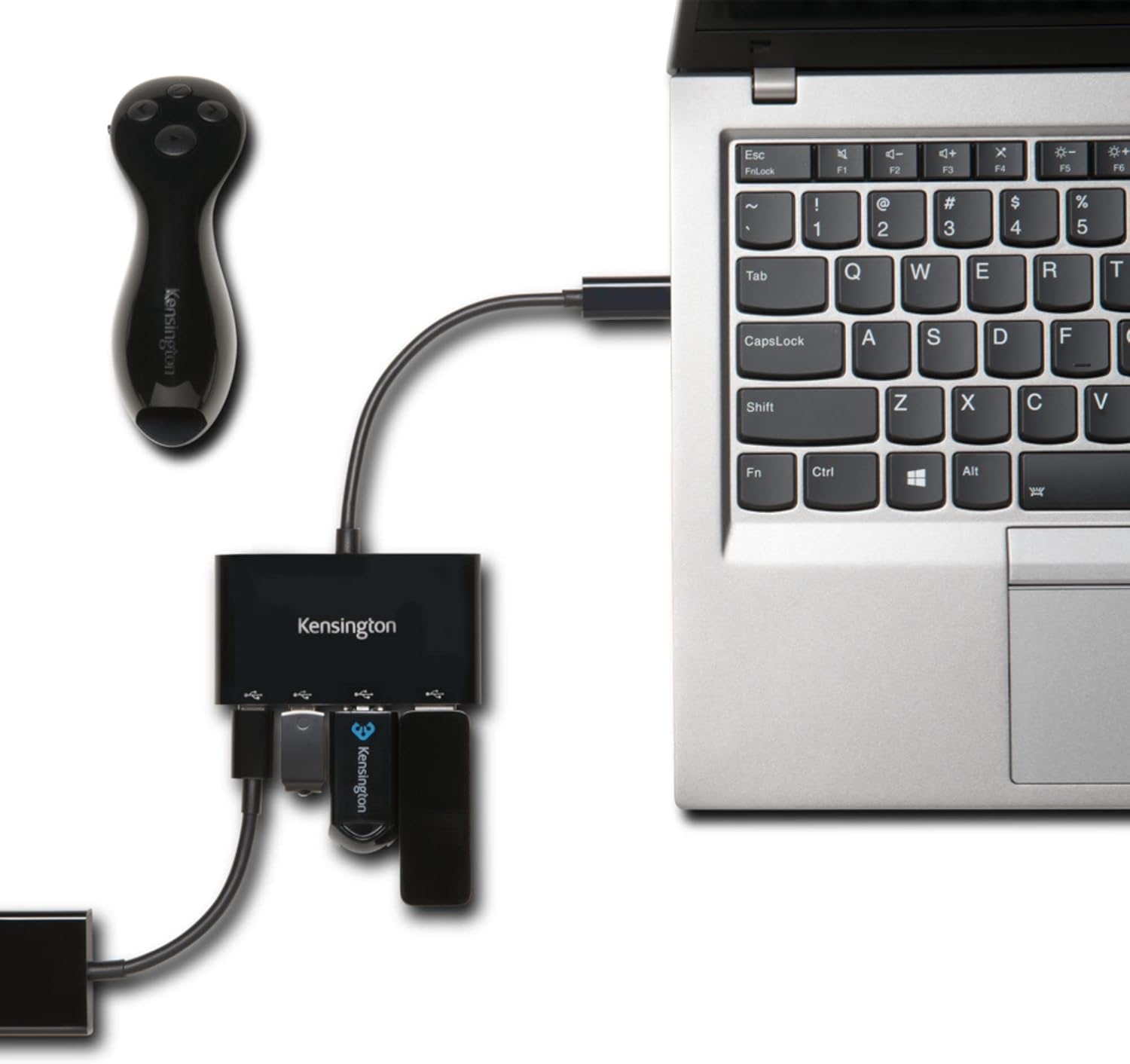
- Connect the Hub: Plug the integrated USB-C cable from the Kensington hub into an available USB-C port on your computer or device.
- Connect Peripherals: Connect your USB-A devices (e.g., mouse, keyboard, flash drive) into the two USB-A ports on the hub. Connect your USB-C devices into the two USB-C ports on the hub.

Your operating system (Windows, Chrome OS, or macOS) will automatically detect the hub and connected devices.
Operating the Hub
Once connected, the hub functions as an extension of your device's USB ports. You can use all four ports simultaneously for data transfer.
Data Transfer
The hub supports SuperSpeed data transfer rates of up to 5 Gigabits per second. This allows for quick transfer of large files between your computer and connected storage devices.

Power Delivery
This hub is designed for data transfer and does not provide fast charging capabilities to connected devices. It draws power from the host USB-C port.
Maintenance
To ensure the longevity and optimal performance of your Kensington USB-C 4-Port HUB, follow these simple maintenance guidelines:
- Keep the hub in a dry environment and avoid exposure to liquids.
- Clean the exterior of the hub with a soft, dry cloth. Do not use harsh chemicals or abrasive cleaners.
- Avoid dropping the device or subjecting it to strong impacts.
- When disconnecting, always grasp the plug, not the cable.
Troubleshooting
If you encounter issues with your Kensington USB-C 4-Port HUB, please refer to the following common solutions:
- Hub not recognized: Ensure the hub's USB-C cable is securely plugged into your computer's USB-C port. Try plugging the hub into a different USB-C port on your computer, if available.
- Connected device not working: Verify that the peripheral device is properly connected to the hub. Test the peripheral by connecting it directly to your computer (if possible) to rule out a device-specific issue.
- Slow data transfer: Ensure that both your computer's USB-C port and the connected peripheral support USB 3.2 Gen 1 (SuperSpeed) for optimal performance. Older USB 2.0 devices will operate at their native slower speeds.
- No power to connected devices: This hub is designed for data transfer and does not provide external power or fast charging. Devices requiring significant power may need their own power source.
Specifications
| Feature | Detail |
|---|---|
| Brand | Kensington |
| Model Number | K39124WW |
| Hardware Interface | USB Type C |
| Total USB Ports | 4 (2x USB-A, 2x USB-C) |
| Data Transfer Rate | Up to 5 Gigabits Per Second |
| Operating System Compatibility | Windows, Chrome OS, macOS |
| Enclosure Material | Aluminum |
| Item Weight | 2.2 Ounces |
| Special Feature | Plug and Play |
Warranty Information
The Kensington USB-C 4-Port HUB (Model K39124WW) comes with a limited 2-year warranty from the date of purchase. This warranty covers defects in materials and workmanship under normal use. Please retain your proof of purchase for warranty claims.
For full warranty terms and conditions, please refer to the official Kensington website or contact customer support.
Customer Support
If you require further assistance or have questions not covered in this manual, please contact Kensington customer support:
- Website: Visit the official Kensington support page for FAQs, drivers, and contact information.
- Online Resources: Kensington Support


