
1. Introduction
The FreedConn TCOM-SC Bluetooth Motorcycle Intercom is designed to provide clear and reliable communication for motorcyclists. Featuring advanced DSP noise reduction technology and Bluetooth 5.0, it allows for hands-free calls, stereo music playback, FM radio, and GPS voice navigation. This device supports intercom communication between 2-3 riders over a range of up to 800 meters.
This manual provides detailed instructions for the installation, operation, and maintenance of your TCOM-SC intercom system.
2. Package Contents
- 1 x FreedConn TCOM-SC Bluetooth Headset Receiver
- 1 x Stereo Headset (with 40mm speakers)
- 1 x Headband Clip with Fixing Screws
- 1 x USB Charging Cable
- 4 x Felt Ear Pads
- 1 x Screwdriver
- 1 x User Manual
- Note: Power adapter is not included. Any standard phone adapter can be used for charging.

Image: All components included in the FreedConn TCOM-SC package, laid out on a white surface. This includes the main intercom unit, stereo headset, various microphones, mounting clips, USB cable, and user manual.
3. Product Overview
3.1 Key Features
- Bluetooth 5.0 Connectivity: Ensures stable and efficient connection to smartphones, MP3 players, and GPS devices.
- Intercom System: Supports communication for 2-3 riders with an effective range of up to 800 meters.
- Hands-Free Calling: Answer or reject calls directly from the intercom unit.
- Hi-Fi Stereo Music & Music Sharing: Enjoy high-quality audio and share music with a fellow rider.
- FM Radio: Built-in FM tuner for listening to radio stations.
- DSP & CVC Noise Reduction: Advanced technology to minimize background noise for clear audio at speeds up to 120 km/h.
- LCD Screen: Displays battery life, FM frequency, and volume status for easy monitoring.
- Long Battery Life: 400mAh battery provides up to 10 hours talk time, 7 hours intercom time, and 300 hours standby.
- IP65 Waterproof: Designed to withstand various weather conditions, suitable for riding in rain.
- Versatile Mounting: Includes two types of mounting brackets and microphones (boom and button) for compatibility with full-face and open-face helmets.

Image: Visual representation of the TCOM-SC's key features, including 2-rider intercom, hands-free calls, stereo music, FM radio, advanced noise control, phone link, water resistance, and rechargeable battery, with a motorcyclist in the background.
3.2 Component Identification

Image: Diagram illustrating the various components of the FreedConn TCOM-SC intercom system, including the LCD display screen, jog wheel, multi-function button, power on/off and intercom button, stereo ear speakers, noise-canceling microphones (hard cable and soft cable), charger and headset socket, and detachable socket.
- LCD Display Screen: Shows operational status, battery level, and FM frequency.
- Jog Wheel: Used for volume control and navigation.
- Multi-function Button: Controls various features like answering calls, playing music.
- Power On/Off and Intercom Button: Manages power and initiates intercom communication.
- Stereo Ear Speakers: Deliver audio output.
- Noise Canceling Microphone (Boom/Button): Captures voice input with noise reduction.
- Charger and Headset Socket: Port for charging and connecting the headset.
- Detachable Socket: For connecting different microphone types.
4. Setup and Installation
4.1 Charging the Device
Before first use, fully charge the TCOM-SC unit. Connect the provided USB cable to the charger and headset socket on the intercom unit and plug the other end into a USB power adapter (not included) or a computer's USB port. The LCD screen will indicate charging status. A full charge typically takes approximately 2.5 to 4 hours.
4.2 Installing the Intercom on Your Helmet
The TCOM-SC offers two installation methods: a clip mount and an adhesive mount. Choose the method best suited for your helmet type and preference.
- Clip Mount:
- Loosen the screws on the headband clip using the provided screwdriver.
- Slide the clip between the outer shell and the inner padding of your helmet, ensuring it is securely positioned.
- Tighten the screws to firmly attach the clip.
- Slide the TCOM-SC unit onto the clip until it locks into place.
- Adhesive Mount:
- Clean the desired mounting area on the side of your helmet thoroughly.
- Peel off the protective film from the adhesive base.
- Firmly press the adhesive base onto the helmet surface for at least 30 seconds. Allow sufficient time for the adhesive to cure before attaching the intercom unit.
- Slide the TCOM-SC unit onto the adhesive base until it locks into place.
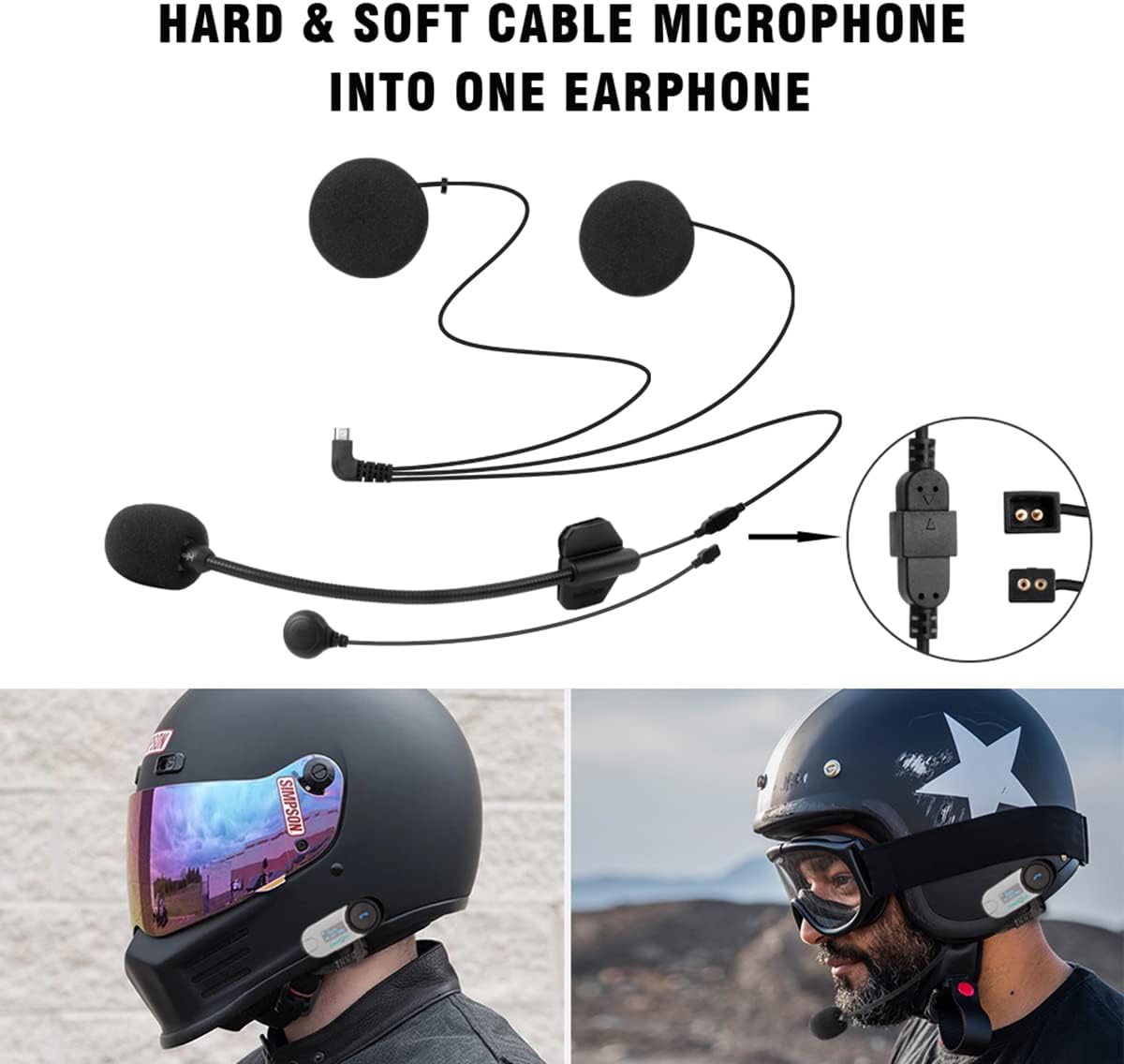
Image: Diagram showing the installation of the hard and soft cable microphones into a single earphone connection, and how the intercom unit attaches to different helmet types (full-face and open-face).
4.3 Connecting the Headset and Microphone
The TCOM-SC comes with ultra-thin stereo earphones and two types of microphones (boom and button) to suit different helmet styles.
- Attach the stereo speakers to the inside of your helmet using the provided felt ear pads. Ensure they are positioned directly over your ears for optimal sound.
- Choose the appropriate microphone:
- Boom Microphone: Ideal for open-face or modular helmets. Position the microphone close to your mouth.
- Button Microphone: Suitable for full-face helmets. Mount it inside the helmet near your mouth.
- Connect the headset and microphone cable to the corresponding socket on the TCOM-SC unit.
5. Operating Instructions
5.1 Power On/Off
- Power On: Press and hold the Power On/Off button for approximately 3 seconds until the LCD screen illuminates and you hear an audible prompt.
- Power Off: Press and hold the Power On/Off button for approximately 3 seconds until the LCD screen turns off and you hear an audible prompt.
5.2 Bluetooth Pairing with Mobile Phone/GPS
The TCOM-SC can connect to your smartphone, MP3 player, or GPS device via Bluetooth.
- Ensure the TCOM-SC is powered off.
- Press and hold the Multi-function Button for approximately 5-7 seconds until the LCD screen shows "Pairing" and the Bluetooth indicator light flashes red and blue alternately.
- On your mobile phone or GPS device, enable Bluetooth and search for available devices.
- Select "FreedConn TCOM-SC" from the list. If prompted for a PIN, enter "0000".
- Once paired, the Bluetooth indicator light will flash blue slowly, and the LCD screen will show "Connected".

Image: Diagram illustrating how the FreedConn TCOM-SC intercom unit connects via Bluetooth to a cell phone, GPS device, and another Bluetooth intercom unit, enabling music, calls, and navigation audio.
5.3 Phone Call Functions
- Answer Call: Press the Multi-function Button once.
- Reject Call: Press and hold the Multi-function Button for 2 seconds.
- End Call: Press the Multi-function Button once.
- Redial Last Number: Double-press the Multi-function Button.
5.4 Music Playback
- Play/Pause: Press the Multi-function Button once.
- Next Track: Rotate the Jog Wheel forward.
- Previous Track: Rotate the Jog Wheel backward.
- Volume Up/Down: Short press the Jog Wheel forward/backward.
5.5 FM Radio
- Turn On/Off FM: Press the Power On/Off button twice quickly.
- Scan Stations: Rotate the Jog Wheel forward or backward to change stations.
- Volume Up/Down: Short press the Jog Wheel forward/backward.

Image: A close-up of the FreedConn TCOM-SC intercom unit's LCD screen displaying "Freedconn" and "FM: 100.7MHz", with two individuals wearing helmets in the background, demonstrating the device in use.
5.6 Intercom Communication
The TCOM-SC supports intercom communication between up to 3 riders, with 2 riders communicating simultaneously.
- Pairing Intercom Units:
- Ensure both TCOM-SC units are powered off.
- On Unit A, press and hold the Power On/Off button for 5-7 seconds until it enters pairing mode (red and blue flashing).
- On Unit B, press and hold the Power On/Off button for 5-7 seconds until it also enters pairing mode.
- Short press the Power On/Off button on either Unit A or Unit B. The units will search and connect to each other. Once connected, the indicator lights will flash blue slowly.
- To pair a third unit (Unit C), repeat the process with Unit C and one of the already paired units (e.g., Unit B).
- Initiating Intercom:
- After pairing, short press the Power On/Off button on your unit to initiate intercom communication with the first paired rider.
- If you have a third unit paired, short press the Power On/Off button again to switch to the second paired rider.
- Ending Intercom: Short press the Power On/Off button once during an active intercom call.
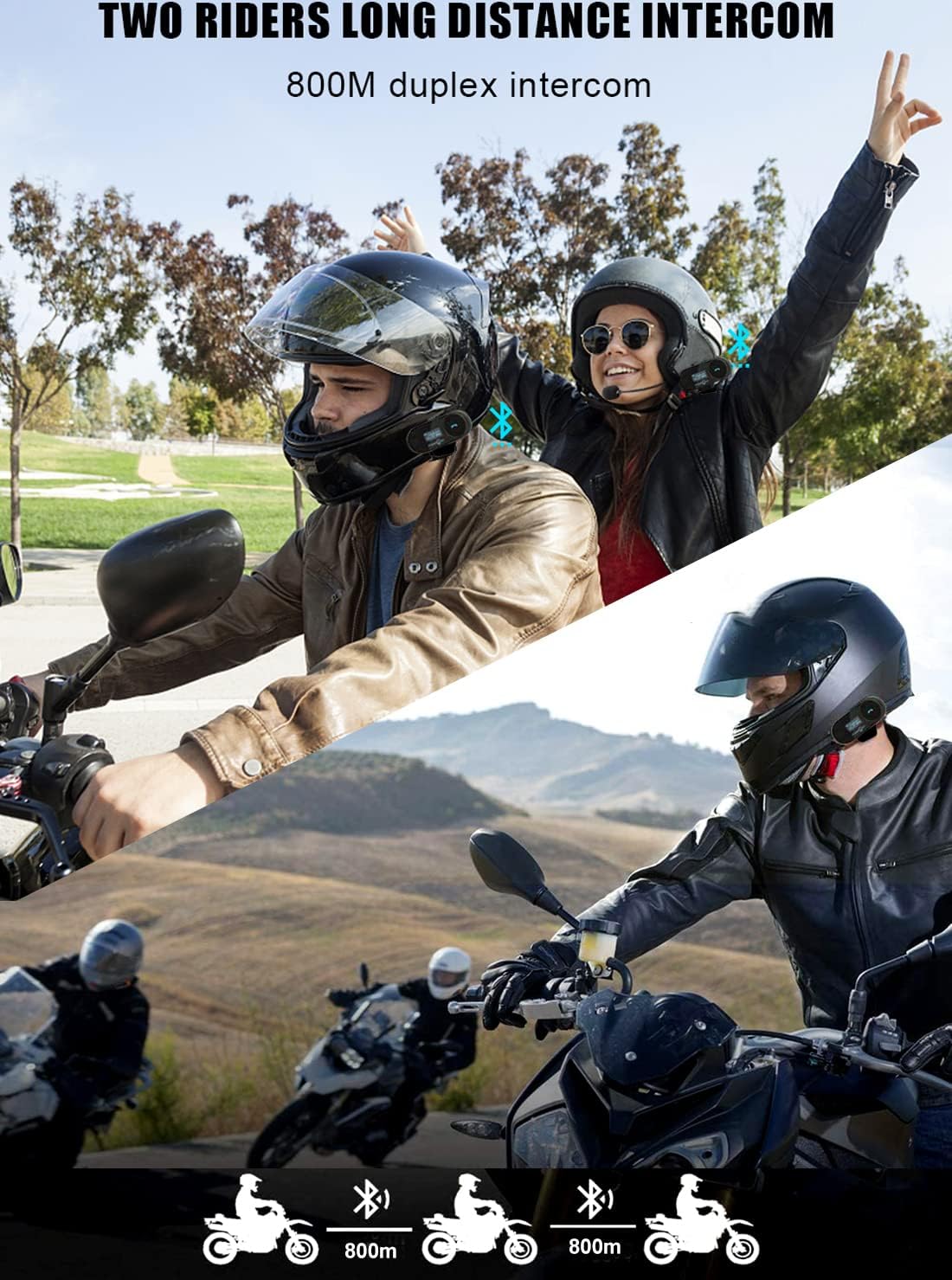
Image: Two pairs of motorcyclists demonstrating the 800m duplex intercom communication feature of the FreedConn TCOM-SC, showing riders interacting while on their motorcycles.
5.7 Music Sharing
The TCOM-SC allows you to share music with a paired intercom unit. Ensure both units are paired for intercom communication and music is playing on your device. The music will automatically stream to the connected intercom unit.
6. Maintenance
- Cleaning: Use a soft, damp cloth to clean the intercom unit. Do not use harsh chemicals or abrasive cleaners.
- Water Resistance: The unit is IP65 waterproof, meaning it is protected against dust and low-pressure water jets. Avoid submerging the device in water.
- Storage: Store the device in a cool, dry place when not in use. Avoid extreme temperatures.
- Battery Care: To prolong battery life, avoid fully discharging the battery frequently. Charge the device regularly, even if not in active use, to maintain battery health.
7. Troubleshooting
| Problem | Possible Cause | Solution |
|---|---|---|
| No Power | Battery is discharged. | Charge the device fully using the provided USB cable. |
| Cannot Pair with Phone/GPS | Device not in pairing mode; Bluetooth on phone/GPS is off; incorrect PIN. | Ensure TCOM-SC is in pairing mode (red/blue flashing). Check Bluetooth on your phone/GPS. Re-enter PIN "0000". |
| No Intercom Connection | Units not paired; out of range. | Ensure both units are paired correctly. Move closer to the other intercom unit (within 800m). |
| Poor Audio Quality/Noise | Microphone not positioned correctly; environmental interference; CVC noise reduction not active. | Adjust microphone position closer to your mouth. Ensure speakers are correctly placed. Reduce external noise sources if possible. |
| Buttons Unresponsive | Temporary software glitch. | Perform a soft reset by powering off and on the device. If issue persists, allow battery to fully discharge then recharge. |
8. Specifications
| Model Name | TCOM-SC |
| Bluetooth Version | 5.0 |
| Intercom Range | Up to 800 meters (between 2 riders) |
| Max Riders for Intercom | 3 (2 simultaneous) |
| Battery Type | Rechargeable Lithium Polymer |
| Battery Capacity | 400mAh |
| Talk Time (Phone) | Up to 10 hours |
| Talk Time (Intercom) | Up to 7 hours |
| Standby Time | Up to 300 hours |
| Charging Time | Approx. 2.5 - 4 hours |
| Water Resistance | IP65 |
| Dimensions (L x W x H) | 8.2 x 3.2 x 2.5 cm |
| Weight | 45 grams (excluding accessories) |
| Frequency Range | 20 Hz - 20,000 Hz |
| Compatible Devices | Smartphones, MP3 players, GPS devices, other Bluetooth-enabled devices |
9. Warranty and Support
FreedConn products are designed for durability and performance. For specific warranty details, please refer to the warranty card included with your product or visit the official FreedConn website. Keep your purchase receipt as proof of purchase for any warranty claims.
For technical support, troubleshooting assistance, or further inquiries, please contact FreedConn customer service through their official channels. Contact information can typically be found on the product packaging or the official FreedConn website.