
MASSII DC0803-BLACK
MASSII 8-Inch Digital Calendar Clock User Manual
Model: DC0803-BLACK
Product Overview
The MASSII 8-inch Digital Calendar Clock is designed to provide clear and comprehensive time and date information, along with customizable reminders. Its large, high-definition display ensures readability from a distance, making it suitable for various users. The clock features automatic Daylight Saving Time (DST) adjustment, multiple display modes, and adjustable brightness levels for optimal viewing day and night.

Figure 1: MASSII 8-Inch Digital Calendar Clock with included remote control.

Figure 2: Key features comparison highlighting the advantages of the MASSII clock.
Setup
The MASSII Digital Calendar Clock is designed for easy setup. Follow these steps to get your clock running:
- Unboxing: Carefully remove all components from the packaging. You should find the 8-inch Digital Calendar Clock, a power adapter, a user manual, and a remote control.
- Power Connection: Connect the included power adapter to the DC-in port on the back of the clock. Plug the adapter into a standard electrical outlet. The clock will automatically power on.
- Automatic Time Setting: The clock features a unique memory function that automatically resets the time after a power outage. Upon initial power-up, it should automatically display the correct time and date. No manual adjustment is typically needed for basic timekeeping.
- Stand Installation (Optional): If you wish to place the clock on a tabletop, screw the included stand into the designated hole on the back of the clock. For wall mounting, use the integrated hanging holes.

Figure 3: The included remote control for convenient operation.

Figure 4: Back panel of the clock with power input and manual control buttons.
Operating Instructions
The MASSII clock offers various customizable settings and features. You can adjust these using either the remote control or the buttons on the back of the clock.
Basic Display Modes
The clock can display time in 12-hour or 24-hour format, and date in Month-Day-Year or Day-Month-Year format. It also features time-of-day icons (Sun/Moon) and text (MORNING, AFTERNOON, EVENING, NIGHT, PREDAWN) to provide clear context.
- Changing Display Modes: Use the "OK" button on the remote or back panel to cycle through different display interfaces.
- 12/24 Hour Mode: Access the menu (press "MENU" button), navigate to "Time Mode", and select your preferred format.
- Date Mode: In the menu, navigate to "Date Mode" to switch between Month-Day-Year or Day-Month-Year.

Figure 5: Examples of different display themes and time formats.

Figure 6: Visual indicators for different times of the day (Morning, Noon, Afternoon, Evening, Night, Predawn).
Brightness Adjustment
The clock features 10 levels of auto-dimming. You can manually adjust the brightness for day and night modes.
- Accessing Brightness Settings: Press "MENU", then navigate to "Brightness-day" and "Brightness-night".
- Adjusting Levels: Use the left/right arrow keys on the remote or back panel to increase or decrease brightness (from 10% to 100%).
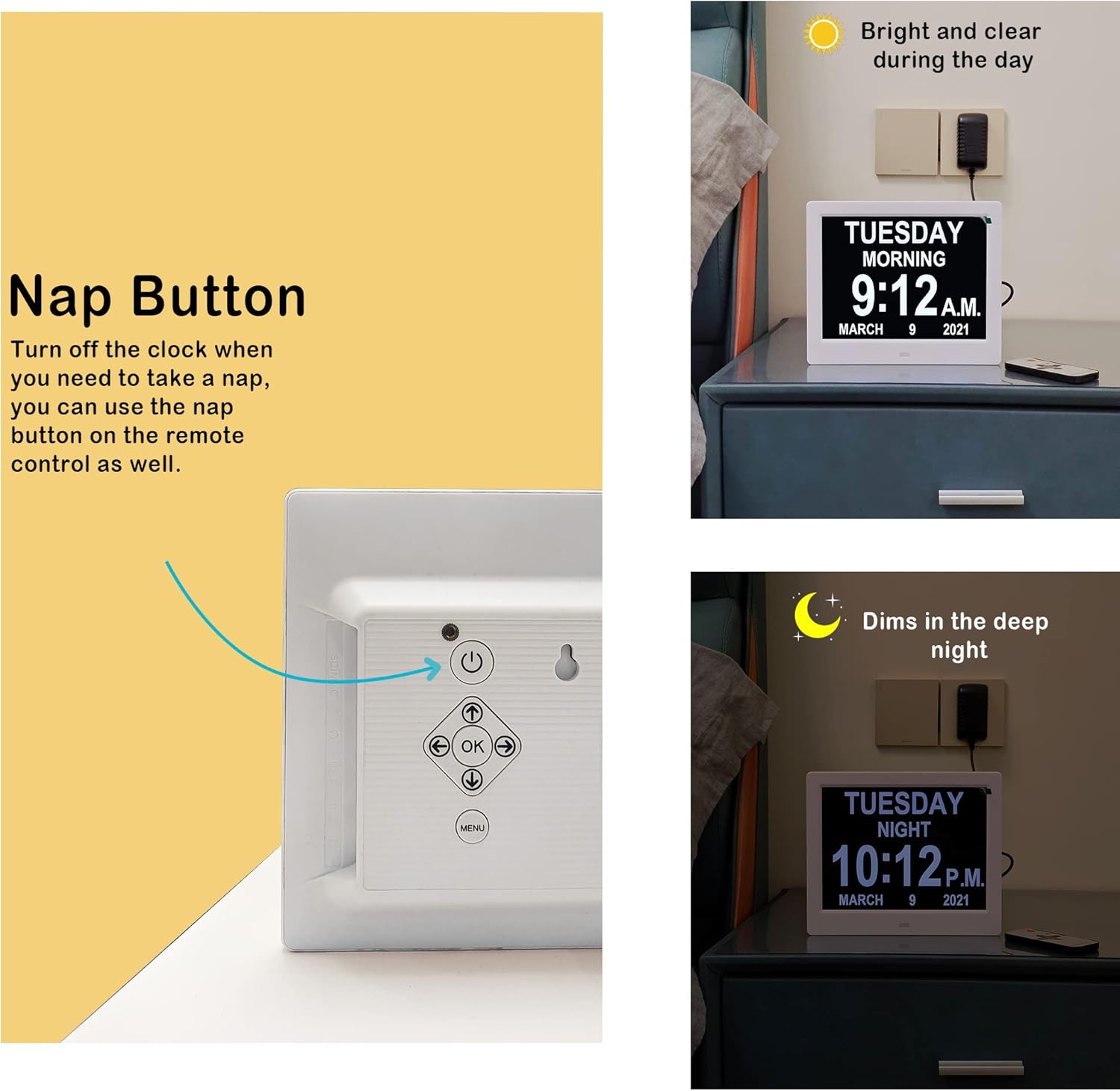
Figure 7: The clock automatically dims at night for comfortable viewing.
Alarms and Custom Reminders
The clock supports 19 pre-set alarms with colored image icons and over 20 custom reminders.
- Setting Pre-set Alarms: In the menu, navigate to specific alarm types (e.g., "Wake up", "Breakfast", "Medication Reminder"). Use arrow keys to set time and frequency (Daily, Weekdays, Weekends, specific days, or Off).
- Custom Reminders: Navigate to "Custom Reminder List" in the menu. Select an empty slot, press "OK", and use the on-screen keyboard (controlled by arrow keys and "OK") to enter your custom reminder message. Set the time and frequency as desired.
- Alarm Volume & Duration: Adjust "Alarm Volume" and "Alarm Duration" in the menu to suit your preference.

Figure 8: Visual reminders for daily tasks like taking medication and drinking water.
Video 1: Demonstrates the large, clear text display and various alarm and color options.
Video 2: Highlights the 19 alarms, auto DST, sun/moon icons, and custom reminders.
Video 3: Shows the clock clearly spelling out the full day of the week, month, and date, along with time-of-day icons.
Other Settings
- Language: The clock supports multiple languages (English, Español, français, Deutsche, italiano). Select your preferred language from the menu.
- Nap Button: Use the "Nap" button on the remote or the power button on the back to quickly turn off the display for a short period.
- Battery Backup: A built-in cell battery maintains time and date settings during power outages, ensuring the clock automatically resets correctly when power returns. This battery lasts over 3 years.

Figure 9: The clock supports multiple languages for broader accessibility.
Maintenance
To ensure the longevity and optimal performance of your MASSII Digital Calendar Clock, follow these simple maintenance guidelines:
- Cleaning: Use a soft, dry cloth to gently wipe the screen and body of the clock. Avoid using abrasive cleaners, solvents, or spray directly onto the screen.
- Placement: Place the clock on a stable, flat surface or mount it securely on a wall. Avoid direct sunlight or extreme temperatures, as this may affect display performance and lifespan.
- Power: Always use the original power adapter provided with the clock. Ensure the power cord is not pinched or damaged. The clock must remain plugged in to function, as the internal battery is for memory backup only.
Troubleshooting
If you encounter any issues with your MASSII Digital Calendar Clock, please refer to the following common solutions:
| Problem | Possible Cause | Solution |
|---|---|---|
| Clock not turning on. | No power supply or faulty adapter. | Ensure the power adapter is securely plugged into the clock and the wall outlet. Use only the provided adapter. |
| Incorrect time/date displayed. | Initial setup error or significant power interruption. | While the clock has auto-reset, verify settings in the menu. Manually adjust time and date if necessary. |
| Display too bright/dim. | Brightness settings are not optimal. | Adjust "Brightness-day" and "Brightness-night" settings in the menu. |
| Alarms not sounding. | Alarm is turned off or volume is too low. | Check alarm settings in the menu to ensure they are "On" and "Alarm Volume" is set appropriately. |
| Remote control not working. | Battery issue or obstruction. | Ensure the remote's battery is functional. Remove any obstructions between the remote and the clock's sensor. |
If problems persist after trying these solutions, please contact MASSII customer support for assistance.
Specifications
| Feature | Detail |
|---|---|
| Brand | MASSII |
| Model Number | DC0803-BLACK |
| Display Type | Digital (1280x800 HD) |
| Screen Size | 8 Inch |
| Product Dimensions | 8"W x 6.5"H |
| Power Source | Corded Electric (Adapter Included) |
| Special Features | Auto DST adjustment, 19 Alarms, 20 Custom Reminders, Auto Dimmable (10 levels), Sun/Moon visuals, Remote Control |
| Supported Languages | English, Español, français, Deutsche, italiano |
| Battery Backup | 1 Lithium Metal battery (lasts over 3 years) for time memory during power outages. |
| Mounting Type | Tabletop (with kickstand) or Wall Mounting |
| Item Weight | 1.1 Pounds |
Warranty and Support
MASSII is committed to providing high-quality products and excellent customer service.
- Warranty: The MASSII Digital Calendar Clock comes with a 365-day warranty.
- Free Replacement: In case of any quality issues, MASSII offers free replacement.
- Customer Support: For any questions, concerns, or support needs, please reach out to MASSII Care. They provide friendly and easy-to-reach support.
For further assistance, please visit the MASSII Store on Amazon.
Ask a question about this manual
Ask about setup, troubleshooting, compatibility, parts, safety, or missing instructions. Manuals+ will review the question and use this page’s manual context to help answer it.