
1. Introduction
This manual provides essential information for the installation, operation, and maintenance of the Allen Bradley PanelView Plus 2711P-T7C4D8 Human Machine Interface (HMI) terminal. The PanelView Plus 2711P-T7C4D8 is a 6.5-inch color unit with touch input, designed for industrial control applications, and powered by a DC power supply. Please read this manual thoroughly before attempting to install or operate the device.
For detailed programming and configuration information, refer to the PanelView Plus documentation available from Rockwell Automation.
2. Safety Information
Always observe the following safety precautions to prevent personal injury and damage to the equipment:
- Qualified Personnel: Installation, adjustment, operation, programming, maintenance, and repair must be performed by qualified personnel familiar with industrial control systems and safety procedures.
- Power Disconnection: Disconnect all power to the equipment before performing any installation, wiring, or maintenance. Failure to do so may result in electric shock or equipment damage.
- Proper Grounding: Ensure the device is properly grounded according to local and national electrical codes.
- Environmental Conditions: Operate the device within its specified environmental limits (temperature, humidity, vibration).
- Wiring: Use appropriate wire gauges and insulation for all connections. Ensure all connections are secure.
3. Package Contents
Upon opening the package, verify that all components are present and undamaged. The standard package for the Allen Bradley PanelView Plus 2711P-T7C4D8 typically includes:
- Allen Bradley PanelView Plus 2711P-T7C4D8 Terminal (6.5" Color, Touch Input)
- Mounting hardware (e.g., clips, screws)
- Documentation (e.g., Quick Start Guide, Safety Information)
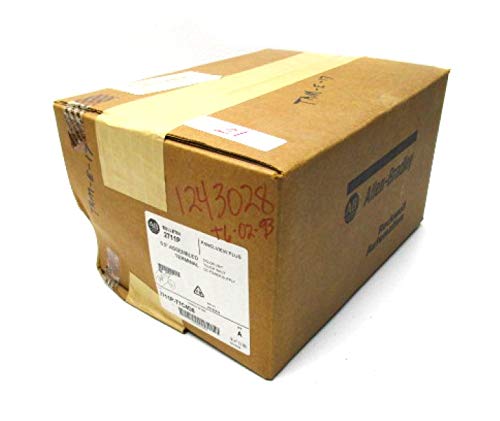
Figure 1: Allen Bradley PanelView Plus 2711P-T7C4D8 in its original shipping box. The box features the Allen-Bradley logo and a product label indicating "BULLETIN 2711P PANELVIEW PLUS 6.5" ASSEMBLED TERMINAL COLOR UNIT TOUCH INPUT DC POWER SUPPLY CAT 2711P-T7C4D8".
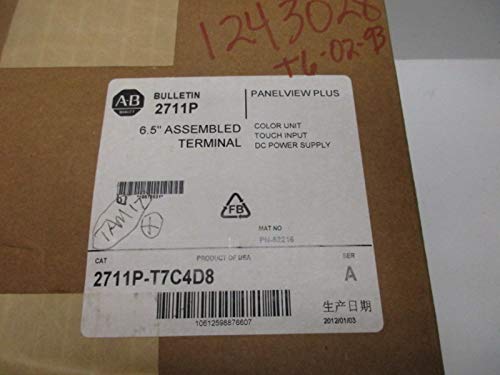
Figure 2: Close-up view of the product label on the shipping box. The label clearly displays the model number "2711P-T7C4D8", indicating it is a 6.5-inch PanelView Plus terminal with color display, touch input, and DC power supply. It also shows "SER A" and a manufacturing date of "20121003".
4. Setup
4.1 Mounting
- Panel Cutout: Prepare a panel cutout according to the dimensions specified in the PanelView Plus installation guide for the 6.5-inch model.
- Insert Terminal: Insert the PanelView Plus terminal into the cutout from the front of the panel.
- Secure Mounting: Use the provided mounting clips or clamps to secure the terminal firmly to the panel. Ensure even pressure to create a proper seal.
4.2 Wiring
The 2711P-T7C4D8 requires a DC power supply. Refer to the terminal's wiring diagram for exact pin assignments.
- Power Connection: Connect the DC power supply to the designated power terminals. Observe correct polarity.
- Grounding: Connect the protective earth ground to the terminal's ground screw.
- Communication: Connect communication cables (e.g., Ethernet, serial) to the appropriate ports for connection to a PLC or other network devices.
4.3 Initial Power-Up
After all connections are secure and verified, apply power to the PanelView Plus terminal. The terminal should power on and display the boot-up sequence. Follow any on-screen prompts for initial configuration.
5. Operating
The PanelView Plus 2711P-T7C4D8 is a touch-screen HMI. Interaction is primarily through touching the screen elements.
- Navigation: Navigate through screens and menus by touching the corresponding buttons or areas on the display.
- Data Entry: Use the on-screen keypad for entering numerical or textual data when prompted.
- Application Loading: Applications are typically loaded onto the PanelView Plus from a development environment (e.g., FactoryTalk View Studio) via network or removable media. Refer to the software documentation for detailed instructions.
- System Menu: Access the system menu for settings, diagnostics, and file management by pressing a specific area of the screen or a dedicated button (if configured).
6. Maintenance
6.1 Cleaning
To maintain optimal performance and readability, periodically clean the display and housing.
- Display: Use a soft, lint-free cloth dampened with a mild, non-abrasive cleaner (e.g., screen cleaner) to wipe the touch screen. Do not spray cleaner directly onto the screen.
- Housing: Wipe the exterior housing with a damp cloth. Avoid harsh chemicals or solvents.
6.2 Firmware Updates
Periodically check the Rockwell Automation website for firmware updates for your PanelView Plus terminal. Firmware updates can provide new features, performance improvements, and bug fixes. Follow the instructions provided with the firmware update package carefully.
7. Troubleshooting
This section provides solutions to common issues. For more complex problems, contact technical support.
| Problem | Possible Cause | Solution |
|---|---|---|
| Terminal does not power on. | No power supply, incorrect wiring, faulty power supply. | Verify power connections and voltage. Check power supply functionality. |
| Display is blank or distorted. | Backlight failure, incorrect display settings, hardware issue. | Check display settings in the system menu. Power cycle the unit. If problem persists, contact support. |
| Touch screen unresponsive. | Calibration issue, debris on screen, hardware failure. | Clean the screen. Attempt touch screen recalibration from the system menu. |
| Communication error with PLC. | Incorrect communication settings, faulty cable, network issue. | Verify communication settings on both HMI and PLC. Check cable integrity and network status. |
8. Specifications
| Feature | Detail |
|---|---|
| Model Number | 2711P-T7C4D8 |
| Series | A |
| Display Size | 6.5 inches |
| Display Type | Color |
| Input Type | Touch Screen |
| Power Supply | DC Power |
| Manufacturer | Allen Bradley (Rockwell Automation) |
9. Warranty and Support
The Allen Bradley PanelView Plus 2711P-T7C4D8 is covered by the standard manufacturer's warranty. For specific warranty terms and conditions, please refer to the documentation provided with your product or visit the official Rockwell Automation website.
For technical assistance, troubleshooting beyond this manual, or to inquire about repairs, please contact Rockwell Automation technical support or your authorized distributor.


