
1. Introduction
This manual provides detailed instructions for the installation, operation, and maintenance of your PIONEER AVH-Z5200DAB multimedia receiver. Designed for in-car entertainment, this 2-DIN unit features a 6.8-inch touchscreen, DVD playback, and seamless smartphone integration with Apple CarPlay and Android Auto.
Key features include DAB/DAB+ digital radio, Waze navigation compatibility, Bluetooth for music streaming and hands-free calls, Spotify integration, dual camera input, multi-color illumination, and advanced audio processing.

2. What's in the Box
Upon unpacking your PIONEER AVH-Z5200DAB, please ensure all components are present:
- Multimedia Display Unit
- Installation Anchors
- Instruction Manual
- Wiring Harness
- USB Extension Cable
- Microphone
- Screws

3. Setup and Installation
Proper installation is crucial for optimal performance. It is highly recommended to have this unit installed by a qualified professional.
3.1. Pre-Installation Checks
- Ensure your vehicle's electrical system is compatible.
- Disconnect the vehicle's battery before starting installation.
- Verify all included components are present.
3.2. Wiring Connections
Connect the main wiring harness to the corresponding ports on the back of the unit and to your vehicle's electrical system. Ensure secure connections for power, ground, speakers, and accessory wires. The unit features a universal ISO connector or vehicle-specific connector.
- Power/Ground: Connect the main power and ground wires securely.
- Speaker Outputs: Connect to your vehicle's speakers.
- USB Input: Use the provided USB extension cable for connecting smartphones or USB storage devices.
- Microphone Input: Connect the external microphone for hands-free calling and voice commands.
- DAB Antenna Input: Connect an optional DAB antenna (CA-AN-DAB.001) for digital radio reception.
- GPS Antenna Input: For navigation features.
- Camera Inputs: Supports dual camera input (e.g., rear-view camera ND-BC8).
- Steering Wheel Control (SWC): Connect to your vehicle's steering wheel control interface for integrated control.
4. Operating Instructions
4.1. Basic Operation
- Power On/Off: Press and hold the power button.
- Volume Control: Use the on-screen controls or steering wheel controls (if connected).
- Source Selection: Tap the 'Source' icon on the touchscreen to select between Radio, USB, Bluetooth, DVD, AUX, CarPlay, or Android Auto.
4.2. Touchscreen Interface
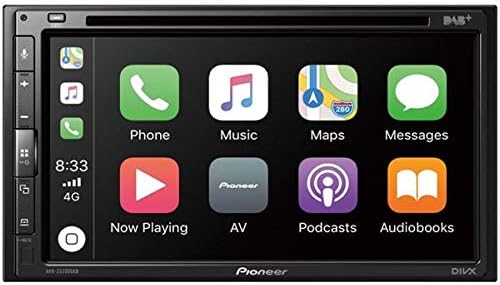
The 6.8-inch capacitive touchscreen allows for intuitive control. Swipe left/right to navigate menus, tap icons to select functions, and use pinch-to-zoom gestures where applicable.
4.3. Apple CarPlay & Android Auto
Connect your iPhone or Android smartphone via USB to access Apple CarPlay or Android Auto. This allows you to use compatible apps, navigation, make calls, and send messages through the receiver's interface.
- Apple CarPlay: Connect your iPhone using a Lightning to USB cable (CA-IU.52C optional).
- Android Auto: Connect your Android smartphone using a USB cable.
4.4. Bluetooth Connectivity
Pair your smartphone via Bluetooth for hands-free calling and wireless audio streaming.
- Go to the Bluetooth settings on your smartphone and enable Bluetooth.
- On the AVH-Z5200DAB, navigate to the Bluetooth menu.
- Select 'Pair New Device' and choose your smartphone from the list.
- Confirm the pairing code on both devices.
4.5. Radio (DAB/DAB+)
Access digital radio stations with superior sound quality. An optional DAB antenna (CA-AN-DAB.001) is required.
4.6. DVD Playback
Insert a DVD-Video disc into the slot to enjoy movies. The unit supports MP3, WMA, AAC, DivX, and MPEG-1 formats.
4.7. Audio Settings
Customize your audio experience with advanced settings:
- Equalizer: Adjust sound frequencies to your preference.
- Subwoofer Control: Manage subwoofer output levels.
- Advanced Audio Processing: Fine-tune your sound.
5. Maintenance
5.1. Cleaning the Unit
Use a soft, dry cloth to wipe the display and unit housing. For stubborn dirt, dampen the cloth with a small amount of neutral detergent. Avoid abrasive cleaners or solvents.
5.2. General Care
- Avoid exposing the unit to extreme temperatures or direct sunlight for prolonged periods.
- Do not block ventilation openings.
- Ensure all connections are secure to prevent intermittent issues.
6. Troubleshooting
If you encounter issues, refer to the following common problems and solutions:
| Problem | Possible Cause | Solution |
|---|---|---|
| No power | Loose power connection, blown fuse | Check wiring harness connections. Inspect and replace fuses if necessary. |
| No sound | Incorrect speaker wiring, volume too low, mute activated | Verify speaker connections. Increase volume. Check if mute is active. |
| Bluetooth not connecting | Device not in pairing mode, interference | Ensure smartphone Bluetooth is on and in pairing mode. Try re-pairing the device. |
| CarPlay/Android Auto not starting | Faulty USB cable, incompatible phone, software issue | Use a certified USB cable. Ensure your phone's OS is up to date. Restart both devices. |
For further assistance, please contact Pioneer customer support.
7. Specifications
| Feature | Specification |
|---|---|
| Product Dimensions | 28 x 24.5 x 17.5 cm (Depth x Width x Height) |
| Weight | 2.25 kg |
| Screen Size | 6.8 inches |
| Connectivity Technology | Auxiliary, Bluetooth, USB |
| Controller Type | Android, iOS (Touch control) |
| Special Features | Touchscreen, Apple CarPlay, Android Auto, DAB/DAB+ digital radio, Waze navigation, Bluetooth with music streaming and hands-free calls, Spotify integration, Dual camera input, Multi-color illumination, Advanced audio processing |
| Compatible Devices | Android-Smartphone, iPhone |
| Total HDMI Ports | 1 |
| Connector Type | Universal ISO connector or vehicle connector, Stereo sound, USB 2.0 |
| Audio Encoding | Stereo |
| Audio Output Mode | Stereo, Internal |
| Surround Sound Channels | 4.0 |
| Video Encoding | H.264, H.265/HEVC, MPEG-4, etc. |
| Output Power | 200 Watts (4 channels) |
| Internet Applications | Apple CarPlay, Android Auto |
| Wireless Technology | Bluetooth |
| Supported Formats (CD/DVD) | MP3, WMA, AAC, DVD-Video, DivX, MPEG-1 |
8. Warranty and Support
8.1. Product Warranty
This product comes with a 1-year manufacturer's warranty from the date of purchase.
8.2. Manufacturer Contact Information
For any inquiries or support, please contact Pioneer Customer Service:
- Phone: +34 93 554 30 19
- Operating Hours: Monday to Thursday: 9:00 AM to 2:00 PM and 3:00 PM to 6:00 PM. Friday: 9:00 AM to 2:30 PM. (Excluding holidays)