
A-ZONE AZ-1080440
A-ZONE 5 Megapixel Security Camera System User Manual
Model: AZ-1080440
1. Introduction
This manual provides comprehensive instructions for the installation, operation, and maintenance of your A-ZONE 5 Megapixel Security Camera System (Model: AZ-1080440). Please read this manual thoroughly before using the product to ensure proper setup and functionality. This system is designed for reliable security surveillance, offering high-resolution video and advanced features for both indoor and outdoor environments.
2. Product Overview
The A-ZONE AZ-1080440 is a high-definition security camera system featuring 5-megapixel cameras and a Digital Video Recorder (DVR). It is equipped with advanced features such as IR-CUT night vision, built-in audio pickup for two-way communication, AI human detection, and H.265+ video compression for efficient storage. The cameras are IP67 rated for outdoor use, ensuring durability against various weather conditions.

Figure 2.1: A-ZONE 5 Megapixel Security Camera System components.
Key Features:
- 5 Megapixel Resolution: Provides clear and detailed video footage.
- IR-CUT Night Vision: Automatic switching for clear images in low-light conditions.
- Built-in Audio Pickup: Enables audio recording and two-way communication without additional devices.
- AI Human Detection: Advanced detection capabilities to identify human figures.
- Alarm Notifications: Sends alerts to your smartphone in case of detected incidents.
- H.265+ Video Compression: Efficiently compresses video to save storage space while maintaining quality.
- IP67 Waterproof: Cameras are designed for outdoor use and are resistant to dust and water.
- Remote Access: Monitor your property from anywhere using a smartphone or PC.

Figure 2.2: Image quality comparison (1MP vs 3MP).

Figure 2.3: H.265+ compression technology benefits.

Figure 2.4: Day/Night vision and IP67 waterproof features.
3. Package Contents
Please check the package contents carefully upon opening. If any items are missing or damaged, contact customer support immediately.
- A-ZONE 5 Megapixel Security Cameras (Quantity may vary based on kit)
- Digital Video Recorder (DVR) Unit
- Power Adapter for DVR
- Power Adapters for Cameras (if applicable)
- Ethernet Cables (for wired connection)
- Mounting Screws and Plugs
- USB Mouse
- User Manual (this document)
- Note: Hard Disk Drive (HDD) is NOT included. Please prepare a 1-8TB HDD for recording.
4. Setup
Follow these steps to set up your A-ZONE security camera system:
- Install HDD (if not pre-installed):
Open the DVR casing, connect the SATA power and data cables to your 1-8TB HDD, and secure the HDD inside the DVR. Close the casing.
- Connect Cameras:
Connect each camera to the DVR using the provided Ethernet cables. Ensure a secure connection for both power and video transmission.
- Connect DVR to Monitor:
Connect the DVR to a monitor or TV using an HDMI or VGA cable to view the live feed and access settings.
- Connect DVR to Power:
Plug the DVR's power adapter into a power outlet and connect it to the DVR. The system will power on.
- Connect Mouse:
Connect the USB mouse to the DVR for navigation and configuration.
- Network Connection (Optional but Recommended):
For remote access and notifications, connect the DVR to your router using an Ethernet cable. This enables internet connectivity for the system.
- Initial Configuration:
Follow the on-screen prompts to complete the initial setup, including setting up a password, time zone, and recording preferences. Format the newly installed HDD if prompted.
5. Operating Instructions
This section details the basic operation of your A-ZONE security system.
5.1 Live View and Recording
- Live View: Once powered on and configured, the DVR will display live feeds from all connected cameras on the monitor.
- Recording: The system is typically set to continuous recording by default. You can configure motion detection recording, scheduled recording, or manual recording via the DVR's menu.
5.2 Two-Way Audio
The cameras feature built-in microphones and speakers, allowing for two-way audio communication through the system's mobile application.
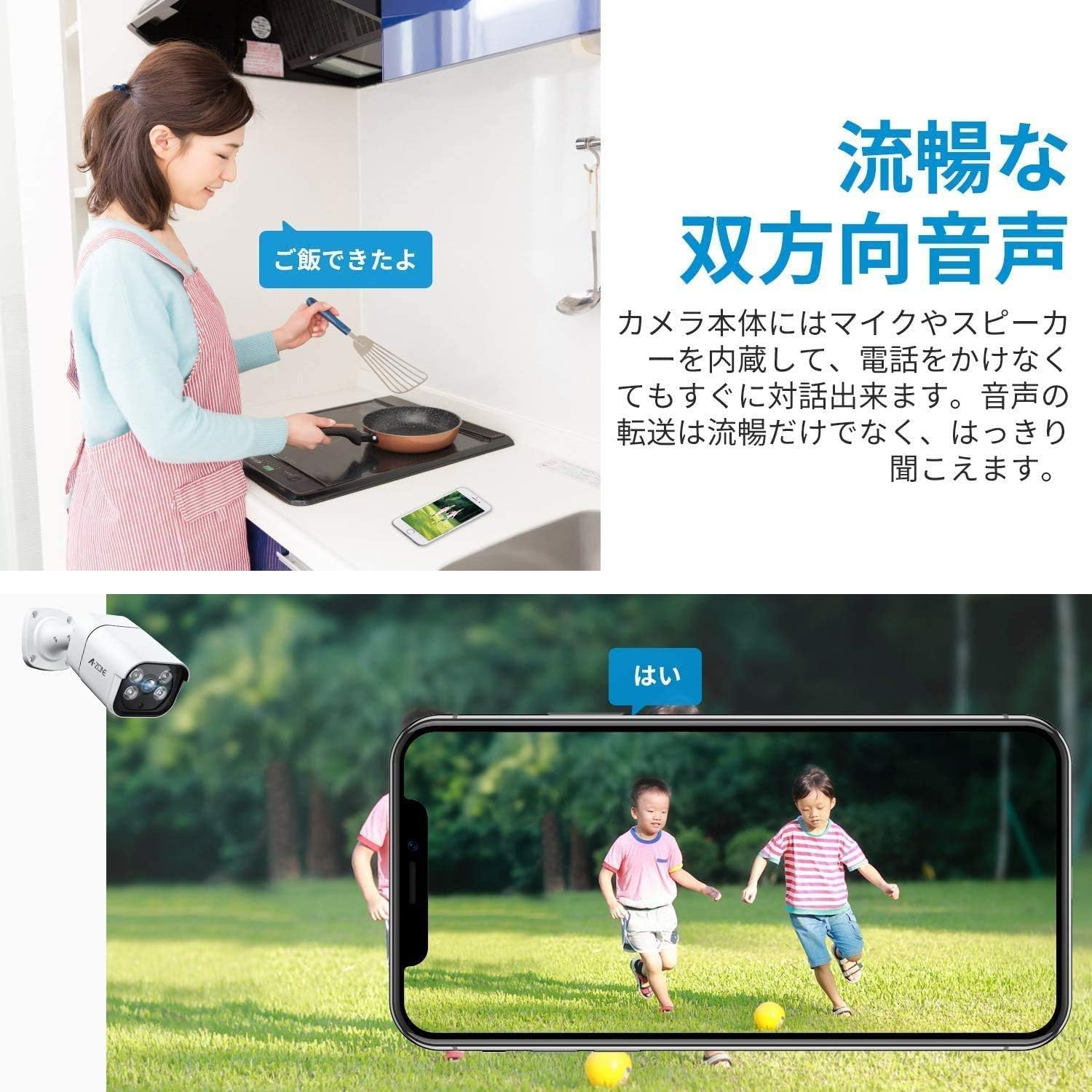
Figure 5.1: Two-way audio functionality.
5.3 AI Human Detection and Alerts
The system can detect human figures and send instant alerts to your smartphone.
- Configuration: Access the DVR's menu to enable and configure AI human detection zones and sensitivity for each camera.
- Notifications: Ensure the mobile application is installed and configured to receive push notifications for detected events.

Figure 5.2: AI human detection and alarm notification.
5.4 Remote Access
Monitor your security system from anywhere using the dedicated mobile app or PC software.
- Mobile App: Download the official A-ZONE app from your smartphone's app store. Register an account and add your DVR device by scanning the QR code or entering the device ID.
- PC Software: Install the A-ZONE client software on your computer. Add your DVR device using its IP address or cloud ID.
- Features: Remote access allows you to view live feeds, playback recorded footage, receive alerts, and configure certain settings.

Figure 5.3: Remote operation via smartphone or PC.
6. Maintenance
Regular maintenance ensures the longevity and optimal performance of your security system.
- Camera Lens Cleaning: Periodically clean camera lenses with a soft, damp cloth to remove dust and smudges. Avoid abrasive cleaners.
- Cable Inspection: Check all cables (power, Ethernet) for any signs of wear, damage, or loose connections. Replace damaged cables promptly.
- Software Updates: Check for firmware updates for your DVR and camera system regularly through the DVR's menu or the manufacturer's website. Updates can improve performance and add new features.
- HDD Health Check: Monitor the health of your HDD through the DVR's system settings. Replace the HDD if it shows signs of failure to prevent data loss.
- Environmental Considerations: Ensure cameras are not obstructed by foliage or other objects. For outdoor cameras, periodically check for debris accumulation around the lens or housing.
7. Troubleshooting
This section addresses common issues you might encounter and their solutions.
| Problem | Possible Cause | Solution |
|---|---|---|
| No image on monitor | Loose cable connection, power issue, incorrect input source on monitor. | Check HDMI/VGA cable connection. Ensure DVR is powered on. Select correct input source on monitor. |
| Camera not displaying video | Loose camera cable, camera power issue, faulty camera/cable. | Check camera's Ethernet cable connection to DVR. Ensure camera is receiving power. Try connecting camera to a different port or using a different cable. |
| Cannot access remotely | DVR not connected to network, incorrect network settings, firewall issues, app configuration. | Ensure DVR is connected to router. Check network settings on DVR. Verify app configuration (device ID, password). Check router firewall settings. |
| No recording or short recording time | No HDD installed, HDD full, HDD not formatted, recording schedule incorrect. | Install and format an HDD (1-8TB). Check recording settings and schedule. If HDD is full, configure overwrite or backup data. |
| Poor night vision quality | Obstruction in front of camera, IR-CUT not switching, dirty lens. | Clear any obstructions. Clean the camera lens. Ensure IR-CUT function is enabled in settings. |
8. Specifications
| Feature | Detail |
|---|---|
| Brand | A-ZONE |
| Model Number | AZ-1080440 |
| Video Capture Resolution | 3 MP (5 Megapixel Camera System) |
| Connectivity Technology | Wired (Ethernet) |
| Special Features | HD Resolution, Night Vision (IR-CUT), AI Human Detection, Two-Way Audio, Waterproof (IP67) |
| Indoor/Outdoor Use | Outdoor Use |
| Compatible Devices | Smartphone, PC |
| Power Source | Corded Electric |
| Mounting Type | Wall Mount |
| Product Dimensions (LxWxH) | 12 x 14 x 13 cm |
| Item Weight | 7 Kilograms |
| Included Components | Charger (Power Adapters) |
| Wireless Communication Technology | Wi-Fi (for remote access, not camera connection) |
| Recommended Uses | Security, Surveillance |
9. Warranty and Support
A-ZONE provides customer support for its products. For warranty information, technical assistance, or any inquiries not covered in this manual, please refer to the contact information provided with your product packaging or visit the official A-ZONE website.
When contacting support, please have your product model number (AZ-1080440) and purchase details ready.
Ask a question about this manual
Ask about setup, troubleshooting, compatibility, parts, safety, or missing instructions. Manuals+ will review the question and use this page’s manual context to help answer it.