
1. Introduction
This manual provides essential information for the setup, operation, and maintenance of your HP LaserJet Enterprise M507dn Monochrome Printer. This printer is designed for business environments, offering secure, efficient, and high-quality monochrome printing with automatic two-sided printing capabilities.
The HP LaserJet Enterprise M507dn is engineered to meet the demands of growing businesses, featuring robust security measures and energy-saving technology. It includes easy-to-use features and a comprehensive management system to streamline your printing tasks.
2. What's in the Box
Upon unpacking your HP LaserJet Enterprise M507dn printer, verify that all the following components are included:
- HP LaserJet Enterprise M507 Printer
- Regulatory flyer (CD replacement)
- Unpack Flyer
- Installation Guide
- Power cord
- Warranty Cards
- Support flyers/number list
3. Product Overview
The HP LaserJet Enterprise M507dn is a monochrome laser printer designed for high-volume, secure printing. Below are key features and components of the device.

Figure 3.1: Front view of the HP LaserJet Enterprise M507dn Monochrome Printer, showcasing its compact design and output tray.
Key Features
- High-Speed Printing: Up to 45 pages per minute (ppm) for black and white documents.
- Automatic 2-sided Printing: Built-in duplex printing for efficient paper usage.
- Secure Printing: Over 200 embedded security features to protect printer information and thwart attacks.
- Energy Efficiency: Saves up to 29% energy compared to prior products with HP JetIntelligence toner.
- Connectivity: Built-in Ethernet for network integration.
- Control Panel: 2.7-inch color LCD with numerical keypad for easy navigation and job management.
- Paper Capacity: 650-sheet total input tray capacity.
- Mobile Printing: Optional mobile printing capabilities from various smartphones and tablets.

Figure 3.2: Detailed view of the printer highlighting key features such as 45 ppm speed, 1.2 GHz processor, easy-access USB port, 2.7-inch color LCD, 650-sheet input capacity, and 512 MB memory.
Connectivity Ports
The rear of the printer provides various ports for connectivity and job storage.

Figure 3.3: Rear view of the printer, indicating the Ethernet port for network connection, a USB port for job storage, and a USB 2.0 port for PC connection.
Security and Efficiency
The M507dn incorporates advanced security features and is designed for operational efficiency.

Figure 3.4: Visual representation of the printer's industry-leading security features, designed to detect and prevent attacks.

Figure 3.5: The printer on a desk, emphasizing its lower operating cost compared to predecessors, achieved with HP EcoSmart black toner.

Figure 3.6: An infographic summarizing the main, highlighted, and additional features of the HP LaserJet Enterprise M507dn, including print (B&W), mobile printing, 2-sided printing, Ethernet, security, low costs, fleet management, and enhanced productivity.

Figure 3.7: A user reviewing documents, illustrating the printer's fast two-sided printing capability and energy efficiency.
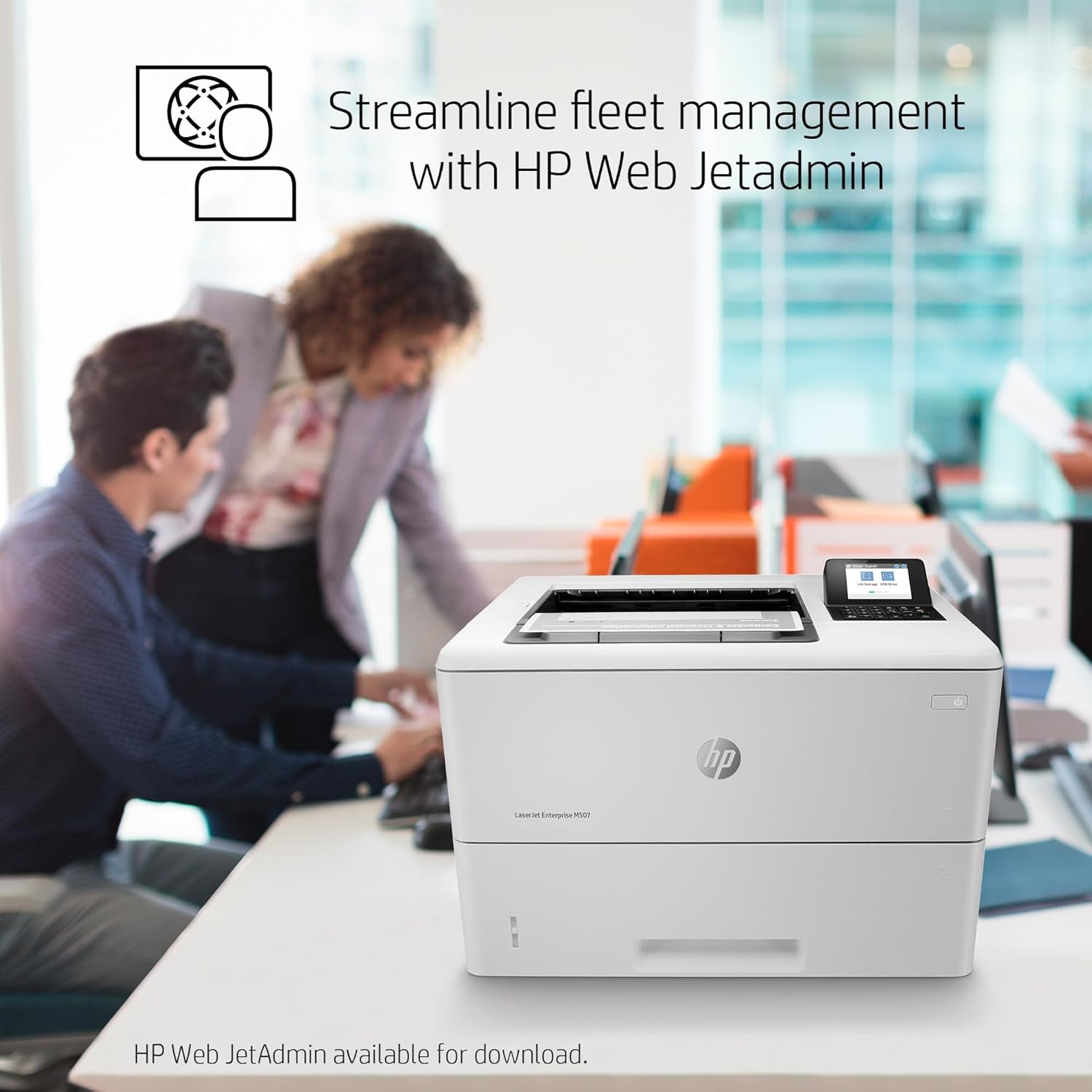
Figure 3.8: The printer in an office environment, demonstrating how HP Web JetAdmin can streamline fleet management for businesses.
4. Setup Instructions
Follow these steps for the initial setup of your HP LaserJet Enterprise M507dn printer.
- Unpack the Printer: Carefully remove the printer from its packaging. Remove all packing materials, tapes, and protective films from the exterior and interior of the printer. Refer to the Unpack Flyer for detailed instructions.
- Place the Printer: Position the printer on a stable, level surface with adequate ventilation. Ensure easy access to power outlets and network connections.
- Connect Power: Connect the power cord to the printer and then to a grounded electrical outlet. Do not connect the printer to a power strip or surge protector during initial setup.
- Install Toner Cartridge: Open the toner cartridge access door. Remove the new HP toner cartridge from its packaging, shake it gently, and insert it into the designated slot until it clicks into place. Close the access door.
- Load Paper: Open the paper tray and adjust the paper guides to fit the size of your paper. Load the paper stack into the tray, ensuring it is not overfilled. Close the paper tray.
- Connect to Network (Ethernet): Connect an Ethernet cable from your network router or switch to the Ethernet port on the back of the printer.
- Power On: Press the power button to turn on the printer.
- Initial Configuration: Follow the on-screen prompts on the 2.7-inch color LCD control panel to select language, country/region, and other initial settings.
- Install Drivers: On your computer, navigate to the HP support website for the M507dn model to download and install the latest printer drivers and software.
5. Operating Instructions
This section covers basic operating procedures for your HP LaserJet Enterprise M507dn printer.
5.1 Printing Documents
- Ensure the printer is powered on and connected to your network or computer.
- Open the document you wish to print on your computer.
- Select File > Print (or the equivalent command in your application).
- Choose the HP LaserJet Enterprise M507dn from the list of available printers.
- Adjust print settings as needed (e.g., number of copies, paper size, orientation).
- For 2-sided (Duplex) Printing, select the option for automatic duplex printing in your printer settings.
- Click Print.
5.2 Mobile Printing
The M507dn supports various mobile printing solutions. Generally, no special setup or apps are required for basic mobile printing.
- Ensure your mobile device is connected to the same network as the printer.
- Use your device's native print function (e.g., AirPrint for iOS, Mopria Print Service for Android) to discover and print to the M507dn.
- For advanced mobile printing features, consider installing the HP Smart app.
5.3 Using the Control Panel
The 2.7-inch color LCD control panel allows you to manage print jobs, configure settings, and monitor printer status.
- Navigate through menus using the touchscreen and numerical keypad.
- View printer status, error messages, and supply levels.
- Access job storage options via the easy-access USB port on the front of the printer.
6. Maintenance
Regular maintenance ensures optimal performance and longevity of your printer.
6.1 Replacing Toner Cartridges
Use only Original HP 89A/89X toner cartridges for best results and to avoid issues. The printer is designed to work only with cartridges containing original HP chips or circuitry.
- When the control panel indicates a low toner level or prompts for replacement, order a new Original HP toner cartridge.
- Open the toner cartridge access door.
- Grasp the handle of the old toner cartridge and pull it straight out of the printer.
- Unpack the new toner cartridge. Gently shake it to distribute the toner evenly.
- Insert the new cartridge into the slot until it is firmly seated.
- Close the toner cartridge access door.
6.2 Cleaning the Printer
- Exterior: Wipe the exterior surfaces of the printer with a soft, lint-free cloth dampened with water. Do not use abrasive cleaners or solvents.
- Interior: Periodically check the paper path for any paper dust or debris. Refer to the full user guide for instructions on cleaning specific internal components if necessary.
7. Troubleshooting
This section provides solutions to common issues you might encounter.
7.1 Common Issues and Solutions
- Printer Not Responding:
- Check power connections and ensure the printer is turned on.
- Verify network cable connection (Ethernet).
- Restart the printer and your computer.
- Ensure printer drivers are correctly installed and updated.
- Paper Jams:
- Follow the instructions on the control panel to locate and clear the paper jam.
- Ensure paper is loaded correctly and not overfilled in the trays.
- Use recommended paper types and quality.
- Poor Print Quality:
- Check toner cartridge levels and replace if low.
- Ensure you are using Original HP toner cartridges.
- Perform a print quality diagnostic from the printer's control panel.
- Cartridge Compatibility Warning:
- This printer uses dynamic security, which may be updated periodically by firmware updates. The printer is intended to be used solely with cartridges using an original HP chip. Cartridges using a non-HP chip may not function or may cease to function.
- Ensure you are using genuine HP toner cartridges.
For more detailed troubleshooting, refer to the HP support website or the full user guide.
8. Specifications
| Feature | Specification |
|---|---|
| Model Name | LaserJet Enterprise M507dn |
| Printer Output | Monochrome |
| Printing Technology | Laser |
| Max Print Speed Monochrome | 45 ppm |
| Max Black and White Print Resolution | 1200 x 1200 dpi |
| Duplex Printing | Automatic |
| Connectivity Technology | Ethernet |
| Hardware Interface | Ethernet, USB |
| Total USB Ports | 1 |
| Max Input Sheet Capacity | 650 sheets |
| Memory Storage Capacity | 512 MB |
| Control Method | Voice (via compatible devices), Control Panel |
| Compatible Cartridge | Original HP cartridges (89A/89X/89Y) |
| Product Dimensions | 15.5"D x 19.5"W x 18"H (15.5 x 19.5 x 18 inches) |
| Item Weight | 25.3 pounds |
| Operating Temperature Range | 10 to 32.5°C |
| Power Consumption (Wattage) | 2.61 watts (typical) |
| Print Media Supported | Card stock, Envelopes, Labels, Paper (plain), Transparencies |
| Sheet Sizes Supported | 3 x 5, 4 x 6, 5 x 7, 5 x 8, 8.5 x 13 inches |
| Visible Screen Diagonal | 3" / 7 cm |
9. Warranty and Support
9.1 Limited Hardware Warranty
The HP LaserJet Enterprise M507dn printer comes with a ONE-YEAR LIMITED HARDWARE WARRANTY. For specific terms and conditions, please refer to the warranty cards included in the product packaging or the specification sheet available on the HP website.
9.2 Customer Support
For assistance with setup, troubleshooting, or other inquiries, HP provides support services:
- HP Web Support: Access 24-hour, 7 days a week FREE HP Web support. Visit the official HP support website for your region and search for the M507dn model.
- Documentation: Detailed user guides and technical documents are available on the HP support website.