1. Introduction
Welcome to the user manual for your new iBRIT i5 smartphone. This guide provides essential information to help you set up, operate, and maintain your device. Please read this manual carefully to ensure proper use and to maximize the performance of your smartphone.
2. Package Contents
Upon opening your iBRIT i5 smartphone package, please verify that all the following items are present:
- iBRIT i5 Smartphone
- USB Charging Cable
- Power Adapter
- SIM Ejector Tool
- Quick Start Guide (this document serves as the full manual)
- Warranty Card
3. Device Overview
Familiarize yourself with the physical components of your iBRIT i5 smartphone.
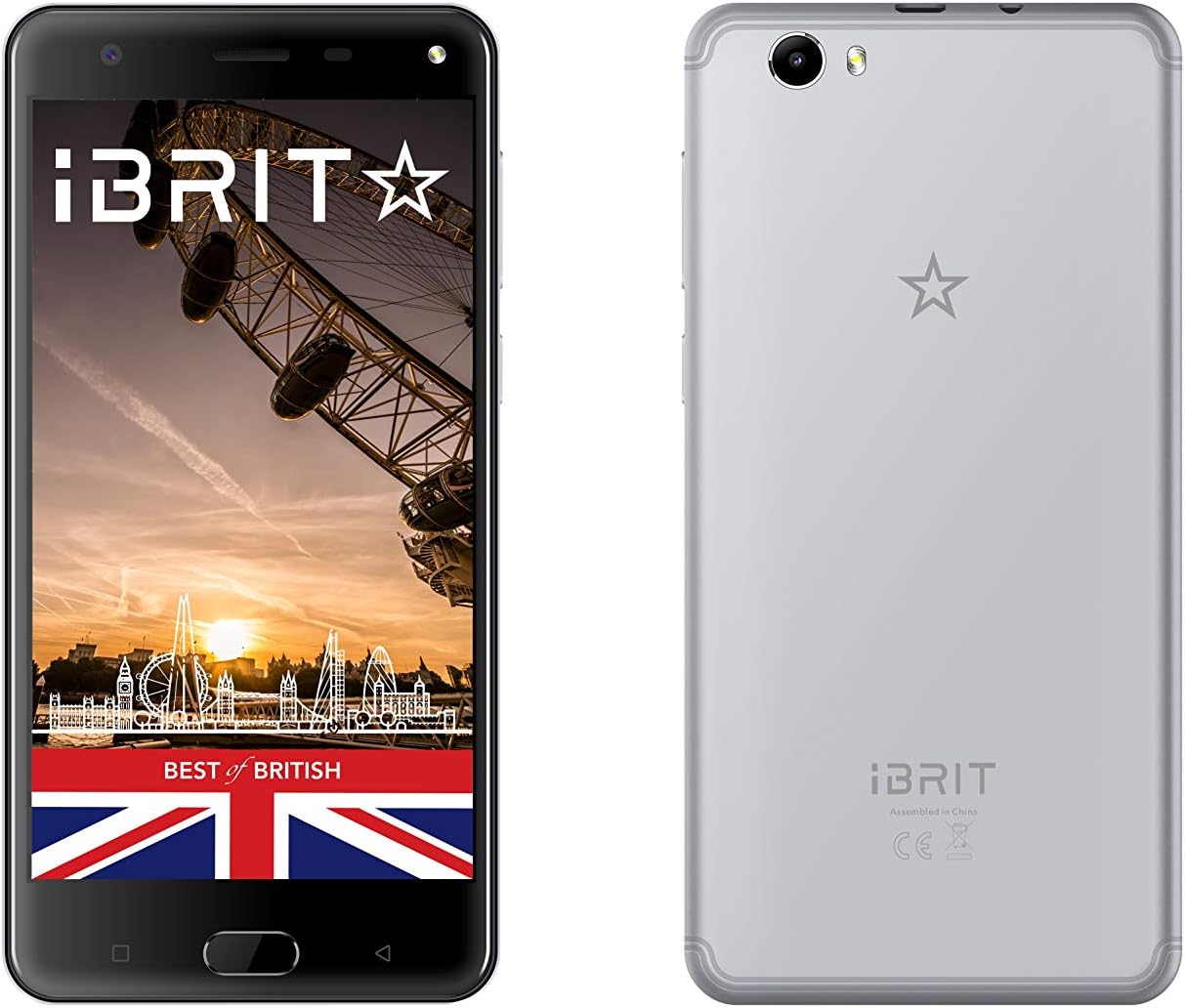
Figure 3.1: Front and Rear View of the iBRIT i5 Smartphone. The front displays the screen, earpiece, and front camera. The rear shows the main camera, flash, and iBRIT branding.

Figure 3.2: Multiple Angle View of the iBRIT i5 Smartphone. This image illustrates the top, bottom, and side profiles, highlighting the power button, volume rocker, USB port, and headphone jack locations.
- Front Camera: For selfies and video calls.
- Earpiece: For listening during phone calls.
- Display: 5.5-inch touchscreen for interaction.
- Volume Buttons: Adjust media and call volume.
- Power Button: Turn the device on/off, lock/unlock the screen.
- USB Port: For charging and data transfer.
- Headphone Jack: Connect 3.5mm headphones.
- Rear Camera & Flash: For taking photos and videos.
- Speaker: For audio output.
4. Setup
4.1. Inserting SIM and SD Card
- Locate the SIM card tray on the side of your device.
- Insert the SIM ejector tool into the small hole next to the tray and push gently until the tray pops out.
- Place your Nano-SIM card(s) and/or microSD card into the designated slots on the tray, ensuring correct orientation.
- Carefully push the tray back into the device until it clicks into place.
4.2. Charging the Battery
- Connect the USB cable to the power adapter.
- Plug the small end of the USB cable into the USB port at the bottom of your phone.
- Plug the power adapter into a wall outlet.
- Allow the phone to charge completely before first use. The battery indicator on the screen will show charging status.
4.3. Powering On/Off
- To Power On: Press and hold the Power button until the iBRIT logo appears on the screen.
- To Power Off: Press and hold the Power button until the power options menu appears. Tap "Power off" and confirm.
- To Restart: From the power options menu, tap "Restart" and confirm.
4.4. Initial Setup
The first time you power on your device, you will be guided through an initial setup process. This includes selecting your language, connecting to Wi-Fi, setting up your Google account, and configuring security options.
5. Operating Instructions
5.1. Navigating the Android Interface
- Home Screen: The central hub for your apps and widgets.
- Notification Panel: Swipe down from the top of the screen to access notifications and quick settings.
- App Drawer: Swipe up from the bottom of the screen (or tap the app drawer icon) to view all installed applications.
- Navigation Buttons: Use the Back, Home, and Recent Apps buttons (or gestures) to navigate.
5.2. Making Calls and Sending Messages
- Calls: Open the "Phone" app, enter the number, or select a contact, then tap the call icon.
- Messages: Open the "Messages" app, tap the new message icon, enter the recipient and your message, then tap send.
5.3. Internet and Connectivity
- Wi-Fi: Go to Settings > Network & internet > Wi-Fi. Turn Wi-Fi on, select a network, and enter the password if required.
- Mobile Data (4G LTE): Go to Settings > Network & internet > Mobile network. Ensure Mobile data is enabled.
- Bluetooth: Go to Settings > Connected devices > Bluetooth. Turn Bluetooth on, then pair with available devices.
5.4. Camera Usage
Open the "Camera" app. Tap the shutter button to take a photo. Swipe left or right to switch between photo and video modes. Tap the camera icon to switch between front and rear cameras.
6. Maintenance
6.1. Cleaning Your Device
Use a soft, lint-free cloth to gently wipe the screen and body of your phone. Avoid using harsh chemicals or abrasive materials, as these can damage the device's finish.
6.2. Battery Care
- Avoid exposing the phone to extreme temperatures.
- Do not leave the phone charging for extended periods after it has reached 100%.
- For optimal battery longevity, try to keep the charge level between 20% and 80%.
6.3. Software Updates
Regularly check for and install software updates to ensure your device has the latest features, security patches, and performance improvements. Go to Settings > System > System update.
6.4. Data Backup
It is recommended to regularly back up your important data (photos, contacts, documents) to a cloud service or a computer to prevent data loss.
7. Troubleshooting
This section addresses common issues you might encounter with your iBRIT i5 smartphone.
7.1. Device Not Turning On
- Ensure the battery is charged. Connect the charger and wait a few minutes before attempting to power on.
- Press and hold the Power button for at least 10-15 seconds to force a restart.
7.2. Poor Signal or No Network
- Check if the SIM card is correctly inserted.
- Ensure "Airplane mode" is off (Settings > Network & internet).
- Restart the device.
- Verify your mobile data settings with your service provider.
7.3. Battery Draining Quickly
- Reduce screen brightness.
- Close unused apps running in the background.
- Turn off Wi-Fi, Bluetooth, and GPS when not in use.
- Check battery usage in Settings > Battery to identify power-hungry apps.
7.4. Apps Crashing or Freezing
- Force close the app (Settings > Apps & notifications > [App Name] > Force stop).
- Clear the app's cache (Settings > Apps & notifications > [App Name] > Storage & cache > Clear cache).
- Update the app from the Google Play Store.
- If the issue persists, consider uninstalling and reinstalling the app.
7.5. Factory Reset (Last Resort)
If severe issues persist, a factory reset can resolve many software-related problems. Warning: This will erase all data on your phone. Back up your data before proceeding. Go to Settings > System > Reset options > Erase all data (factory reset).
8. Specifications
| Feature | Specification |
|---|---|
| Brand | iBRIT |
| Model Name | i5 |
| Operating System | Android |
| RAM Memory Installed | 2 GB |
| Memory Storage Capacity | 16 GB |
| Screen Size | 5.5 Inches |
| Resolution | 720 x 1280 |
| Cellular Technology | 4G LTE |
| Connectivity Technology | Bluetooth, USB, Wi-Fi |
| Color | Grey |
| Rear Camera Resolution | 8 MP |
| Battery Capacity | 3000 mAH & above |
| Number Of SIM | Dual SIM |
| Package Dimensions | 18.6 x 10 x 5.8 cm |
| Item Weight | 182 g |
9. Warranty and Support
Your iBRIT i5 smartphone comes with a standard manufacturer's warranty. Please refer to the warranty card included in your package for specific terms and conditions, including warranty period and coverage details.
For technical support, service, or further inquiries, please contact iBRIT customer service through the contact information provided on the official iBRIT website or your warranty documentation.