
1. Introduction
This manual provides detailed instructions for setting up, operating, maintaining, and troubleshooting your Tenda F6 11N 300Mbps Wireless Router. The Tenda F6 is designed to provide a stable and high-speed wireless network for your home, supporting the 802.11n standard with speeds up to 300Mbps. Please read this manual carefully before using the device to ensure proper installation and optimal performance.
2. Package Contents
Please verify that all items are present in your package. If any item is missing or damaged, contact your retailer.
- Tenda F6 11N Wireless Router
- Power Adapter
- Ethernet Cable
- Quick Installation Guide
3. Product Overview
3.1 Front Panel: LED Indicators
The front panel features LED indicators that display the router's status:
- Power LED: Indicates power status. Solid green when powered on.
- WAN LED: Indicates WAN port status. Solid green when connected, blinking when data is transmitted.
- LAN LEDs (1-3): Indicate LAN port status. Solid green when connected, blinking when data is transmitted.
- WLAN LED: Indicates wireless network status. Solid green when Wi-Fi is active, blinking during data transmission.
- WPS LED: Indicates WPS function status. Blinks during WPS connection attempt.
3.2 Rear Panel: Ports and Buttons
The rear panel provides all necessary connection ports and buttons:
- WAN Port (10/100Mbps): Connects to your modem or internet service provider's network.
- LAN Ports (1-3, 10/100Mbps): Connects to wired devices such as computers, smart TVs, or gaming consoles.
- Reset/WPS Button: Press and hold for 8 seconds to restore factory default settings. A short press activates the WPS function for easy wireless connection.
- Power Input: Connects to the included power adapter.
- Antennas: Four external, non-detachable antennas for wireless signal transmission and reception.
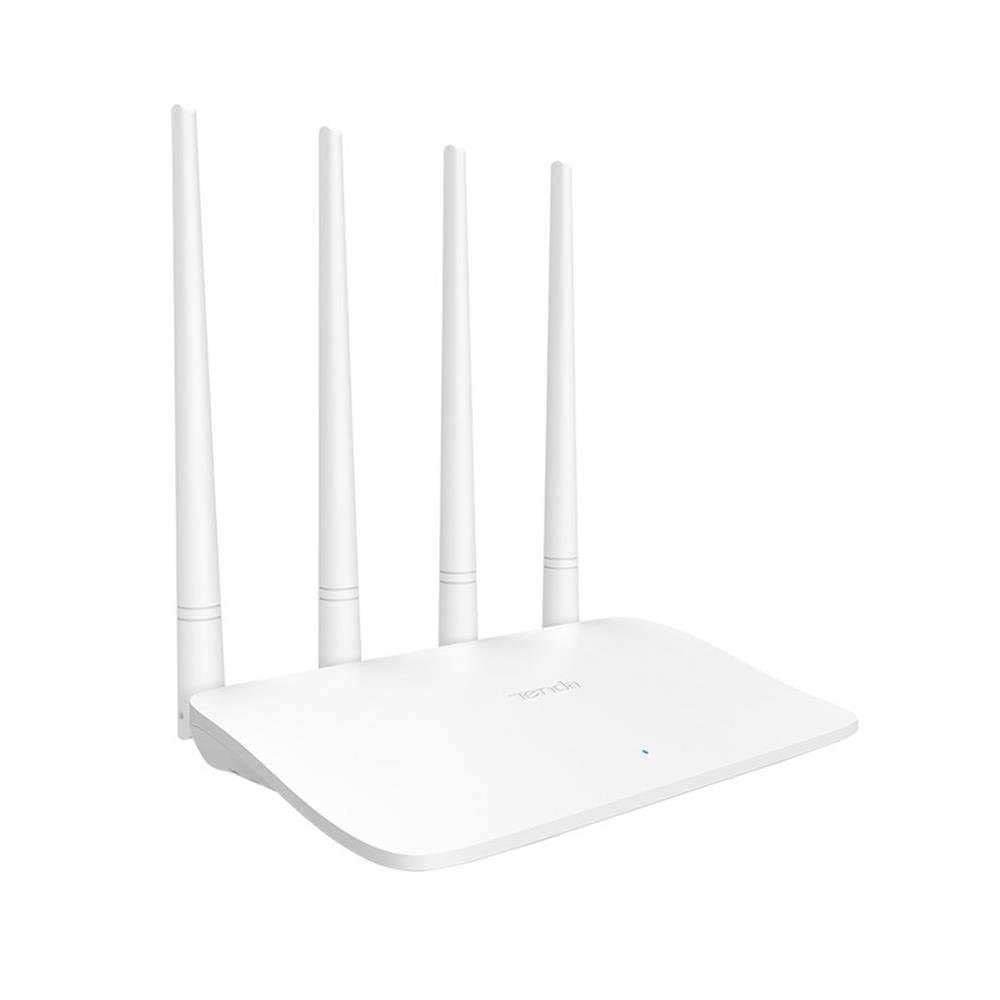
Image: Tenda F6 11N Wireless Router showing its compact design and four external antennas. The rear panel includes the WAN port, three LAN ports, the Reset/WPS button, and the power input.
4. Setup Guide
4.1 Hardware Connection
- Position the Router: Place the router in a central location in your home, away from obstructions and devices that may cause interference (e.g., cordless phones, microwave ovens).
- Connect to Modem: Connect one end of the Ethernet cable to the WAN port (usually blue) on your Tenda F6 router and the other end to the LAN port on your modem.
- Connect to Power: Connect the power adapter to the router's power input and then plug the adapter into a power outlet. The Power LED should light up.
- Connect Devices (Optional): For initial setup or wired connections, connect an Ethernet cable from a LAN port (yellow) on the router to your computer's Ethernet port.
4.2 Initial Configuration
- Access Router Interface: Open a web browser (e.g., Chrome, Firefox) on a connected computer or mobile device. In the address bar, type
192.168.0.1ortendawifi.comand press Enter. - Login: The default login password is usually
adminor left blank for the first setup. Follow the on-screen prompts to set a new, strong login password. - Internet Setup Wizard: The router will typically launch a Quick Setup Wizard. Follow the steps to configure your internet connection type (e.g., PPPoE, Dynamic IP, Static IP). Your Internet Service Provider (ISP) will provide this information.
- Wireless Settings: Set your Wi-Fi Network Name (SSID) and a strong Wi-Fi password. It is recommended to use WPA2-PSK encryption.
- Save Settings: Save your configurations. The router may reboot to apply the changes.
5. Operating Instructions
After initial setup, you can manage your network settings through the web interface.
5.1 Wireless Network Settings
- Change SSID: Navigate to Wireless Settings to change your Wi-Fi network name.
- Change Password: Update your Wi-Fi password regularly for security.
- Security Mode: Ensure WPA2-PSK is selected for the strongest encryption.
- WPS Function: Briefly press the Reset/WPS button on the router or enable WPS in the web interface to connect WPS-compatible devices without entering a password.
5.2 Network Management
- Parental Control: Access the Parental Control section to manage internet access times and content for specific devices.
- Bandwidth Control: Use Bandwidth Control to allocate specific bandwidth to connected devices, ensuring fair usage.
- System Tools: Under System Tools, you can find options for:
- Reboot: Restart the router.
- Factory Reset: Restore the router to its original factory settings (all configurations will be lost).
- System Log: View system events and activities.
- Login Password: Change the password for accessing the router's web interface.
6. Maintenance
Regular maintenance helps ensure the longevity and optimal performance of your router.
- Regular Reboot: Reboot your router periodically (e.g., once a month) to clear its memory and refresh network connections.
- Firmware Updates: Check the Tenda official website for firmware updates. Updating firmware can improve performance, add new features, and fix bugs.
- Physical Cleaning: Keep the router clean and free from dust. Ensure proper ventilation to prevent overheating.
- Secure Placement: Keep the router in a secure location, away from direct sunlight, moisture, and extreme temperatures.
7. Troubleshooting
If you encounter issues, refer to the following common problems and solutions:
| Problem | Solution |
|---|---|
| No Internet Access |
|
| Weak or Unstable Wi-Fi Signal |
|
| Cannot Access Router Web Interface |
|
| Forgot Wi-Fi Password |
|
8. Specifications
| Brand | Tenda |
| Model | F6 11N |
| Wireless Standard | IEEE 802.11b/g/n |
| Wireless Speed | 300 Mbps |
| Frequency | 2.4 GHz |
| Antennas | 4 external, non-detachable |
| WAN Ports | 1 x 10/100 Mbps |
| LAN Ports | 3 x 10/100 Mbps |
| Buttons | 1 x Reset/WPS button |
| Memory | 16 MB |
| Power Consumption (No Load) | 1.66 W |
| Power Consumption (Full Load) | 1.98 W |
| Dimensions (L x W x H) | 171.3 × 171.3 × 36.4 mm |
| Security Protocols | WPA-PSK/WPA2-PSK, WPA/WPA2 |
| System Tools | Factory Reset, Login Password Management, System Log, Reboot |
| Compatible Devices | Smart TV, Tablet, PC, Laptop |
| Recommended Use | Home |
| Modem Compatibility | Yes |
| Voltage | 230V |
| Item Weight | 200 grams |
9. Warranty and Support
For warranty information and technical support, please refer to the warranty card included in your product package or visit the official Tenda website. Tenda provides customer support to assist with any product-related inquiries or issues.
Official Tenda Website: www.tendacn.com