1. Introduction
This manual provides essential information for the installation, operation, maintenance, and troubleshooting of your Toshiba X300 12TB Performance Internal Hard Drive. The X300 series is designed for high-performance applications, including professional systems, home media computers, and gaming PCs.

Figure 1: Toshiba X300 12TB Performance Internal Hard Drive.
Key Features:
- Designed for gaming PCs and high-end desktop workstations.
- High performance with 7200 RPM and a large cache size.
- Massive capacity to accommodate large gaming libraries and data.
- Toshiba's cache technology for responsive performance.
- Ramp loading and drive stabilization technologies for enhanced reliability.
2. Setup and Installation
Before beginning installation, ensure your computer is powered off and disconnected from the main power supply. It is recommended to wear an anti-static wrist strap to prevent electrostatic discharge (ESD) damage to components.
2.1 Physical Installation
- Prepare your computer: Open your computer case to access the internal drive bays.
- Mount the hard drive: Secure the Toshiba X300 drive into an available 3.5-inch drive bay using appropriate screws. Ensure it is firmly seated to minimize vibrations.
- Connect data cable: Connect one end of a SATA data cable to the SATA port on the hard drive and the other end to an available SATA port on your motherboard.
- Connect power cable: Connect a SATA power cable from your power supply unit (PSU) to the power connector on the hard drive.
- Close the case: Once all connections are secure, close your computer case.

Figure 2: Example of a hard drive installed within a computer system.
2.2 Initializing and Formatting (Windows)
After physical installation, the drive needs to be initialized and formatted before use.
- Power on your computer: Start your computer and log into your operating system.
- Open Disk Management:
- In Windows 10/8.1: Right-click the Start button and select "Disk Management".
- In Windows 7: Go to Start, right-click "Computer", select "Manage", then "Disk Management".
- Initialize the disk: A dialog box should appear prompting you to initialize the new disk. Select GPT (GUID Partition Table) for drives larger than 2TB. Click OK.
- Create a new simple volume: Right-click the "Unallocated" space on your new drive and select "New Simple Volume". Follow the wizard to assign a drive letter and format the drive (NTFS is recommended for Windows).
- Complete formatting: Once formatting is complete, your Toshiba X300 drive will be ready for use.
For other operating systems (Linux, Mac), please refer to their respective documentation for disk initialization and formatting procedures.
3. Operation
The Toshiba X300 internal hard drive functions like any standard storage device once properly installed and formatted.
3.1 Data Storage and Retrieval
- Saving files: You can save documents, applications, games, and other media directly to the drive.
- Accessing files: Files stored on the X300 can be accessed through your operating system's file explorer.
- Performance: The 7200 RPM speed and large cache are optimized for quick data access, beneficial for gaming and demanding applications.

Figure 3: The X300 drive supports demanding applications like gaming.
3.2 Best Practices
- Regularly back up important data to another storage device or cloud service.
- Avoid sudden power loss to prevent data corruption.
- Ensure proper ventilation within your computer case to maintain optimal operating temperatures for the drive.
4. Maintenance
Proper maintenance helps ensure the longevity and performance of your hard drive.
4.1 Software Maintenance
- Disk Defragmentation (for HDDs): Periodically defragment your hard drive to optimize file access speeds. This is typically less critical for modern operating systems but can still be beneficial.
- Error Checking: Use your operating system's built-in disk error checking tools (e.g., CHKDSK on Windows) to scan for and repair file system errors.
- Operating System Updates: Keep your operating system updated to ensure the latest drivers and performance optimizations for storage devices.
4.2 Physical Maintenance
- Keep it cool: Ensure adequate airflow around the drive within your computer case. High temperatures can reduce drive lifespan.
- Minimize vibrations: The X300 features drive stabilization technology, but minimizing external vibrations further protects the drive. Ensure your computer case is stable.

Figure 4: Internal components of a hard drive, highlighting the precision required for operation.
5. Troubleshooting
If you encounter issues with your Toshiba X300 hard drive, refer to the following common problems and solutions.
| Problem | Possible Cause | Solution |
|---|---|---|
| Drive not detected by OS | Incorrect cabling, uninitialized/unformatted drive, BIOS/UEFI settings. |
|
| Slow performance | Fragmented drive, high background processes, failing drive. |
|
| Unusual noises (clicking, grinding) | Mechanical failure. |
|
| Data corruption | Sudden power loss, file system errors, malware. |
|
If these steps do not resolve your issue, please contact Toshiba customer support.
6. Specifications
Detailed technical specifications for the Toshiba X300 12TB Performance Internal Hard Drive (Model HDWR21CXZSTA).
| Feature | Detail |
|---|---|
| Brand | TOSHIBA |
| Series | Toshiba X300 |
| Model Number | HDWR21CXZSTA |
| Digital Storage Capacity | 12 TB |
| Hard Disk Interface | Serial ATA (SATA 6 GB/s) |
| Hard Disk Form Factor | 3.5 Inches |
| Hard Drive Rotational Speed | 7200 RPM |
| Cache Size | 256 MB |
| Hardware Platform | Linux, Mac, PC |
| Item Weight | 1.7 pounds |
| Product Dimensions (LxWxH) | 5.79 x 4 x 1.03 inches |
| Special Feature | Native Command Queuing |
| Date First Available | February 8, 2019 |
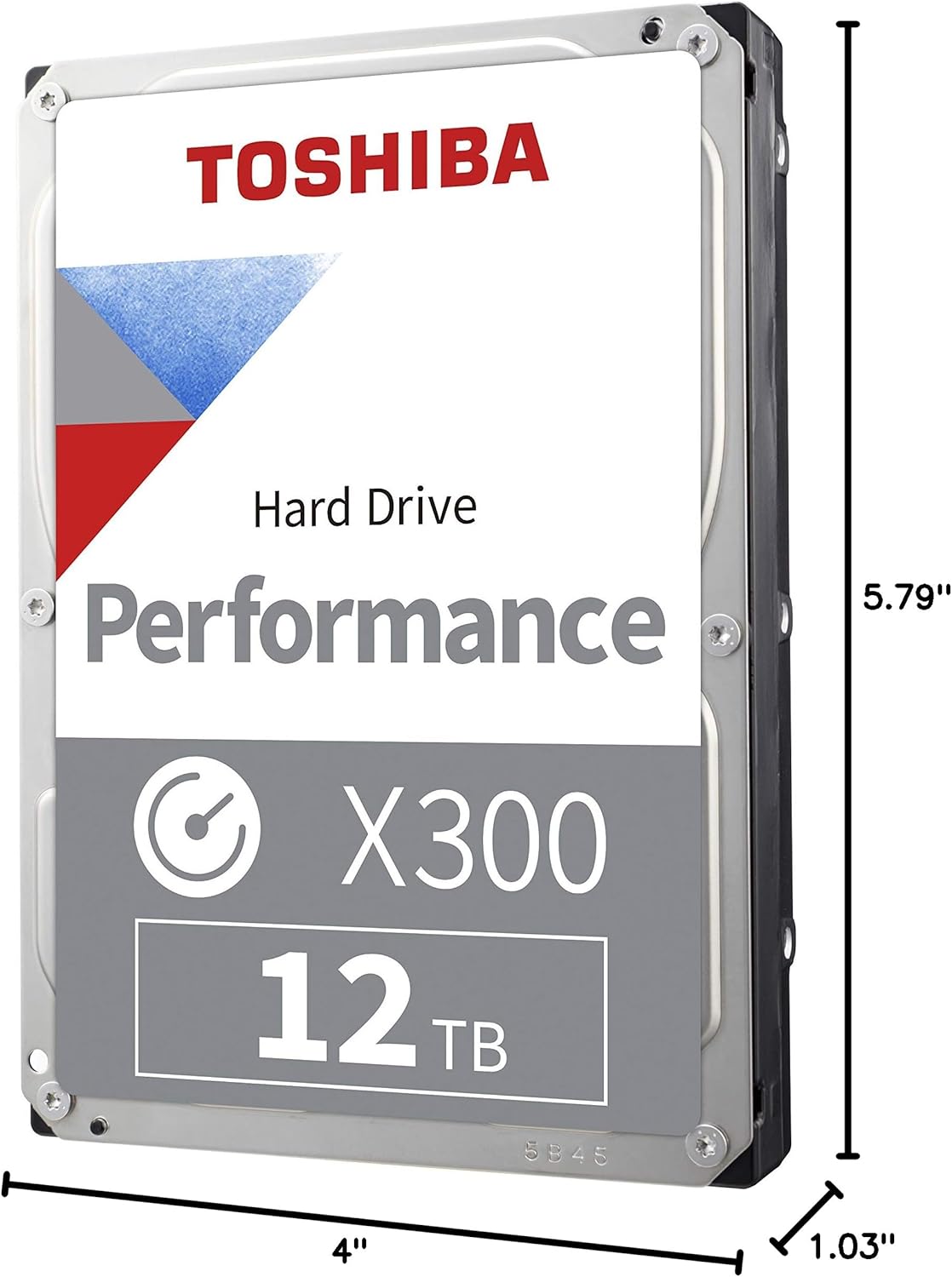
Figure 5: Physical dimensions of the Toshiba X300 hard drive.
7. Warranty and Support
Your Toshiba X300 hard drive is covered by a standard limited warranty. For specific warranty terms and conditions, please refer to the warranty brochure available on Toshiba's Consumer HDD website.
7.1 Customer Support
For technical assistance, troubleshooting, or warranty claims, please visit the official Toshiba support website or contact their customer service.
- Toshiba Support Website: www.toshiba-storage.com/support/ (Example link, actual link may vary)
- Product Page: Amazon Product Page
7.2 Official Product Video
Video 1: Toshiba X300 Performance Internal Hard Drive Overview. This video provides a visual introduction to the features and benefits of the Toshiba X300 series hard drives.


