
1. Introduction
Thank you for choosing the HKC TG34C3U 34-inch Ultrawide Curved Gaming Monitor. This manual provides essential information for setting up, operating, and maintaining your monitor. Please read it thoroughly before use and retain it for future reference.
Safety Information
- Ensure the monitor is placed on a stable, level surface to prevent accidental falls.
- Use only the power adapter and cables provided with the monitor.
- Do not expose the monitor to rain, moisture, or extreme temperatures.
- Avoid blocking ventilation openings to prevent overheating.
- Disconnect the power cable from the outlet before cleaning or if the monitor will not be used for an extended period.
2. Package Contents
Verify that all items are present in your package:
- HKC TG34C3U Monitor
- Monitor Stand (Neck and Base)
- Power Adapter and Cable
- HDMI Cable
- DisplayPort (DP) Cable
- User Manual
3. Setup and Installation
Monitor Assembly
- Carefully remove the monitor and stand components from the packaging.
- Attach the stand neck to the monitor panel. Ensure it clicks securely into place.
- Attach the stand base to the stand neck using the provided screws.
- Place the assembled monitor on a stable, flat surface.
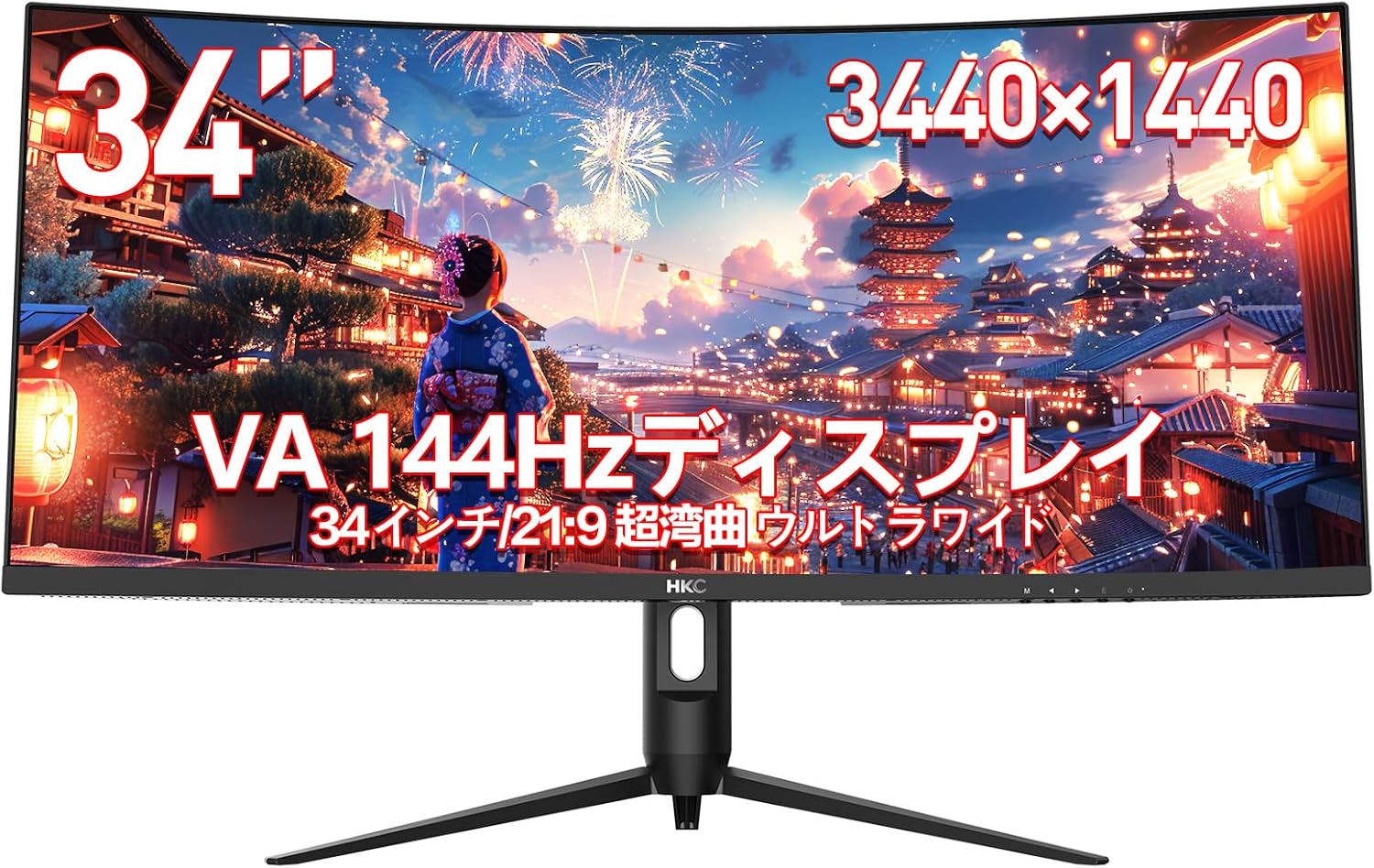
Image: The HKC TG34C3U monitor fully assembled on a desk, showcasing its ultrawide curved display.

Image: Rear view of the monitor, illustrating the connection point for the stand neck.
Connecting the Monitor
- Connect the power adapter to the monitor's power input, then plug the power cable into a wall outlet.
- Connect one end of the HDMI or DisplayPort cable to the corresponding port on your computer's graphics card.
- Connect the other end of the HDMI or DisplayPort cable to the respective input port on the monitor.
- For cable management, route cables through the designated opening in the stand neck.

Image: A detailed view of the monitor's input ports, including HDMI and DisplayPort connections.
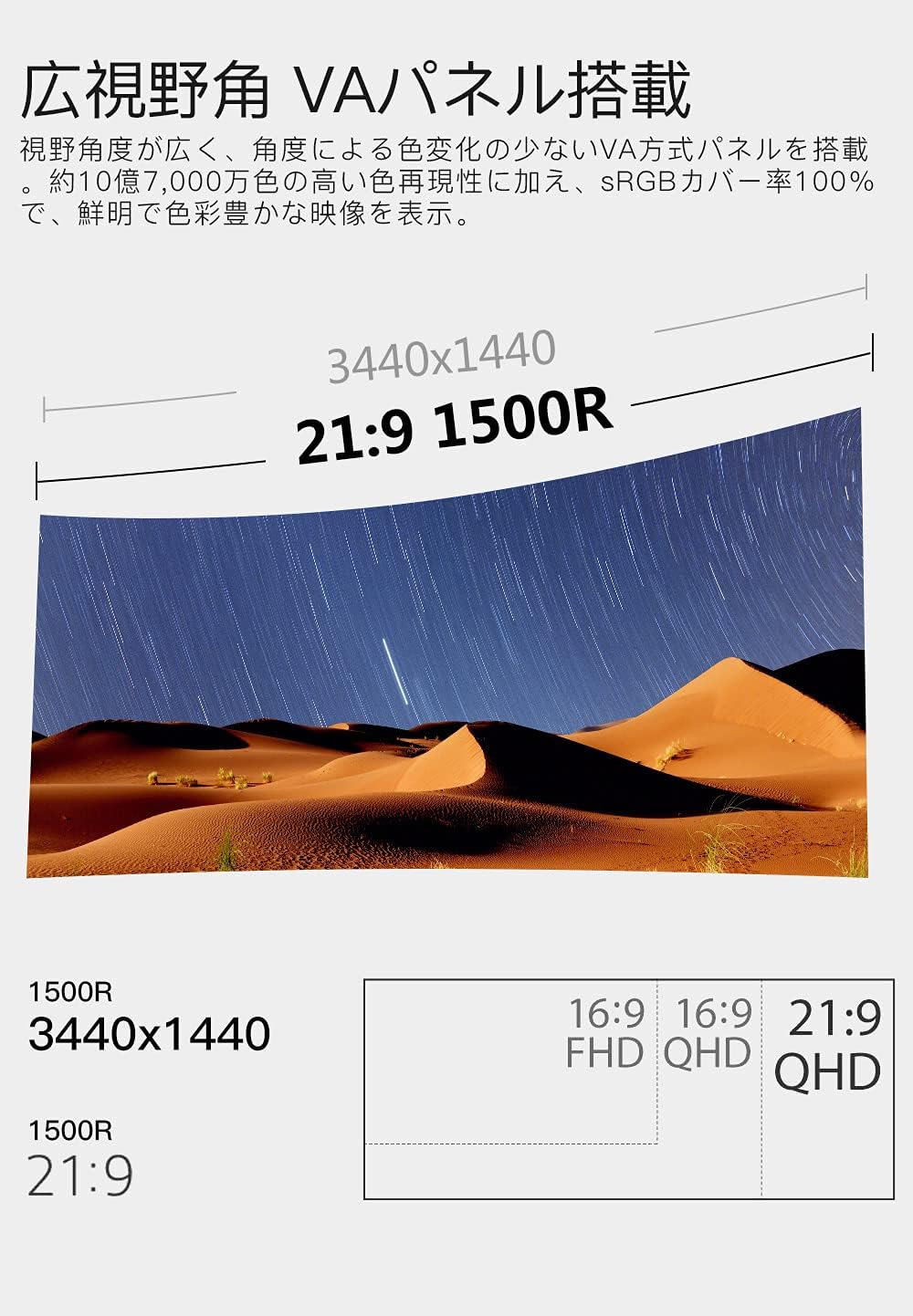
Image: The monitor with power and video cables properly connected and organized through the stand's cable management system.
Physical Adjustments
The monitor offers ergonomic adjustments for optimal viewing comfort:
- Height Adjustment: Adjust the monitor's vertical position by gently pushing or pulling the monitor up or down.
- Tilt Adjustment: Tilt the monitor screen forward or backward to find your preferred viewing angle.
- Swivel Adjustment: Rotate the monitor left or right on its base.
Video: A short preview demonstrating the monitor's adjustable stand, including height, tilt, and swivel functionalities.
4. Operating the Monitor
Power On/Off
Locate the power button, usually on the bottom right side or rear of the monitor. Press it to turn the monitor on or off.
On-Screen Display (OSD) Menu
The OSD menu allows you to adjust various monitor settings. Navigate the menu using the buttons or joystick located on the monitor's underside or rear.
Common OSD Menu Options:
- Picture: Adjust brightness, contrast, sharpness, and gamma.
- Color: Select color temperature (e.g., Warm, Cool, User), adjust RGB values.
- Input: Manually select the input source (HDMI1, HDMI2, DisplayPort).
- Display: Adjust aspect ratio, enable/disable FreeSync.
- OSD Settings: Adjust OSD language, transparency, and timeout.
- System: Reset settings, view information.
Key Features and Settings
- Ultrawide Display (21:9 Aspect Ratio): Provides an expansive viewing area, ideal for multitasking and immersive gaming.
- Curved Screen (1500R): The 1500R curvature matches the natural curve of the human eye, reducing eye strain and enhancing immersion.
- High Refresh Rate (144Hz): Delivers smoother motion and reduced input lag, particularly beneficial for fast-paced gaming.
- Fast Response Time (1ms): Minimizes motion blur and ghosting for clear, crisp visuals.
- AMD FreeSync Technology: Synchronizes the monitor's refresh rate with your AMD graphics card's frame rate to eliminate screen tearing and stuttering. Enable this feature in the OSD menu and your graphics card settings.
- Picture-by-Picture (PBP) / Picture-in-Picture (PIP): Allows you to display content from multiple input sources simultaneously on the screen. Access these modes via the OSD menu.
- Eye Care Features: Includes Flicker-Free technology to reduce screen flickering and a Blue Light Reduction mode to minimize harmful blue light emissions, promoting comfortable viewing during extended use.

Image: The monitor showcasing its multitasking capabilities with a split screen, displaying a spreadsheet on one side and a game on the other.

Image: An example of the monitor's PBP functionality, showing a gaming application alongside a video playback.
Video: A preview highlighting various features of the HKC TG34C3U monitor, including its design, connectivity, RGB lighting, and gaming performance.
5. Maintenance
Cleaning the Monitor
- Always unplug the monitor before cleaning.
- Use a soft, lint-free cloth slightly dampened with water or a mild, non-abrasive screen cleaner.
- Do not spray cleaner directly onto the screen.
- Wipe the screen gently to remove dust and smudges.
- Clean the monitor casing with a soft, dry cloth.
Storage
If storing the monitor for an extended period, ensure it is powered off, unplugged, and stored in a cool, dry place away from direct sunlight and extreme temperatures. Use original packaging if available for protection.
6. Troubleshooting
If you encounter issues with your monitor, refer to the following common problems and solutions:
| Problem | Possible Solution |
|---|---|
| No power | Check if the power cable is securely connected to the monitor and the power outlet. Ensure the power outlet is functional. |
| No signal | Verify that the video cable (HDMI/DP) is correctly connected to both the monitor and your computer. Select the correct input source via the OSD menu. Ensure your computer is powered on. |
| Image flickering or distortion | Check the video cable for damage. Try a different cable or input port. Ensure your graphics card drivers are up to date. Adjust refresh rate settings on your computer. |
| Colors appear incorrect | Adjust color settings in the OSD menu (e.g., color temperature, RGB values). Try resetting picture settings to factory defaults. |
| OSD menu not responding | Ensure no buttons are stuck. Power cycle the monitor by unplugging it for a few minutes, then plugging it back in. |
7. Specifications
| Feature | Specification |
|---|---|
| Brand | HKC |
| Model | TG34C3U |
| Screen Size | 34 inches |
| Aspect Ratio | 21:9 |
| Panel Type | VA (R1500 Curved) |
| Resolution | 3440 x 1440 |
| Refresh Rate | 144Hz |
| Response Time | 1ms |
| Brightness | 250 cd/m² |
| Contrast Ratio | 20,000,000:1 (ASCR off 3,000:1) |
| Viewing Angle | 178° (Horizontal/Vertical) |
| Video Inputs | 2 x HDMI (1.2, 2.0), 1 x DisplayPort |
| Power Voltage | 240 Volts (AC) |
| Product Dimensions | 81.84 x 45.2 x 17.98 cm |
| Product Weight | 7.08 kg |
| Special Features | FreeSync, Flicker-Free, Blue Light Reduction, PBP/PIP |
8. Warranty and Support
HKC monitors are manufactured to high-quality standards. For information regarding warranty coverage, terms, and conditions, please refer to the warranty card included in your product packaging or visit the official HKC website.
For technical support or service inquiries, please contact HKC customer service through their official channels. You can find more information and support resources on the HKC Brand Store on Amazon.


