
Introduction
This manual provides detailed instructions for the installation, operation, and maintenance of your Hiseeu SGP10551 5MP PoE IP Security Camera. This camera is designed for both indoor and outdoor surveillance, featuring 5MP HD resolution, night vision, motion detection, and H.265 video compression for efficient storage.
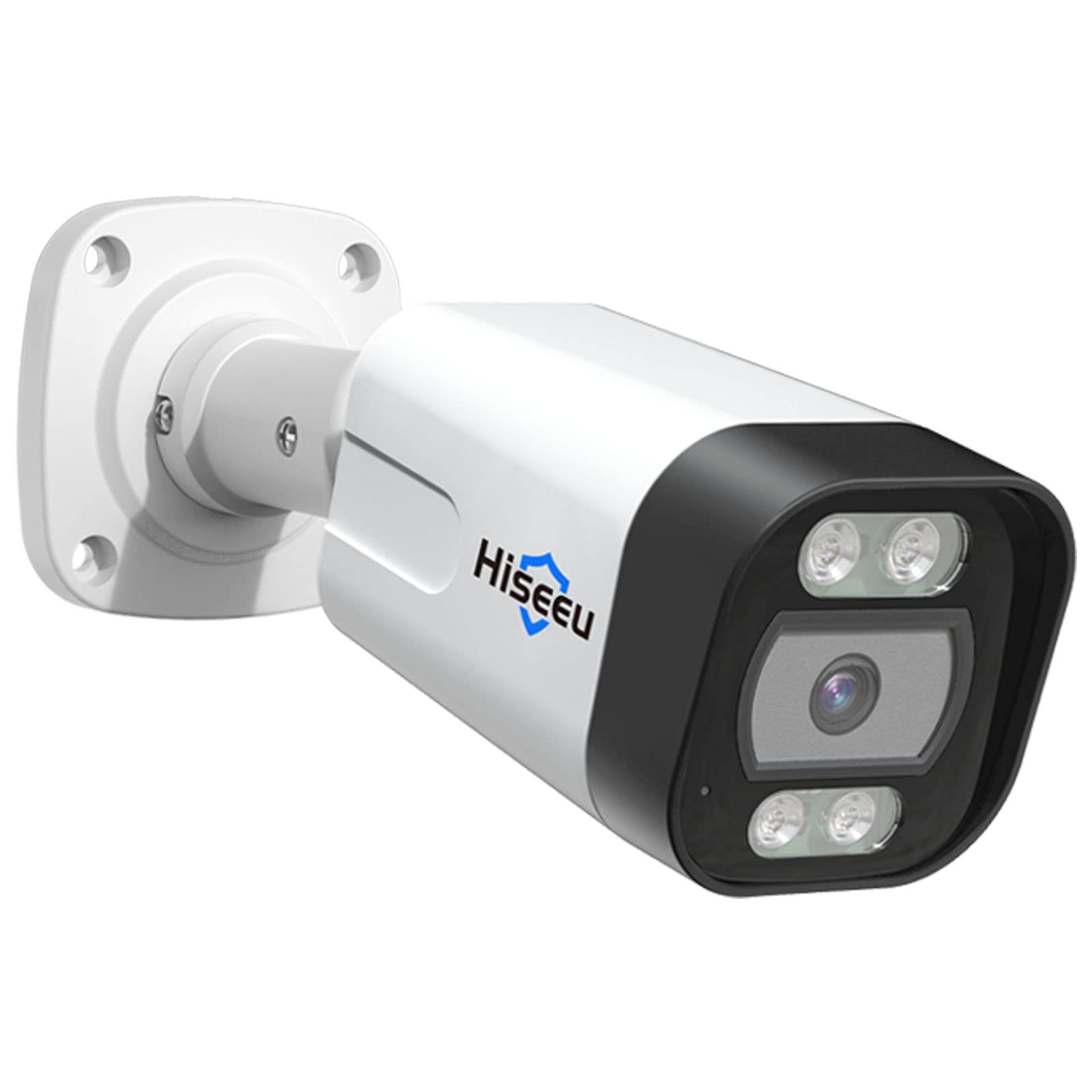
Figure 1: Hiseeu SGP10551 5MP PoE IP Security Camera
Key Features:
- 5MP HD Video: Captures video at 2592x1944 pixels for clear images.
- H.265 Video Compression: Reduces file size for efficient storage and smoother streaming.
- Night Vision: Equipped with 18 IR LEDs for up to 30 meters (98 feet) of night vision.
- Motion Detection & Alarm: Sends alerts via email upon detecting motion.
- IP67 Weatherproof: Durable aluminum casing suitable for outdoor use in various weather conditions.
- PoE (Power over Ethernet): Simplifies installation by providing power and data through a single Ethernet cable.
- ONVIF Compatibility: Works with third-party ONVIF-compatible NVR devices.
Package Contents
Please check the package contents upon unboxing. If any items are missing or damaged, contact Hiseeu support.
- Hiseeu SGP10551 5MP PoE IP Security Camera
- Mounting Screws and Wall Plugs
- Waterproof Lid for Network Cable
- Quick Start Guide

Figure 2: Camera and included accessories
Setup Guide
1. Physical Installation
- Choose a Location: Select a suitable location for your camera, considering the desired viewing area and proximity to an Ethernet cable connection. The camera is rated IP67 for outdoor use.
- Mount the Camera:
- Use the provided mounting template (if included) to mark drill holes on the wall or ceiling.
- Drill holes and insert wall plugs.
- Secure the camera base using the provided screws.
- Adjust the camera angle as needed.
- Connect Network Cable:
- Connect an Ethernet cable from your PoE NVR or PoE switch to the camera's Ethernet port.
- Ensure the waterproof lid is properly installed over the Ethernet connection to protect it from moisture, especially for outdoor installations.

Figure 3: Example of camera mounting
2. Network Configuration
The camera receives power and data through the PoE Ethernet cable. Once connected to a PoE NVR or PoE switch, the camera should power on automatically.
- For Hiseeu PoE NVR Systems: The camera should be automatically detected and configured by your Hiseeu NVR. Refer to your NVR's manual for adding new cameras.
- For Third-Party ONVIF NVRs: The camera is ONVIF compatible. You may need to manually add the camera to your NVR system using its IP address and ONVIF credentials. Consult your NVR's manual for specific instructions.
3. Mobile App Setup (EseeCloud App)
- Download the App: Search for "EseeCloud" in your smartphone's app store (iOS or Android) and install it.
- Register an Account: Open the EseeCloud app and follow the on-screen instructions to register a new account.
- Add Device:
- Tap the "+" icon or "Add Device" option in the app.
- Scan the QR code located on the camera or its packaging, or manually enter the device ID.
- Follow the prompts to complete the device addition.

Figure 4: EseeCloud mobile application for camera management
Note: One device can only be linked to one user account. The device can be shared with other users under specific situations within the app.
Operating Instructions
1. Live View and Playback
Once the camera is added to your NVR or the EseeCloud app, you can access live video streams and review recorded footage.

Figure 5: Remote live view on various devices
- Live View: Select the camera from your device list to view the real-time feed.
- Playback: Access recorded footage through the playback function. The camera supports H.265 video compression for efficient storage and smooth playback.

Figure 6: Professional video surveillance interface with H.265+ support
2. Motion Detection and Alerts
The camera features intelligent motion detection to alert you to activity in monitored areas.
- Configure Motion Detection:
- Access camera settings via the EseeCloud app or NVR interface.
- Navigate to the "Motion Detection" or "Alarm" section.
- Define detection zones and adjust sensitivity levels to minimize false alarms.
- Alarm Alerts: When motion is detected, the camera can push alert messages to your email. You can then remotely check the event via the app.

Figure 7: Human and vehicle detection capabilities

Figure 8: Behavior detection features like intrusion and line crossing
The camera's behavior detection reduces false positives from environmental factors like trees, clouds, or rain.
3. Night Vision
The camera automatically switches to night vision mode in low-light conditions, utilizing its 18 IR LEDs to provide clear black and white images up to 30 meters.
4. Intruder Warning (Buzzer & Spotlight)
For enhanced security, the camera can activate a spotlight and buzzer upon detecting human or vehicle activity. This feature can be configured individually through the camera settings.

Figure 9: Intruder warning system in action
Maintenance
- Cleaning: Regularly clean the camera lens with a soft, damp cloth to ensure clear image quality. Avoid abrasive cleaners.
- Firmware Updates: Check the Hiseeu official website or the EseeCloud app periodically for available firmware updates. Keeping your camera's firmware updated ensures optimal performance and security.
- Cable Inspection: Periodically inspect the Ethernet cable and connections for any signs of wear or damage, especially for outdoor installations.
Troubleshooting
No Image/Video Feed:
- Ensure the camera is properly connected to a PoE NVR or PoE switch.
- Verify the Ethernet cable is securely plugged in at both ends.
- Check if the NVR or switch is powered on.
- If using a third-party NVR, confirm the camera has been correctly added and configured with the right IP address and ONVIF settings.
Poor Image Quality:
- Clean the camera lens.
- Ensure there are no obstructions in the camera's field of view.
- Check network bandwidth. Insufficient bandwidth can affect streaming quality.
Motion Detection Not Working:
- Verify motion detection settings in the app or NVR, including detection zones and sensitivity.
- Ensure the camera's time and date are correct.
Cannot Connect to App:
- Ensure your smartphone has a stable internet connection.
- Verify the camera is online and connected to your network.
- Try restarting the camera and your router/NVR.
- Ensure you are using the correct EseeCloud account credentials.
For further assistance, please refer to the support section.
Specifications
| Feature | Detail |
|---|---|
| Model Number | SGP10551 |
| Effective Still Resolution | 5 MP (2592 x 1944 pixels) |
| Connectivity Technology | Wired (PoE), Wireless (Wi-Fi) |
| Indoor/Outdoor Usage | Indoor, Outdoor |
| Waterproof Rating | IP67 |
| Night Vision Distance | Up to 30 meters (18 IR LEDs) |
| Video Compression | H.265 |
| Frame Rate | 25 fps |
| Motion Sensor | Yes (with email alerts) |
| Connectivity Protocol | ONVIF |
| Enclosure Material | Aluminum |
| Power Source | PoE (48 Volts) |
| Item Dimensions | 5.51 x 3.54 x 2.36 inches |
| Item Weight | 27.22 g |
Warranty Information
Hiseeu products typically come with a limited warranty. For specific warranty terms and conditions, including duration and coverage, please refer to the warranty card included with your product or visit the official Hiseeu website. Keep your purchase receipt as proof of purchase for warranty claims.
Customer Support
If you encounter any issues or have questions regarding your Hiseeu SGP10551 camera, please contact Hiseeu customer support.
- Online Support: Visit the official Hiseeu website for FAQs, troubleshooting guides, and contact information.
- Email Support: Refer to your product packaging or quick start guide for the support email address.
- Hiseeu Store: You can also find more information and products at the Hiseeu Amazon Store.

Figure 10: Scan for Hiseeu Support