
Introduction
The Forge Doosl DSER102 is a versatile device designed to enhance your audio experience. It functions as both a Bluetooth receiver, allowing you to stream audio wirelessly to non-Bluetooth devices, and an FM transmitter, enabling you to broadcast audio to your car radio. This manual provides detailed instructions for setup, operation, and maintenance to ensure optimal performance.
Safety Information
- Keep the device away from water, moisture, and extreme temperatures.
- Do not attempt to disassemble or repair the device yourself. Refer to qualified service personnel.
- Use only the provided charging cable or a certified equivalent.
- Avoid prolonged exposure to direct sunlight.
- Dispose of the device and its battery responsibly according to local regulations.
Package Contents
Please check the package for the following items:
- Forge Doosl DSER102 Bluetooth Receiver & FM Transmitter
- Micro USB Charging Cable
- 3.5mm Audio Cable
- User Manual (this document)
Product Overview
Familiarize yourself with the device's components:
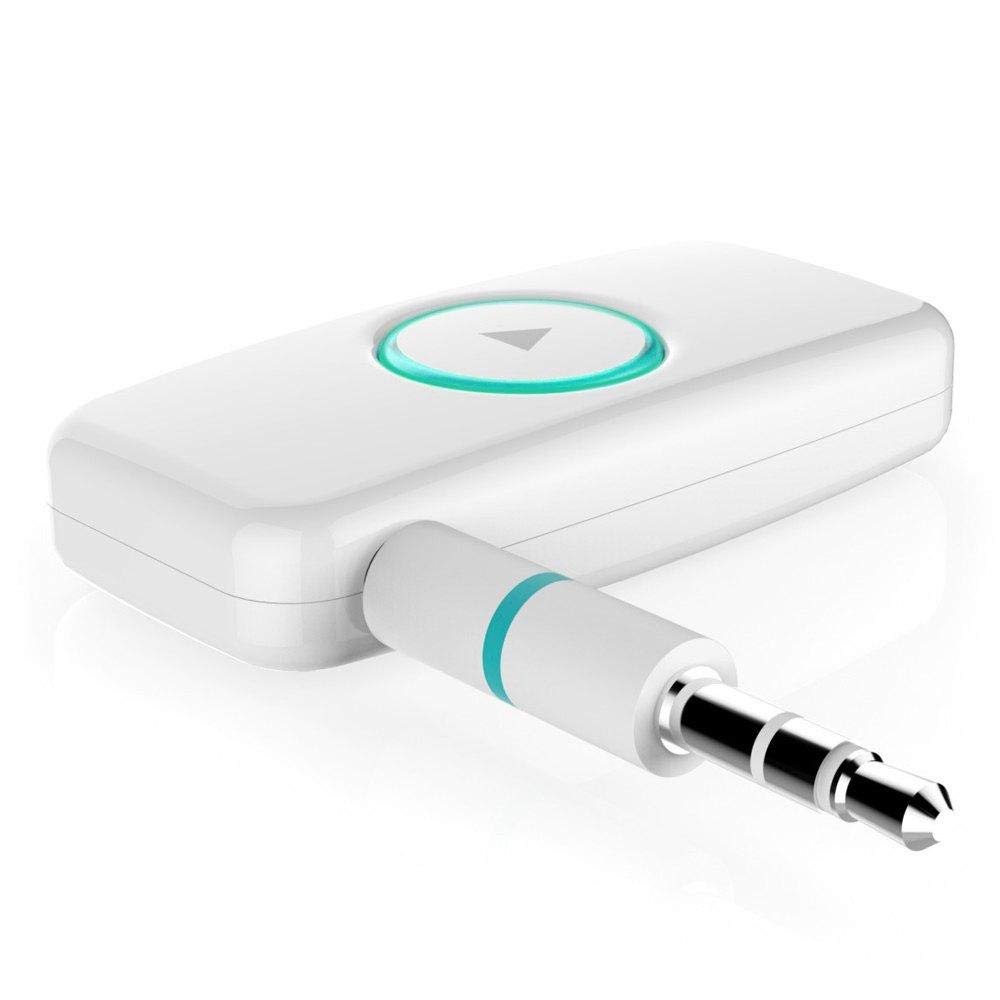
Figure 1: Front view of the DSER102 device.
- Multi-function Button: Power on/off, Play/Pause, Answer/End Call, Mode Switch.
- LED Indicator: Shows power, charging, and connection status.
- 3.5mm Audio Output/Input Port: Connects to audio devices.
- Micro USB Charging Port: For charging the internal battery.
Setup
1. Charging the Device
Before first use, fully charge the DSER102.
- Connect the Micro USB charging cable to the device's charging port.
- Connect the other end of the cable to a USB power adapter (not included) or a computer's USB port.
- The LED indicator will show red during charging and turn off when fully charged. A full charge takes approximately 2 hours and provides up to 16 hours of music playback.
2. Bluetooth Receiver Mode Setup
Use this mode to stream audio from your Bluetooth-enabled phone to a non-Bluetooth speaker or car stereo.
- Power On: Press and hold the Multi-function Button for 3 seconds until the LED indicator flashes blue rapidly, indicating pairing mode.
- Connect to Audio Device: Plug the DSER102 into the 3.5mm AUX input of your car stereo, home stereo, or speaker using the 3.5mm audio cable.
- Pair with Phone: On your mobile phone, enable Bluetooth and search for "DSER102" in the list of available devices. Select it to pair.
- Connection Confirmed: Once paired, the LED indicator will flash blue slowly. You can now play music from your phone through the connected audio device.
3. FM Transmitter Mode Setup
Use this mode to broadcast audio from the DSER102 to your car's FM radio.
- Power On: Press and hold the Multi-function Button for 3 seconds.
- Switch to FM Transmitter Mode: Double-press the Multi-function Button to switch modes. The LED indicator will change color or pattern (refer to device for specific indication).
- Tune FM Radio: On your car's FM radio, tune to an unused FM frequency (e.g., 87.5 MHz or 108.0 MHz).
- Set DSER102 Frequency: The DSER102 will transmit on a specific FM frequency. If adjustable, match the DSER102's frequency to your car radio's frequency. If not adjustable, find the frequency the DSER102 is broadcasting on and tune your car radio to it.
- Connect Audio Source: Connect your audio source (e.g., phone via Bluetooth) to the DSER102. The audio will now be transmitted to your car's FM radio.
Operating Instructions
Power On/Off
- Power On: Press and hold the Multi-function Button for approximately 3 seconds until the LED indicator lights up.
- Power Off: Press and hold the Multi-function Button for approximately 3 seconds until the LED indicator turns off.
Music Playback (Bluetooth Receiver Mode)
- Play/Pause: Short press the Multi-function Button.
Call Management (Bluetooth Receiver Mode)
- Answer/End Call: Short press the Multi-function Button.
- Reject Call: Press and hold the Multi-function Button for 2 seconds.
- Redial Last Number: Double-press the Multi-function Button.
Maintenance
- Clean the device with a soft, dry cloth. Do not use liquid cleaners or aerosols.
- Store the device in a cool, dry place when not in use.
- Avoid dropping or subjecting the device to strong impacts.
Troubleshooting
| Problem | Solution |
|---|---|
| Device does not power on. | Ensure the device is fully charged. Connect it to a power source using the Micro USB cable. |
| Cannot pair with Bluetooth device. | Make sure the DSER102 is in pairing mode (rapidly flashing blue LED). Ensure your phone's Bluetooth is enabled and within range. Try restarting both devices. |
| No audio in Bluetooth Receiver mode. | Check if the 3.5mm audio cable is securely connected to both the DSER102 and your audio system's AUX input. Ensure your audio system is set to the correct AUX input. Adjust volume on both devices. |
| Poor audio quality in FM Transmitter mode. | Find a clear, unused FM frequency on your car radio and match the DSER102's frequency to it. Avoid frequencies used by local radio stations. Reduce interference by moving the device away from other electronics. |
Specifications
- Model: DSER102
- Bluetooth Version: V4.0
- Battery Capacity: 250mAh Li-battery
- Music Playback Time: Up to 16 hours
- Charging Port: Micro USB
- Audio Output: 3.5mm AUX
- Dimensions: 1.4 x 4.6 x 3.7 cm
- Weight: 200 g
- Compatible Devices: Headphone, Smartphone, Speaker
Warranty and Support
For warranty information or technical support, please refer to the retailer where the product was purchased or visit the official Forge website. Keep your purchase receipt as proof of purchase.