
1. Introduction
This manual provides essential information for the setup, operation, and maintenance of your Samsung Q90 Series 65-Inch QLED 4K UHD Smart TV. Please read this manual thoroughly before using your TV to ensure proper and safe operation.
What's Included
- One Samsung Q90 Series 65-Inch QLED 4K UHD with HDR Smart TV, 2019 Model
- One Remote TM1950A with batteries
- One Power Cable
- One User Manual
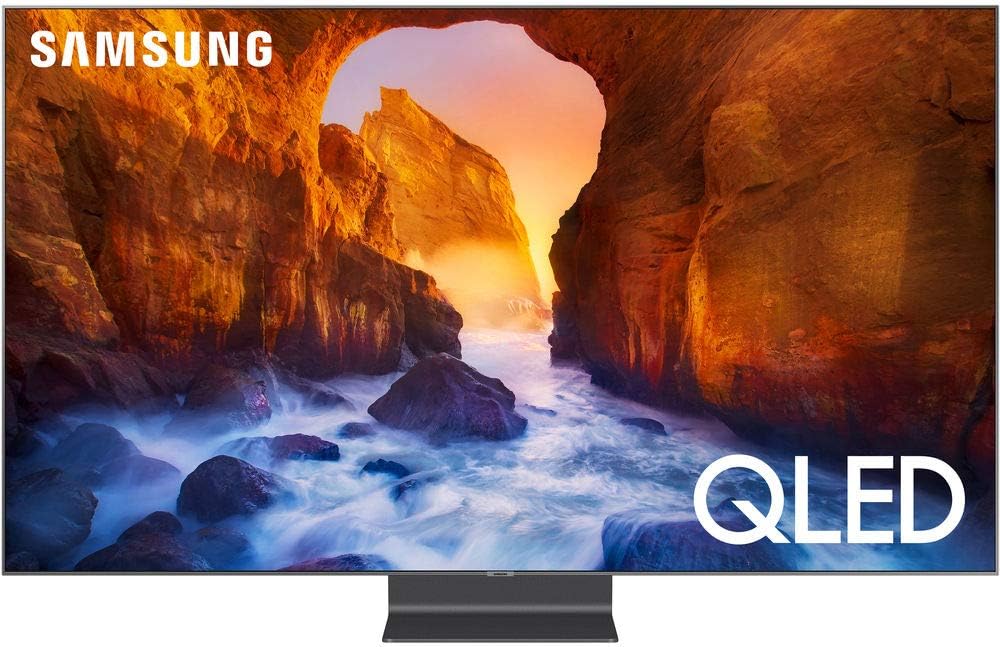
Figure 1.1: Samsung Q90 Series 65-Inch QLED 4K UHD Smart TV. This image displays the television unit with its sleek design and minimal bezels, showcasing the vibrant display.
2. Setup
Unboxing and Initial Placement
Carefully remove the TV and all accessories from the packaging. Place the TV on a stable, flat surface or mount it securely to a wall using a compatible VESA mount. Ensure adequate ventilation around the TV.
Dimensions and Weight
- TV dimensions (Without Stand): 57.1” W x 32.7” H x 1.6” D
- TV dimensions (With Stand): 57.1” W x 36.3” H x 11.2” D
- Display size: 64.5" Measured Diagonally
- TV weight: 62.4 lbs

Figure 2.1: Detailed dimensions of the Samsung Q90 Series TV, including width, height, and depth with and without the stand, along with the screen diagonal measurement.
Connecting Devices with the One Connect Box
The Samsung Q90 Series TV utilizes a One Connect Box to manage all external device connections. This allows for a cleaner setup with only a single, thin cable running to the TV display itself.
- Connect your HDMI devices (game consoles, cable boxes, Blu-ray players) to the HDMI ports on the One Connect Box.
- The One Connect Box also provides USB, Ethernet (LAN), and RF inputs.
- Connect the One Connect Cable from the box to the One Connect port on the TV.
Video 2.2: This video demonstrates the features and connectivity options of the Samsung Q90 Series TV, including the One Connect Box, highlighting its role in simplifying cable management and external device connections.
3. Operating Instructions
Using the One Remote
The included One Remote TM1950A is designed for intuitive control of your TV and connected devices. It features a minimalist design with essential buttons for navigation, volume, channel, and direct access to streaming services.
Smart Hub and Voice Control
Access the Smart Hub for all your apps, streaming services, and connected devices. The TV supports Bixby voice command, allowing you to control your TV and search for content using your voice. It also offers compatibility with Alexa and Google Assistant for smart home integration.
Picture Modes
Your Samsung Q90 Series TV offers various picture modes to optimize viewing for different content types and lighting conditions. These modes adjust brightness, contrast, color, and sharpness to enhance your viewing experience.
- Standard: Suitable for most viewing environments.
- Dynamic: Provides a brighter and more vibrant picture, ideal for well-lit rooms.
- Movie: Optimizes the picture for film content, aiming for cinematic accuracy.
- Game Mode: Reduces input lag for a more responsive gaming experience.
4. Key Features
QLED 4K UHD Display with Quantum Dots
Experience over a billion shades of brilliant color and 100% color volume. The QLED display, powered by Quantum Dots, delivers exceptional depth and detail, providing a stunning 4K TV experience with a resolution of 3,840 x 2,160.
Quantum Processor 4K and Quantum HDR 16x
The Quantum Processor 4K intelligently upscales content to 4K-level picture quality, even from non-native 4K sources. Quantum HDR 16x, powered by HDR10+, delivers intensely deep colors and super-fine details with astounding cinematic clarity.
Direct Full Array 16x and Ultra Viewing Angle
Concentrated zones of precision-controlled LEDs (Direct Full Array 16x) automatically adjust contrast between pure whites and ultra-deep blacks, revealing hidden details. The Ultra Viewing Angle reduces glare and enhances color, ensuring a vibrant picture from various seating positions.
Ambient Mode
When the TV is off, Ambient Mode allows you to customize the screen with meaningful images, décor patterns, lighting, info, photos, or artwork, helping the TV blend seamlessly with your home décor.

Figure 4.1: The Samsung Q90 Series TV integrated into a modern living room, showcasing its sleek design and how Ambient Mode can make it blend into the environment.
FreeSync VRR Technology
For gamers, the Samsung Q90 Series TV incorporates FreeSync VRR (variable refresh rate) technology, providing real-time lower-lag gaming speed and reducing screen tearing and stuttering.
5. Specifications
| Feature | Detail |
|---|---|
| Model Number | QN65Q90RA |
| Screen Size | 65 Inches (64.5" Measured Diagonally) |
| Display Technology | QLED |
| Resolution | 4K UHD (3,840 x 2,160) |
| Refresh Rate | 120 Hz |
| HDR Support | Quantum HDR 16x (HDR10+) |
| Backlight Type | Direct Full Array 16x |
| Processor | Quantum Processor 4K |
| Viewing Angle | Ultra Viewing Angle |
| Speaker Type | 4.2CH |
| Connectivity Technology | Bluetooth, HDMI (4), USB (3), Wireless, Ethernet (LAN) |
| Voice Assistant | Bixby, Alexa compatibility, Google Assistant compatibility |
| Included Components | Power Cable, QLED Standard Smart Remote, Samsung Smart Control, Stand |
| Item Weight | 76.9 Pounds |
| Product Dimensions (with stand) | 11.2"D x 57.1"W x 36.3"H |
6. Maintenance
Cleaning the Screen
- Gently wipe the screen with a soft, dry microfiber cloth.
- For stubborn smudges, lightly dampen the cloth with water or a screen-specific cleaning solution (avoid harsh chemicals).
- Do not spray liquid directly onto the screen.
General Care
- Keep the TV away from direct sunlight and heat sources.
- Ensure proper ventilation around the TV to prevent overheating.
- Avoid placing heavy objects on top of the TV.
7. Troubleshooting
No Power
- Check if the power cable is securely connected to the TV and the power outlet.
- Ensure the power outlet is functioning by plugging in another device.
- Press the power button on the TV itself, not just the remote.
No Picture/Sound
- Verify that the correct input source is selected on the TV.
- Check all cable connections between external devices and the One Connect Box.
- Ensure external devices are powered on.
Remote Control Not Working
- Replace the batteries in the One Remote.
- Ensure there are no obstructions between the remote and the TV.
- Try re-pairing the remote with the TV if the issue persists (refer to the on-screen e-Manual for instructions).
8. Warranty and Support
For detailed warranty information, please refer to the warranty card included with your purchase or visit the official Samsung website. For technical support, product registration, or service requests, please contact Samsung Customer Service.
- Samsung Support Website: www.samsung.com/us/support/
- Customer Service Phone: Refer to your region-specific Samsung support contact details.