
Sony XBR43X800G
Sony XBR-43X800G 43" 4K UHD LED Smart Android TV with HDR (2019) User Manual
Model: XBR43X800G
Introduction
This manual provides essential information for setting up, operating, and maintaining your Sony XBR-43X800G 4K UHD LED Smart Android TV. Please read this manual thoroughly before using the television to ensure proper and safe operation. This television is designed to deliver crisp, realistic details and an immersive viewing experience with 4K HDR technology, Android TV, and Google Assistant built-in.

Figure 1: Sony XBR-43X800G 43-inch 4K UHD LED Smart Android TV.
What's in the Box
Verify that all components are present before proceeding with the setup.
- Television Unit
- Stands (2 pieces)
- Remote Control
- Batteries (for remote control)
- Power Cord
- IR Blaster
- Quick Setup Guide
- Operating Instructions (this manual)
Setup
1. Attaching the Stands
Carefully place the TV screen-down on a soft, clean surface to prevent damage. Align each stand with the corresponding slots on the bottom of the TV. Secure the stands using the provided screws. Ensure the stands are firmly attached before placing the TV upright.
2. Connecting Peripherals
Connect your external devices such as cable boxes, Blu-ray players, gaming consoles, and sound systems to the appropriate ports on the back of the TV. The TV features multiple HDMI inputs, USB ports, and audio outputs.
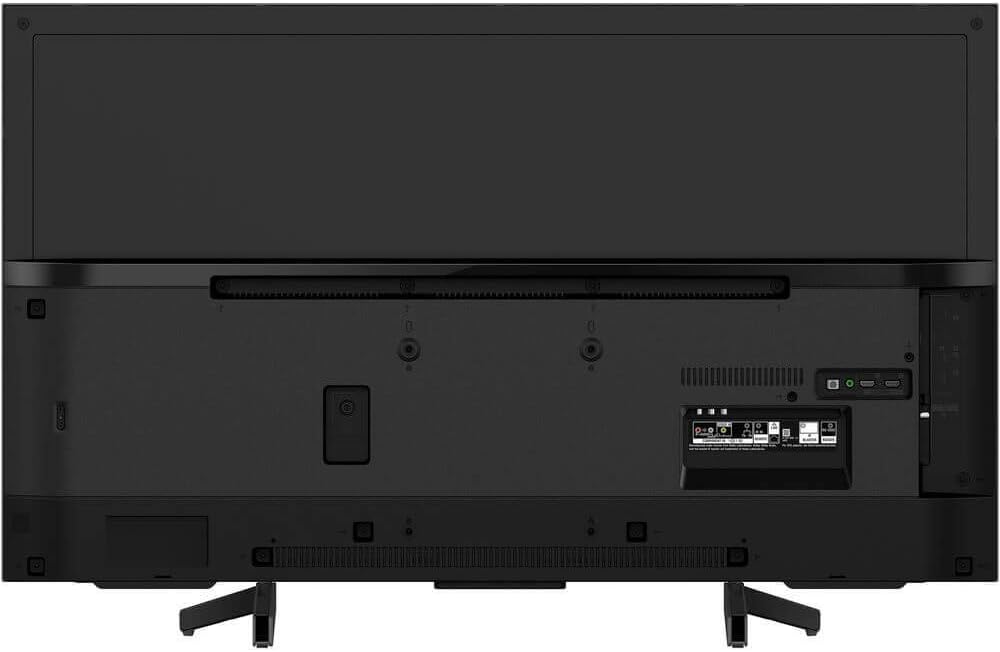
Figure 2: Rear panel connections of the television.
- HDMI: For high-definition video and audio. Use the HDMI ARC port for soundbars or AV receivers.
- USB: For connecting USB storage devices to view photos, videos, or listen to music.
- LAN (Ethernet): For a wired internet connection.
- Digital Audio Out (Optical): For connecting to a sound system with an optical input.
- Antenna/Cable In: For connecting an antenna or cable TV.
3. Power Connection
Plug the power cord into the TV's power input, then plug the other end into a wall outlet. The TV will enter standby mode.
4. Initial Setup Wizard
Upon first power-on, the TV will guide you through an initial setup wizard. This includes language selection, network connection (Wi-Fi or wired), Google account sign-in, and channel scanning.
Operating Instructions
Basic Operation
- Power On/Off: Press the power button on the remote control or the TV.
- Input Selection: Use the "Input" button on the remote to switch between connected devices (HDMI 1, HDMI 2, TV, etc.).
- Volume Control: Use the Volume +/- buttons.
- Channel Selection: Use the Channel +/- buttons or the number pad.
- Home Screen: Press the "Home" button to access the Android TV home screen, where you can find apps, settings, and inputs.
Key Features
- 4K X-Reality PRO: This technology upscales images closer to true 4K quality, enhancing clarity and detail.
- 4K HDR (High Dynamic Range): Provides a wider range of colors and contrast, from the darkest blacks to the brightest whites, for a more lifelike picture.
- Android TV with Google Assistant: Access a vast library of apps from the Google Play Store. Use the built-in Google Assistant for voice commands to search for content, control smart home devices, and more.
Video: Sony 4K Ultra HD LED TV (2019 Model) - Demonstrates key features including picture quality and voice search functionality.
- Chromecast built-in: Easily cast your favorite entertainment from your personal device (smartphone, tablet, computer) directly to the TV screen.
- ClearAudio+: Fine-tunes TV sound for an immersive and enriching audio experience.
- Motionflow XR 240: Ensures smooth and sharp details, especially in fast-moving scenes, by inserting extra frames between the original ones.
Picture Modes
The TV offers various picture modes to optimize viewing for different content types:
- Vivid
- Standard
- Custom
- Theater Pro
- Theater Home
- Sports
- Animation
- Photo-Vivid
- Photo-Standard
- Photo-Custom
- Game
- Graphics
You can select these modes from the Picture Settings menu to best suit your viewing environment and content.
Maintenance
Cleaning the Screen
Gently wipe the screen with a soft, dry microfiber cloth. For stubborn smudges, lightly dampen the cloth with water or a screen-cleaning solution specifically designed for electronics. Avoid using harsh chemicals, abrasive materials, or excessive pressure.
Cleaning the Cabinet
Wipe the TV cabinet with a soft, dry cloth. Do not use any liquid cleaners directly on the cabinet.
Ventilation
Ensure adequate ventilation around the TV to prevent overheating. Do not block the ventilation openings on the back or sides of the TV.
Troubleshooting
This section addresses common issues you might encounter. For more complex problems, refer to the online support resources or contact Sony customer service.
| Problem | Possible Cause / Solution |
|---|---|
| No power / TV does not turn on. |
|
| No picture / Poor picture quality. |
|
| No sound / Poor sound quality. |
|
| Remote control not working. |
|
| Wi-Fi connectivity issues. |
|
Specifications
| Feature | Detail |
|---|---|
| Brand | Sony |
| Model Number | XBR43X800G |
| Screen Size | 43 Inches (110 cm diagonal) |
| Display Technology | LED |
| Resolution | 4K UHD (3840 x 2160) |
| Refresh Rate | 60Hz (Motionflow XR 240) |
| Aspect Ratio | 16:9 |
| Connectivity Technology | Wireless (Wi-Fi), Ethernet |
| Operating System | Android TV |
| Dimensions (Without Stand) | 38 1/4" (W) x 22 1/2" (H) x 2 1/4" (D) |
| Dimensions (With Stand) | 38 1/4" (W) x 24 7/8" (H) x 10 1/4" (D) |
| Item Weight | Approximately 1 pound (Note: This weight seems incorrect based on typical TV weights, likely a data entry error in source. Refer to product packaging for accurate weight.) |
| Included Components | Television, Remote |
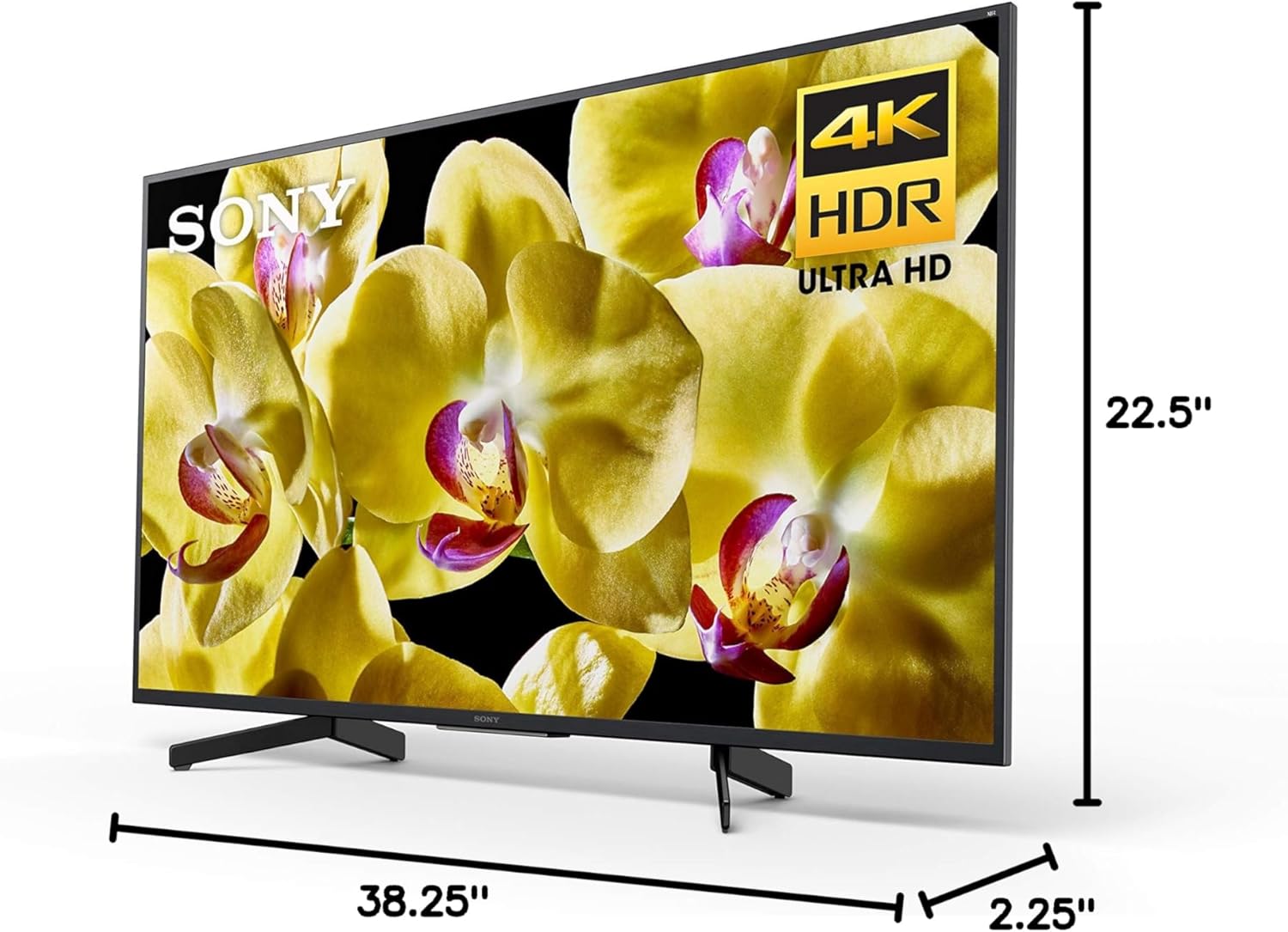
Figure 3: Product Dimensions.
Warranty and Support
Your Sony XBR-43X800G television comes with a manufacturer's warranty. Please refer to the warranty card included with your product for specific terms and conditions. For technical support, troubleshooting assistance, or service inquiries, please visit the official Sony support website or contact Sony customer service. Keep your purchase receipt as proof of purchase for warranty claims.
For additional information and resources, you may visit the Sony Store on Amazon.
Ask a question about this manual
Ask about setup, troubleshooting, compatibility, parts, safety, or missing instructions. Manuals+ will review the question and use this page’s manual context to help answer it.