
HP TPC W043 MT
HP Desktop PC User Manual
Model: TPC W043 MT
1. Product Overview
The HP TPC W043 MT is a micro tower desktop designed for everyday computing tasks. It features an Intel Pentium Dual Core G4400 processor, 4GB DDR4 RAM, and a 1TB hard drive, providing a solid foundation for productivity and entertainment. This manual will guide you through its features and functionalities.
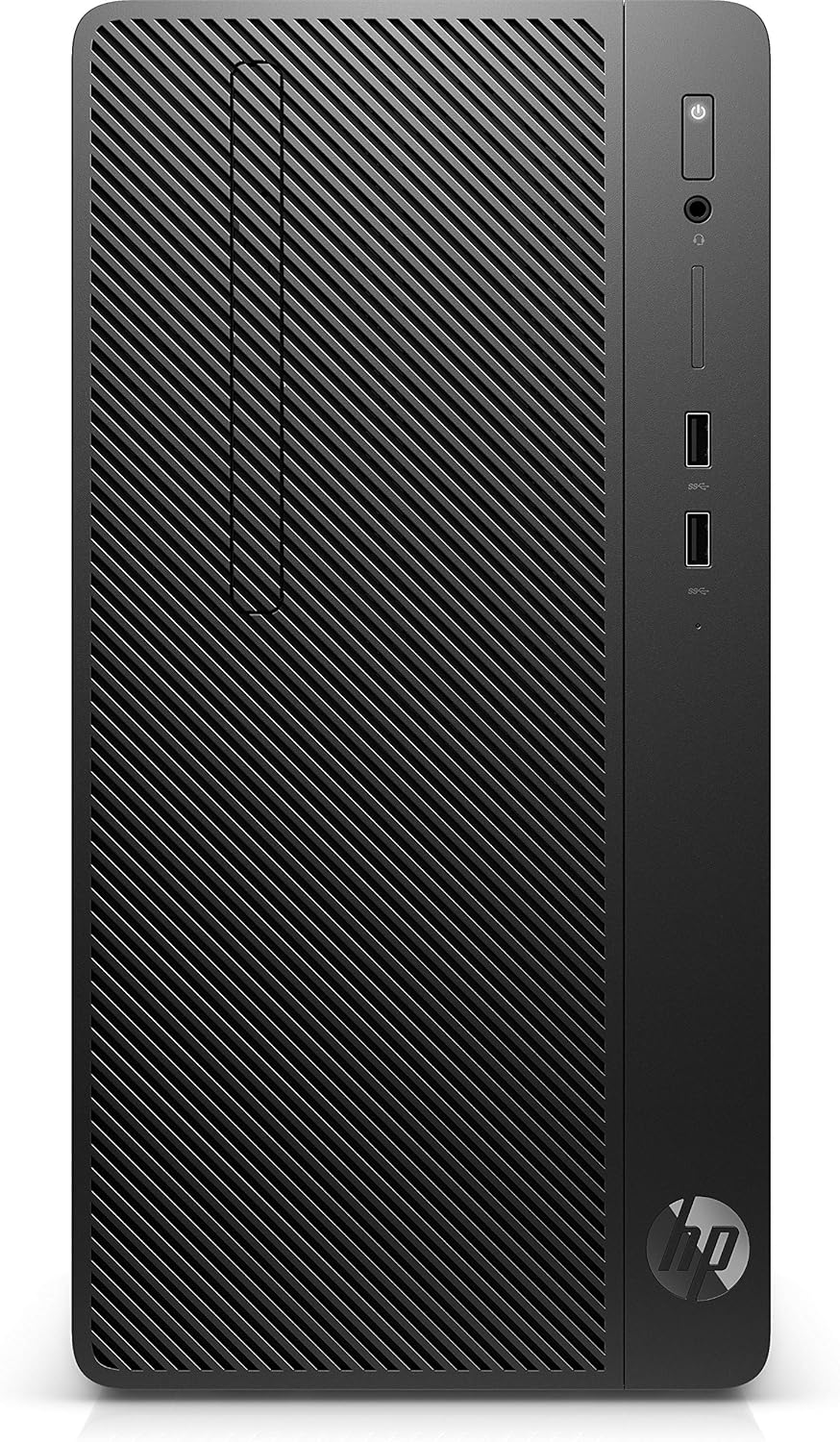
Figure 1.1: Front view of the HP TPC W043 MT Micro Tower Desktop PC, showcasing its compact design and front ports.
Key Features:
- Intel Pentium Dual Core G4400 Processor
- 4GB DDR4 RAM for efficient multitasking
- 1TB Hard Disk Drive for ample storage
- Integrated Graphics for visual output
Package Contents:
Ensure all the following items are present in your package:
- HP TPC W043 MT Desktop Unit
- Keyboard
- Mouse
- Power Cable (not explicitly listed but implied for operation)
2. Initial Setup
Follow these steps to set up your HP Desktop PC for the first time.
- Unpacking: Carefully remove the desktop unit and all accessories from the packaging. Place the desktop on a stable, flat surface with adequate ventilation.
- Connecting Peripherals:
- Connect the supplied keyboard to an available USB port on the desktop.
- Connect the supplied mouse to another available USB port.
- Connect your monitor to the appropriate video output port (e.g., VGA, HDMI) on the back of the desktop.
- Connecting Power: Insert the power cable into the power connector on the back of the desktop, then plug the other end into a grounded electrical outlet.
- First Boot: Press the power button located on the front of the desktop. The system will begin the boot process. Follow any on-screen instructions for initial operating system setup (DOS).

Figure 2.1: Angled view of the HP TPC W043 MT Micro Tower Desktop PC, illustrating its form factor and port locations.
3. Operating Instructions
This section covers basic operation of your HP Desktop PC.
Powering On/Off:
- To Power On: Press the power button on the front of the desktop.
- To Power Off: If running DOS, you may need to use a command like
shutdownor simply power off by holding the power button for a few seconds. For other operating systems, use the standard shutdown procedure.
Using the Operating System (DOS):
Your desktop comes with DOS (Disk Operating System) pre-installed. This is a command-line interface. To interact with the system, you will type commands at the prompt.
- Basic Commands: Familiarize yourself with basic DOS commands such as
DIR(list directory contents),CD(change directory),COPY(copy files),DEL(delete files), andEDIT(text editor). - Installing Software: Software for DOS typically comes on floppy disks or CDs. You will need to navigate to the drive containing the installation files and run the setup program.
4. Maintenance Guidelines
Regular maintenance helps ensure the longevity and optimal performance of your desktop PC.
- Cleaning:
- Keep the desktop clean and free of dust. Use a soft, dry cloth to wipe exterior surfaces.
- Periodically use compressed air to clear dust from vents and internal components (ensure the PC is powered off and unplugged).
- Ventilation: Ensure that the desktop's vents are not blocked to allow for proper airflow and prevent overheating. Maintain adequate space around the unit.
- Software Updates: While DOS does not have frequent updates like modern operating systems, ensure any installed applications or drivers are up-to-date if applicable.
- Data Backup: Regularly back up important data to an external drive or other storage media to prevent data loss.
5. Troubleshooting Common Issues
This section provides solutions to common problems you might encounter.
| Problem | Possible Cause | Solution |
|---|---|---|
| Desktop does not power on. | No power, loose cable, faulty power supply. | Check power cable connection to desktop and outlet. Ensure outlet is functional. Try a different power cable if available. |
| No display on monitor. | Monitor not connected, monitor off, incorrect input source. | Ensure monitor is powered on and connected to the desktop. Check monitor's input source setting. |
| Keyboard or mouse not responding. | Loose connection, faulty peripheral, driver issue. | Check USB connections. Try connecting to a different USB port. Test with another keyboard/mouse if available. |
| System freezes or crashes. | Overheating, software conflict, hardware issue. | Ensure proper ventilation. Restart the system. If persistent, consider professional diagnosis. |
6. Technical Specifications
Detailed specifications for the HP TPC W043 MT Desktop PC.
| Feature | Specification |
|---|---|
| Brand | HP |
| Model Name | TPC W043 MT |
| Form Factor | Tower |
| Processor Brand | Intel |
| Processor Type | Athlon 64 X2 Dual Core 4400 (Note: Product description mentions Pentium Dual Core G4400, please verify) |
| Processor Speed | 3 GHz |
| Processor Count | 2 |
| RAM Size | 4 GB |
| Memory Technology | DDR4 |
| Hard Drive Size | 1 TB |
| Hard Disk Description | HDD |
| Graphics Coprocessor | Integrated Graphics |
| Graphics Chipset Brand | Intel |
| Operating System | DOS |
| Connectivity Type | Wi-Fi |
| Included Components | Keyboard, Mouse |
| Item Weight | 7 kg 800 g |
| Package Dimensions | 49.5 x 40 x 28.3 cm |
| Date First Available | 19 January 2020 |
7. Warranty and Support
Warranty Information:
This HP product is covered by a standard limited warranty. Please refer to the warranty card included with your purchase or visit the official HP website for detailed terms and conditions regarding coverage, duration, and service procedures. Keep your proof of purchase for warranty claims.
Customer Support:
For technical assistance, troubleshooting beyond this manual, or service inquiries, please contact HP Customer Support. You can typically find contact information (phone numbers, support websites) on the HP official website or in the documentation provided with your product. When contacting support, have your product model number (TPC W043 MT) and serial number ready.
Ask a question about this manual
Ask about setup, troubleshooting, compatibility, parts, safety, or missing instructions. Manuals+ will review the question and use this page’s manual context to help answer it.