
1. Introduction
This manual provides detailed instructions for the setup, operation, and maintenance of your TUOSHI N300 WiFi Unlocked 4G LTE Modem Router (Model LT15F). This device is designed to provide high-speed 4G LTE internet access and create a reliable Wi-Fi network for multiple devices.

Image 1.1: Front view of the TUOSHI N300 WiFi Unlocked 4G LTE Modem Router LT15F.
2. Package Contents
Verify that all items are present in your product package:
- 1 x TUOSHI 4G Wireless Router (LT15F)
- 1 x Network Cable
- 1 x Power Adapter
- 1 x Nano-SIM Adapter
- 1 x Instruction Manual
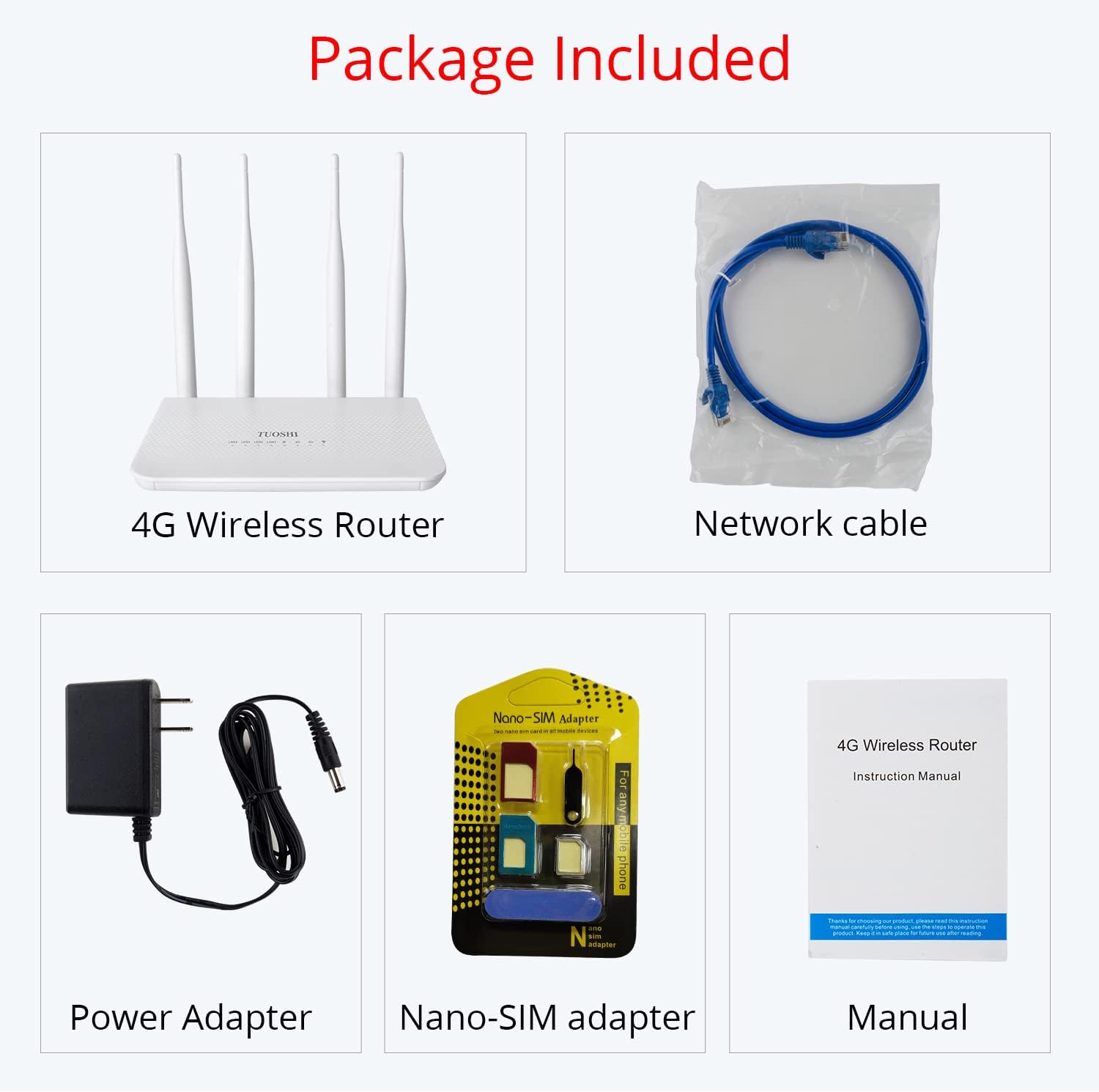
Image 2.1: All items included in the product package.
3. Product Overview
Familiarize yourself with the ports and indicators on your router:

Image 3.1: Rear view of the router with labeled ports and slots.
- DC Port: Connect the provided power adapter here.
- RESET Button: Press and hold to restore factory settings.
- LAN 1-4 Ports: Connect wired devices such as computers, switches, or security cameras.
- Micro-SIM Card Slot: Insert your 4G LTE Micro-SIM card here.
4. Setup
4.1. SIM Card Installation
- Identify the correct SIM card size. The router uses a Micro-SIM card (12 x 15 mm). If you have a Nano-SIM, use the provided adapter.
- Ensure the router is powered off.
- Locate the Micro-SIM card slot on the side of the router.
- Insert the Micro-SIM card with the chip facing down and the notched corner oriented correctly, pushing it gently until it clicks into place.

Image 4.1: Correct orientation for Micro-SIM card insertion.
4.2. Power Connection
- Connect the provided power adapter to the DC port on the router.
- Plug the other end of the power adapter into a standard electrical outlet.
- The router will power on automatically, and indicator lights will illuminate.
4.3. Initial Wi-Fi Connection
- Once the router is powered on and the 4G indicator is stable, locate the Wi-Fi network name (SSID) and password (WLAN Key) on the label at the bottom of the router.
- On your Wi-Fi enabled device (smartphone, laptop, tablet), search for available Wi-Fi networks.
- Select the SSID matching your router's label and enter the WLAN Key to connect.
Video 4.1: Demonstrates the basic operation and initial Wi-Fi connection process.
5. Operating Instructions
5.1. Accessing the Web Management Interface
To configure advanced settings, including APN, Wi-Fi name, and password, access the router's web management interface:
- Ensure your device is connected to the router's Wi-Fi network or via an Ethernet cable.
- Open a web browser and enter the default IP address (usually
192.168.1.1or192.168.0.1) found on the router's label. - Enter the default username and password (usually
adminfor both) as indicated on the router's label.
5.2. Configuring APN Settings
In some cases, you may need to manually configure the Access Point Name (APN) for your SIM card to connect to the 4G network. Refer to your mobile carrier for the correct APN details.
- Navigate to the "Network Setting" > "4G Setting" section in the web management interface.
- If "APN Manual Switch" is OFF, click to turn it ON.
- Click the "+" button to create a new profile.
- Enter a "Profile Name" (e.g., your carrier's name).
- Input the APN, Dial Number, Username, and Password provided by your mobile carrier.
- Click "Apply" to save the settings.

Image 5.1: Steps for configuring APN settings in the router's web interface.
5.3. Connecting Multiple Devices
The router supports connecting up to 32 Wi-Fi devices simultaneously, making it suitable for home or small office environments.

Image 5.2: The router can connect up to 32 devices wirelessly.
6. Maintenance
- Keep the router in a well-ventilated area to prevent overheating.
- Clean the device regularly with a soft, dry cloth. Avoid liquid cleaners.
- Ensure the power adapter is securely connected and free from damage.
- Periodically check for firmware updates through the web management interface to ensure optimal performance and security.
7. Troubleshooting
7.1. No Internet Connection
- Check SIM Card: Ensure the SIM card is correctly inserted and activated with your mobile carrier.
- Check APN Settings: Verify that the APN settings are correctly configured in the web management interface (refer to Section 5.2).
- Signal Strength: Check the 4G signal indicator on the router. If the signal is weak, try relocating the router.
- Reboot: Power cycle the router by unplugging and replugging the power adapter.
7.2. Unable to Connect to Wi-Fi
- Check Wi-Fi Indicator: Ensure the Wi-Fi indicator light on the router is on.
- Correct Password: Verify you are entering the correct Wi-Fi password (WLAN Key) from the router's label.
- Device Proximity: Move your device closer to the router to rule out range issues.
7.3. Slow Internet Speed
- Signal Strength: A weak 4G signal can lead to slow speeds. Try repositioning the router.
- Network Congestion: High network traffic from your mobile carrier or too many connected devices can affect speed.
- Data Plan: Ensure your data plan has sufficient speed and data allowance.
8. Specifications
| Feature | Specification |
|---|---|
| Model Number | LT15F |
| Product Dimensions | 12.5 x 6.3 x 1 inches |
| Item Weight | 15.2 ounces |
| Brand | TUOSHI |
| Model Name | N300 WiFi Unlocked 4G LTE Modem Router |
| Special Feature | WPS |
| Frequency Band Class | Single-Band |
| Wireless Communication Standard | 802.11n |
| Compatible Devices | Security Camera |
| Recommended Uses For Product | Home |
| Connectivity Technology | LTE, Wi-Fi |
| Antenna Type | Retractable (4 x 5dBi High Gain Antennas) |
9. Warranty and Support
For warranty information and technical support, please refer to the warranty card included in your package or contact TUOSHI customer service directly. Contact details can typically be found on the manufacturer's official website or through your purchase platform.