Introduction
The Eve Light Strip is a smart LED lighting solution designed to enhance your home environment with customizable full-spectrum white and color lighting. This device integrates seamlessly with Apple HomeKit, allowing control via Siri or the Eve app on your iPhone, iPad, or Apple Watch. This manual provides essential information for the safe and effective use of your Eve Light Strip.
Safety Information
- Ensure the power supply is disconnected before installation or maintenance.
- Do not expose the light strip or power supply to water or excessive moisture. This product is designed for indoor use only.
- Avoid bending the light strip sharply, as this may damage the internal components.
- Only use the provided power supply with the Eve Light Strip.
- Keep out of reach of children.
Package Contents
- Eve Light Strip
- Power Supply
- Quick Start Guide
Setup
1. Physical Installation
The Eve Light Strip can be cut at 30 cm (11.8 in) intervals to fit your desired length or extended up to 10 m (32.8 ft) using optional 2 m (6.6 ft) extension strips. The back of the light strip features an adhesive for easy mounting on clean, dry surfaces such as cabinets, skirting boards, shelving, or stairways.

Image: The Eve Light Strip connected to its power supply, alongside an iPhone displaying the Apple HomeKit app interface for controlling the light strip's power, color, and brightness settings.
2. Power Connection
Connect the Eve Light Strip to the provided power supply, then plug the power supply into a standard electrical outlet.
3. Apple HomeKit Setup
To integrate your Eve Light Strip with Apple HomeKit, ensure your iPhone or iPad is running the latest version of iOS/iPadOS. Open the Home app, tap the '+' icon, and select 'Add Accessory'. Scan the HomeKit setup code located on the light strip or its packaging. Follow the on-screen prompts to assign the light strip to a room and customize its name.
Video: A quick guide demonstrating how to set up an Eve smart home device with Apple HomeKit in 60 seconds, highlighting the ease of installation and integration.
Wi-Fi Requirements:
- Ensure your router's 2.4 GHz band is enabled.
- Your iPhone should be connected to the 2.4 GHz band during the initial setup. You may reconnect to the 5 GHz band afterward.
- The DHCP function must be active on your router.
- MAC address authentication must be deactivated.
- The Bonjour protocol (Multicast) must be enabled on your Wi-Fi router and any additional access points. Disable any network tools like "Storm Control" that restrict multicast.
Operating Instructions
1. Controlling with the Eve App or Siri
Once set up, you can control your Eve Light Strip using the Eve app or Apple's Home app. You can manually switch the light strip on/off, adjust its brightness, or select from millions of colors and various shades of white. Use Siri commands like "Hey Siri, turn on the [Light Strip Name]" or "Hey Siri, set [Light Strip Name] to blue."
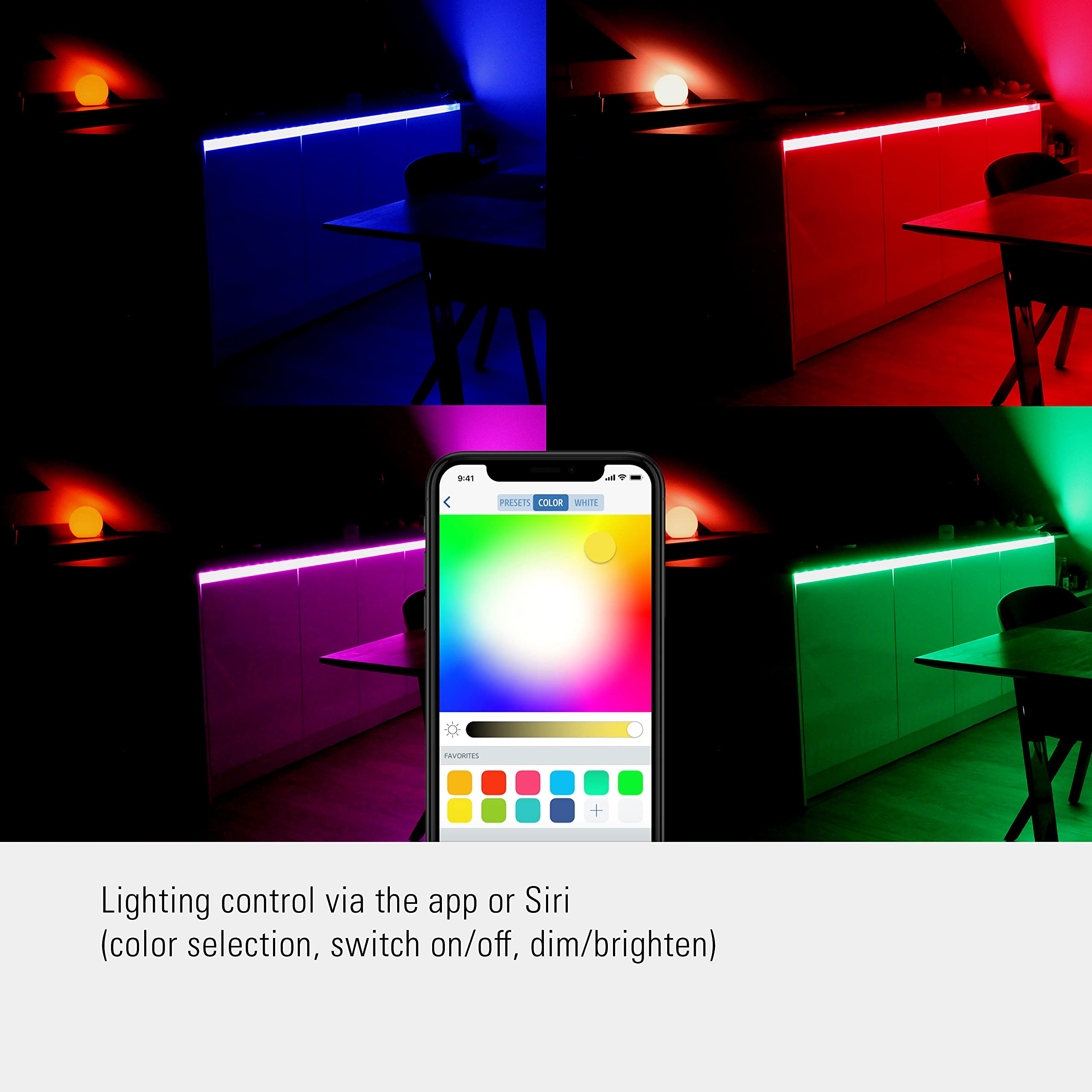
Image: An iPhone screen showing the Eve app's color selection interface, allowing users to choose from a wide spectrum of colors and adjust brightness for their light strip.
2. Adaptive Lighting
The Eve Light Strip supports HomeKit Adaptive Lighting, which automatically adjusts the color temperature throughout the day to mimic natural light patterns. This feature promotes well-being and can be enabled within the Home app.
3. Scene and Automation Integration
Integrate your light strip into HomeKit scenes and automations with other HomeKit-enabled devices. For example, create a "Movie Night" scene that dims the lights and changes their color, or set an automation to turn on the lights when you arrive home.
Video: A demonstration of Eve lighting products, showcasing various lighting effects and colors in different home settings, emphasizing their versatility and integration with smart home systems.
4. Usage Examples

Image: An Eve Light Strip installed behind a bed, casting a warm, ambient glow across the wall and ceiling in a bedroom setting.

Image: An Eve Light Strip installed under a bathroom vanity and behind a mirror, providing accent lighting that highlights the modern design of the space.

Image: An Eve Light Strip installed behind a sofa in a living room, emitting a soft, warm light that creates a cozy and inviting atmosphere.

Image: An Eve Light Strip installed under kitchen cabinets, providing bright, even illumination for task lighting on the countertop.
Maintenance
To maintain the performance and appearance of your Eve Light Strip, periodically wipe it with a soft, dry cloth. Do not use abrasive cleaners or solvents. Ensure the light strip and power supply are clean and free from dust buildup.
Troubleshooting
Light Strip Not Responding:
- Check if the power supply is securely plugged into both the light strip and the wall outlet.
- Ensure your Wi-Fi network meets the requirements outlined in the Setup section (2.4 GHz band, DHCP, Bonjour protocol).
- Restart your Wi-Fi router and the Eve Light Strip by unplugging and replugging it.
- Verify that your iPhone/iPad is connected to the same Wi-Fi network as the Eve Light Strip.
- If issues persist, try resetting the light strip (refer to the Quick Start Guide for specific reset instructions) and re-adding it to HomeKit.
Adhesive Not Sticking:
- Ensure the mounting surface is clean, dry, and smooth before applying the light strip.
- Apply firm pressure along the entire length of the strip during installation to ensure proper adhesion.
- For rough or porous surfaces, additional adhesive solutions may be required (not included).
Specifications
| Brand | Eve |
| Model Number | 813180020627 |
| Light Source Type | LED |
| Luminosity | 1800 lumens (900 lm per meter at 4200K) |
| Color Temperature | Full-spectrum white and millions of colors, up to 6500 Kelvin |
| Voltage | 24 Volts |
| Wattage | 24 watts |
| Control Method | App, Voice (Siri) |
| Smart Home Compatibility | Apple HomeKit |
| Indoor/Outdoor Usage | Indoor |
| Material | Plastic |
Warranty
The Eve Light Strip comes with a 1-year manufacturer's warranty. Please retain your proof of purchase for warranty claims. For detailed warranty terms and conditions, refer to the official Eve website or contact customer support.
Customer Support
For further assistance, technical support, or inquiries, please visit the official Eve Systems website or contact their customer service team. Contact details can typically be found on the product packaging or the manufacturer's website.


