
Supersonic IQ-1525BT-RD
IQ Sound IQ-1525BT Wireless Bluetooth Speaker User Manual
Model: IQ-1525BT-RD | Brand: Supersonic
1. Introduction
Thank you for purchasing the IQ Sound IQ-1525BT Wireless Bluetooth Speaker. This manual provides important information regarding the setup, operation, maintenance, and troubleshooting of your new speaker. Please read this manual thoroughly before using the product to ensure proper function and to extend its lifespan.
The IQ-1525BT is a portable wireless speaker designed to deliver rich stereo sound with enhanced bass, featuring Bluetooth V4.0 connectivity, FM radio, and multiple input options including USB, MicroSD, AUX, and microphone input.

Figure 1.1: Front view of the IQ Sound IQ-1525BT Wireless Bluetooth Speaker.
2. Safety Instructions
- Do not expose the speaker to extreme temperatures, direct sunlight, or high humidity.
- Avoid dropping or subjecting the speaker to strong impacts.
- Do not disassemble, repair, or modify the unit yourself. Refer all servicing to qualified personnel.
- Keep the speaker away from water or other liquids to prevent electric shock or damage.
- Use only the specified charging voltage (DC 5V) and charger.
- Clean the speaker only with a dry, soft cloth. Do not use liquid cleaners or aerosols.
- Ensure proper ventilation around the speaker during use.
3. Package Contents
Please check the package for the following items:
- IQ Sound IQ-1525BT Wireless Bluetooth Speaker
- USB Charging Cable
- User Manual
4. Product Overview
4.1 Controls and Ports
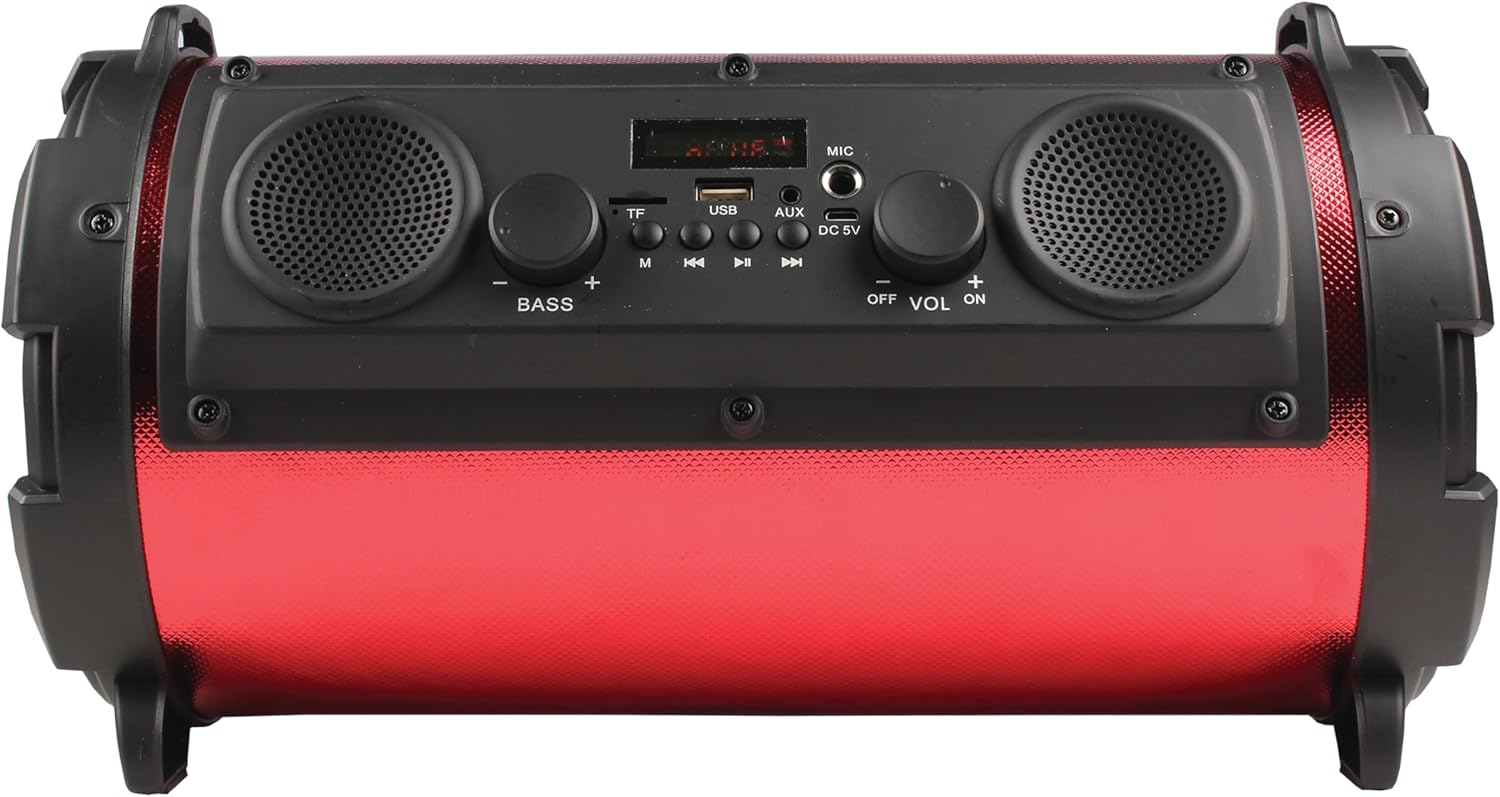
Figure 4.1: Top control panel of the speaker.
- TF Card Slot: For MicroSD card playback.
- USB Port: For USB drive playback.
- AUX Input: 3.5mm jack for external audio devices.
- DC 5V: Power input for charging.
- MIC Input: 6.35mm jack for microphone.
- Bass Knob: Adjusts bass level.
- M (Mode) Button: Switches between Bluetooth, FM, USB/MicroSD, and AUX modes.
- Previous/Volume Down Button: Short press for previous track, long press for volume down.
- Play/Pause Button: Plays or pauses audio. In FM mode, short press to auto-scan.
- Next/Volume Up Button: Short press for next track, long press for volume up.
- OFF/VOL ON Knob: Power on/off and master volume control.
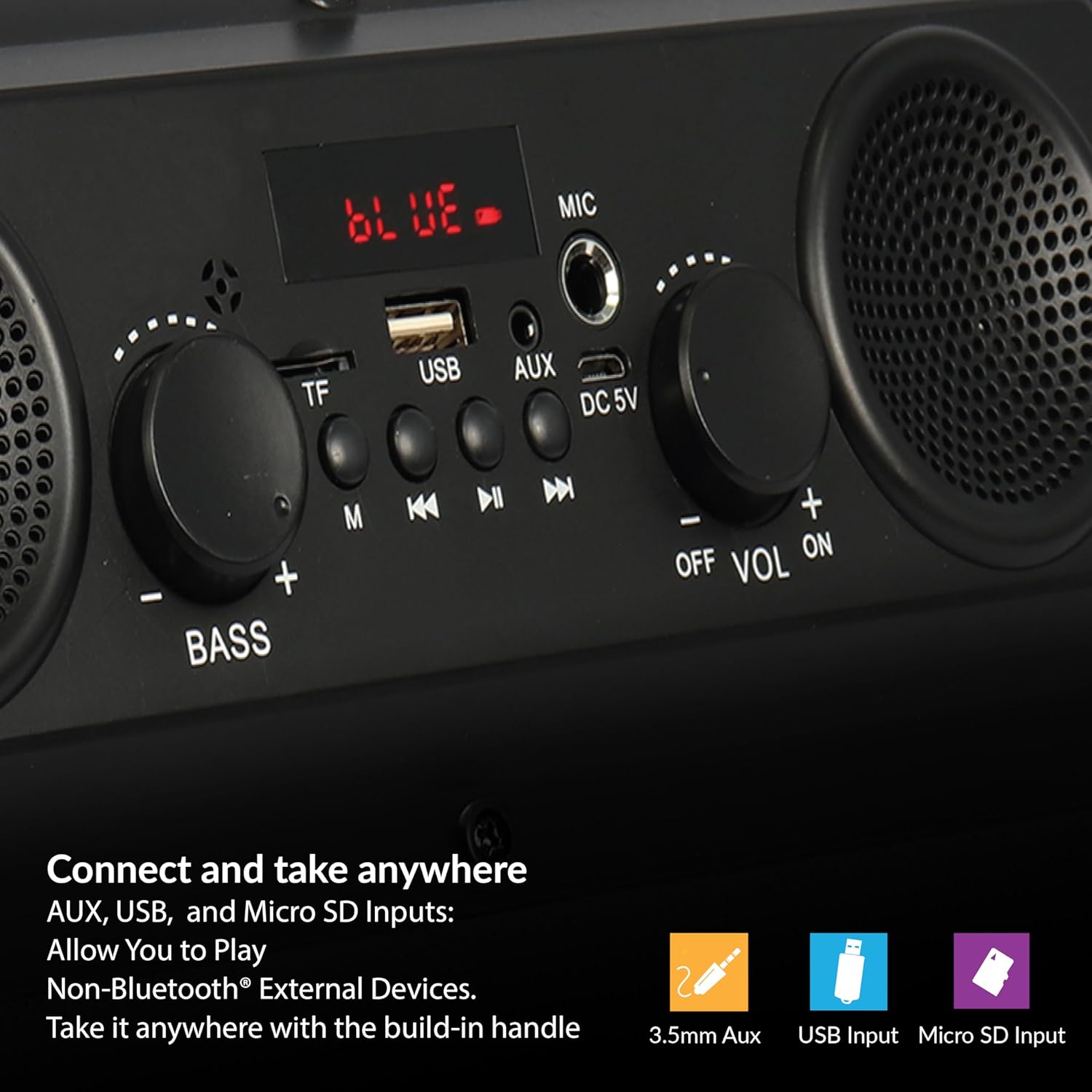
Figure 4.2: Detailed view of input ports.
4.2 Key Features
- Impressive Sound Quality: Features one 5-inch and two 2-inch built-in speakers for powerful stereo audio.
- Powerful Bass: Equipped with a full-range speaker and passive radiator for deep, resonant bass.
- Portable Design: Lightweight and portable, ideal for on-the-go entertainment.
- Bluetooth V4.0 Connectivity: Seamlessly connects with Bluetooth-enabled devices.
- Versatile Input Options: Supports USB, MicroSD, AUX, and microphone inputs, along with an FM tuner.
- Rechargeable Battery: Built-in 3.7V, 2400 mAh rechargeable battery for extended playtime.
- Wireless Range: Up to 32.8 feet (10 meters) wireless range.

Figure 4.3: Passive Radiator for enhanced bass.

Figure 4.4: Bluetooth connectivity.
5. Setup
5.1 Initial Charging
Before first use, fully charge the speaker. Connect the supplied USB charging cable to the DC 5V port on the speaker and the other end to a USB power adapter (not included) or a computer USB port. The charging indicator light will illuminate during charging and turn off when fully charged.
5.2 Powering On/Off
To power on the speaker, rotate the OFF/VOL ON knob clockwise until you hear a click and the display illuminates. To power off, rotate the knob counter-clockwise until it clicks off.
6. Operating Instructions
6.1 Bluetooth Pairing
- Turn on the speaker. It will automatically enter Bluetooth pairing mode, indicated by a flashing 'BLUE' on the display.
- Enable Bluetooth on your mobile device (smartphone, tablet, etc.).
- Search for Bluetooth devices and select "IQ-1525BT" from the list.
- Once paired, the speaker will indicate a successful connection, and the 'BLUE' indicator will stop flashing.
- You can now play audio from your device through the speaker.
6.2 FM Radio
- Press the M (Mode) button repeatedly until 'FM' appears on the display.
- To auto-scan and save available FM stations, short press the Play/Pause button. The speaker will scan and store stations automatically.
- Use the Previous and Next buttons to navigate between saved stations.
6.3 USB/MicroSD Playback
- Insert a USB flash drive or a MicroSD card (with MP3 audio files) into the respective port.
- The speaker will automatically switch to USB or MicroSD mode and begin playing audio. If not, press the M (Mode) button to select the correct mode.
- Use the Previous, Next, and Play/Pause buttons to control playback.
6.4 AUX Input
- Connect one end of a 3.5mm audio cable (not included) to the AUX input port on the speaker.
- Connect the other end of the cable to the audio output jack of your external device (e.g., MP3 player, laptop).
- Press the M (Mode) button until 'AUX' appears on the display.
- Audio from your external device will now play through the speaker. Control playback from your external device.
6.5 Microphone Use
- Connect a wired microphone (not included) to the MIC input port.
- Adjust the master volume using the OFF/VOL ON knob.
- The microphone audio will be mixed with any playing music.
7. Maintenance
- Cleaning: Use a soft, dry, lint-free cloth to clean the speaker's exterior. Do not use abrasive cleaners, waxes, or solvents.
- Storage: When not in use for extended periods, store the speaker in a cool, dry place, away from direct sunlight and extreme temperatures.
- Battery Care: To prolong battery life, avoid fully discharging the battery frequently. Charge the speaker regularly, even if not in use.
8. Troubleshooting
| Problem | Possible Cause | Solution |
|---|---|---|
| Speaker does not power on. | Battery is depleted. | Charge the speaker fully. |
| No sound. | Volume is too low; incorrect mode selected; device not connected properly. | Increase volume; press Mode button to select correct input; ensure cables are securely connected. |
| Bluetooth device cannot pair. | Speaker not in pairing mode; device Bluetooth is off; speaker too far from device. | Ensure speaker is in Bluetooth mode and 'BLUE' is flashing; turn on Bluetooth on device; move device closer to speaker (within 10m). |
| Poor FM radio reception. | Weak signal; environmental interference. | Relocate the speaker to an area with better reception. |
| USB/MicroSD not playing. | Unsupported file format; corrupted files; incorrect mode. | Ensure files are MP3 format; try a different USB/MicroSD; press Mode button to select correct input. |
9. Specifications
| Feature | Detail |
|---|---|
| Model Name | IQ-1525BT-RD |
| Output Power | 16 Watts |
| Speaker Configuration | One 5-inch woofer + two 2-inch speakers |
| Bluetooth Version | V4.0 |
| Wireless Range | 32.8 feet (10 meters) |
| Frequency Response | 100 Hz to 20 kHz |
| Inputs | USB, MicroSD, AUX (3.5mm), Microphone (6.35mm) |
| FM Tuner Range | 87.5 - 108.0 MHz |
| Operating Voltage | DC 5 Volts |
| Battery | 3.7-volt, 2,400 mAh rechargeable battery (Lithium Ion) |
| Product Dimensions (D x W x H) | 6.89" x 7.09" x 13.98" |
| Item Weight | 4.4 Pounds |
| Material | Plastic |

Figure 9.1: Product Dimensions.
10. Warranty and Support
The IQ Sound IQ-1525BT Wireless Bluetooth Speaker comes with a limited warranty. For specific warranty terms and conditions, please refer to the warranty card included with your product or visit the official Supersonic website. For technical support or customer service inquiries, please contact Supersonic customer support through their official channels.
Please retain your proof of purchase for warranty claims.
Ask a question about this manual
Ask about setup, troubleshooting, compatibility, parts, safety, or missing instructions. Manuals+ will review the question and use this page’s manual context to help answer it.